
1. Introduction
This user manual provides detailed instructions for the Tuwei TDL401 Thermal Label Printer. It covers the setup, operation, maintenance, and troubleshooting of your device. Please read this manual thoroughly before using the printer to ensure proper function and to maximize its lifespan.
The Tuwei TDL401 is a high-speed thermal label printer designed for efficient and clear printing. It features a 203dpi resolution, a print speed of 180mm/s, and supports thermal adhesive label paper with widths ranging from 40mm to 80mm. Connectivity options include USB and Bluetooth, allowing for flexible integration with various devices.
2. Package Contents
Please verify that all items listed below are included in your package:
- 1 x Tuwei TDL401 Thermal Label Printer
- 1 x User Manual (this document)
- 1 x Power Adapter (US plug 100-240V)
- 1 x USB Cable
3. Product Overview
Familiarize yourself with the main components and interfaces of your Tuwei TDL401 printer.

Figure 3.1: Front view of the Tuwei TDL401 Thermal Label Printer, showing the sleek white casing and paper output slot.

Figure 3.2: Rear view of the printer indicating the cover opening button, power interface, and data interface (USB/Bluetooth). Dimensions are also shown: 149mm (length), 79mm (width), 72mm (height).
4. Setup
4.1 Unpacking and Placement
- Carefully remove the printer and all accessories from the packaging.
- Place the printer on a stable, flat surface with adequate ventilation.
- Ensure there is enough space around the printer for paper loading and operation.
4.2 Power Connection
- Connect the power adapter to the printer's power interface (refer to Figure 3.2).
- Plug the power adapter into a suitable electrical outlet (100-240V).
- The printer will typically power on automatically or indicate readiness with an LED light.
4.3 Loading Label Paper
The printer supports thermal adhesive label paper with a roll width of 40mm to 80mm.
- Press the cover opening button to open the printer cover.
- Insert the label roll into the paper compartment, ensuring the printable side of the labels faces upwards.
- Adjust the paper guides to fit the width of your label roll snugly, allowing for free movement but preventing excessive side-to-side play.
- Pull a small length of labels out past the print head and close the printer cover firmly until it latches.

Figure 4.1: Printer with the top cover open, revealing the paper compartment and internal mechanisms for loading labels.
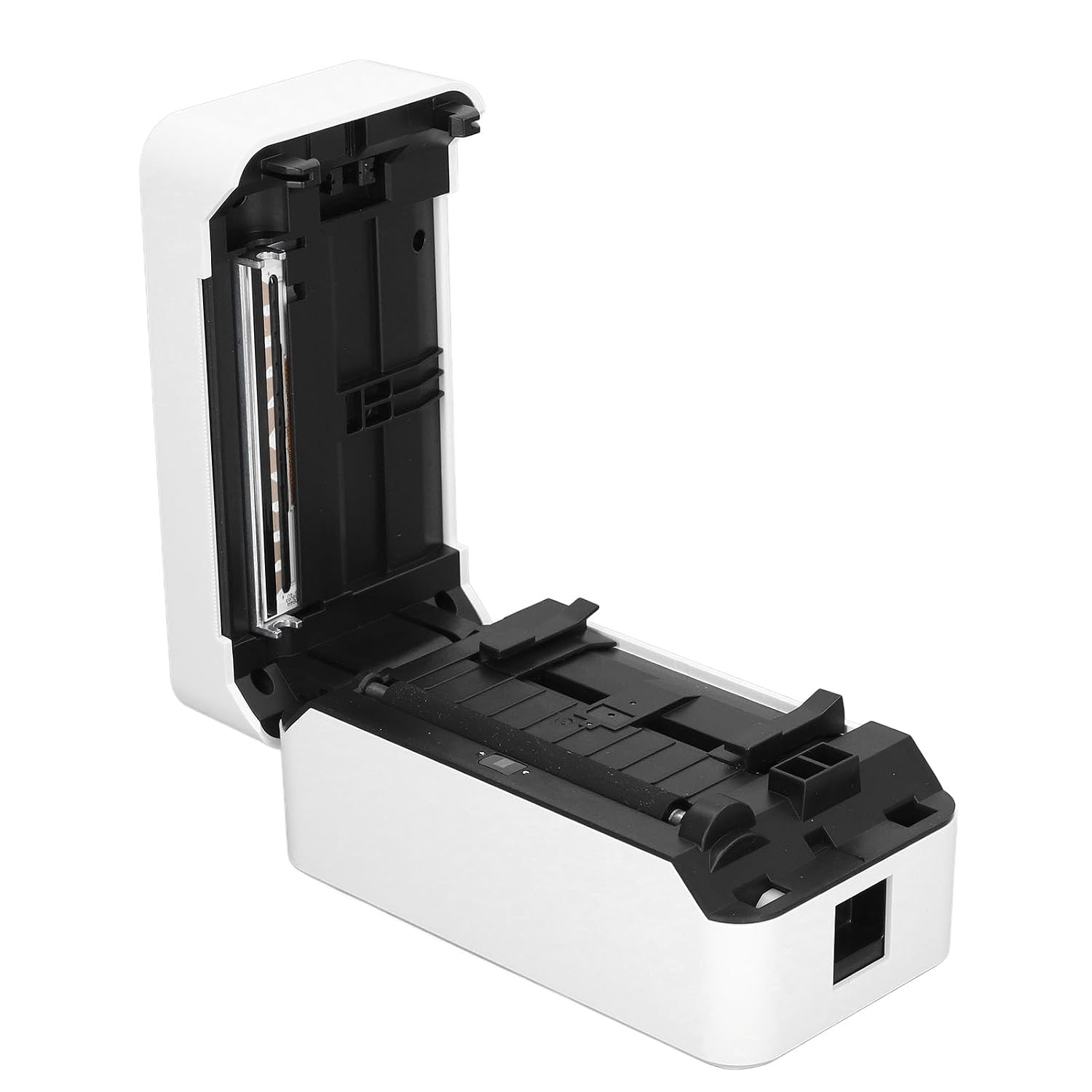
Figure 4.2: Detailed view of the incisive paper cutting edge and the adjustable guides for setting the printing width.
4.4 Connecting to a Device (USB/Bluetooth)
4.4.1 USB Connection
- Connect one end of the provided USB cable to the printer's USB port and the other end to your computer.
- Your operating system may automatically detect the printer and install basic drivers. For full functionality, it is recommended to install the official drivers from the manufacturer's website (if available).
4.4.2 Bluetooth Connection
- Ensure Bluetooth is enabled on your mobile device or computer.
- Turn on the printer. The Bluetooth indicator light (if present) should be blinking or solid, indicating it's ready for pairing.
- On your device, search for available Bluetooth devices and select 'TDL401' or a similar name.
- Follow any on-screen prompts to complete the pairing process. A PIN (e.g., 0000 or 1234) may be required.
- Once paired, you can print directly from compatible applications on your device.
5. Operating Instructions
5.1 Basic Printing
- Ensure the printer is powered on and connected to your device via USB or Bluetooth.
- Open the document or label design software on your computer or mobile device.
- Select the print option within your application.
- Choose the 'Tuwei TDL401' printer from the list of available printers.
- Adjust print settings such as label size, orientation, and number of copies as needed.
- Click 'Print' to send the job to the printer.
5.2 Print Speed and Quality
- The TDL401 printer offers a high print speed of 180mm/s, allowing for rapid completion of printing tasks.
- With a print resolution of 203dpi, the printer produces clear images and fine text, ensuring excellent label quality.
5.3 Supported Media
The printer is designed for use with thermosensitive adhesive label paper. It supports roll widths from 40mm to 80mm, with a maximum paper width of 80 ± 0.5 mm.
6. Maintenance
Regular maintenance ensures optimal performance and extends the life of your printer.
6.1 Cleaning the Print Head
The print head is a critical component and should be cleaned regularly, especially if print quality degrades.
- Turn off the printer and disconnect the power cable.
- Open the printer cover.
- Use a cotton swab lightly dampened with isopropyl alcohol (70% or higher) to gently wipe the print head surface. Avoid touching the print head with bare hands.
- Allow the print head to dry completely before closing the cover and reconnecting power.

Figure 6.1: Close-up view of the thermal print head, which requires careful cleaning to maintain print quality.
6.2 General Cleaning
- Wipe the exterior of the printer with a soft, damp cloth. Do not use harsh chemicals or abrasive cleaners.
- Remove any dust or paper debris from the paper compartment using a soft brush or compressed air.
7. Troubleshooting
This section addresses common issues you might encounter with your Tuwei TDL401 printer.
| Problem | Possible Cause | Solution |
|---|---|---|
| Printer does not power on | No power supply; Faulty power adapter/cable | Ensure power cable is securely connected to printer and outlet. Test outlet with another device. Check power adapter for damage. |
| Poor print quality (faint, blank lines) | Dirty print head; Incorrect paper type; Low quality labels | Clean the print head as described in Section 6.1. Ensure you are using high-quality thermal adhesive label paper. |
| Printer not detected via USB | Loose USB cable; Driver not installed; Faulty USB port | Ensure USB cable is securely connected. Install the correct printer drivers. Try a different USB port on your computer. |
| Cannot connect via Bluetooth | Bluetooth off on device; Printer not in pairing mode; Incorrect PIN | Ensure Bluetooth is enabled on your device. Restart the printer. Re-attempt pairing and ensure the correct PIN (e.g., 0000 or 1234) is entered. |
| Paper jam | Improper paper loading; Damaged labels | Turn off the printer and open the cover. Carefully remove any jammed paper. Reload paper correctly, ensuring it's aligned and not wrinkled. |
8. Specifications
Detailed technical specifications for the Tuwei TDL401 Thermal Label Printer.
| Feature | Specification |
|---|---|
| Model | TDL401 |
| Brand | Tuwei |
| Printing Technology | Thermal |
| Print Resolution | 203 dpi (203 x 203 DPI) |
| Print Speed | 180 mm/s |
| Print Width | Approx. 72mm / 2.83 inches |
| Paper Roll Width | 40 to 80 mm / 1.57 to 3.15 inches |
| Maximum Paper Width | 80 ± 0.5 mm |
| Printing Medium | Thermosensitive Adhesive Label Paper |
| Connectivity | USB, Bluetooth (BT) |
| Instruction Set | TSPL |
| Material | ABS |
| Power Input | 100-240V (US plug specification) |
| Printer Output | Monochrome |
| Compatible Devices | Computers, Smartphones |
| Country of Origin | USA |
9. Warranty and Support
For warranty information and technical support, please refer to the documentation provided with your purchase or contact your retailer. Keep your purchase receipt as proof of purchase for warranty claims.