
Rapoo VT9Pro
Rapoo VT9Pro Wireless Gaming Mouse User Manual
Model: VT9Pro | Brand: Rapoo
1. Introduction
Thank you for choosing the Rapoo VT9Pro Wireless Gaming Mouse. This manual provides detailed instructions on how to set up, operate, maintain, and troubleshoot your new gaming mouse to ensure optimal performance and an enhanced gaming experience. The VT9Pro is an esports-grade wireless gaming mouse featuring a PAW 3398 sensor, up to 26000 DPI, 1ms response time, a lightweight 68g design, and 10 programmable buttons.

Image: Rapoo VT9Pro Wireless Gaming Mouse (White)
2. Package Contents
Please verify that all items are present in your package:
- 1 x Rapoo VT9Pro Wireless Gaming Mouse
- 1 x USB Dongle
- 1 x Type-C Cable (6ft)
- 1 x USB-A to USB-C Adapter
- 1 x Replacement PTFE Mouse Feet Kit
- 1 x Anti-slip Sticker Kit
- 1 x User Manual (this document)
For a visual guide to the package contents, please refer to the video below:
Video: Package Content of VT9Pro Wireless Gaming Mouse Gaming Mice. This video demonstrates the unboxing and shows all included accessories.
3. Setup
3.1 Wireless Connection (2.4G USB)
- Locate the USB dongle stored in the magnetic compartment at the bottom of the mouse. Gently open the compartment cover and remove the dongle.
- Insert the USB dongle into an available USB-A port on your computer. For optimal signal and reduced latency, use the provided USB-A to Type-C converter and Type-C cable to position the dongle closer to the mouse.
- Turn on the mouse using the power switch located on the bottom. The mouse should automatically connect to the dongle.
Refer to the video above (0:05-0:26) for a demonstration of USB dongle setup and optimal placement.
3.2 Wired Connection
The VT9Pro can also be used in wired mode. Connect the provided Type-C cable to the front port of the mouse and the other end to a USB-A port on your computer. The mouse will function immediately and charge simultaneously.
Refer to the video above (0:27-0:39) for a demonstration of wired mode connection.
3.3 Driver Installation
For full customization of buttons, DPI settings, and other advanced features, download the official Rapoo driver software from the Rapoo website. Visit https://www.rapoo.com/search?kw=VT9Pro and follow the instructions to download and install the VT9Pro driver.
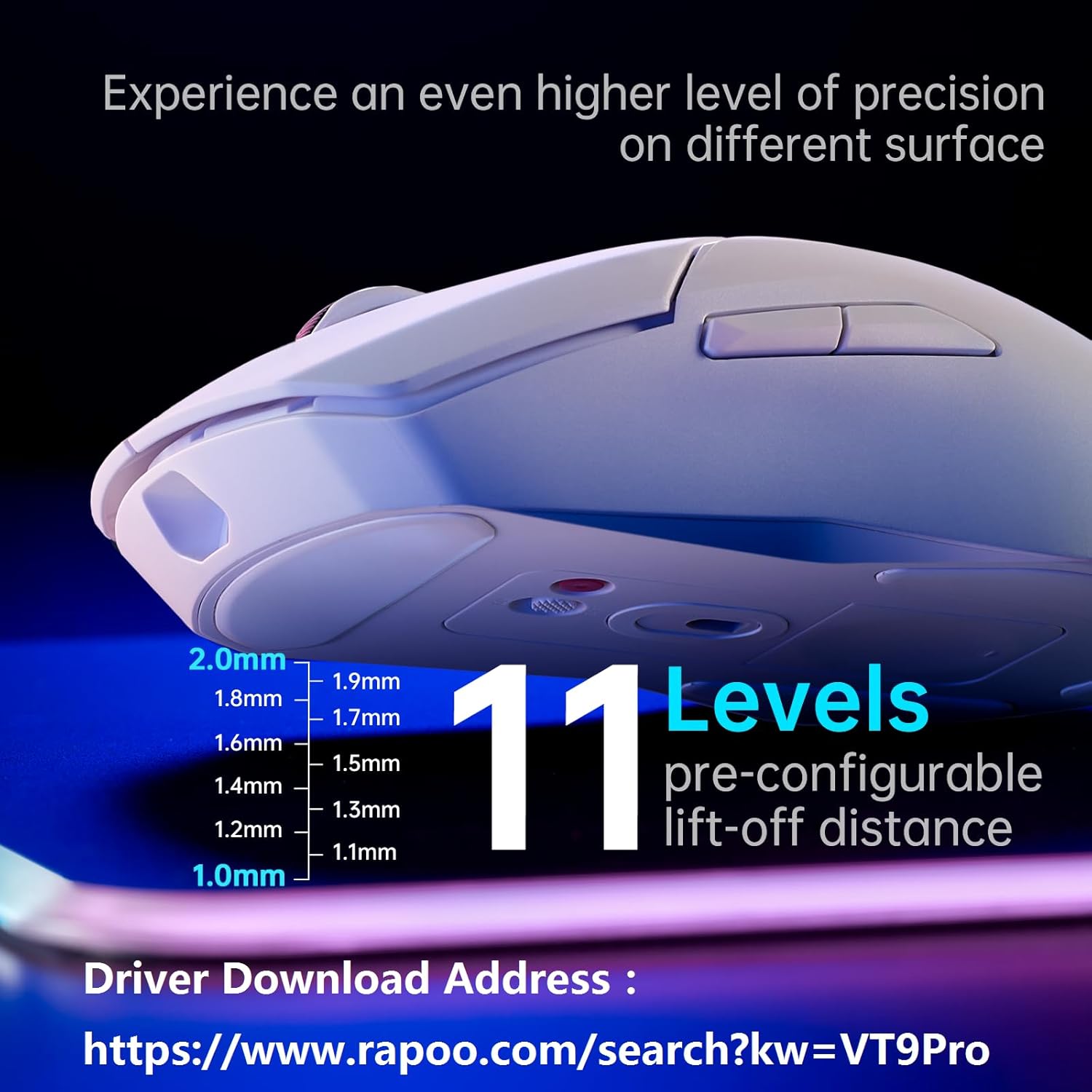
Image: Driver Download Address for Rapoo VT9Pro
4. Operating Instructions
4.1 DPI Adjustment
The Rapoo VT9Pro features a Pixart PAW 3398 sensor with adjustable DPI from 50 to 26000. Use the dedicated DPI switch keys on the mouse to cycle through preset DPI levels. You can customize these levels via the driver software.

Image: PAW 3398 Sensor capabilities (50G, 650 IPS, 26000 DPI)
4.2 Programmable Buttons
The mouse is equipped with 10 programmable buttons, allowing for extensive customization to suit your gaming style. Utilize the driver software to assign macros, keybinds, and other functions to each button. Settings can be saved to the on-board memory or cloud storage.

Image: 10 Programmable Buttons
4.3 Lift-Off Distance (LOD)
The VT9Pro offers 11 levels of pre-configurable lift-off distance. This feature allows you to fine-tune the mouse's tracking behavior when lifted from the surface, adapting to different mouse pads and improving accuracy. Adjust this setting through the driver software for optimal performance.
4.4 Battery Life and Charging
The mouse features a built-in 800 mAh lithium battery, providing up to 160 hours of battery life on a single charge, thanks to its NORDIC low-power chip. A full charge typically takes 2-3 hours. You can continue using the mouse in wired mode while it charges via the Type-C cable.
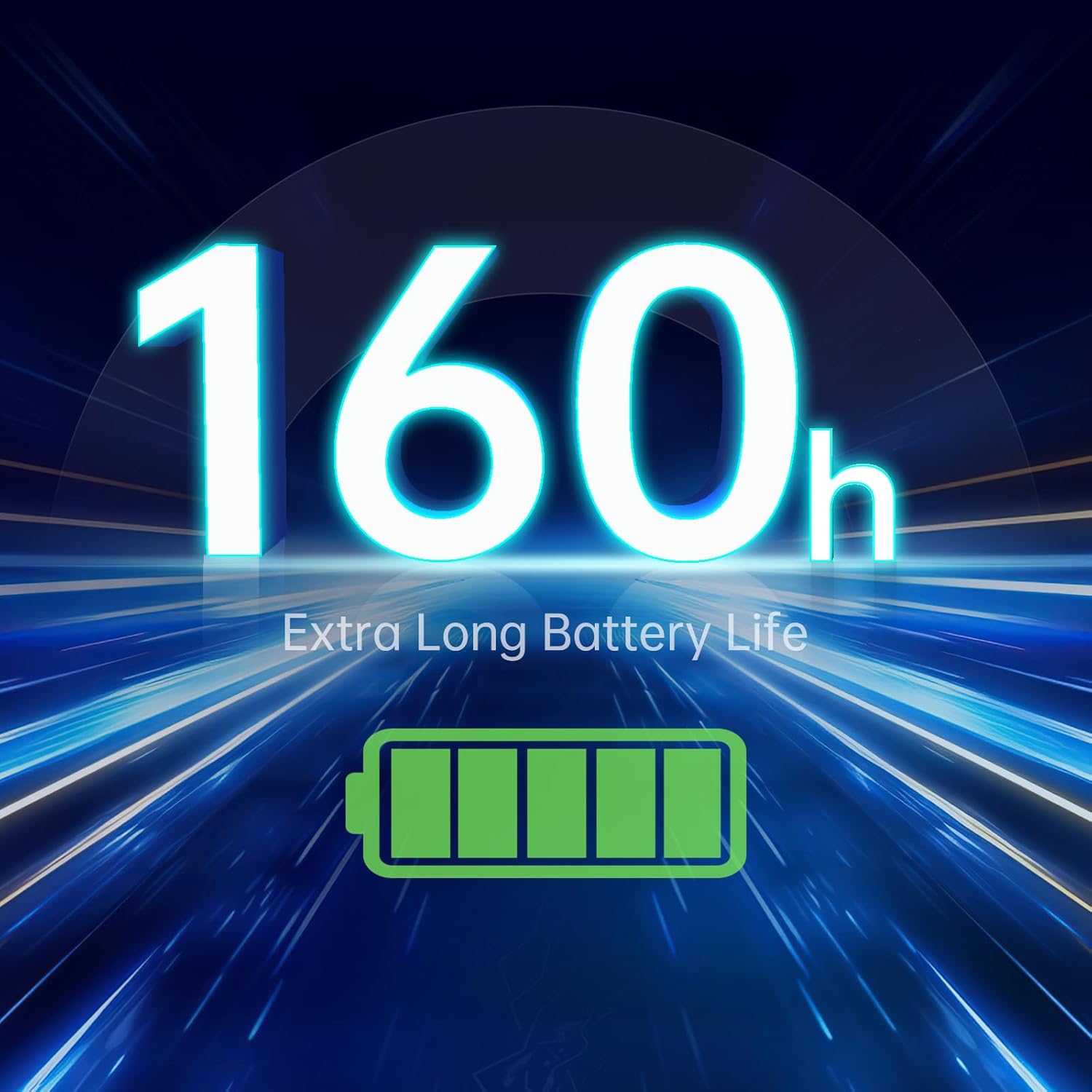
Image: 160-Hour Battery Life
4.5 C+Click Technology
The VT9Pro incorporates Rapoo's C+Click Technology, featuring split main buttons with micro switches rated for 50 million cycles. This design ensures crisp presses, quick triggers, and excellent rebound for a tactile and responsive clicking experience.

Image: C+Click Technology
4.6 Lightweight Ambidextrous Design
Weighing only 68g, the VT9Pro is designed for effortless game operation and comfortable grip. Its symmetrical layout and ergonomic design make it suitable for both left and right-handed users, accommodating various gripping postures and holding styles.

Image: 68g Lightweight Design
5. Maintenance
5.1 Cleaning
To maintain the performance and appearance of your mouse, regularly clean it with a soft, dry cloth. For stubborn dirt, a slightly damp cloth can be used, but ensure no moisture enters the mouse. Avoid using harsh chemicals or abrasive materials.
5.2 Battery Care
To prolong battery life, avoid fully discharging the mouse frequently. Charge it when the battery indicator is low. If storing the mouse for an extended period, charge it to about 50% before storage.
6. Troubleshooting
6.1 Connectivity Issues
- Mouse not responding: Ensure the mouse is turned on and the USB dongle is securely plugged into a working USB port. Try a different USB port.
- Intermittent connection: Move the USB dongle closer to the mouse using the provided extender cable. Avoid placing the dongle near other wireless devices that might cause interference.
- Lag or delay: Ensure the mouse is fully charged. If using wireless, try connecting via the Type-C cable to rule out wireless interference.
6.2 Tracking Issues
- Inaccurate tracking: Clean the mouse sensor with a soft, dry cloth. Ensure you are using the mouse on a suitable surface (e.g., a mouse pad).
- Cursor erratic: Check for dust or debris on the sensor. Update the mouse driver to the latest version.
6.3 Charging Issues
- Mouse not charging: Ensure the Type-C cable is securely connected to both the mouse and a power source (computer USB port or USB wall adapter). Try a different cable or USB port.
- Battery drains quickly: Reduce DPI settings or turn off the mouse when not in use to conserve battery.
7. Specifications
| Feature | Specification |
|---|---|
| Item Weight | 2.4 ounces (68g) |
| Sensor | Pixart PAW 3398 Optical |
| DPI | 50-26000 (Adjustable) |
| IPS | 650 |
| Acceleration | 50G |
| Response Time | 1ms (with V+ Wireless Technology) |
| Buttons | 10 Programmable Buttons |
| Switch Life | 50 Million Clicks |
| Battery Type | 1 Lithium Metal battery (included) |
| Battery Life | Up to 160 hours |
| Connectivity | 2.4G Wireless, Wired (Type-C) |
| Color | White |

Image: Rapoo VT9Pro Dimensions (124.83mm x 67.08mm x 38.74mm)
8. Warranty and Support
Rapoo provides a 2-year warranty for this product, effective after the 30-day return window. For further assistance or detailed information, please refer to the official User Guide PDF available online or contact Rapoo customer support.
Official User Guide (PDF): Download Here
For customer support, please visit the Rapoo official website or refer to the contact information provided in your product packaging.
Related documentsVT9Pro


Ask a question about this manual
Ask about setup, troubleshooting, compatibility, parts, safety, or missing instructions. Manuals+ will review the question and use this page’s manual context to help answer it.