
1. Introduction
This manual provides detailed instructions for the MEETION MT-M915 USB Gaming Mouse with Backlight. Please read this guide thoroughly before using the product to ensure correct installation, optimal performance, and to understand its features. This mouse is designed for gaming and general computer use, offering reliable performance and a comfortable design.
2. Package Contents
- MEETION MT-M915 USB Gaming Mouse
- Instruction Manual (this document)
3. System Requirements
- Operating System: Windows XP, Linux
- Compatible Devices: Personal Computer, Laptop
- Available USB Port
4. Setup
4.1 Connecting the Mouse
- Locate an available USB port on your computer or laptop.
- Plug the USB connector of the MEETION MT-M915 mouse into the USB port.
- The operating system will automatically detect and install the necessary drivers. This is a plug-and-play device, so no additional software installation is typically required.
- The mouse backlight will illuminate upon successful connection.
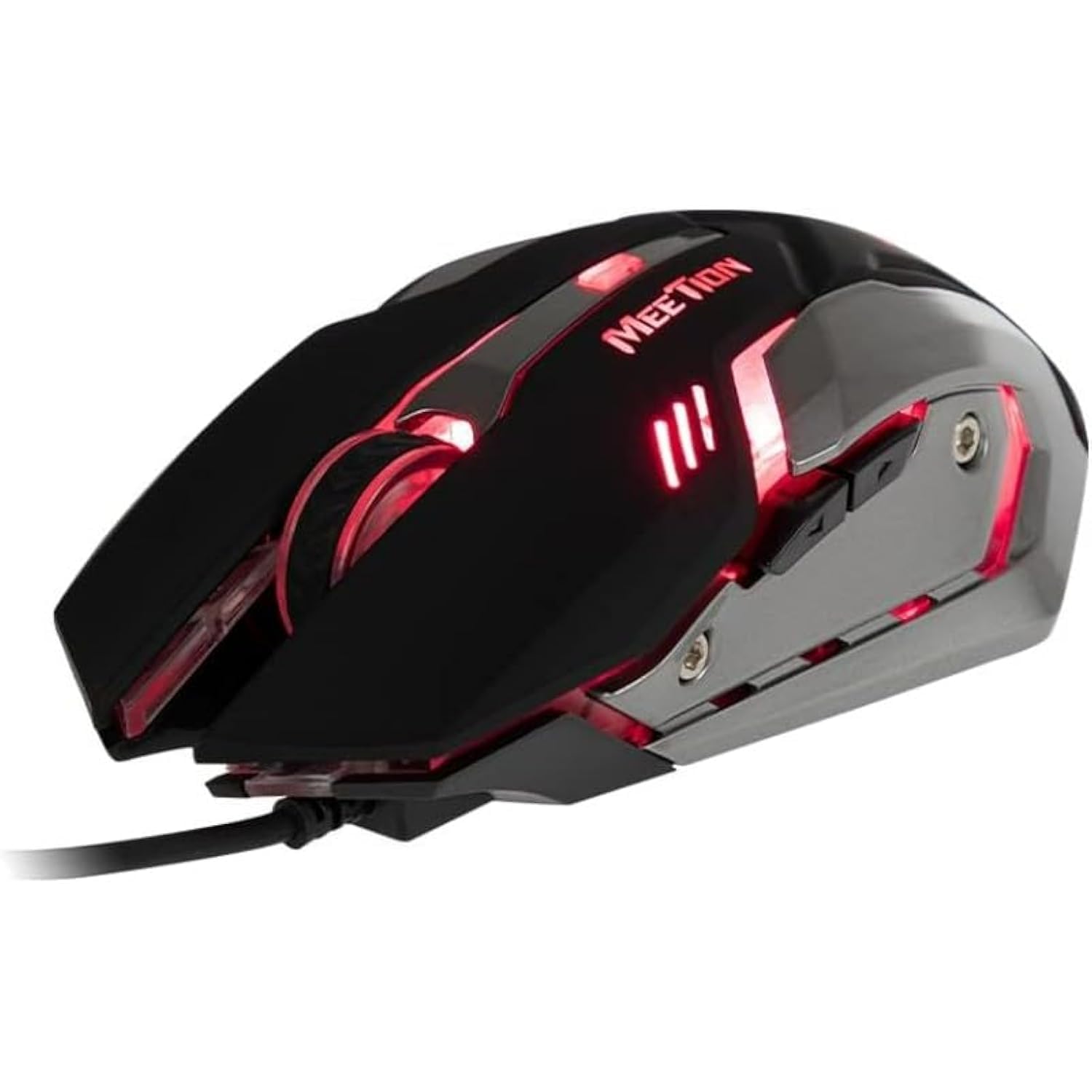
Figure 1: Side view of the MEETION MT-M915 mouse with red backlight.
5. Operating the Mouse
5.1 Basic Functions
- Left Click: Primary action button, typically used for selecting items, opening files, or interacting with software.
- Right Click: Secondary action button, typically used for opening context menus or accessing additional options.
- Scroll Wheel: Used for scrolling through documents and web pages. It can also function as a middle click button.
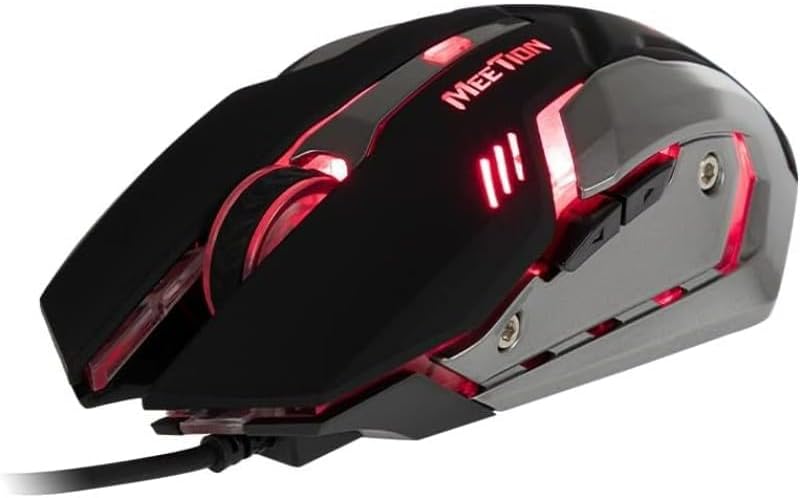
Figure 2: Top-down view of the MEETION MT-M915 mouse, showing button layout.
5.2 Backlight Operation
The MEETION MT-M915 mouse features an integrated backlight. The backlight activates automatically when the mouse is connected to a powered USB port. The color of the backlight may vary or cycle through different colors, as shown in Figure 3.

Figure 3: Side view of the MEETION MT-M915 mouse with purple backlight.
5.3 Ambidextrous Design
The mouse is designed for ambidextrous use, meaning it can be comfortably used by both left-handed and right-handed individuals.
6. Maintenance
6.1 Cleaning
- Disconnect the mouse from your computer before cleaning.
- Use a soft, dry cloth to wipe the surface of the mouse.
- For stubborn dirt, slightly dampen the cloth with water or a mild cleaning solution. Avoid harsh chemicals.
- Do not allow liquids to enter the mouse casing.
6.2 Storage
Store the mouse in a cool, dry place away from direct sunlight and extreme temperatures when not in use for extended periods.
7. Troubleshooting
7.1 Mouse Not Responding
- Ensure the USB cable is securely plugged into a working USB port on your computer.
- Try plugging the mouse into a different USB port.
- Restart your computer.
- Test the mouse on another computer to determine if the issue is with the mouse or your computer's USB ports.
7.2 Backlight Not Working
- Verify the mouse is properly connected to a powered USB port.
- If the mouse functions but the backlight does not, there might be an internal issue. Contact customer support if the mouse is still under warranty.
7.3 Erratic Cursor Movement
- Ensure the optical sensor on the bottom of the mouse is clean and free from dust or debris.
- Use the mouse on a clean, uniform surface. Avoid highly reflective or transparent surfaces.
- Try restarting your computer.
8. Specifications
| Feature | Detail |
|---|---|
| Brand | MEETION |
| Model Name | MT-M915 |
| Manufacturer Model Number | CE ELECTRON-559 |
| Connectivity Technology | USB |
| Motion Detection Technology | Optical |
| Hand Orientation | Ambidextrous |
| Special Features | Lightweight |
| Recommended Uses For Product | Gaming |
| Compatible Devices | Personal Computer, Laptop |
| Operating System | Linux, Windows XP |
| Item Weight | 50 grams |
| Package Dimensions | 20.7 x 14.3 x 6.1 cm |
| Batteries Included | No |
9. Warranty and Support
9.1 Warranty Information
This product is covered by a standard manufacturer's warranty. Please refer to the warranty card included with your purchase or contact your retailer for specific warranty terms and conditions.
9.2 Customer Support
For technical assistance, troubleshooting, or warranty claims, please contact the retailer where you purchased the product or visit the official MEETION website for support resources.

