
Machenike G5 PRO
Machenike G5 Pro Wireless Gaming Controller User Manual
Model: G5 PRO
1. Introduction
The Machenike G5 Pro Wireless Gaming Controller is a versatile gamepad designed for an enhanced gaming experience across multiple platforms. Featuring Hall Effect joysticks and triggers, customizable RGB lighting, and programmable back buttons, it offers precision, responsiveness, and personalization. This manual provides detailed instructions for setting up, operating, and maintaining your controller.

Figure 1: Machenike G5 Pro Wireless Gaming Controller (Black)
2. Key Features
- RGB LEDs with 5 Modes: Customizable lighting effects for personalized aesthetics.
- Hall Effect Sensing Sticks: Provides accurate, anti-drift glide for superior control and precision.
- Hall Effect Analog Triggers: Offers lightning-fast response times and seamless gameplay.
- Built-In 6-Axis Gyro: Enables immersive motion control for compatible games.
- 4 Programmable Back Buttons: Assign custom functions or macro actions for competitive advantage.
- Tri-mode Connectivity: Supports wired (USB 2.0), 2.4GHz wireless, and Bluetooth connections.
- Ergonomic Design: Asymmetrical grip and contour design for comfortable extended gaming sessions.

Figure 2: Overview of Machenike G5 Pro's core features.
3. Setup
3.1 Initial Charging
Before first use, fully charge the controller using the provided USB-C cable. Connect the USB-C end to the controller's port and the USB-A end to a compatible power source (e.g., PC, USB wall adapter).
3.2 Connectivity Modes
The G5 Pro supports three connection modes: Wired, 2.4GHz Wireless, and Bluetooth. A switch located on the back of the controller allows you to select the desired mode.

Figure 3: Multi-platform compatibility of the G5 Pro controller.
3.2.1 2.4GHz Wireless Connection (PC/TV)
- Set the mode switch on the back of the controller to '2.4G'.
- Insert the 2.4GHz USB dongle into an available USB port on your PC or TV.
- The controller will automatically pair. The indicator lights will stabilize once connected.
3.2.2 Bluetooth Connection (PC/Switch/iOS/Android)
- Set the mode switch on the back of the controller to 'Bluetooth'.
- On your device (PC, Switch, iOS, Android), navigate to the Bluetooth settings.
- Search for new devices and select 'Machenike G5 Pro' from the list.
- Confirm pairing. The controller's indicator lights will stabilize upon successful connection.
3.2.3 Wired Connection (PC/Switch)
- Connect the USB-C cable to the controller and the USB-A end to your PC or Switch dock.
- The controller will automatically be recognized and ready for use.
Note: For Nintendo Switch, ensure 'Pro Controller Wired Communication' is enabled in the Switch System Settings under 'Controllers and Sensors' for wired play.
4. Operating Instructions
4.1 Button Layout and Functions
The G5 Pro features a standard gamepad layout with additional customizable buttons.
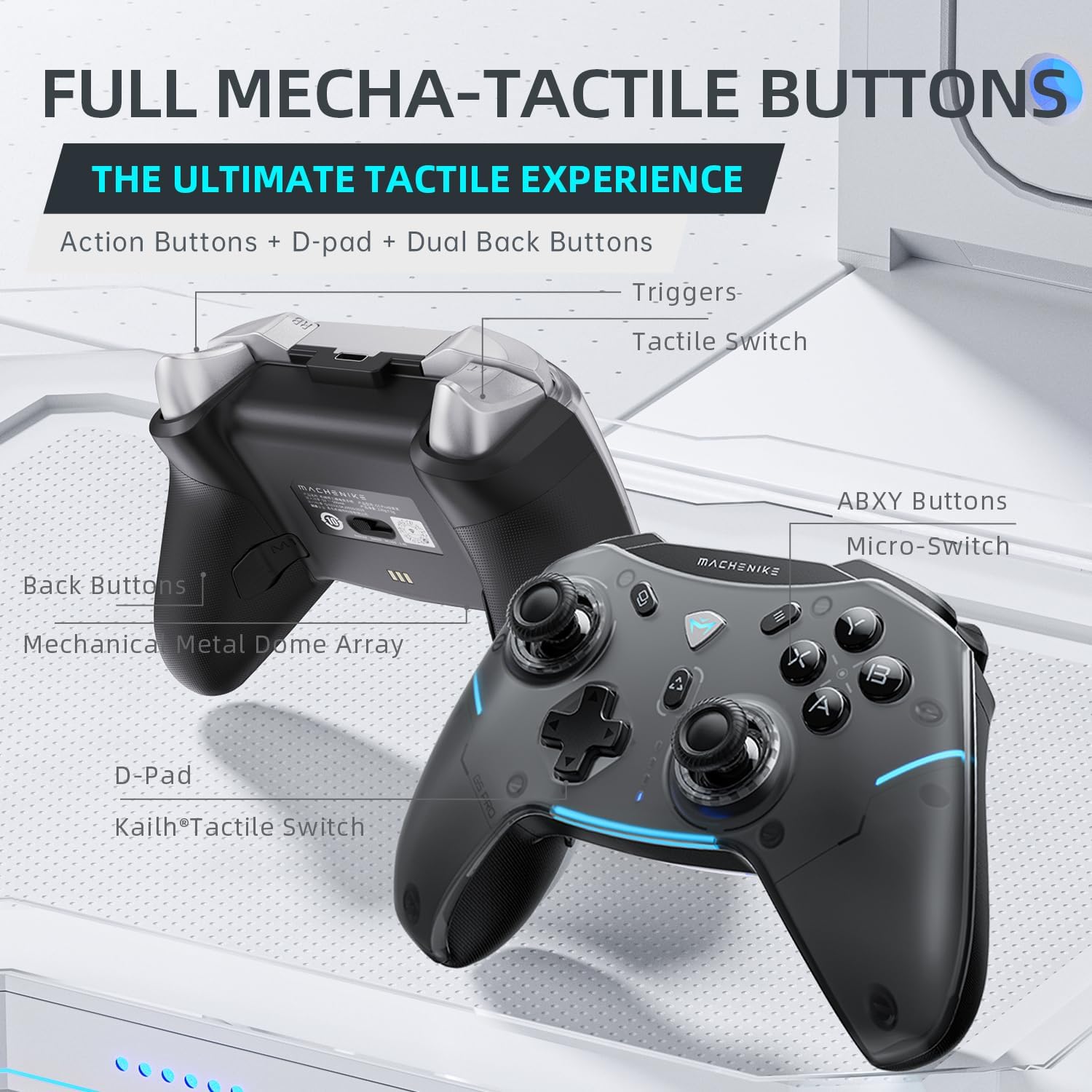
Figure 4: Mecha-Tactile Buttons and their components.
- ABXY Buttons: Standard action buttons with mechanical micro-switches for tactile feedback.
- D-Pad: Directional pad with Kailh Tactile Switch for precise input.
- Hall Effect Joysticks: Provides accurate, anti-drift control.
- Hall Effect Triggers: Analog triggers with electromagnetic sensing for linear response.
- Programmable Back Buttons (M1-M4): Located on the underside of the controller, these can be mapped to any other button or complex macros using the proprietary software.
4.2 RGB Lighting Customization
The controller features dynamic RGB flowing light strips with 5 modes. Use the dedicated RGB button or proprietary software to adjust speed, brightness, and color.

Figure 5: Dynamic RGB Lighting features.
4.3 Gyroscope and Vibration
The built-in 6-axis gyroscope allows for motion sensing in compatible games, enhancing control for aiming or driving. Asymmetric contextual vibration provides immersive haptic feedback with 5 levels of intensity adjustment.

Figure 6: 6-Axis Gyroscope Motion Mapping.
4.4 Special Modes
- NS One-Button Wake Up: Instantly activate your Nintendo Switch console by pressing a dedicated button on the controller.
- Turbo Burst: Enable rapid-fire button presses for certain actions.
- TV Remote Mode: Native Android TV compatibility for controlling smart TVs.
- PC Airmouse Remote Mode: Transform the controller into an air-mouse for PC control (FN+LS activation).

Figure 7: TV Remote and PC Airmouse Remote Modes.
4.5 Software Configuration
Utilize the G5 Pro proprietary software to fine-tune controller settings, create custom macros (up to 32-hit combo actions), and manage 16 on-board memory profiles. The software allows for extensive personalization of your gaming experience.
Download the software from: https://global.machenike.com/products/g5pro

Figure 8: Advanced Software Configuration Interface.
Video: G5 Pro Wireless Controller Overview
This video provides a visual overview of the G5 Pro Wireless Controller's design and key features, demonstrating its aesthetic appeal and some functionalities.
Video: G5 Pro Wireless Gaming Controller Features
This video showcases various features of the G5 Pro Wireless Gaming Controller, including its RGB lighting, tactile buttons, and overall performance during gameplay.
5. Maintenance
- Cleaning: Use a soft, dry cloth to clean the controller. Avoid using harsh chemicals or abrasive materials.
- Storage: Store the controller in a cool, dry place away from direct sunlight and extreme temperatures.
- Battery Care: To prolong battery life, avoid fully discharging the controller frequently. Charge it regularly, even if not in constant use.
6. Troubleshooting
| Problem | Possible Cause | Solution |
|---|---|---|
| Controller not connecting | Incorrect mode selected, low battery, out of range, pairing issue. | Ensure correct mode switch position. Charge controller. Move closer to device. Re-initiate pairing process. |
| Input lag or unresponsiveness | Interference, low battery, outdated firmware. | Reduce wireless interference. Charge controller. Check for firmware updates via proprietary software. |
| Buttons not responding | Software glitch, physical damage. | Restart controller and device. If issue persists, contact customer support. |
| RGB lights not working | Settings issue, low battery. | Check RGB settings in software/controller. Charge controller. |
7. Specifications
- Model Number: G5 PRO
- Product Dimensions: 6.1 x 4.17 x 2.36 inches
- Item Weight: 13.05 ounces
- Connectivity: Bluetooth 5.0, 2.4GHz Wireless, Wired (USB 2.0)
- Battery: 600mAh Li-Ion (included)
- Compatibility: Windows PC, Nintendo Switch, iOS, Android
- Special Features: Hall Effect Joysticks & Triggers, 6-Axis Gyroscope, Programmable Back Buttons, RGB Lighting
- Manufacturer: Machenike
- Country of Origin: China
- Date First Available: October 31, 2023
8. Warranty and Support
For warranty information and technical support, please refer to the official Machenike website or contact their customer service directly. Keep your purchase receipt as proof of purchase for any warranty claims.
Related documentsG5 PRO


Ask a question about this manual
Ask about setup, troubleshooting, compatibility, parts, safety, or missing instructions. Manuals+ will review the question and use this page’s manual context to help answer it.