1. Introduction
Thank you for choosing the GEEKOM Portable Monitor PM16. This 16-inch 1200P FHD display is designed to enhance your productivity and entertainment experience on the go. Its ultra-slim design, versatile connectivity, and vibrant IPS screen make it an ideal companion for laptops, smartphones, gaming consoles, and more.
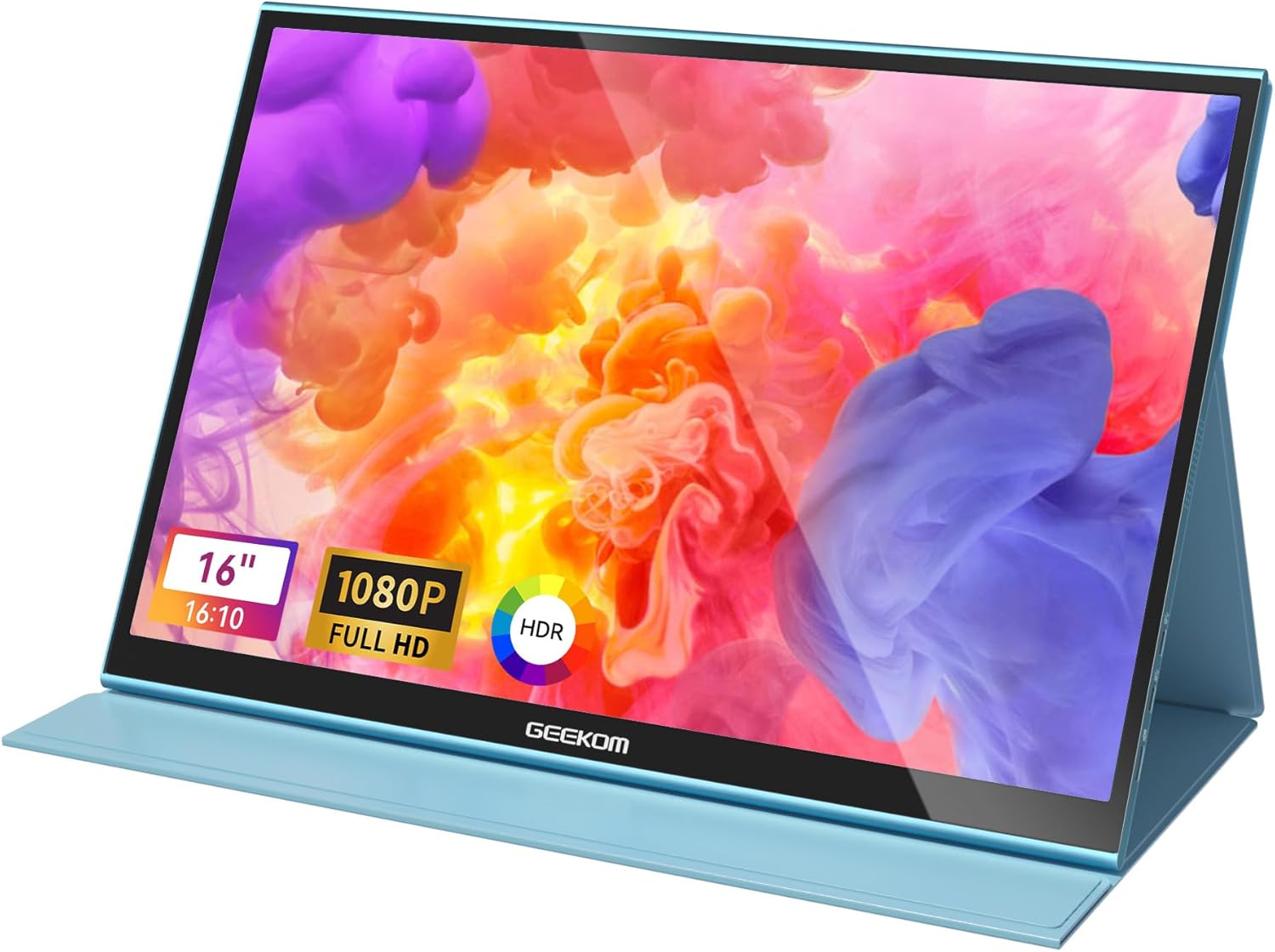
Figure 1: GEEKOM Portable Monitor PM16
2. What's in the Box
Please check the contents of your package to ensure all items are present:
- 1 x GEEKOM PM16 Monitor
- 1 x 2-in-1 Smart Case Stand
- 1 x USB-C to USB-C Cable
- 1 x USB-C to USB-A Cable
- 1 x Mini HDMI to HDMI Cable

Figure 2: Package Contents
3. Product Features
3.1 Second Monitor Functionality
The GEEKOM portable monitor serves excellently as a secondary display, allowing you to share content in meetings using duplicate or extended modes, or even extend it to your Switch screen for gaming sessions. This enhances productivity for tasks such as photo editing, web browsing, reading, and data analysis.
3.2 FHD IPS Screen
The GEEKOM PM16 features a 16-inch IPS panel with a 1920 x 1200 resolution, 16.7 million display colors, and an 800:1 contrast ratio. This combination restores crisper and more vibrant images for a smoother, immersive visual experience.

Figure 3: High-Resolution IPS Display
3.3 Plug-and-Play USB-C Monitor
Equipped with two full-featured USB-C ports and one Mini HDMI port, the monitor provides all necessary connections for gaming and work, allowing for high-definition transmission of audio and video signals. It works seamlessly with most tablets, laptops, PCs, Mini PCs, smartphones, PS4, XBOX, and more.

Figure 4: Multiple Ports and Controls
3.4 Ultra-slim and Powerful Design
The GEEKOM portable external monitor boasts an ultra-slim profile of just 0.33 inches and weighs only 1.81 lbs. It includes dual speakers that deliver clear sound quality. The user-friendly "+/-" button design allows for quick adjustment of brightness and volume.

Figure 5: Slim and Portable Design
3.5 2-in-1 Smart Case Stand
The GEEKOM PM16 Portable Screen comes with a stylish dual-purpose PU leather magnetic case that offers comprehensive protection for the screen and can also be utilized as a stable, foldable stand.

Figure 6: Smart Case Functionality
4. Setup and Connection
The GEEKOM PM16 offers flexible connection options to suit various devices.
4.1 Connecting via USB-C (Single Cable Solution)
For devices with a full-featured USB-C port (supporting DisplayPort Alternate Mode and power delivery), a single USB-C to USB-C cable can provide power, audio, video, and data transmission.
- Connect one end of the USB-C to USB-C cable to a full-featured USB-C port on your device (e.g., laptop, smartphone).
- Connect the other end of the USB-C to USB-C cable to either of the full-featured USB-C ports on the GEEKOM PM16 monitor.
- The monitor should automatically detect the signal and display the content.

Figure 7: USB-C Single Cable Connection
4.2 Connecting via Mini HDMI
For devices with an HDMI output, use the provided Mini HDMI to HDMI cable. External power will be required for the monitor.
- Connect one end of the Mini HDMI to HDMI cable to the Mini HDMI port on the GEEKOM PM16 monitor.
- Connect the other end of the Mini HDMI to HDMI cable to the HDMI output port on your device.
- Connect the monitor to a power source using the USB-C to USB-A cable and the power adapter.
- The monitor should display the content from your device.
4.3 Universal Compatibility
The GEEKOM PM16 is compatible with a wide range of devices, including:
- PC and Laptops (Windows, macOS, ChromeOS)
- Smartphones and Tablets (USB-C enabled; iPhone requires Lightning-to-HDMI adapter)
- Gaming Consoles (Nintendo Switch, Xbox, PlayStation 4/5)
- Mini PCs

Figure 8: Broad Device Compatibility
5. Operating Instructions
5.1 Adjusting Brightness and Volume
Use the "+/-" buttons located on the side of the monitor to quickly adjust the brightness and volume levels to your preference.
5.2 Display Modes
The GEEKOM PM16 supports various display modes when connected to a compatible device:
- Duplicated Mode: Mirrors the content of your primary screen onto the portable monitor. Ideal for presentations or sharing content.

Figure 9: Duplicated Display Mode
- Extended Mode: Extends your desktop across both screens, providing more workspace. Useful for multitasking and productivity.

Figure 10: Extended Display Mode
- Second Screen Mode: Uses only the portable monitor as the primary display, with the original device's screen turned off.

Figure 11: Second Screen Mode

Figure 12: Display Mode Examples
6. Official Product Video
Watch the official GEEKOM video for a visual guide on the PM16 Portable Monitor's features and usage:
Video 1: GEEKOM 16 Inch Portable Monitor Overview. This video demonstrates the monitor's design, ports, dual speakers, and various use cases including phone screen extension, workstation setup, and gaming with consoles.
7. Maintenance
- Cleaning: Use a soft, lint-free cloth to gently wipe the screen and body of the monitor. For stubborn marks, slightly dampen the cloth with water or a screen-safe cleaning solution. Avoid harsh chemicals or abrasive materials.
- Storage: When not in use, store the monitor in its protective smart case to prevent scratches and damage. Keep it in a cool, dry place away from direct sunlight and extreme temperatures.
- Handling: Handle the monitor with care. Avoid dropping it or subjecting it to strong impacts, which can damage internal components or the screen.
8. Troubleshooting
| Problem | Possible Cause | Solution |
|---|---|---|
| No display/No signal | Incorrect cable connection, insufficient power, incorrect input source. | Ensure cables are securely connected. If using HDMI, ensure power is supplied via USB-C. Check your device's display settings to ensure output to the external monitor is enabled. Try restarting both devices. |
| Flickering screen | Unstable power supply, faulty cable, graphics driver issue. | Use the original power adapter and cables. Try a different cable. Update your device's graphics drivers. |
| No sound from monitor speakers | Volume too low, incorrect audio output setting on device. | Increase monitor volume using the "+/-" buttons. Check your device's audio settings and select the GEEKOM monitor as the output device. |
| Monitor not recognized by device | Outdated drivers, incompatible port, device settings. | Ensure your device's USB-C port supports DisplayPort Alternate Mode if using single-cable connection. Update device drivers. Try a different port or cable. |
9. Specifications
| Feature | Detail |
|---|---|
| Model | PM16 |
| Screen Size | 16 Inches |
| Resolution | 1920 x 1200 Pixels (FHD 1200P) |
| Aspect Ratio | 16:10 |
| Panel Type | IPS |
| Image Brightness | 300 Candela |
| Screen Surface | Glossy |
| Connectivity | 2 x Full-featured USB-C, 1 x Mini HDMI |
| Product Dimensions | 0.3 x 14.13 x 9.68 inches |
| Item Weight | 1.72 lbs (approximate) |
| Manufacturer | GEEKOM |
| Voltage | 230 Volts |
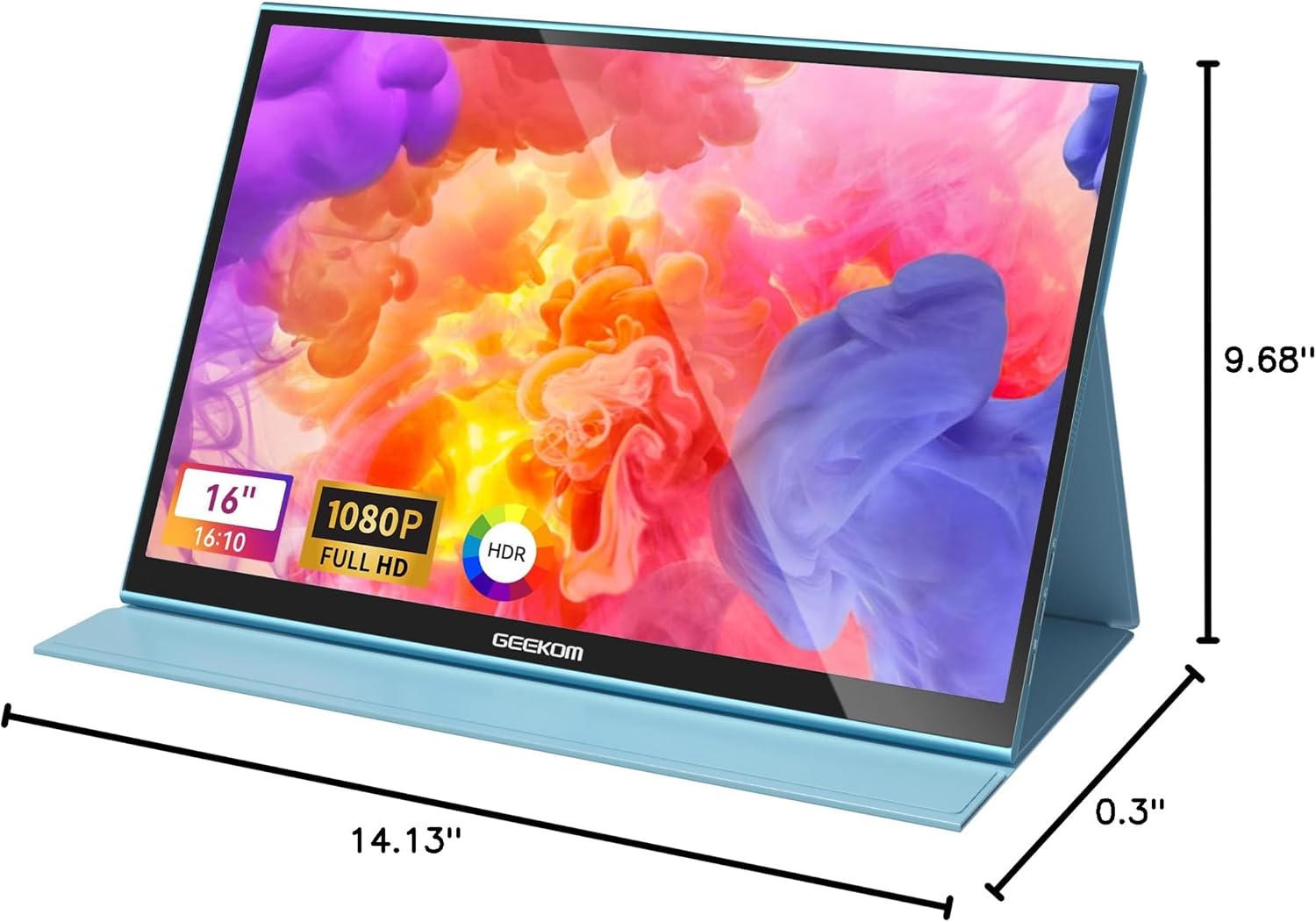
Figure 13: Product Dimensions
10. Warranty and Support
For warranty information, technical support, or customer service inquiries, please refer to the official GEEKOM website or contact their customer support team directly. Keep your purchase receipt as proof of purchase for warranty claims.
Official GEEKOM Store: GEEKOM Amazon Store


