
Introduction
The FILCO Majestouch Xacro M10SP is a 65% split mechanical keyboard designed for enhanced ergonomics and extensive customization. Featuring durable PBT keycaps and responsive Cherry MX Brown switches, this keyboard offers a comfortable and efficient typing experience. It includes programmable layers and dedicated macro keys to adapt to various user needs and workflows.
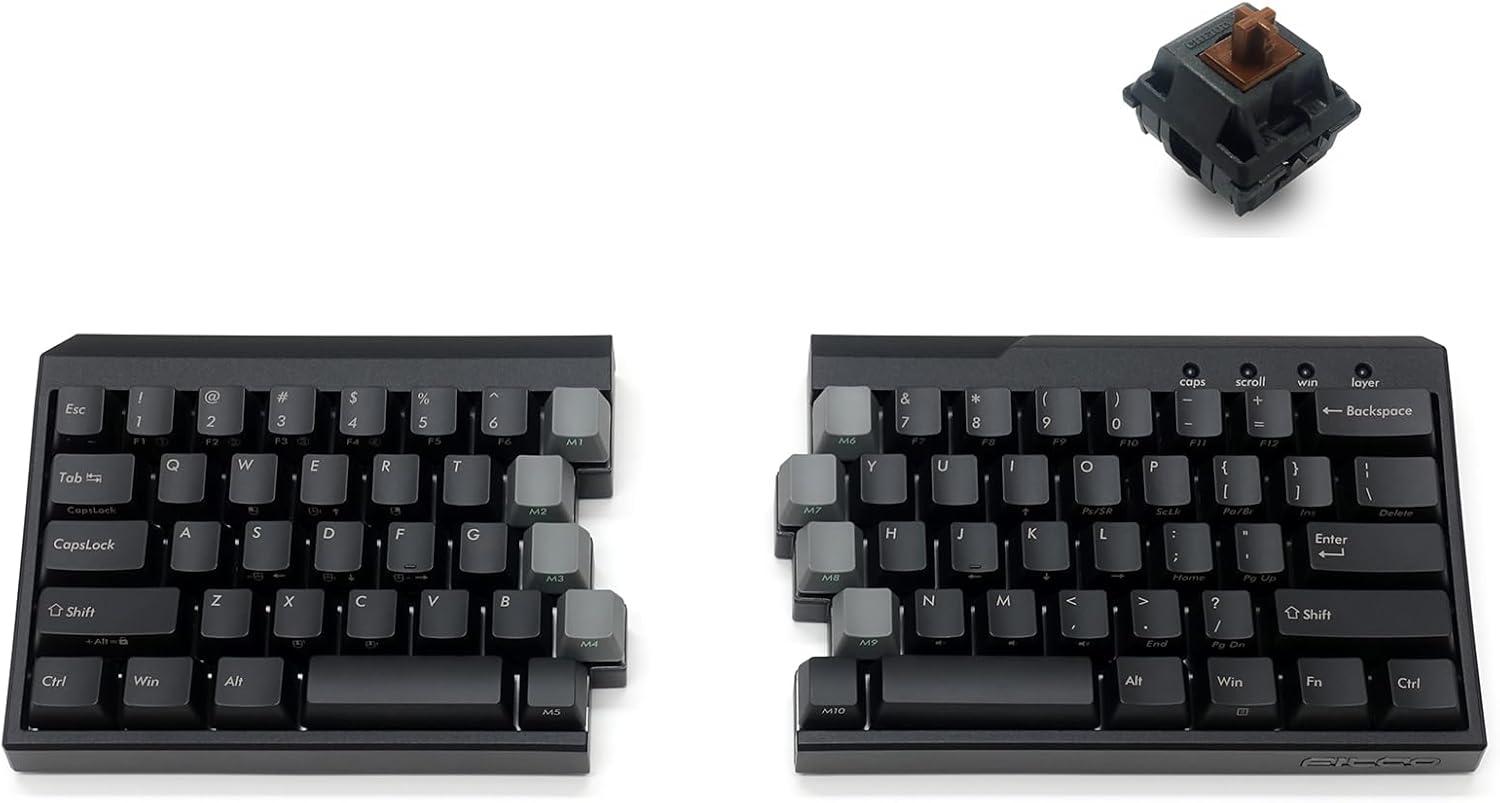
Image: The FILCO Majestouch Xacro M10SP keyboard shown in its connected, un-split configuration.
Setup
Follow these steps to set up your FILCO Majestouch Xacro M10SP keyboard:
- Connect the Keyboard Halves: Use the provided cable to connect the left and right halves of the keyboard. The connection ports are located on the inner sides of each half.
- Connect to Computer: Connect the main USB-C cable from the left keyboard half to an available USB port on your computer (Laptop or PC).
- Adjust Tilt Stands (Optional): The keyboard includes 4 removable tilt stands. Attach them to the designated slots on the underside of the keyboard halves to adjust the typing angle for improved ergonomics.

Image: Rear view of the FILCO Majestouch Xacro M10SP keyboard, highlighting the USB-C connection ports and the passthrough USB port.

Image: Side view of the FILCO Majestouch Xacro M10SP keyboard, demonstrating the use of a removable tilt stand to elevate the typing angle.
Operating Instructions
The Majestouch Xacro M10SP offers various features for enhanced usability:
- Split Design: The keyboard can be used as a single unit or split into two halves for a more ergonomic typing posture.
- Layout Switching (DIP Switches): Utilize the DIP switches located on the underside of the keyboard to change the layout between QWERTY, DVORAK, COLEMAK, and Mac configurations. These switches also allow for key exchanges across all layers. Refer to the diagram near the DIP switches for specific settings.
- Programmable Layers: The keyboard supports 3 programmable layers, allowing you to customize key functions and macros.
- Dedicated Macro Keys: Ten dedicated macro keys (M1-M10) are positioned in the center of the keyboard for quick access to frequently used commands or sequences.

Image: The FILCO Majestouch Xacro M10SP keyboard separated into its left and right halves, demonstrating its split design.
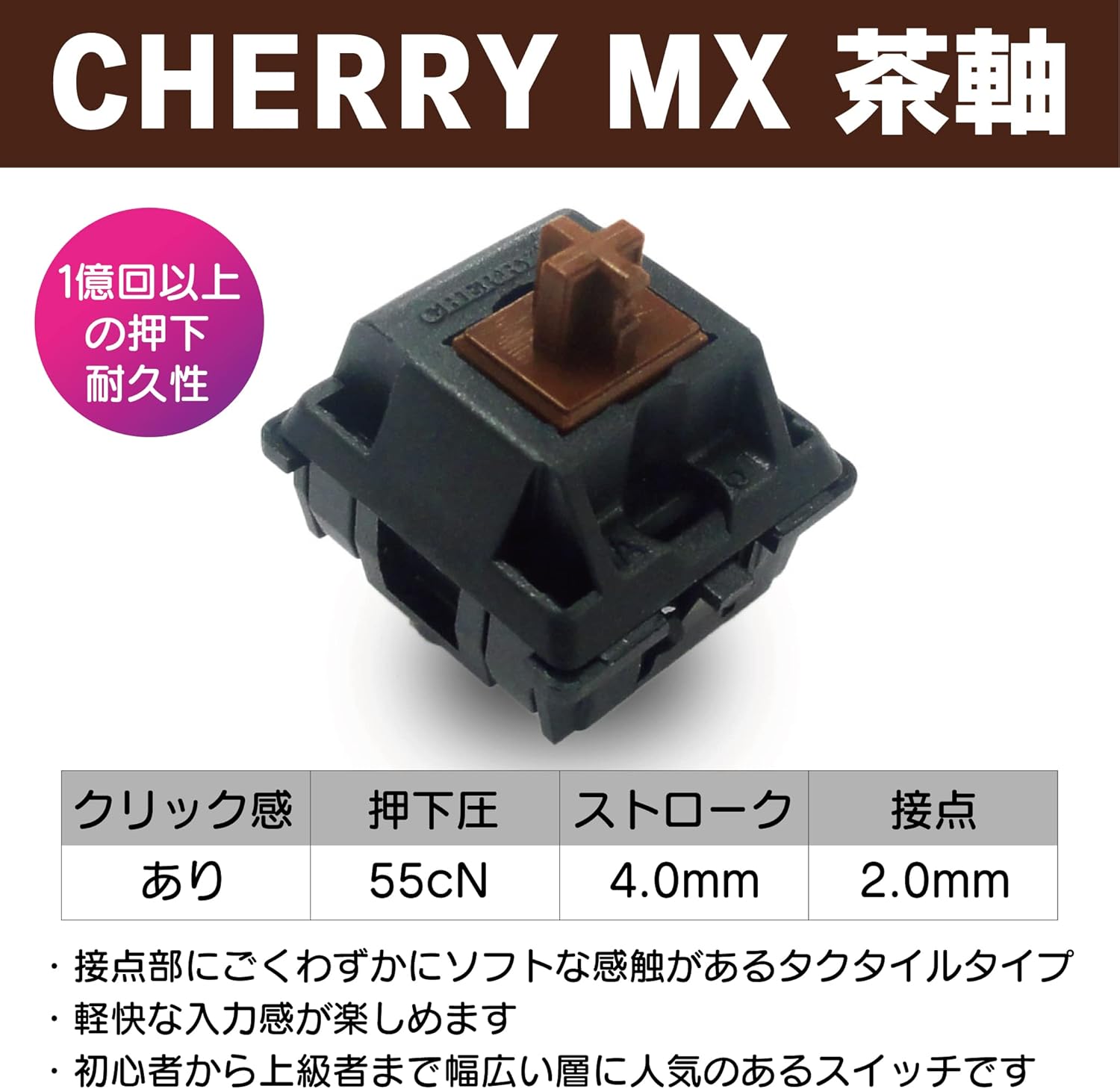
Image: A close-up view of the dedicated macro keys (M6-M10) located on the right half of the FILCO Majestouch Xacro M10SP keyboard.

Image: A detailed view of the DIP switches on the underside of the FILCO Majestouch Xacro M10SP keyboard, used for layout configuration.
Programming and Customization
The Majestouch Xacro M10SP offers flexible programming options:
- Filco Assist Software: Program key patterns and macros using the dedicated Filco Assist software (Windows compatible). This software allows you to save up to 8 profiles.
- Firmware Programming: Alternatively, macros can be programmed directly into the FN layer using firmware, without the need for software. Refer to the official FILCO website for detailed firmware instructions and tools.
Maintenance
To ensure the longevity and optimal performance of your keyboard:
- Cleaning: Regularly clean the keycaps and spaces between them using a soft brush or compressed air to remove dust and debris. For stubborn dirt, gently wipe keycaps with a damp cloth.
- Keycap Care: The keyboard features durable PBT keycaps. Avoid using harsh chemicals or abrasive materials that could damage the keycap surface.
- Switch Care: The Cherry MX Brown mechanical switches are designed for durability. Avoid spilling liquids into the keyboard.
- Silicone Pad: A sound-absorbing silicone pad is integrated between the plate and the PCB to enhance typing acoustics. No user maintenance is required for this component.

Image: A close-up view of the PBT keycaps on the FILCO Majestouch Xacro M10SP keyboard, highlighting their texture and legends.

Image: A detailed view of a Cherry MX Brown mechanical switch, showing its brown stem and housing.
Troubleshooting
If you encounter issues with your keyboard, consider the following:
- Keyboard Not Responding:
- Ensure all USB-C cables are securely connected to both keyboard halves and the computer.
- Try connecting the keyboard to a different USB port on your computer.
- Restart your computer.
- Incorrect Key Output:
- Check the DIP switch settings on the underside of the keyboard to ensure the correct layout (QWERTY, DVORAK, COLEMAK, Mac) is selected.
- If you have programmed custom layouts or macros, ensure you are on the correct layer.
- Macro Issues:
- Verify your macro programming using Filco Assist software or firmware instructions.
- Ensure the macro keys are not accidentally disabled or remapped.
- Intermittent Connectivity:
- Ensure the USB-C cables are not damaged. Try using different cables if available.
- Avoid placing the keyboard near strong electromagnetic interference sources.
Specifications
| Feature | Detail |
|---|---|
| Brand | FILCO |
| Model Name | Majestouch Xacro |
| Model Number | FKBXS72M/EB |
| Connectivity Technology | USB-C |
| Keyboard Description | Mechanical |
| Switch Type | Cherry MX Brown |
| Number of Keys | 72 |
| Keyboard Layout | QWERTY (configurable via DIP switches) |
| Special Feature | Dedicated macro keys, Split design, Programmable layers |
| Material | Plastic, Polybutylene Terephthalate (PBT Keycaps) |
| Included Components | PBT Key Caps |
| Compatible Devices | Laptop, PC |
| Power Source | Wired |
| Total USB 2.0 Ports | 1 (Passthrough) |
Warranty Information
This product comes with a 30-day return policy. For detailed warranty terms and conditions, please refer to your purchase documentation or contact the retailer.
Support
For further assistance, technical support, or to download the Filco Assist software and firmware updates, please visit the official FILCO website or contact their customer service department. Keep your product model number (FKBXS72M/EB) handy when seeking support.
You can visit the FILCO Store on Amazon for more information: FILCO Store


