
Grass Valley EDIUS 11 Pro
EDIUS 11 Pro Video Editing Software User Manual
Grass Valley
Welcome to EDIUS 11 Pro
This manual provides comprehensive instructions for installing, operating, and maintaining your EDIUS 11 Pro video editing software. EDIUS 11 is a powerful and versatile tool designed for professional video production, offering advanced features for efficient and high-quality editing workflows.
1. Setup and Installation
1.1 System Requirements
Ensure your system meets the minimum specifications for optimal performance:
- Operating System: Windows 10 (64-bit) or Windows 11 (64-bit)
- CPU: Intel Core i7 or equivalent AMD processor (Intel Core i9 or AMD Ryzen 9 recommended for 4K/8K)
- RAM: 16 GB or more (32 GB recommended for 4K/8K)
- Graphics Card: DirectX 11 or later compatible GPU with 4 GB VRAM or more (8 GB VRAM recommended for 4K/8K)
- Storage: SSD for system drive and media storage recommended. At least 6 GB of free space for installation.
- Sound Card: WDM-compatible audio device
- Internet Connection: Required for software activation and updates.
1.2 Installation Process
Follow these steps to install EDIUS 11 Pro:
- Download: Obtain the EDIUS 11 Pro installer from the official Grass Valley website or your provided installation media.
- Run Installer: Double-click the downloaded installer file (e.g.,
EDIUS_11_Installer.exe) to begin the installation. - User Account Control: If prompted by User Account Control, click "Yes" to allow the application to make changes to your device.
- License Agreement: Read and accept the End User License Agreement (EULA) to proceed.
- Installation Location: Choose the desired installation directory. The default location is usually recommended.
- Component Selection: Select the components you wish to install. Ensure "EDIUS 11 Pro" is selected.
- Installation: Click "Install" to begin the file copying process. This may take several minutes.
- Activation: After installation, launch EDIUS 11 Pro. You will be prompted to activate the software using your license key. Follow the on-screen instructions to complete activation. An active internet connection is required for this step.
- Restart: It is recommended to restart your computer after installation and activation to ensure all changes take effect.
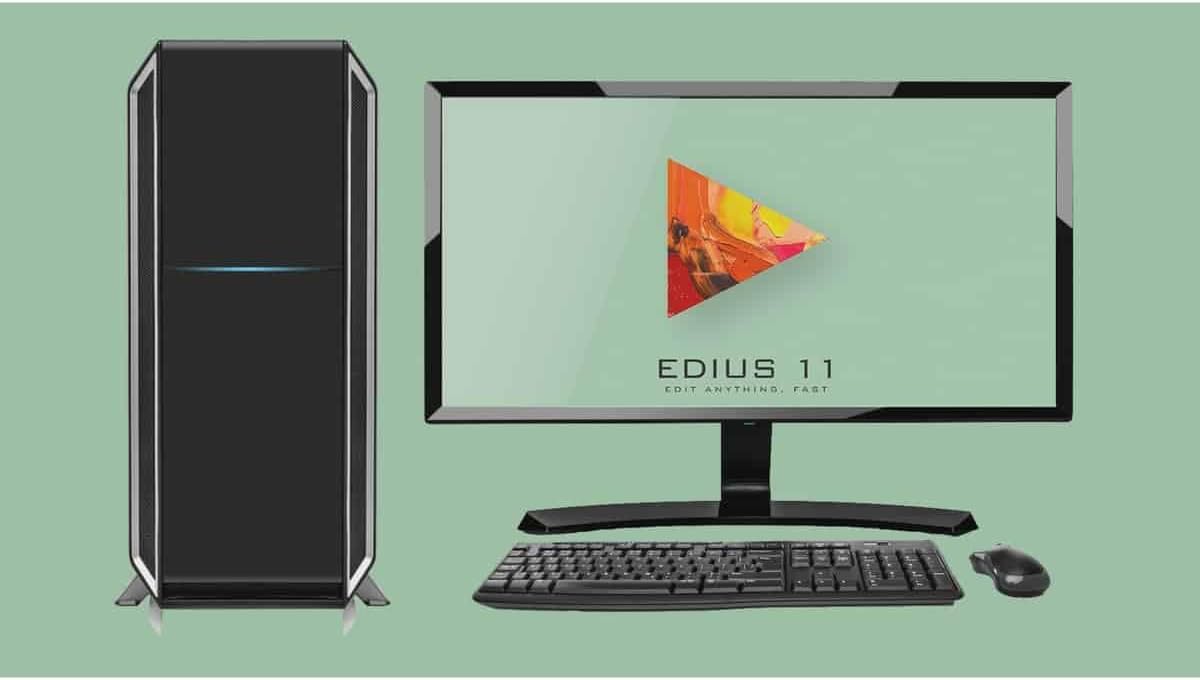
Figure 1: EDIUS 11 Pro software displayed on a monitor, part of a complete desktop computer setup.
2. Operating EDIUS 11 Pro
2.1 Key Features Overview
EDIUS 11 Pro introduces several enhancements and new features to streamline your editing workflow:
- Mync 11 Integration: Advanced media management and organization.
- Chorus Hub Server: Facilitates collaborative editing and asset sharing.
- AI Services Integration: Support for AI-powered tools and services.
- Enhanced Performance: Optimized for faster rendering and real-time playback.
- Broad Format Support: Native support for a wide range of video formats and codecs.
- Multi-language Subtitle Support: Improved tools for creating and managing subtitles in various languages.
2.2 Project Creation and Settings
To begin a new project in EDIUS 11 Pro:
- Launch EDIUS 11 Pro.
- From the start-up dialog, select "New Project".
- Configure your project settings, including resolution (e.g., Full HD, 4K, UHD), frame rate, and audio settings. Ensure these match your source footage for optimal performance.
- Name your project and choose a save location.
- Click "OK" to create the project and open the EDIUS interface.

Figure 2: Project creation options, illustrating support for various resolutions and frame rates.
2.3 Importing Media and Supported Devices
EDIUS 11 Pro supports a wide array of media formats and integrates seamlessly with various professional cameras and devices. You can import media directly from connected cameras, memory cards, or local storage drives.

Figure 3: EDIUS 11 Pro's extensive compatibility with various camera brands and models.
2.4 Collaborative Workflow with Chorus Hub 11
Chorus Hub 11 is a central component for collaborative editing environments. It allows multiple users to access and share media assets and projects efficiently, enhancing team productivity.

Figure 4: The Chorus Hub 11 architecture, showing its role in connecting various EDIUS and Mync instances for collaborative work.
2.5 Exporting and Social Media Presets
EDIUS 11 Pro offers a variety of export options, including optimized presets for popular social media platforms. This ensures your content is delivered in the correct format and aspect ratio for maximum impact.

Figure 5: Social media project and export presets available in EDIUS 11 Pro.
3. Maintenance
3.1 Software Updates
Regularly check for and install software updates to ensure you have the latest features, bug fixes, and performance improvements. Updates are typically released through the Grass Valley website or via an in-application notification system.
3.2 System Optimization for Performance
To maintain optimal performance of EDIUS 11 Pro:
- Keep Drivers Updated: Ensure your graphics card drivers are always up to date.
- Manage Disk Space: Regularly clear temporary files and ensure sufficient free space on your media drives.
- Optimize Project Settings: Use proxy workflows for high-resolution footage if your system struggles with real-time playback.
- Close Unnecessary Applications: Minimize background processes while editing to free up system resources.
4. Troubleshooting
4.1 Common Issues and Solutions
- Software Not Launching:
Ensure your system meets the minimum requirements. Try reinstalling the software or updating your graphics drivers.
- Performance Lags/Stuttering:
Check system resources (CPU, RAM, GPU usage). Optimize project settings, use proxy files, or close other demanding applications. Ensure media is on a fast drive.
- Export Failures:
Verify output settings and destination path. Check for sufficient disk space. Try exporting a smaller section of the timeline to isolate potential problematic media.
- Activation Problems:
Ensure you have an active internet connection. Double-check your license key for typos. If issues persist, contact Grass Valley support.
4.2 Contacting Technical Support
If you encounter issues that cannot be resolved using the troubleshooting steps above, please contact Grass Valley Technical Support. Have your product license key and system information ready for faster assistance.
Visit the official Grass Valley website for support contact details and knowledge base articles: www.grassvalley.com/support
5. Technical Specifications
Detailed specifications for EDIUS 11 Pro:
| Component | Minimum Requirement | Recommended for 4K/8K |
|---|---|---|
| Operating System | Windows 10 (64-bit) / Windows 11 (64-bit) | Windows 10 (64-bit) / Windows 11 (64-bit) |
| CPU | Intel Core i7 or equivalent AMD | Intel Core i9 or AMD Ryzen 9 |
| RAM | 16 GB | 32 GB or more |
| Graphics Card | DirectX 11 compatible, 4 GB VRAM | DirectX 11 compatible, 8 GB VRAM or more |
| Storage | SSD for system, 6 GB free for installation | Multiple SSDs (system, media, cache) |
| Sound Card | WDM-compatible audio device | WDM-compatible audio device |
| Internet Connection | Required for activation and updates | Required for activation and updates |
6. Warranty and Support
6.1 Software License and Warranty
EDIUS 11 Pro is provided under a software license agreement. Please refer to the End User License Agreement (EULA) included with your software for detailed terms regarding usage, warranty limitations, and intellectual property rights. Grass Valley provides support and updates in accordance with the terms of your license.
6.2 Additional Resources and Support
For further assistance, tutorials, and community forums, please visit the official Grass Valley EDIUS website:
www.grassvalley.com/products/edius
Online documentation and FAQs are also available to help you maximize your EDIUS 11 Pro experience.
Related documentsEDIUS 11 Pro

Ask a question about this manual
Ask about setup, troubleshooting, compatibility, parts, safety, or missing instructions. Manuals+ will review the question and use this page’s manual context to help answer it.