
Introduction
Thank you for choosing the Xiaomi Robot Vacuum E12. This intelligent robotic vacuum cleaner is designed to provide efficient and thorough cleaning for your home, featuring powerful suction, smart navigation, and app control. This manual provides essential information for the safe and effective operation, maintenance, and troubleshooting of your device. Please read this manual carefully before use and retain it for future reference.
Product Overview
Key Features
- Powerful Suction: Up to 4000 Pa suction power for effective cleaning on various surfaces.
- App Control: Manage and schedule cleaning tasks conveniently via the Xiaomi Home app.
- Efficient Cleaning Route: Intelligent navigation system ensures organized and comprehensive cleaning coverage.
- Intelligent Water Tank: Automatically dispenses water for effective mopping.
- Comprehensive Sensors: Equipped with multiple sensors for obstacle avoidance and complete area coverage.
Components
Familiarize yourself with the main components of your Xiaomi Robot Vacuum E12.

Figure 1: Top view of the Xiaomi Robot Vacuum E12, showing the main unit and an included mop pad.

Figure 2: Front view of the robot vacuum, highlighting the bumper and sensor area.
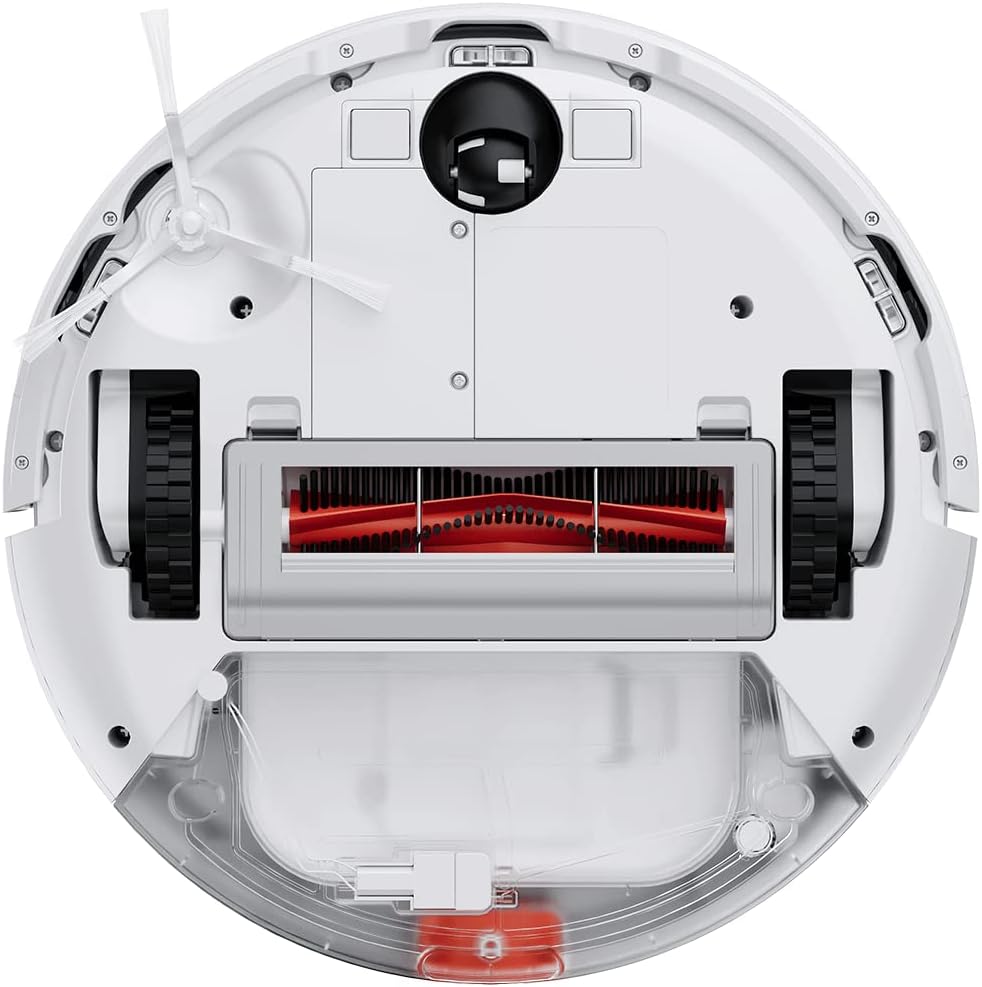
Figure 3: Underside of the robot vacuum, showing the main brush, side brushes, wheels, and dustbin/water tank compartment.

Figure 4: The robot vacuum with the mop attachment installed, ready for wet cleaning.
Setup
1. Unpacking
- Carefully remove all components from the packaging.
- Remove all protective films and packaging materials from the robot and charging dock.
- Ensure all accessories listed in the packing list are present.
2. Charging Dock Placement
- Place the charging dock against a wall on a hard, level surface.
- Ensure there is at least 0.5 meters (1.6 feet) of clear space on both sides of the dock and 1.5 meters (4.9 feet) in front of it.
- Connect the power adapter to the charging dock and plug it into a power outlet.
- Ensure the power cable is neatly tucked away to prevent entanglement.
3. Initial Charge
- Place the robot vacuum onto the charging dock, ensuring the charging contacts align.
- The robot will automatically power on and begin charging. Allow it to fully charge before first use (approximately 4-6 hours).
- The indicator light on the robot will show charging status.
4. Xiaomi Home App Connection
- Download the "Xiaomi Home" app from your mobile device's app store (Google Play Store or Apple App Store).
- Open the app and create a Xiaomi account or log in if you already have one.
- Tap the "+" icon in the top right corner to add a device.
- Follow the on-screen instructions to connect your robot vacuum to the app. This typically involves resetting the Wi-Fi on the robot and connecting your phone to the robot's temporary Wi-Fi network.
- Once connected, you can control the robot, view cleaning maps, set schedules, and access additional features.
Operating Instructions
Starting a Cleaning Cycle
- Via Robot Buttons: Press the Power button once to start a general cleaning cycle. Press it again to pause. Press and hold to send the robot back to the charging dock.
- Via Xiaomi Home App: Open the app, select your robot vacuum, and tap the "Clean" button. You can also select specific cleaning modes (e.g., Spot Clean, Edge Clean) or adjust suction power.

Figure 5: Illustration of the robot vacuum following an efficient, organized cleaning path to cover the entire floor area.
Using the Mopping Function
- Fill the water tank with clean water. Do not use detergents or corrosive liquids.
- Attach the mop pad securely to the water tank module.
- Install the water tank module into the robot vacuum according to the instructions.
- Start a cleaning cycle. The robot will automatically dispense water for mopping.
- Note: The mopping function is best suited for hard floors. Avoid using it on carpets or rugs.
Scheduling Cleanings
Use the Xiaomi Home app to set up cleaning schedules. You can specify cleaning times, days of the week, and even cleaning modes for automated cleaning.

Figure 6: The robot vacuum's low profile allows it to clean effectively under beds and other furniture.
Maintenance
Regular maintenance ensures optimal performance and extends the lifespan of your robot vacuum. Always power off the robot before performing any maintenance.
1. Emptying the Dustbin
- Press the dustbin release button and pull out the dustbin.
- Open the dustbin cover and empty its contents into a trash can.
- Rinse the dustbin with water if necessary, ensuring it is completely dry before re-installing.
2. Cleaning the Filter
- Remove the filter from the dustbin.
- Tap the filter gently to remove dust. You can also rinse it under running water.
- Allow the filter to air dry completely for at least 24 hours before re-installing. Do not use a dryer or direct sunlight.
- Replace the filter every 3-6 months, depending on usage.
3. Cleaning the Main Brush
- Flip the robot over and remove the main brush cover.
- Lift out the main brush.
- Use the cleaning tool (if provided) or scissors to cut and remove any hair or debris tangled around the brush.
- Re-install the main brush and cover.
4. Cleaning the Side Brush
- Gently pull the side brush to remove it.
- Remove any hair or debris.
- Re-attach the side brush, ensuring it clicks into place.
5. Cleaning Sensors and Charging Contacts
- Wipe the cliff sensors (located on the bottom of the robot) and wall sensors (on the side bumper) with a clean, dry cloth.
- Clean the charging contacts on both the robot and the charging dock with a dry cloth.

Figure 7: Diagram illustrating the function of the cliff sensors, which prevent the robot from falling down stairs or off ledges.
Troubleshooting
If your robot vacuum encounters an issue, refer to the following common problems and solutions.
| Problem | Possible Cause | Solution |
|---|---|---|
| Robot does not power on. | Low battery; not properly charged. | Place the robot on the charging dock and ensure it is fully charged. |
| Robot cannot return to charging dock. | Charging dock is obstructed or out of reach; low battery. | Ensure the charging dock is in an open area. Manually place the robot on the dock if needed. |
| Poor cleaning performance. | Dustbin full; brushes tangled; filter clogged. | Empty dustbin, clean main brush and side brushes, clean or replace filter. |
| Robot gets stuck frequently. | Obstacles (cables, rugs); dirty sensors. | Clear the cleaning area of obstacles. Clean all sensors. |
| Mopping function not working. | Water tank empty; mop pad not attached correctly. | Fill the water tank. Ensure the mop pad is securely attached. |
| App connection issues. | Incorrect Wi-Fi password; robot too far from router; temporary network glitch. | Ensure correct Wi-Fi details. Move robot closer to router. Restart robot and router. Try re-pairing via the app. |
For persistent issues not covered here, please refer to the Xiaomi Home app's help section or contact Xiaomi customer support.
Specifications
| Feature | Detail |
|---|---|
| Brand | XIAOMI |
| Model Number | BHR7331EU |
| Product Dimensions | 12.6"L x 3.15"W x 12.6"H |
| Item Weight | 10.14 pounds |
| Suction Power | Up to 4000 Pa |
| Power Source | Battery Powered (1 Lithium Ion battery included) |
| Control Method | App (Xiaomi Home) |
| Special Feature | Programmable |
| Included Components | Robot Vacuum, Charging Dock, Power Adapter, Water Tank, Mop Pad, Side Brush, Cleaning Tool |
Safety Information
Please read and follow all safety instructions to prevent injury or damage.
- This appliance can be used by children aged 8 years and above and persons with reduced physical, sensory or mental capabilities or lack of experience and knowledge if they have been given supervision or instruction concerning use of the appliance in a safe way and understand the hazards involved.
- Children shall not play with the appliance. Cleaning and user maintenance shall not be made by children without supervision.
- Do not use the robot vacuum on wet surfaces or in areas with standing water.
- Do not use the robot to pick up large objects, sharp objects, or burning/smoking materials.
- Keep hair, loose clothing, fingers, and all parts of body away from openings and moving parts.
- Ensure the charging dock is placed in a stable location to prevent tipping.
- Only use the original power adapter and charging dock provided with the product.
- Do not expose the robot to direct sunlight or extreme temperatures.
- The product contains batteries that are only replaceable by skilled persons.
- Important Note: This robot vacuum is primarily designed for hard floors. It is not recommended for cleaning carpets, especially thick pile carpets, as stated in some product information.
Warranty and Support
For warranty information, please refer to the warranty card included with your product or visit the official Xiaomi website.
If you require technical support or have questions regarding your Xiaomi Robot Vacuum E12, please contact Xiaomi customer service through their official website or the Xiaomi Home app. Provide your model number (BHR7331EU) and purchase details when contacting support.
Xiaomi Official Website: www.mi.com


