
Introduction
The MINIX P4K 65W Dock Charger Adapter is a versatile 4-in-1 solution designed to streamline your charging and display needs across multiple devices. This compact device functions as a power delivery wall charger, a hub for data transfer, and an HDMI output for external displays. It is compatible with a wide range of devices including the Nintendo Switch, laptops, smartphones, and tablets, offering portability and convenience for both travel and home use.
Product Features
- 4-in-1 Hub for Nintendo Switch: Functions as a compact dock replacement for the Nintendo Switch, allowing charging, display output, and device connectivity without the bulky original dock.
- All-in-One Mobile Workstation Solution: Integrates charging, data transfer, and display capabilities into a single portable unit, ideal for mobile productivity and entertainment.
- 4K External Display via HDMI: Supports HDMI 1.4 output for connecting devices to a TV or monitor, offering resolutions up to 4K@30Hz, 2K@60Hz, and 1080P@120Hz. Note: Does not support Nintendo Switch Lite for display output.
- Travel-Friendly Design: Features built-in foldable wall plugs and includes US/UK/EU/AU pin converters, supporting universal 100-240V voltage (50-60Hz) for worldwide compatibility.
- Comprehensive Protection: Equipped with over-current, over-voltage, over-temperature, and short-circuit protection mechanisms to ensure safe operation.
Package Contents
The MINIX P4K package includes the following items:
- Charger body (MINIX P4K 65W Dock Charger Adapter)
- UK/EU/AU Pin Converters
- Travel bag
- 1 USB-C Cable (3.3ft Full-Featured)

Image: The MINIX P4K charger body, various international plug adapters, a travel bag, and a USB-C cable are shown laid out on a surface.
Setup
Follow these steps to set up your MINIX P4K Dock Charger Adapter:
- Select the Correct Plug: Choose the appropriate regional plug adapter (US, UK, EU, or AU) for your location.
- Attach the Plug: Slide the selected plug adapter onto the main charger body until it clicks securely into place. The charger's foldable pins will retract into the adapter.
- Connect to Power: Plug the assembled charger into a compatible wall outlet.

Image: The MINIX P4K charger is shown with various international plug adapters (UK, EU, AU) detached, illustrating its travel-friendly design.
Operating Instructions
The MINIX P4K offers multiple functionalities for charging, data transfer, and display output.
Charging Devices
Connect your devices to the available USB ports on the charger. The USB-C port (Max 60W) is ideal for laptops and power-hungry devices, while the two USB-A 3.2 ports are suitable for smartphones, tablets, and other accessories.

Image: The MINIX P4K charger is depicted in various settings, demonstrating its use for charging and connecting devices during gaming, conferences, office work, home theater, school, and travel.
HDMI Display Output
To use the HDMI output function:
- Connect the included USB-C cable from your compatible device (e.g., laptop, smartphone with DP Alt Mode, Nintendo Switch) to the USB-C input port on the MINIX P4K.
- Connect an HDMI cable (not included) from the HDMI output port on the MINIX P4K to your TV or monitor.
- Ensure your TV/monitor is set to the correct HDMI input. The display will automatically extend or mirror your device's screen.
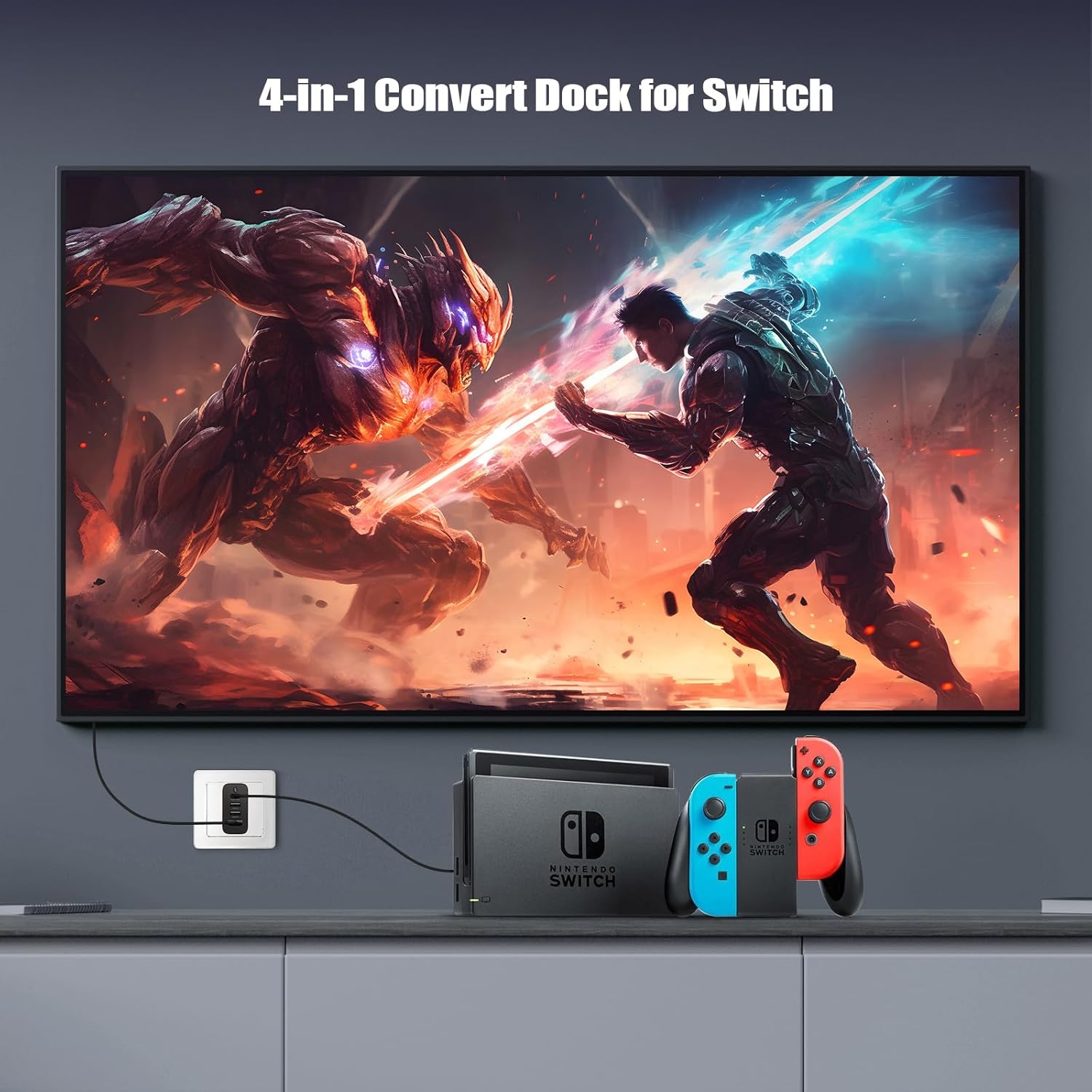
Image: The MINIX P4K charger is shown connected to a television, displaying a high-resolution image, illustrating its 4K external display capability via HDMI.
Nintendo Switch Usage
The MINIX P4K can replace your Nintendo Switch dock for charging and displaying games on a larger screen. Connect your Switch to the USB-C input and an HDMI cable to your TV as described above. Ensure your Switch is in handheld mode before connecting.
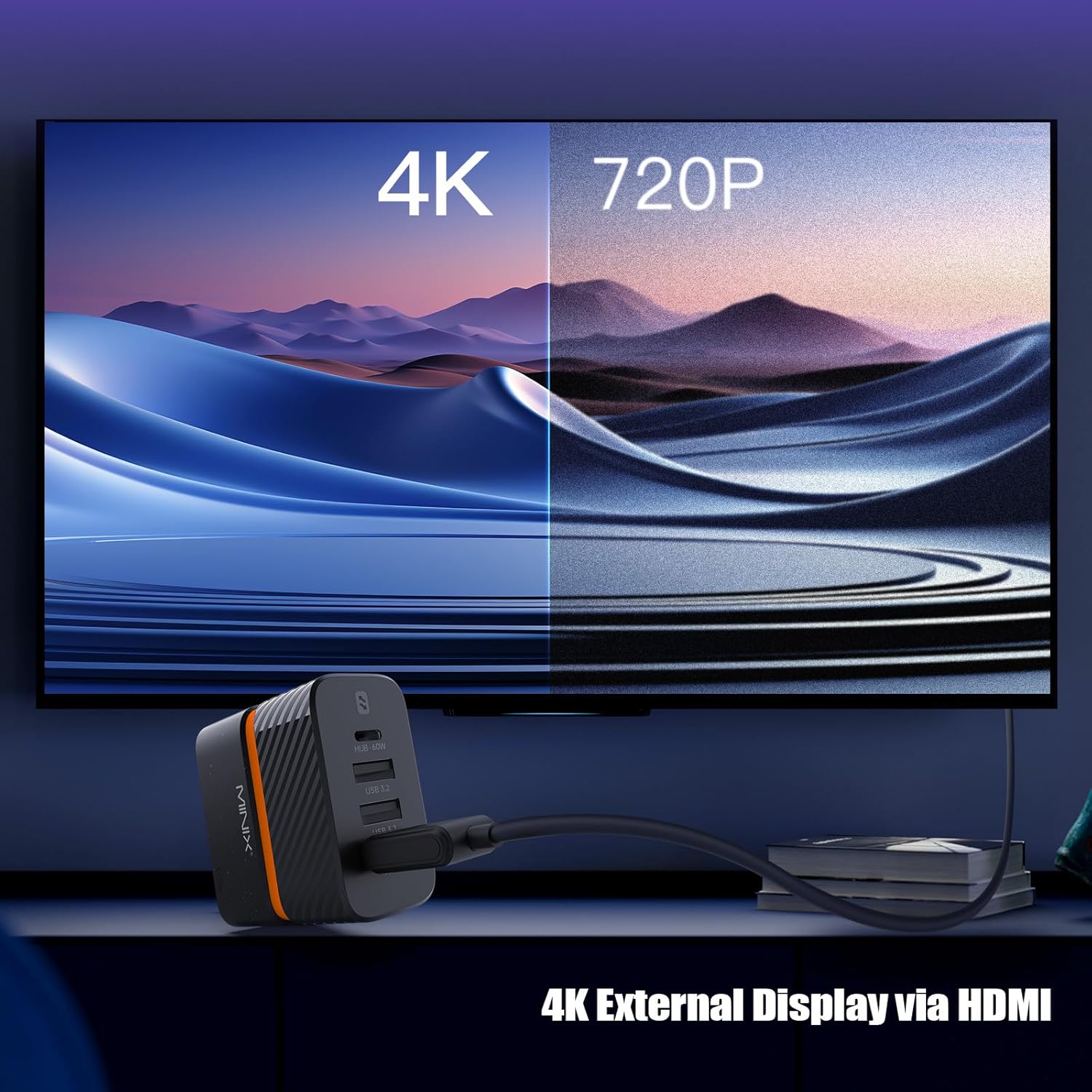
Image: The MINIX P4K charger is connected to a Nintendo Switch console, which is then connected to a large screen TV, demonstrating its use as a portable Switch dock.
Data Transfer
The USB-A 3.2 ports support data transfer speeds up to 10Gbps, allowing you to connect external storage devices, keyboards, mice, or other USB peripherals to your host device (e.g., laptop, tablet) while it's connected to the MINIX P4K.

Image: A stylized image of the MINIX P4K charger with data streams flowing from its USB ports, indicating its 10Gbps data transfer speed.
Official Product Video
Video: An official product video from MINIX Technology Limited showcasing the P4K as a storage hub with charger and HDMI display capabilities, highlighting its versatility.
Maintenance
To ensure the longevity and optimal performance of your MINIX P4K Dock Charger Adapter, follow these maintenance guidelines:
- Cleaning: Disconnect the charger from the power outlet and all devices before cleaning. Use a soft, dry cloth to wipe the exterior. Avoid using liquid cleaners, aerosols, or harsh chemicals.
- Storage: Store the charger in a cool, dry place away from direct sunlight and extreme temperatures. When traveling, utilize the provided travel bag to protect the charger and its adapters.
- Cable Care: Avoid sharp bends or excessive pulling on the USB-C cable to prevent damage. Store cables neatly to prevent tangling.
- Inspection: Periodically inspect the charger body, plugs, and cables for any signs of damage, such as frayed wires, cracks, or loose connections. Discontinue use if any damage is found.
Troubleshooting
If you encounter issues with your MINIX P4K, refer to the following troubleshooting tips:
- Device Not Charging:
- Ensure the charger is securely plugged into a working wall outlet.
- Verify that the correct regional plug adapter is properly attached.
- Check if the charging cable is securely connected to both the charger and your device.
- Try using a different charging cable or a different port on the MINIX P4K.
- Confirm your device is compatible with the charger's power output (e.g., 60W max for USB-C).
- No Display Output via HDMI:
- Ensure both the USB-C cable (from device to charger) and HDMI cable (from charger to display) are securely connected.
- Verify your TV/monitor is set to the correct HDMI input source.
- Check if your device supports DP Alt Mode via its USB-C port for video output.
- Confirm the resolution and refresh rate settings on your device are compatible with your display.
- Note that Nintendo Switch Lite does not support video output.
- Slow Charging:
- Ensure you are using a high-quality, full-featured USB-C cable that supports Power Delivery.
- If multiple devices are connected, the total power output is shared, which may reduce individual charging speeds. Disconnect less critical devices to prioritize charging for others.
- Check your device's charging requirements; some devices may require higher wattage than the MINIX P4K provides for maximum speed.
- Charger Overheating:
- While the charger has over-temperature protection, ensure it is used in a well-ventilated area and not covered.
- Avoid operating the charger in direct sunlight or excessively hot environments.
Specifications
| Feature | Detail |
|---|---|
| Brand | MINIX |
| Model Number | CBD001 (P4K) |
| Wattage | 65 watts |
| Connector Type | USB Type A, USB Type C |
| Total USB Ports | 3 (1x USB-C Max 60W, 2x USB-A 3.2) |
| Connectivity Technology | HDMI, USB |
| HDMI Output | 4K@30Hz, 2K@60Hz, 1080P@120Hz |
| Input Voltage | 100-240V (AC) |
| Item Weight | 99 Grams |
| Enclosure Material | Plastic |
| Special Features | Lightweight Design, Short Circuit Protection, Travel-friendly (Foldable Plugs, International Converters) |
Warranty and Support
The MINIX P4K 65W Dock Charger Adapter comes with a 1-Year manufacturer’s warranty, handled directly by MINIX Technology Limited. For more information regarding the warranty policy, please visit our official website. For technical support or inquiries, please refer to the contact information provided on the MINIX official website or your product packaging.


