
1. Introduction
The Minisopuru MD6950D DisplayLink Docking Station is designed to expand the connectivity and display capabilities of your laptop. This versatile docking station supports triple monitor setups, provides robust power delivery, and offers multiple high-speed data transfer ports. It is compatible with a wide range of devices including MacBooks (M1/M2/M3/M4), Windows laptops, Chrome OS, and Android devices with full-featured USB-C ports.
2. Features
- Upgraded DisplayLink Technology: Supports triple 4K monitor output (3x HDMI, 2x DisplayPort) for enhanced multitasking.
- Powerful 140W Power Adapter: Provides up to 85W fast charging for your laptop and up to 45W for other devices via front USB-C ports.
- Extensive Port Selection: Equipped with 15 ports including 3x 4K HDMI, 2x 4K DisplayPort, 2x 10Gbps USB-C, 3x 5Gbps USB-A, 1000Mbps Ethernet, audio, and TF/SD card slots.
- Wide Compatibility: Compatible with Thunderbolt 5/4/3, MacBook M1/M2/M3/M4, Windows, Chrome OS, Ubuntu, and Android devices.
- High-Speed Data Transfer: USB-A 3.2 Gen1 and Type-C ports support data transfer speeds up to 5Gbps and 10Gbps respectively.
- Efficient Heat Dissipation: Features a metal case and fins for effective heat management.
3. Package Contents
The Minisopuru MD6950D DisplayLink Docking Station package includes the following items:
- Minisopuru MD6950D Docking Station
- 140W Power Adapter
- USB-C to USB-C Host Cable
- USB-A to USB-C Converter
- USB Flash Drive with DisplayLink Drivers
- Instruction Manual

4. Setup
4.1 Driver Installation
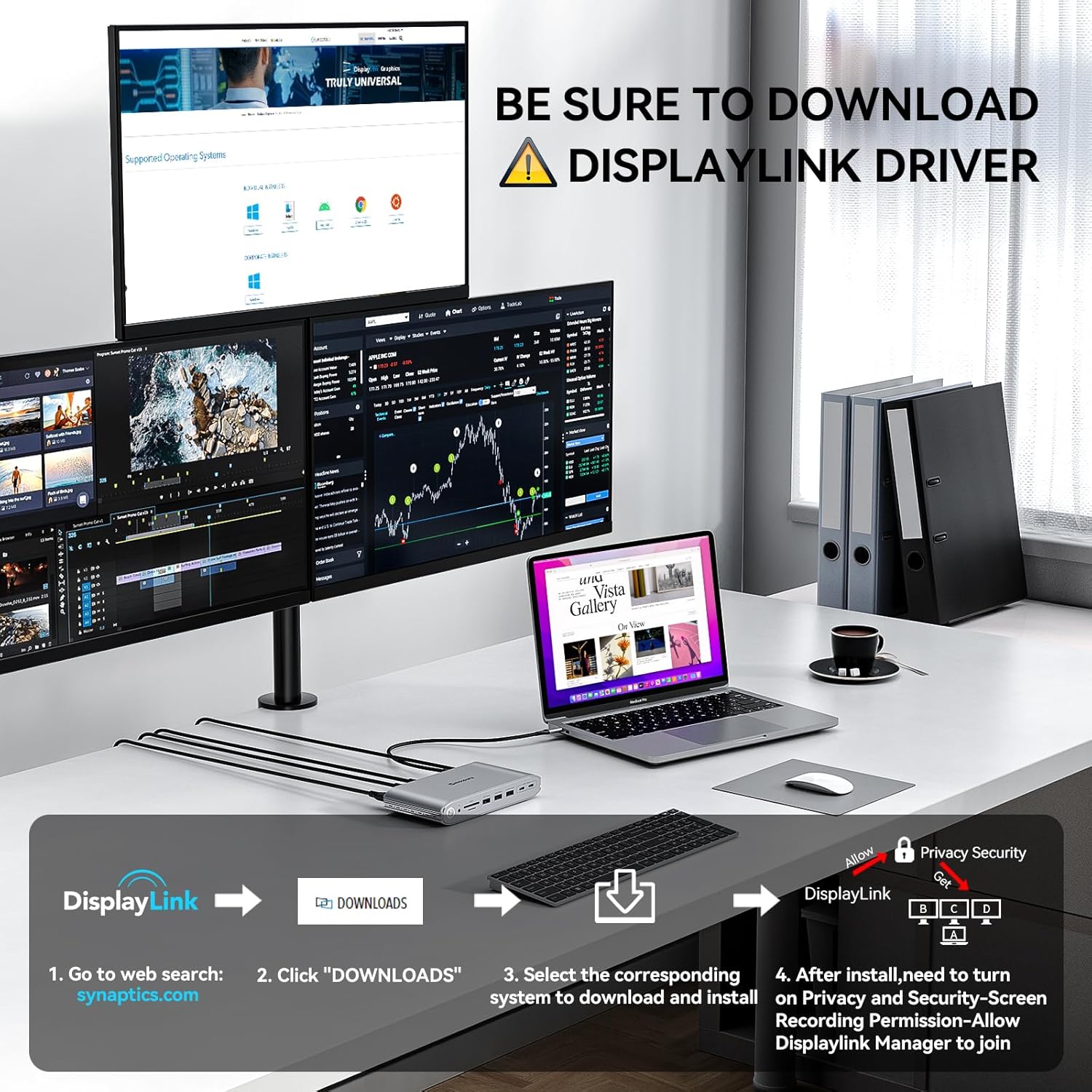
The Minisopuru MD6950D requires the DisplayLink driver for full functionality, especially for multiple monitor support. The driver is provided on a USB flash drive included in the package. Alternatively, you can download the latest driver from the official DisplayLink website.
- Insert the provided USB flash drive into your laptop or visit synaptics.com/products/displaylink-graphics/downloads.
- Locate and click on the "DOWNLOADS" section.
- Select the corresponding operating system (Windows, macOS, Chrome OS, Ubuntu, Android) to download and install the DisplayLink driver.
- For macOS users, after installation, navigate to Privacy & Security settings and grant Screen Recording Permission to "Allow DisplayLink Manager to Join".
4.2 Hardware Connection
- Connect Power: Plug the 140W power adapter into the DC-IN port on the back of the docking station, then connect it to a power outlet.
- Connect to Laptop: Use the provided USB-C to USB-C host cable to connect the docking station's "To Host" port (labeled with a laptop icon) to a full-featured USB-C port on your laptop. If your laptop only has USB-A ports, use the included USB-A to USB-C converter.
- Connect Monitors: Connect your external monitors to the available HDMI and DisplayPort outputs on the back of the docking station. The docking station supports various combinations for triple/dual displays.
- Connect Peripherals: Plug in your USB devices (keyboard, mouse, external drives), Ethernet cable, audio devices, and TF/SD cards into the corresponding ports on the docking station.


5. Operating Instructions
5.1 Display Configuration
Once the DisplayLink driver is installed and your monitors are connected, you can configure your display settings through your operating system. The docking station supports extended, mirrored, or primary display modes across multiple monitors.
- Triple Display (USB-C Host with Full-Featured Port): When connected via a full-featured USB-C port, you can activate three different monitors.
- Dual Display (USB-A Host): When connected via a USB-A port (with converter), different dual monitors can be activated. Note that HDMI Alt Mode (Display3) cannot work due to USB-A port limitations.


5.2 Charging Devices
The 140W power adapter provides significant charging capabilities:
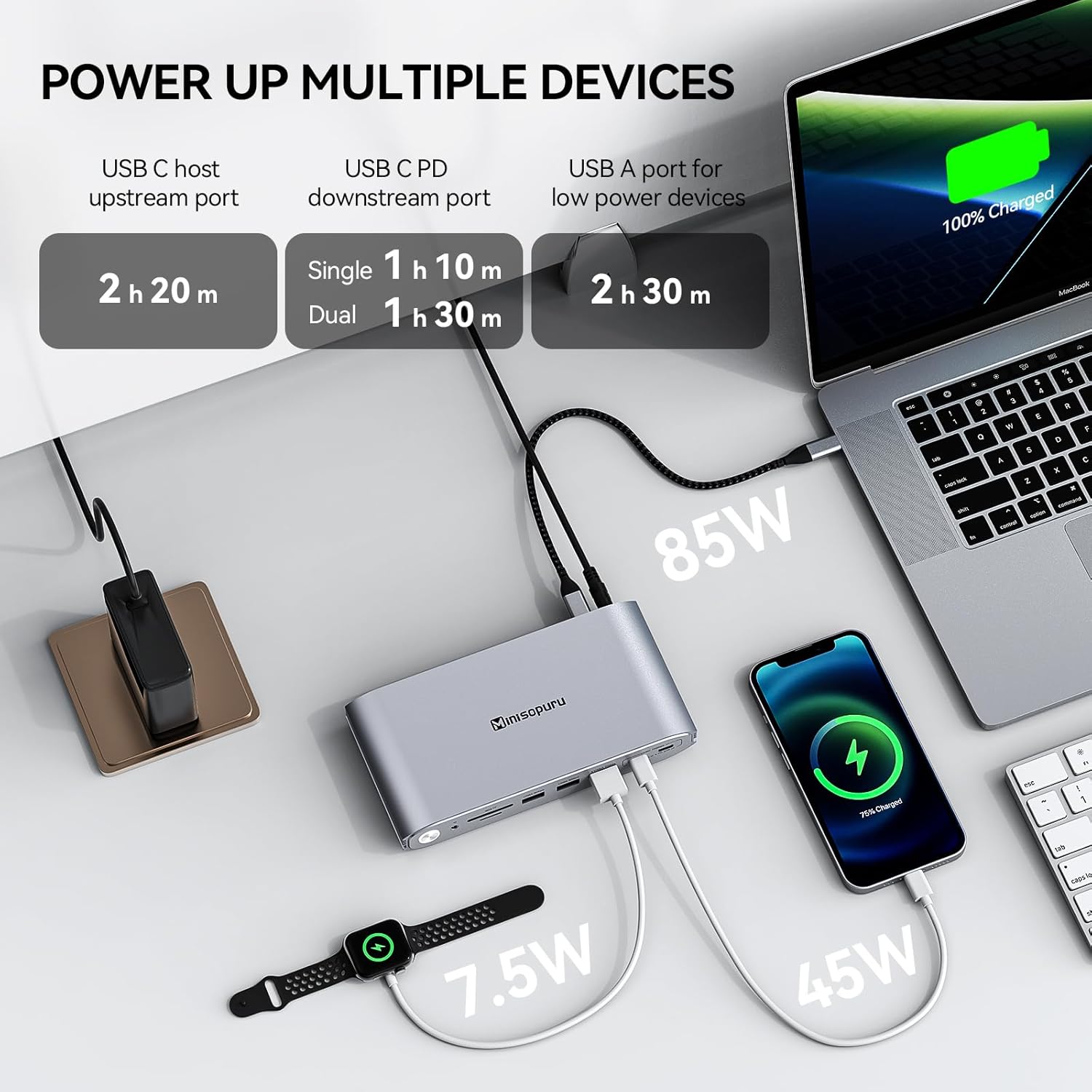
- Up to 85W for your laptop via the host USB-C connection.
- Up to 45W for phones and iPads via the front USB-C ports. If two front USB-C ports are used for charging, each can provide up to 22W.

5.3 Data Transfer
Utilize the high-speed USB ports for quick data transfer:
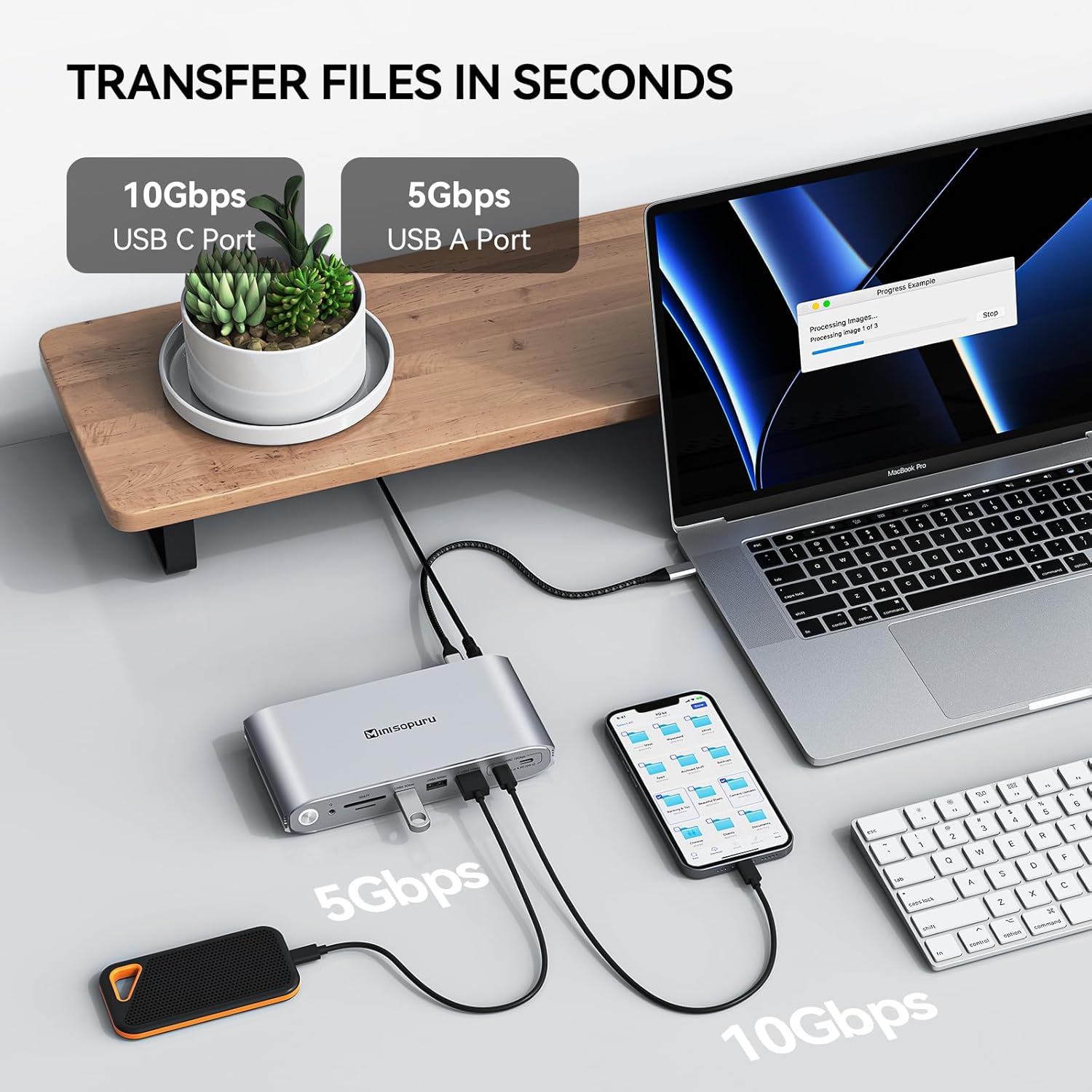
- USB-C ports: Up to 10Gbps.
- USB-A ports: Up to 5Gbps.
- TF/SD card slots: Up to 104MB/s.

5.4 Network Connectivity
The integrated Gigabit Ethernet port provides stable and fast wired network access (10/100/1000Mbps), ideal for laptops without a built-in Ethernet port.

6. Maintenance
- Keep the docking station in a dry, well-ventilated area.
- Avoid exposing the device to extreme temperatures or direct sunlight.
- Clean the exterior with a soft, dry cloth. Do not use liquid cleaners or aerosols.
- Ensure cables are properly connected and not under strain to prevent damage.
7. Troubleshooting
- No Display Output: Ensure the DisplayLink driver is correctly installed and updated. Verify all HDMI/DisplayPort cables are securely connected. Check your laptop's display settings to ensure monitors are detected and configured (extended/mirrored).
- Charging Issues: Confirm the 140W power adapter is securely connected to the docking station and a working power outlet. Ensure your laptop's USB-C port supports power delivery. Note that USB-A host connections do not support laptop charging.
- Overheating: The metal casing is designed for heat dissipation. Ensure the docking station is placed in an area with adequate airflow and not covered.
- USB-A Host Limitations: When using a USB-A host connection, the USB-C host port cannot charge the laptop, and the HDMI Alt Mode (Display3) cannot function.
8. Specifications
| Product Dimensions | 6.61 x 3.38 x 1.06 inches |
| Item Weight | 1.59 pounds |
| Model Number | MD6950D |
| Brand | minisopuru |
| Color | Silver |
| Hardware Interface | DisplayPort, Ethernet, HDMI, USB 3.1 Type B, USB 3.2 Gen 2 |
| Compatible Devices | MacBook M1, M2, M3, M4, Pro, Air, iMAC 24 inch, iMac Mac Mini 2018 Later, Laptops with Full-featured USB Type-C port (support Display, charging, and data transfer protocol), Compatible Windows, Chrome OS, Ubuntu, Android devices (excluding Linux/Unix) |
| Total USB Ports | 6 |
| Number of Ports | 15 |
| Total HDMI Ports | 3 |
| Wattage | 140.0 |
9. Official Product Videos
Video: MD6950D with multiple monitors, multi-device charging. This video demonstrates the docking station's ability to connect multiple monitors and charge various devices simultaneously.
Video: Minisopuru MD6950D Displaylink Docking Station. This video provides an overview of the Minisopuru MD6950D DisplayLink Docking Station and its features.
Video: Minisopuru Upgrade DisplayLink Docking Station. This video highlights the upgraded features and benefits of the Minisopuru DisplayLink Docking Station.
10. Warranty and Support
Minisopuru is dedicated to providing high-quality products and excellent customer service. For any questions or support needs, please contact the Minisopuru Support Team.
- Online Service: 24-hour customer online service.
- Professional Team: A professional technical team is available to assist with any issues.
For further assistance, please refer to the contact information provided in your product packaging or visit the official Minisopuru website.


