
1. Introduction
This manual provides instructions for the FILCO Majestouch Xacro M10SP, a 76-key Japanese layout split ergonomic keyboard. It features CHERRY MX Silent Red mechanical switches, macro programming capabilities, and durable PBT keycaps. This keyboard is designed to enhance typing comfort and efficiency through its split design and customizable functions.
2. Setup
2.1 Package Contents
- FILCO Majestouch Xacro M10SP Keyboard (Left and Right halves)
- USB-C to USB-A cable
- Interconnect cable for keyboard halves
- User Manual
2.2 Connecting the Keyboard
- Connect the left and right keyboard halves using the provided interconnect cable. Ensure a secure connection.
- Connect the main USB-C to USB-A cable from the left keyboard half to an available USB port on your computer.
- The keyboard should be automatically recognized by your operating system (Windows).

Image: The FILCO Majestouch Xacro M10SP keyboard connected as a single unit, showing the interconnect cable.

Image: The FILCO Majestouch Xacro M10SP keyboard split into two halves, demonstrating its ergonomic design.
2.3 DIP Switch Settings
The keyboard features DIP switches on the underside for hardware-level configuration changes, such as switching to a Mac layout or remapping certain keys. Refer to the specific DIP switch diagram for detailed functions.

Image: A close-up view of the DIP switches located on the underside of the keyboard, used for hardware configuration.
3. Operation
3.1 Key Layout and Ergonomics
The Majestouch Xacro M10SP features a 76-key Japanese layout with a split ergonomic design. This allows users to adjust the angle and separation of the keyboard halves for a more natural and comfortable typing posture. The keyboard also includes 10 dedicated macro keys (M1-M10) for enhanced productivity.

Image: A user's hands positioned comfortably on the split ergonomic keyboard, highlighting the natural wrist alignment.

Image: Illustrations demonstrating the adjustable tilt and separation options for the keyboard halves, allowing for personalized ergonomic setups.
3.2 Macro Programming
The keyboard supports both hardware-based and software-based macro programming. Dedicated macro keys (M1-M10) are available for assigning custom commands or sequences.
- Hardware Macro: Macros can be recorded directly on the keyboard without software. Refer to the detailed instructions in the included quick guide for specific key combinations.
- Software Macro (FILCO Assist): For advanced customization, use the FILCO Assist software. This application allows for comprehensive key remapping and macro creation.

Image: A screenshot of the FILCO Assist software, illustrating the user interface for customizing key functions and creating macros.

Image: A close-up view of the M1-M10 macro keys, highlighted for easy identification and programming.
3.3 CHERRY MX Silent Red Switches
The keyboard is equipped with CHERRY MX Silent Red mechanical switches. These linear switches are designed for quiet operation, reducing typing noise by approximately 30% compared to standard Red switches. They offer a smooth keystroke with no tactile bump or audible click, making them suitable for environments where noise reduction is important. The switches have a durability rating of over 50 million keystrokes.

Image: A detailed view of a single CHERRY MX Silent Red mechanical switch, showing its internal structure.
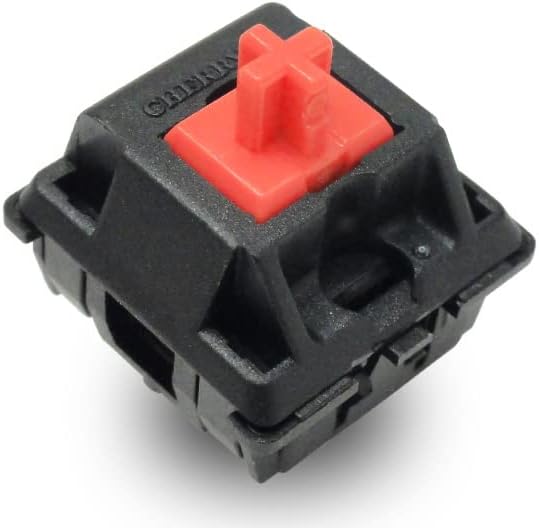
Image: An alternative close-up of the CHERRY MX Silent Red switch, emphasizing its design.

Image: A graph illustrating the force curve of CHERRY MX Silent Red switches, showing the linear actuation without a tactile bump.
4. Maintenance
4.1 Cleaning the Keyboard
To maintain optimal performance and appearance, regularly clean your keyboard.
- Use a soft, lint-free cloth slightly dampened with water or a mild cleaning solution to wipe down the keycaps and casing.
- For dust and debris between keys, use compressed air or a small brush.
- The PBT keycaps are durable and resistant to shine, but avoid harsh chemicals that could damage the legends.
4.2 Keycap Removal
If you need to clean under the keycaps or replace them, use a keycap puller. Gently pull the keycap straight up to avoid damaging the switch stem. When reattaching, align the keycap with the switch stem and press down firmly until it clicks into place.
5. Troubleshooting
5.1 Keyboard Not Responding
- Ensure all cables (main USB-C and interconnect cable) are securely connected.
- Try connecting the keyboard to a different USB port on your computer.
- Restart your computer.
- Check the DIP switch settings on the underside of the keyboard to ensure they are configured correctly for your operating system.
5.2 Macro Programming Issues
- If using FILCO Assist software, ensure the keyboard is directly connected to the PC (some KVM switches may interfere).
- Verify that the macro recording process is followed precisely as outlined in the quick guide or software instructions.
- Some keys (e.g., Esc, CapsLock, Shift, Ctrl, Win, Alt, Fn) may have limited remapping options via hardware macros.
- If hardware macros are not working, try resetting the keyboard to factory defaults using the DIP switches.
5.3 Fn Key Not Functioning
- Check DIP switch settings related to Fn key functionality or remapping.
- If the Fn key has been remapped or disabled via software, use FILCO Assist to restore its default function.
6. Specifications
| Model Name | Majestouch Xacro M10SP |
| Model Number | FKBXS76MPS/NB |
| Key Switch | CHERRY MX Silent Red (Linear) |
| Key Count | 76 keys (Japanese Layout) |
| Key Pitch | 19mm |
| Key Stroke | 3.7mm |
| Dimensions (W x D x H) | 336 x 123 x 39mm |
| Weight | 840g |
| Interface | USB-C |
| Macro Function | Hardware & Software Macro Compatible |
| Compatible OS | Windows |
| Included Components | PBT Keycaps |
7. Warranty & Support
7.1 Manufacturer's Warranty
This product is covered by the manufacturer's warranty. Please refer to the warranty card included in the package or visit the official FILCO website for detailed warranty terms and conditions.
7.2 Customer Support
For technical assistance, troubleshooting, or product inquiries, please contact FILCO customer support through their official website or the contact information provided in your product documentation.


