
Introduction
Welcome to the FILCO Majestouch Xacro M10SP user manual. This document provides essential information for the proper setup, operation, and maintenance of your new 76-key split ergonomic keyboard. The Majestouch Xacro M10SP features CHERRY MX Brown switches, PBT keycaps, and advanced macro programming capabilities, designed for enhanced comfort and productivity.
1. Setup
1.1 Package Contents
- FILCO Majestouch Xacro M10SP Keyboard (Left and Right units)
- USB-C to USB-A Cable (1.8m) for host connection
- USB-C to USB-C Bridge Cable for connecting keyboard halves
- FILCO Key Puller
- Replacement Keycaps
1.2 Connecting the Keyboard
- Connect the left and right halves of the keyboard using the provided USB-C to USB-C bridge cable. Ensure a secure connection between the two units.
- Connect the main USB-C to USB-A cable from the left keyboard unit to an available USB-A port on your computer.
- The keyboard should be automatically recognized by your operating system (Windows). No additional drivers are typically required for basic functionality.

Image: The FILCO Majestouch Xacro M10SP keyboard, showing its two halves connected by a cable.

Image: A top-down view of the connected FILCO Majestouch Xacro M10SP, illustrating the full layout.
1.3 Adjusting Keyboard Tilt and Position
The split design allows for flexible positioning and tilt adjustments to suit your ergonomic preferences. You can adjust the tilt to be front-high, rear-high, or inner-high for optimal comfort.

Image: Diagrams illustrating various tilt and separation configurations for the Xacro M10SP keyboard, including front-high, rear-high, and inner-high tilts, and different split positions.
2. Operation
2.1 Basic Typing
The Majestouch Xacro M10SP features a 76-key Japanese layout with CHERRY MX Brown switches, providing a tactile typing experience. Simply begin typing as you would with any standard keyboard.

Image: A user's hands positioned ergonomically on the split FILCO Majestouch Xacro M10SP keyboard while typing.
2.2 Dedicated Macro Keys (M1-M10)
The keyboard includes 10 dedicated macro keys (M1-M10) located on the inner edges of both keyboard halves. These keys can be programmed for custom functions, shortcuts, or complex sequences.

Image: A close-up view of the dedicated macro keys (M1-M10) on the FILCO Majestouch Xacro M10SP, highlighted in gray.
3. Macro Programming
The Majestouch Xacro M10SP supports both hardware and software macro programming. For advanced customization, utilize the dedicated 'FILCO Assist' software.
3.1 Using FILCO Assist Software
The FILCO Assist software provides a graphical interface for configuring macros, remapping keys, and managing keyboard layers. Download the latest version from the official FILCO website.

Image: Screenshot of the FILCO Assist software, showing the keyboard layout and options for macro programming and key remapping.
3.2 Hardware Macro Programming
Refer to the detailed instructions in the FILCO Assist software or the comprehensive manual available on the FILCO website for specific steps on hardware macro recording and assignment. This allows macros to be stored directly on the keyboard.
4. DIP Switch Configuration
The keyboard features DIP switches on the underside for hardware-level configuration changes, such as switching between Windows and Mac layouts or performing a factory reset. Consult the diagram below and the official FILCO documentation for specific switch functions.

Image: A close-up view of the DIP switches located on the underside of the FILCO Majestouch Xacro M10SP keyboard, labeled 1 through 12.

Image: A detailed view of the DIP switch panel on the FILCO Majestouch Xacro M10SP, showing the 'ON' position and individual switch numbers.
5. Maintenance
5.1 Cleaning
To clean your keyboard, disconnect it from your computer. Use a soft, dry cloth to wipe down the keycaps and chassis. For deeper cleaning, use the included key puller to carefully remove keycaps and clean any dust or debris underneath with compressed air or a small brush.
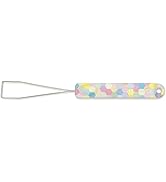
Image: The FILCO Key Puller tool, used for safely removing keycaps for cleaning or replacement.
5.2 Keycap Replacement
The Majestouch Xacro M10SP comes with replacement keycaps. Use the key puller to gently remove existing keycaps and press the new keycaps firmly onto the switch stems until they click into place.
6. Troubleshooting
6.1 Keyboard Not Responding
- Ensure both the bridge cable connecting the keyboard halves and the main USB cable to the computer are securely connected.
- Try connecting the keyboard to a different USB port on your computer.
- Restart your computer.
- If using a USB hub, try connecting directly to the computer.
6.2 Macro or Key Remapping Issues
- Verify that the FILCO Assist software is correctly installed and updated.
- Ensure the keyboard is directly connected to your PC when using FILCO Assist, as KVM switches may interfere with software detection.
- Check DIP switch settings; some settings may override software configurations.
- Perform a factory reset using the DIP switches if custom configurations are causing unexpected behavior.
6.3 Fn Key Functionality
Some users have reported issues with Fn key functionality or macro assignments involving the Fn key. Ensure you are following the specific programming instructions for Fn key combinations. If issues persist, consult the official FILCO support resources.
7. Specifications
| Feature | Detail |
|---|---|
| Model Name | Majestouch Xacro M10SP |
| Manufacturer Model Number | FKBXS76M/NB |
| Key Switch | CHERRY MX Brown (Tactile) |
| Key Count | 76 Keys (Japanese Layout) |
| Key Pitch | 19mm |
| Key Stroke | 4mm |
| Dimensions (W x D x H) | 336 x 123 x 39mm |
| Weight | 840g |
| Interface | USB-C |
| OS Compatibility | Windows |
| Keycap Material | PBT |
| Included Components | FILCO Key Puller, USB-C to USB-A Cable (1.8m), USB-C to USB-C Bridge Cable, Replacement Keycaps |
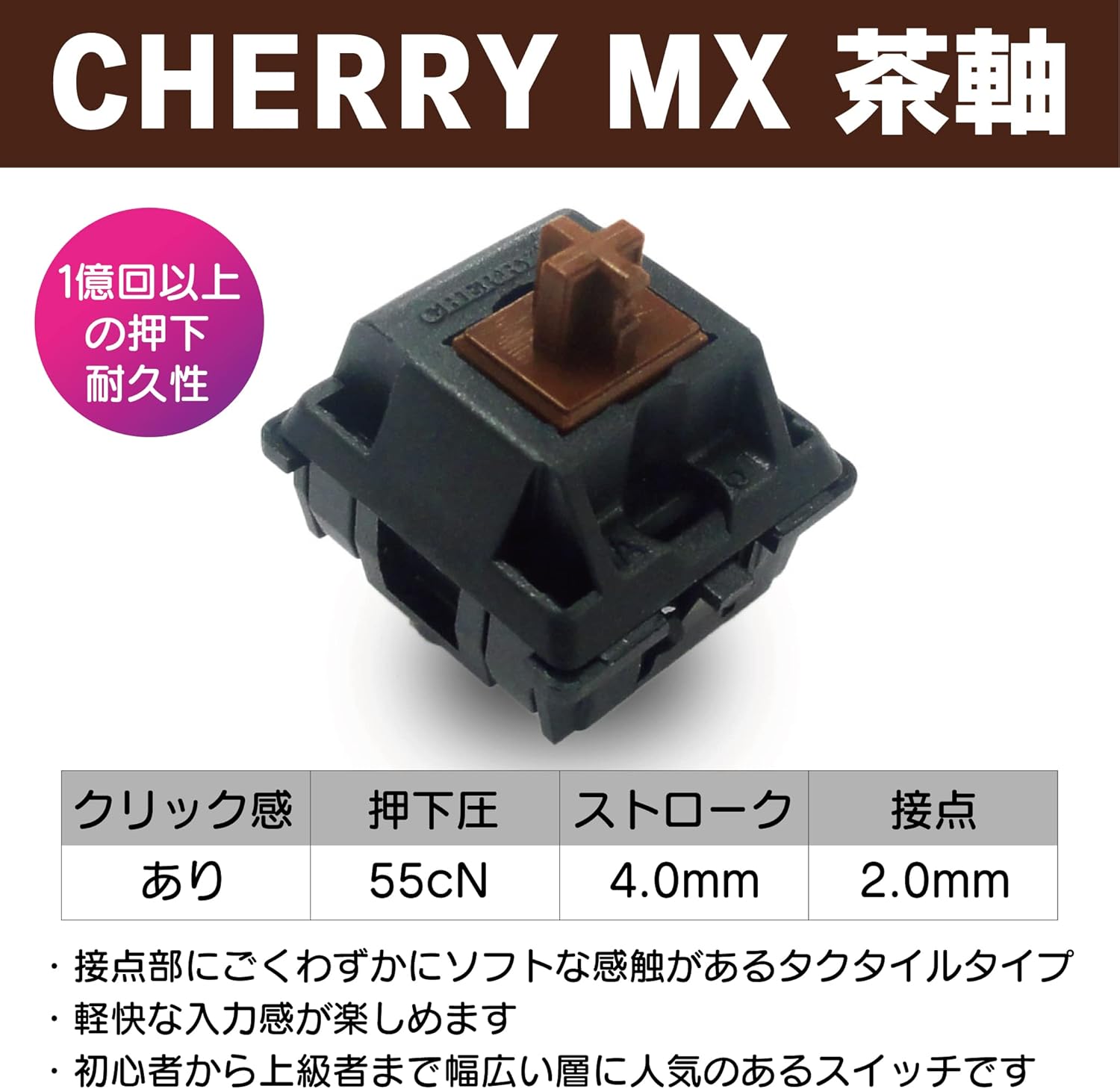
Image: Detailed specifications for the CHERRY MX Brown switch, including click feel, actuation force (55cN), stroke (4.0mm), and contact point (2.0mm).

Image: A close-up view of a single CHERRY MX Brown mechanical key switch.

Image: A graph illustrating the force curve of a CHERRY MX Brown switch, showing tactile position, operating position, and reset position relative to key travel distance.
8. Warranty and Support
8.1 Manufacturer's Warranty
The FILCO Majestouch Xacro M10SP is covered by a manufacturer's warranty. Please refer to the warranty card included with your product or visit the official FILCO website for detailed terms and conditions regarding warranty coverage and duration.
8.2 Technical Support
For technical assistance, troubleshooting beyond this manual, or inquiries about your product, please contact FILCO customer support through their official website. Ensure you have your product model and purchase information ready when seeking support.


