
EBTOOLS EBTOOLSpxvk7fmb38
EBTOOLS LGA 1155 Motherboard User Manual
Model: EBTOOLSpxvk7fmb38
Product Overview
The EBTOOLS LGA 1155 Motherboard is designed for desktop PC systems, offering robust performance and extensive connectivity. It features a multiphase power chipset for stable CPU performance and supports 2nd/3rd generation LGA1155 Pin Series Processors. This Mini ITX motherboard provides a high-definition visual experience through its VGA and HD Multimedia Interface outputs.
Key features include:
- LGA 1155 CPU Slot: Designed for stable performance with compatible processors.
- Multiphase Power: Ensures stable and accurate power delivery to the CPU.
- HD Interfaces: Equipped with VGA and HD Multimedia Interface for digital HD video output.
- Channel DDR3: Features a DDR3 memory slot to enhance motherboard performance.
- Extensive Connectivity: Includes 6 USB2.0 interfaces and 4 SATA2.0 interfaces for various peripherals and storage devices.
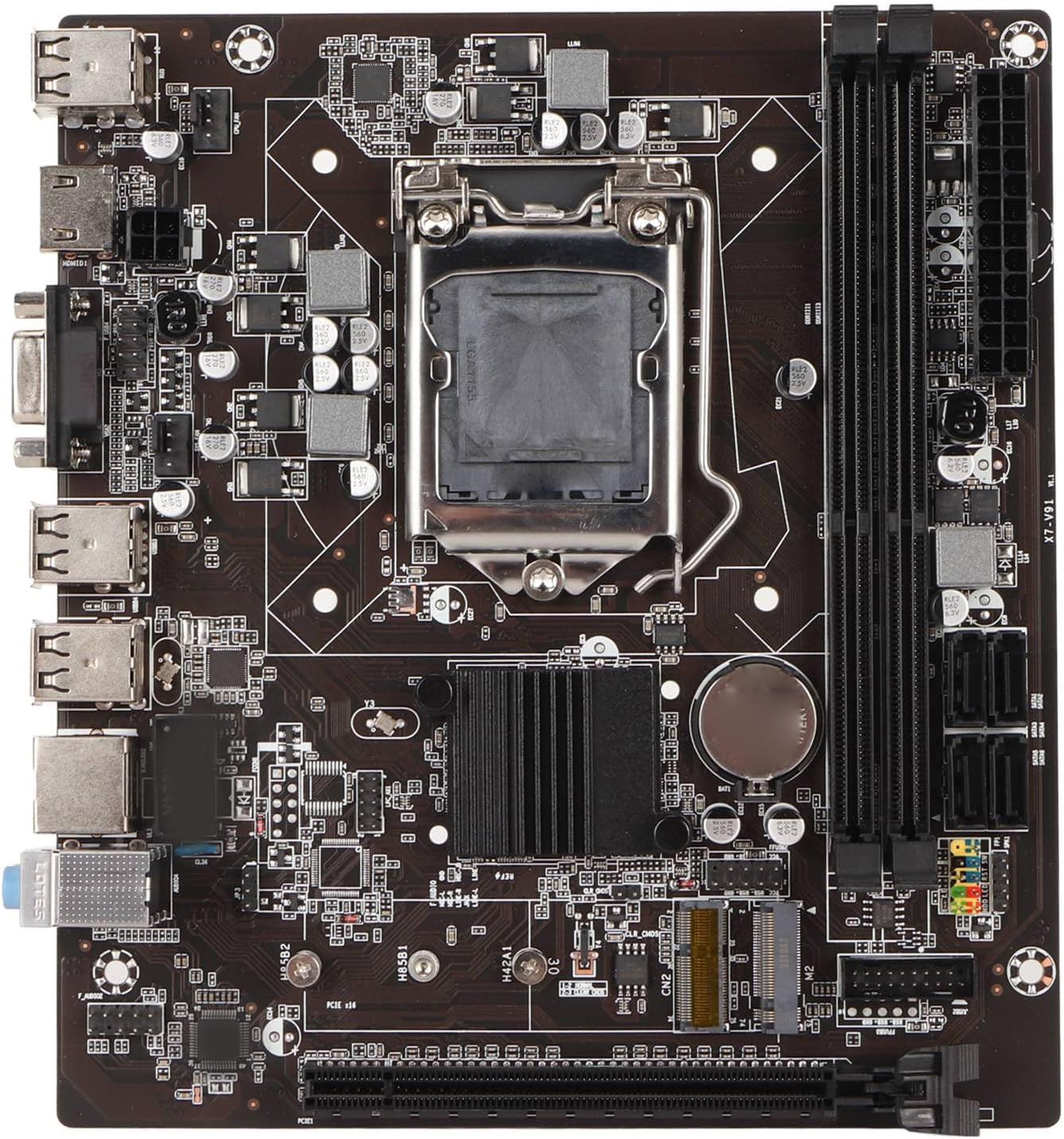
Figure 1: Top-down view of the EBTOOLS LGA 1155 Motherboard, showing the CPU socket, RAM slots, and various ports.
Setup and Installation
This section provides instructions for installing your EBTOOLS LGA 1155 Motherboard into a compatible PC case and connecting essential components.
Package Contents
Before beginning installation, ensure all components listed below are present in your package:
- 1 x LGA 1155 Motherboard
- 1 x Metal I/O Plate
- 1 x Connecting Wire (likely SATA data cable)

Figure 2: The motherboard alongside its included metal I/O plate and a connecting wire, typically a SATA data cable.
Installation Steps
- Prepare the Case: Ensure your PC case is compatible with Mini ITX motherboards. Install the metal I/O plate into the designated slot at the rear of the case.
- Install the CPU: Carefully open the CPU socket retention arm. Align the triangular marker on your LGA 1155 processor with the corresponding marker on the motherboard's socket. Gently place the CPU into the socket, ensuring it sits flush. Close the retention arm to secure the CPU.
- Install the CPU Cooler: Apply thermal paste to the CPU (if not pre-applied on the cooler). Mount your compatible LGA 1155 CPU cooler according to its manufacturer's instructions.
- Install RAM: Open the clips on the DDR3 memory slots. Align the notch on your DDR3 RAM module with the key in the slot. Press firmly on both ends of the RAM module until the clips snap into place. This motherboard supports 2 x DDR3 slots.
- Mount the Motherboard: Carefully place the motherboard into the PC case, aligning the screw holes on the motherboard with the standoffs in the case. Secure the motherboard with screws.
- Connect Power: Connect the 24-pin ATX power connector from your power supply to the motherboard. Connect the 4-pin or 8-pin CPU power connector (if applicable) to the motherboard.
- Connect Storage Devices: Use the provided connecting wire (SATA cable) to connect your SATA storage devices (HDD/SSD) to the SATA2.0 ports on the motherboard. This motherboard has 4 SATA2.0 interfaces.
- Connect Front Panel Cables: Connect the power button, reset button, USB ports, and audio jacks from your PC case's front panel to the corresponding headers on the motherboard. Refer to your case manual for specific pin layouts.
- Install Expansion Cards: If using a dedicated graphics card or other expansion cards, insert them into the PCIE X16 slot or other extended interfaces (1 x , 1 x M.2) as needed.
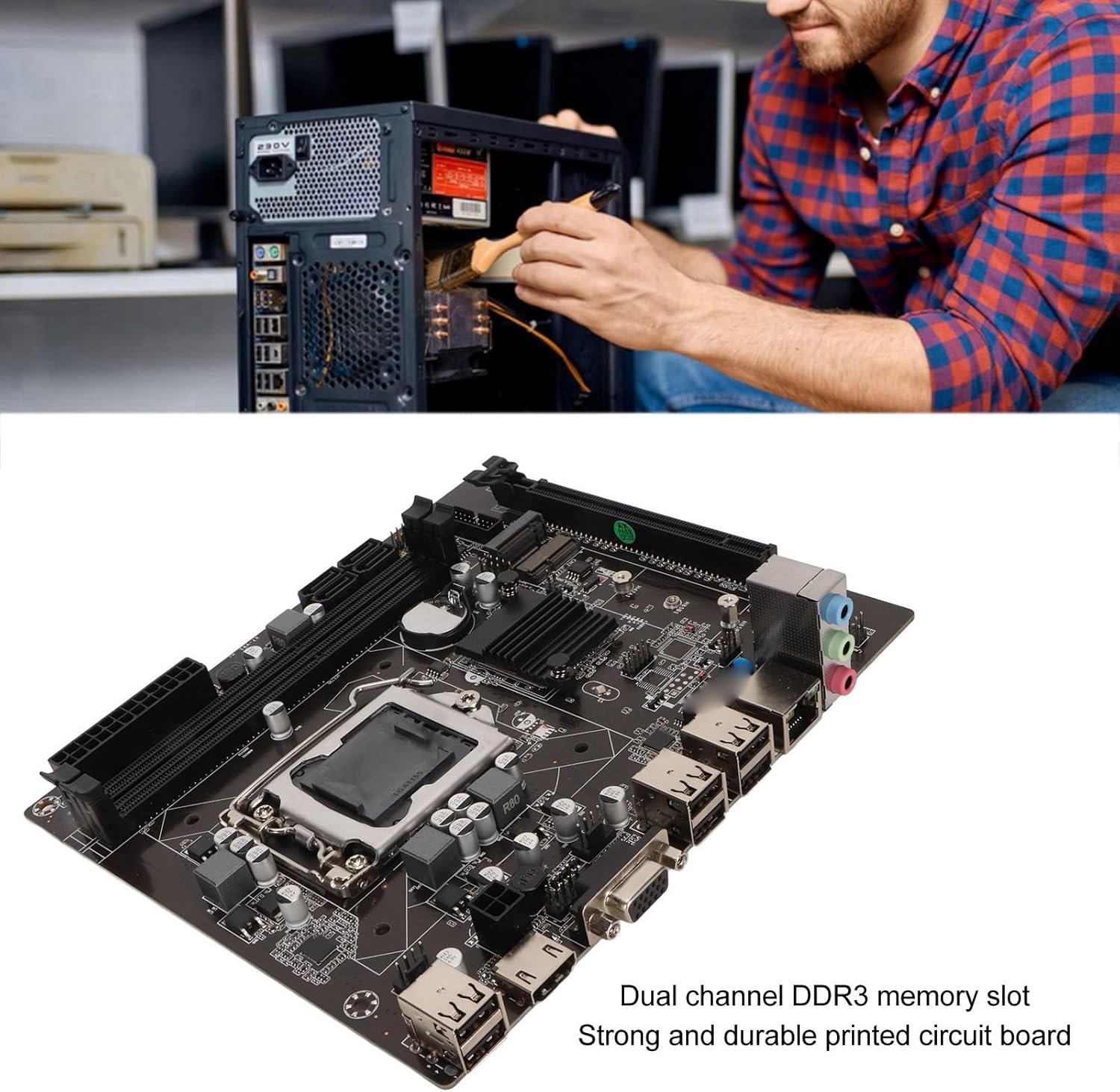
Figure 3: A user performing an installation within a PC case, demonstrating the typical environment for motherboard setup.

Figure 4: Detailed view of the LGA 1155 CPU socket and adjacent DDR3 memory slots, crucial areas for component installation.
Operating Guidelines
Once the motherboard and other components are installed, the system is ready for operation. This motherboard supports various operating systems compatible with 2nd/3rd Gen LGA1155 processors.
BIOS/UEFI Configuration
Upon first boot, you may need to enter the BIOS/UEFI setup to configure boot order, system time, and other settings. Typically, you can access the BIOS by pressing DEL or F2 during the initial boot screen.
Driver Installation
After installing your operating system, it is essential to install the necessary drivers for the motherboard's components, including chipset, network card, and integrated graphics (if used). These drivers are usually provided on a CD/DVD with the motherboard or can be downloaded from the manufacturer's website.
Connectivity
Utilize the available ports for your peripherals:
- USB 2.0 Ports: For connecting keyboards, mice, external drives, and other USB devices.
- VGA/HD Multimedia Interface: For connecting displays.
- Ethernet Port: For wired network connectivity (100M Netword Card).
- Audio Jacks: For speakers, headphones, and microphones.
Maintenance
Proper maintenance can extend the lifespan of your motherboard and ensure stable system performance.
- Keep it Clean: Regularly clean dust from inside your PC case, especially from the motherboard and CPU cooler fins, using compressed air. Dust accumulation can lead to overheating.
- Ensure Proper Airflow: Make sure your PC case has adequate ventilation and that fans are functioning correctly to prevent heat buildup.
- BIOS Updates: Periodically check the manufacturer's website for BIOS/UEFI updates. Updates can improve compatibility, stability, and performance. Follow update instructions carefully.
- Driver Updates: Keep your system drivers updated to ensure optimal performance and compatibility with new software and hardware.
- CMOS Battery: The motherboard uses a CR2032 battery for CMOS settings. If your system consistently loses time or BIOS settings, the battery may need replacement.
Troubleshooting
This section addresses common issues you might encounter with your motherboard.
- No Power/No Boot:
- Check all power connections (24-pin ATX, CPU power).
- Ensure the power supply is functional and switched on.
- Verify front panel power button connection to the motherboard.
- No Display:
- Ensure the monitor is connected to the correct video output (VGA or HD Multimedia Interface).
- Reseat RAM modules. Try booting with one RAM stick if you have multiple.
- Reseat the CPU and check for bent pins (handle with extreme care).
- If using a dedicated graphics card, ensure it is properly seated and has power.
- System Instability/Crashes:
- Check CPU and GPU temperatures. Ensure adequate cooling.
- Run memory diagnostic tools to check for faulty RAM.
- Ensure all drivers are correctly installed and up to date.
- Check for loose connections or components.
- USB Devices Not Recognized:
- Ensure USB drivers are installed.
- Try different USB ports.
- Check BIOS settings for USB controller enablement.
Specifications
Detailed technical specifications for the EBTOOLS LGA 1155 Motherboard:
| Feature | Specification |
|---|---|
| Item Type | LGA 1155 Motherboard |
| Material | Printed Circuit Board, Metal |
| Built-in Battery | CR2032 x 1 (240mAh) |
| CPU Support | 2nd/3rd Gen LGA1155 Pin Series Processors (for Celeron, for , for Core) |
| Chipset | H61 Chipset Series |
| Memory Slot | 2 x DDR3 |
| Maximum Memory Capacity | 16GB |
| USB Interface | 6 x USB2.0, USB Pin x 1 |
| SATA Interface | 4 x SATA2.0 |
| Network Card | 100M Network Card |
| Graphics Card Slot | 1 x PCIE X16 |
| Extended Interface | 1 x , 1 x M.2 |
| Package Dimensions | 10.2 x 7.83 x 2.05 inches |
| Item Weight | 1.16 pounds |
| Model Number | EBTOOLSpxvk7fmb38 |
| ASIN | B0CKVL89BD |

Figure 5: An angled perspective of the motherboard, showcasing its compact Mini ITX form factor and port layout.
Warranty and Support
For warranty information and technical support, please refer to the official EBTOOLS website or contact their customer service. Keep your purchase receipt as proof of purchase.
While specific warranty details are not provided in this manual, general product warranties typically cover manufacturing defects for a limited period from the date of purchase.
For additional protection, consider the available protection plans:
- 3-Year Protection Plan
- 4-Year Protection Plan
- Complete Protect (monthly plan)
These plans are offered separately and provide extended coverage beyond the standard manufacturer's warranty.
Manufacturer: EBTOOLS
Date First Available: October 11, 2023
Official Product Videos
No official product videos from the seller are available for this product at this time.
Ask a question about this manual
Ask about setup, troubleshooting, compatibility, parts, safety, or missing instructions. Manuals+ will review the question and use this page’s manual context to help answer it.