
Jazmm A320 Multiband Radio
Jazmm Portable Shortwave Radio User Manual
Model: A320 Multiband Radio
Introduction
Thank you for choosing the Jazmm Portable Shortwave Radio. This versatile device is designed to provide a comprehensive listening experience, featuring multi-band reception (AIR, VHF, SW, WB, AM, MW), Bluetooth 5.0 connectivity, and convenient APP control. With its powerful 5W bass speaker, 2000mAh rechargeable battery, and additional functions like a flashlight and recording capability, this radio is ideal for both everyday use and emergency situations. This manual will guide you through the setup, operation, and maintenance of your new radio.

Front view of the Jazmm Portable Shortwave Radio, showcasing its display, tuning dial, and control buttons.
What's in the Box
Please check the contents of your package to ensure all items are present:
- A320 Multiband Radio
- Wire Antenna (9.89 Ft)
- Type-C Charging Cable
- Earphone
- Packing Box
Setup
1. Charging the Battery
The radio is equipped with a built-in 2000mAh rechargeable battery. Before first use, it is recommended to fully charge the device.
- Connect the supplied Type-C charging cable to the radio's charging port.
- Connect the other end of the cable to a 5V/1A power adapter (not included).
- The charging indicator on the radio will illuminate. A full charge typically takes approximately 4 hours.
- Once fully charged, the indicator may change color or turn off, depending on the model. Disconnect the charging cable.

Image illustrating the USB Type-C charging process for the radio.
2. Attaching the Antenna
For optimal reception, especially for shortwave and VHF bands, extend the built-in telescopic antenna fully. For enhanced reception, particularly in areas with weak signals, connect the external wire antenna to the designated antenna jack on the radio.

The radio with its extended antenna, demonstrating its multi-band reception capabilities.
Operating Instructions
1. Power On/Off
Press and hold the POWER button to turn the radio on or off. The LCD display will illuminate upon power-on.

Close-up of the radio's large turning knobs and various control buttons, including the power button.
2. Band Selection and Tuning
The radio supports AIR, VHF, SW, WB, AM, and MW bands.
- Press the BAND button to cycle through available frequency bands.
- Use the large rotary tuning knob or the TUNE+ / TUNE- buttons to manually adjust the frequency.
- For precise tuning, the radio also features a shuttle tuning mechanism.
- The LCD display will show the current frequency and band.
3. Volume Control
Adjust the volume using the VOL+ and VOL- buttons. The radio features a 5W bass speaker for clear and powerful audio.

Internal view highlighting the 5W large speaker for enhanced audio quality.
4. Bluetooth Connectivity
The radio features Bluetooth 5.0 for wireless audio streaming.
- Press the BT button to enter Bluetooth pairing mode. The Bluetooth indicator will flash.
- On your smartphone or other Bluetooth device, search for "Jazmm A320" (or similar) in the Bluetooth settings.
- Select the radio to pair. Once connected, the indicator will become solid, and you can stream audio wirelessly.

Diagram showing the radio's Bluetooth connection to a smartphone and the associated app control interface.
5. APP Control
Enhance your experience by controlling the radio via a dedicated smartphone application (compatible with iOS, Android, and HarmonyOS).
- Download the "Radio-CT" app (or similar, refer to product packaging/manual for exact app name) from your device's app store.
- Ensure Bluetooth is enabled on both your radio and smartphone, and they are paired.
- Open the app. It should automatically detect and connect to your radio.
- Through the app, you can perform various functions including tuning, band selection, recording broadcasts, presetting stations, and synchronizing time.
6. Play Modes
The radio supports multiple playback modes:
- Radio Mode: Listen to AIR/AM/FM/VHF/SW/WB broadcasts.
- Bluetooth Mode: Stream audio wirelessly from your Bluetooth-enabled device.
- TF Card Playback: Insert a TF card (up to 256GB, not included) into the designated slot to play MP3, WMA, WAV, APE, and FLAC audio files.
- AUX-IN Mode: Connect external audio devices via the 3.5mm AUX-IN port (cable not included) to use the radio as an external speaker.
- PC Connection: Connect the radio to a computer via the Type-C cable for file transfer to/from a TF card inserted in the radio.
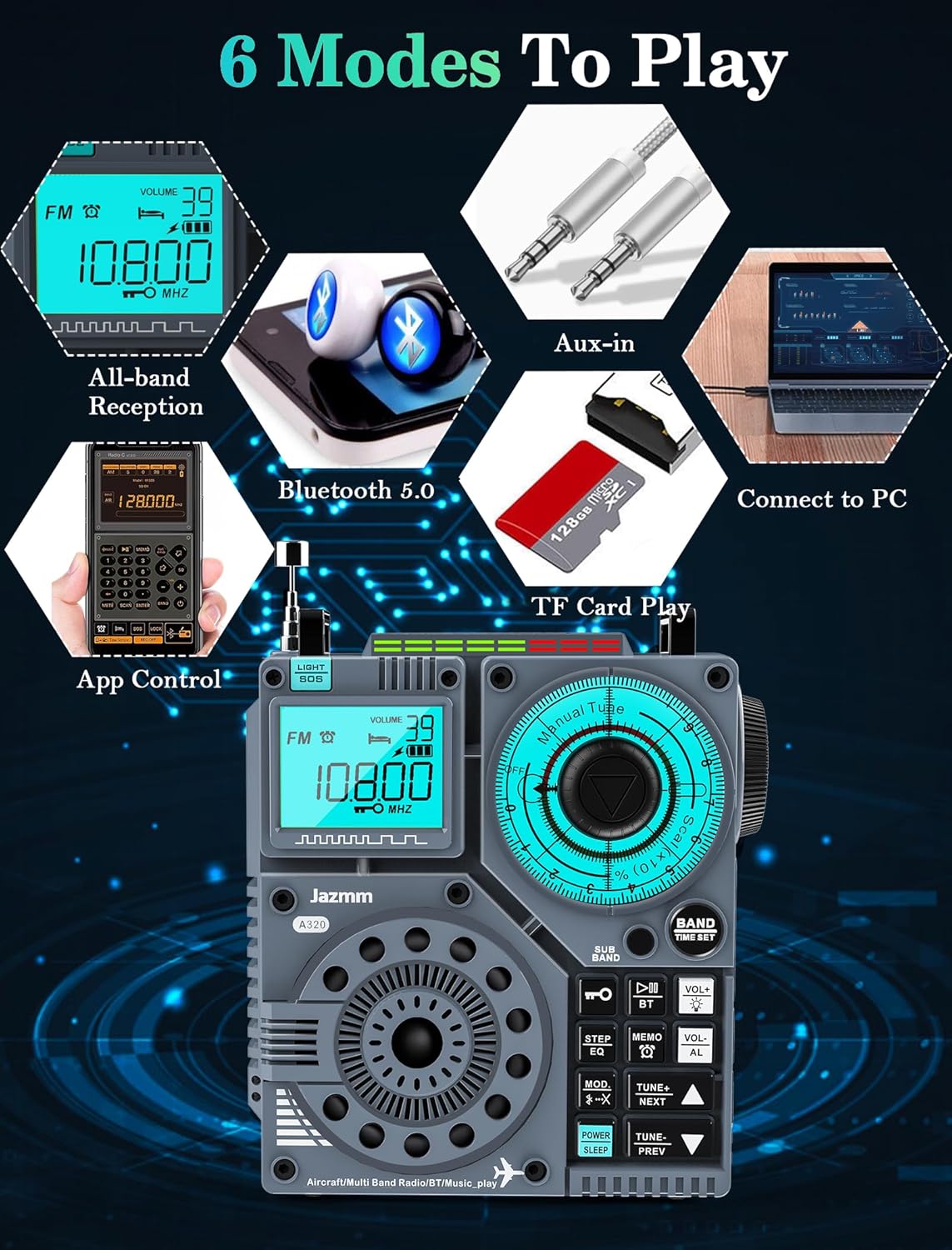
Visual representation of the radio's six versatile play modes, including radio, Bluetooth, AUX-in, TF card, PC connection, and app control.
7. Recording Function
The radio allows you to record current broadcasts. This function is primarily controlled via the companion APP. Refer to the APP's interface for specific recording instructions.
8. Flashlight and SOS Alarm
For emergency situations, the radio includes a 1W integrated flashlight and an SOS alarm.
- Press the LIGHT/SOS button once to turn on the flashlight. Press again to turn it off.
- Press and hold the LIGHT/SOS button to activate the SOS alarm. Press again to deactivate.

Composite image illustrating the radio's flashlight, SOS alarm, LCD display, time setting feature, and 3.5mm earphone jack.
9. Sleep Timer and Alarm Clock
The radio features a sleep countdown timer and an alarm clock function.
- Sleep Timer: Set a countdown for the radio to automatically power off. Consult the on-screen menu or APP for specific settings.
- Alarm Clock: Set a specific time for the radio to power on and play. Consult the on-screen menu or APP for specific settings.
10. Presetting Stations
The radio can preset up to 995 stations (199 for each band: FM/VHF/AM/SW/AIR).
- Automatic Scan/Store: Use the auto-scan function (refer to specific button or APP function) to automatically find and store available stations.
- Manual Store: Tune to your desired station, then press and hold the MEMO button (or similar) to save it to a preset number.
- Recalling Presets: Use the NEXT/PREV buttons or the APP to navigate through your saved stations.
Maintenance
- Cleaning: Use a soft, dry cloth to clean the radio's exterior. Do not use abrasive cleaners, solvents, or strong chemicals, as they may damage the surface.
- Storage: When not in use for extended periods, store the radio in a cool, dry place away from direct sunlight and extreme temperatures.
- Battery Care: To prolong battery life, avoid fully discharging the battery frequently. Charge the radio regularly, even if not in use, to maintain battery health.
- Water Exposure: This radio is not waterproof. Avoid exposing it to rain, moisture, or splashing water.
Troubleshooting
| Problem | Possible Cause | Solution |
|---|---|---|
| Radio does not power on. | Battery is depleted. | Charge the radio fully using the Type-C cable. |
| Poor radio reception. | Antenna not extended or connected; weak signal area; interference. | Fully extend the telescopic antenna. Connect the external wire antenna. Move to an open area away from electronic devices that may cause interference. |
| Bluetooth connection unstable or fails. | Radio too far from device; interference; device not in pairing mode. | Ensure devices are within 20 meters. Reduce obstacles. Re-enter Bluetooth pairing mode on both devices. |
| APP control not working. | Bluetooth not connected; incorrect app; app requires update. | Ensure radio and phone are Bluetooth paired. Verify you have the correct "Radio-CT" app. Check for app updates. |
| No sound from speaker. | Volume too low; headphones connected; mute activated. | Increase volume. Disconnect headphones from the 3.5mm jack. Check if mute function is active (if applicable). |
Specifications
| Feature | Detail |
|---|---|
| Model | A320 Multiband Radio |
| Dimensions (L x W x H) | 4 x 2.05 x 4.67 inches |
| Weight | 12.7 ounces |
| Battery | 2000mAh Lithium Ion (Rechargeable) |
| Charging Time | Approx. 4 hours |
| Usage Time | Up to 23 hours (varies by usage) |
| Speaker Output | 5W Bass Speaker |
| Bluetooth Version | 5.0 |
| Bluetooth Range | Up to 20 meters (65 feet) |
| Supported Bands | AIR, AM, FM, VHF, SW, WB |
| Memory Presets | 995 (199 per band) |
| TF Card Support | Up to 256GB (MP3, WMA, WAV, APE, FLAC) |
| Flashlight Power | 1W |
| Connectivity | Bluetooth, AUX-IN, Type-C USB |
Warranty and Support
For warranty information and technical support, please refer to the warranty card included in your product packaging or contact Jazmm customer service directly. You can often find contact details on the manufacturer's official website or through the retailer where you purchased the product. Please have your model number (A320) and purchase date ready when contacting support.
For further assistance, you may visit the Jazmm Store on Amazon.
Ask a question about this manual
Ask about setup, troubleshooting, compatibility, parts, safety, or missing instructions. Manuals+ will review the question and use this page’s manual context to help answer it.