
1. Introduction
This manual provides instructions for the proper use and care of your BoxWave MagnetoSnap PD AllCharge Cable (100W). This versatile cable is designed to provide efficient charging and data transfer for a wide range of devices, including the Chuwi HiPad XPro, using its interchangeable magnetic tips.

Image 1.1: The BoxWave MagnetoSnap PD AllCharge Cable with its magnetic connectors and a compatible tablet.
2. Product Overview
The BoxWave MagnetoSnap PD AllCharge Cable features a durable braided nylon design and includes three interchangeable magnetic connectors: USB-C, Micro USB, and a compatible connector for Apple devices. The cable also incorporates a built-in USB Type-C adapter within its standard USB-A connector, allowing for flexible power source connections.
2.1 Components
- MagnetoSnap Cable: The main braided cable with a magnetic receiving end and a dual-purpose USB-A/USB-C host connector.
- Magnetic USB-C Tip: For devices with a USB-C charging port.
- Magnetic Micro USB Tip: For devices with a Micro USB charging port.
- Magnetic Apple Compatible Tip: For devices utilizing an Apple-style charging port.

Image 2.1: The cable and its three distinct magnetic tips (USB-C, Micro USB, and Apple compatible).

Image 2.2: Visual representation of the three magnetic connector types included with the cable.
3. Setup Instructions
- Select the Correct Tip: Identify the charging port type on your device (e.g., Chuwi HiPad XPro uses USB-C). Choose the corresponding magnetic tip (USB-C, Micro USB, or Apple compatible).
- Insert the Tip: Carefully insert the chosen magnetic tip into your device's charging port. Ensure it is fully seated. This tip can remain in your device to protect the port and facilitate quick connections.
- Connect the Cable: Bring the magnetic end of the MagnetoSnap cable close to the inserted tip. The magnets will automatically align and snap into place, establishing a secure connection.
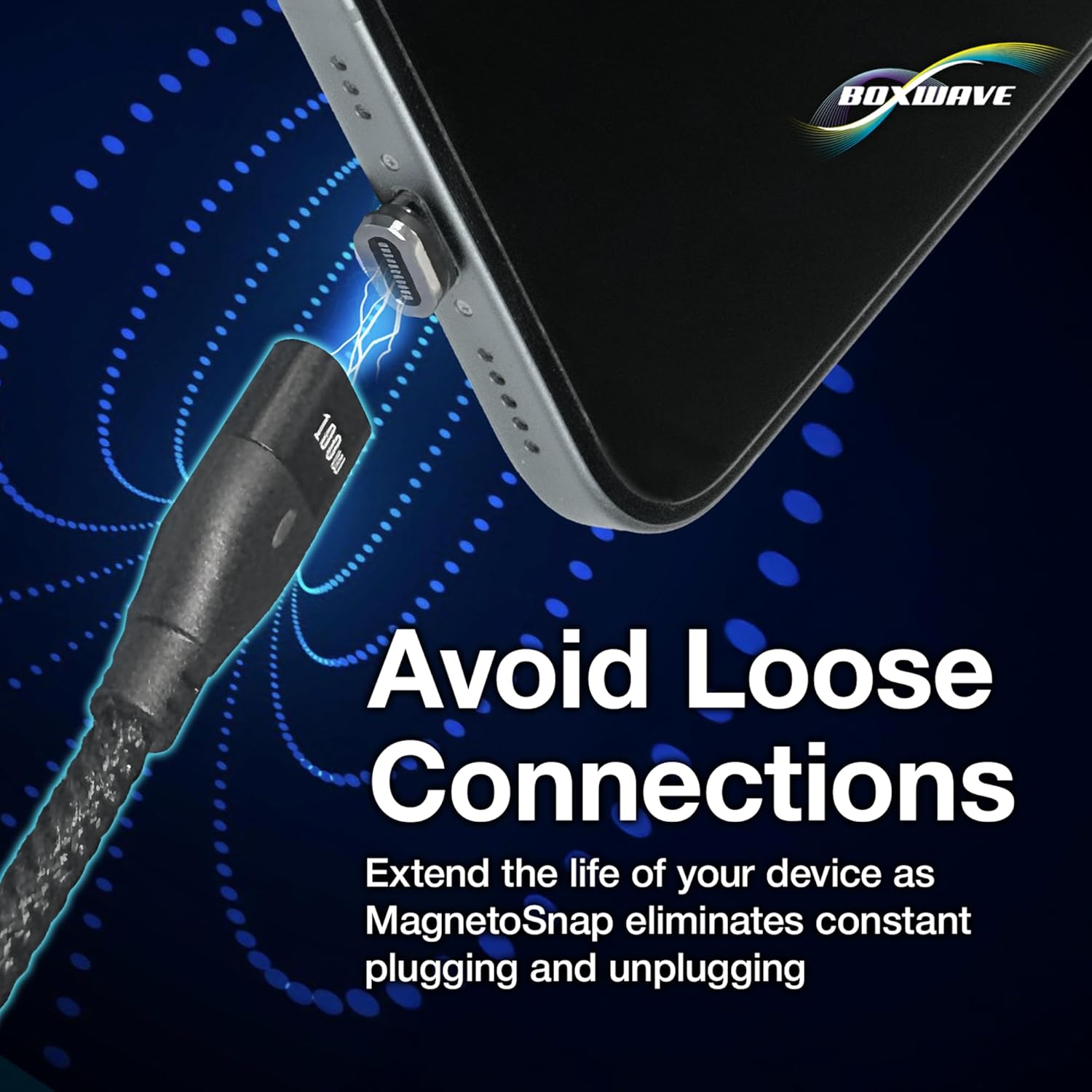
Image 3.1: Demonstrating the magnetic connection process, where the cable snaps onto the pre-inserted tip.
4. Operating Instructions
4.1 Charging Your Device
- Connect to Power Source: Plug the host end of the MagnetoSnap cable into a power adapter or a computer's USB port. The cable supports both traditional USB-A ports and USB-C Power Delivery (PD) chargers. To use a USB-C PD charger, gently pull away the outer USB-A casing to reveal the integrated USB-C connector.
- Magnetic Connection: Ensure the correct magnetic tip is inserted into your device's charging port. Connect the cable magnetically to the tip.
- Verify Charging: Confirm that your device indicates it is charging. The cable supports up to 100W Power Delivery, enabling rapid charging for compatible devices, including laptops.
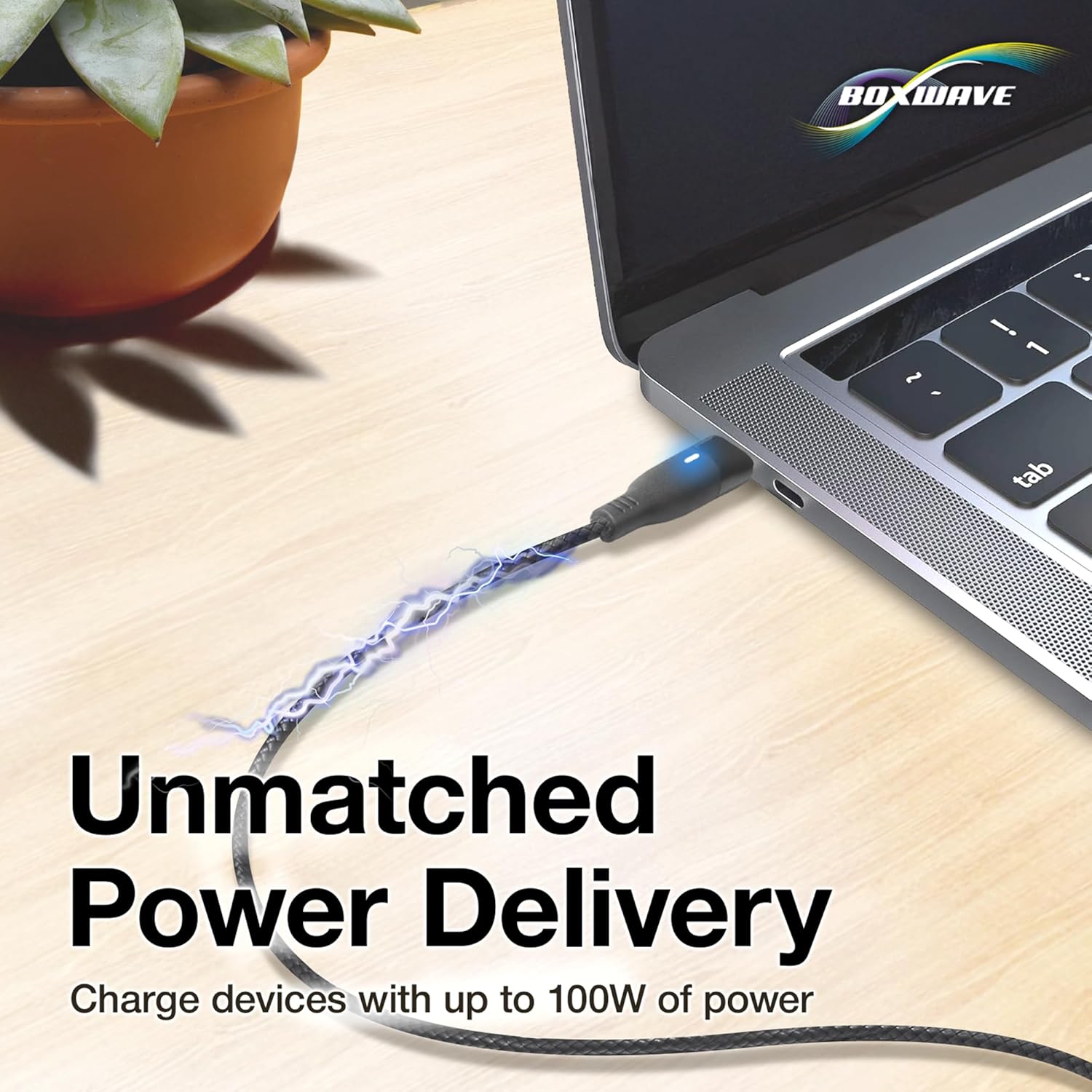
Image 4.1: The cable connected to a laptop, demonstrating its high-power charging function.

Image 4.2: Detail of the cable's host connector, highlighting the integrated USB-C adapter for versatile power sources.
4.2 Data Transfer
To transfer data, connect the host end of the MagnetoSnap cable to a computer's USB port (either USB-A or USB-C, depending on your computer's port and the cable's configuration). Ensure the magnetic tip is securely connected to your device. The cable supports data transfer speeds of up to 480Mbps, allowing for efficient syncing of files.

Image 4.3: The cable facilitating both charging and data transfer between a smartphone and a laptop.
5. Maintenance
- Cable Care: The braided nylon cable is designed for durability. Avoid sharp bends, excessive pulling, or tangling to prolong its lifespan.
- Magnetic Tips: Keep the magnetic tips and the cable's magnetic end free from dust, debris, and metallic particles to ensure a strong and reliable connection. Use a soft, dry cloth for cleaning.
- Port Protection: Leaving the magnetic tip in your device's charging port helps protect it from dust, lint, and wear caused by repeated plugging and unplugging of traditional cables.

Image 5.1: The magnetic connection helps prevent wear and tear on your device's charging port.
6. Troubleshooting
- Device Not Charging:
- Ensure the magnetic tip is fully inserted into your device's charging port.
- Verify the magnetic connection between the cable and the tip is secure.
- Check that the host end of the cable is properly connected to a functional power source (wall adapter, computer USB port).
- If using a USB-C PD charger, ensure the USB-C connector is fully extended from the USB-A casing.
- Test with a different power source or device if possible.
- Slow Charging:
- Ensure your power adapter supports the required wattage for your device (e.g., 100W for laptops).
- Clean the magnetic contacts on both the tip and the cable.
- Data Transfer Issues:
- Confirm the cable is securely connected to both your device and the computer.
- Check your device's settings to ensure it is configured for data transfer when connected to a computer.
- Try a different USB port on your computer.
7. Specifications
| Feature | Detail |
|---|---|
| Brand | BoxWave |
| Model | MagnetoSnap PD AllCharge Cable (100W) |
| Color | Jet Black |
| Power Delivery | Up to 100 Watts |
| Data Transfer Speed | Up to 480 Mbps |
| Cable Material | Braided Nylon |
| Connectors Included | Magnetic USB-C, Magnetic Micro USB, Magnetic Apple Compatible |
| Host Connector | USB-A (with integrated USB-C adapter) |
| Item Weight | 0.8 ounces |
8. Warranty and Support
For warranty information and technical support, please refer to the official BoxWave website or contact their customer service directly. Keep your purchase receipt as proof of purchase for any warranty claims.
BoxWave Customer Support: www.boxwave.com/support