
1. Introduction
This manual provides detailed instructions for the New Remotes RMF-TX621U Remote Control. This remote is designed to offer seamless control over your compatible Sony television, featuring voice command capabilities, a convenient backlight, and a robust metal case for enhanced durability.
The RMF-TX621U is an original replacement remote, ensuring full compatibility and functionality with your device.
2. Setup
2.1 Battery Installation
- Locate the battery compartment cover on the back of the remote control.
- Slide the cover downwards or press the release tab (if present) to open the compartment.
- Insert two (2) AAA batteries, ensuring the positive (+) and negative (-) terminals align correctly with the indicators inside the compartment.
- Replace the battery compartment cover until it clicks securely into place.
2.2 Pairing the Remote Control
For optimal functionality, including voice control, the remote control must be paired with your Sony TV via Bluetooth. Follow these steps:
- Ensure your Sony TV is powered on.
- On the remote control, simultaneously press and hold the Volume Down (VOL-) button and the Google Assistant (Microphone) button for approximately 2 seconds.
- The pairing indicator on the remote (usually a small LED) may flash.
- Follow any on-screen prompts on your TV to complete the pairing process. If no prompt appears, navigate to your TV's settings menu (usually Home > Settings > Remotes & Accessories > Bluetooth settings) and select the remote control to pair.
- Once successfully paired, a confirmation message will appear on your TV screen.
3. Operating Instructions
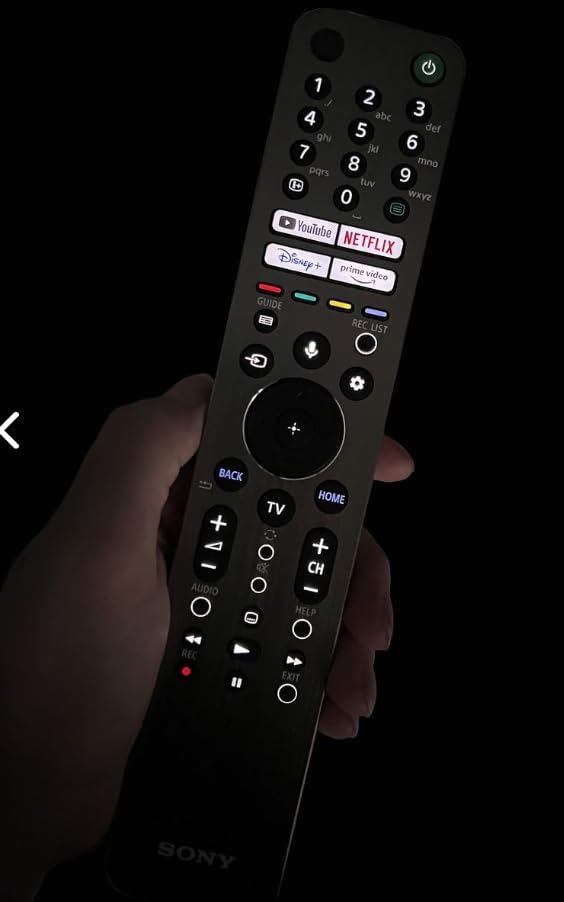
The RMF-TX621U remote control provides intuitive access to your TV's functions. Below are the primary operational controls:
- Power Button (Green): Turns the TV on or off.
- Number Pad (0-9): Directly input channel numbers or other numerical data.
- Directional Pad (Up/Down/Left/Right) & OK Button: Navigate through menus and select options.
- Back Button: Returns to the previous screen or menu.
- Home Button: Accesses the TV's main home screen or smart hub.
- Volume Up/Down (VOL+/-): Adjusts the TV's audio volume.
- Channel Up/Down (CH+/-): Changes TV channels.
- Mute Button: Mutes or unmutes the TV audio.
- Google Assistant (Microphone) Button: Activates voice control for searching content, controlling smart home devices, or issuing commands.
- Quick Access Buttons (e.g., Netflix, YouTube, Disney+, Prime Video): Provides direct access to popular streaming applications.
- Playback Controls (REC, Play, Pause, Fast Forward, Rewind): Controls media playback.
4. Features
4.1 Voice Control with Google Assistant
The integrated Google Assistant allows you to control your TV and search for content using voice commands. Simply press the Google Assistant (microphone) button and speak your command. Examples include: "Launch Netflix," "Lower the volume," or "Find action movies."
4.2 Backlight Functionality
The remote features a backlight for improved visibility in low-light conditions. The buttons illuminate when the remote is in use, making it easier to navigate in the dark.
4.3 High-End Metal Case
The remote control is housed in a high-end metal case, providing a premium feel and enhanced durability, protecting it from everyday wear and tear.

5. Maintenance
- Cleaning: Use a soft, dry cloth to clean the remote control. Avoid using liquid cleaners or abrasive materials.
- Battery Replacement: Replace batteries when the remote's response becomes sluggish or the backlight dims. Always replace both batteries simultaneously with new AAA batteries.
- Storage: Store the remote in a cool, dry place away from direct sunlight and extreme temperatures.
6. Troubleshooting
6.1 Remote Not Responding
- Check battery orientation and ensure they are correctly inserted.
- Replace old batteries with new AAA batteries.
- Ensure there are no obstructions between the remote and the TV's sensor.
- Re-pair the remote control with the TV (refer to Section 2.2).
6.2 Voice Control Not Working
- Ensure the remote is properly paired via Bluetooth (refer to Section 2.2).
- Speak clearly and directly into the microphone on the remote.
- Check the TV's internet connection, as Google Assistant requires an active connection.
6.3 Backlight Not Illuminating
- Check battery levels; low batteries may affect backlight performance.
- Ensure the remote is being moved or used, as the backlight typically activates with motion or button presses.
7. Specifications
- Model Number: RMF-TX621U
- Brand: New Remotes
- Compatible Devices: Television (Sony Bravia Smart TVs)
- Power Source: 2 x AAA Batteries (required)
- Special Features: Voice Control, Backlight, Metal Case
- Color: Metallic Silver Grey
- Item Weight: 5.3 ounces
- Package Dimensions: 9.13 x 2.05 x 0.71 inches
8. Warranty and Support
For warranty information or technical support, please refer to the documentation provided with your purchase or contact New Remotes customer service directly. Keep your purchase receipt for warranty claims.


