1. Product Overview
The Pulido Fingerprint Door Knob offers a modern and secure keyless entry solution for your home or office. This smart door knob provides two primary methods of unlocking: fingerprint recognition and mobile application control. It is designed for ease of use and enhanced security, storing all user data locally on the device.

Image: The Pulido Fingerprint Door Knob highlighting its fingerprint sensor, app management capability, and power interface.
2. Package Contents
Please verify that all components are present before beginning installation:
- Fingerprint Door Knob (Interior and Exterior Handles)
- Latch Mechanism
- Strike Plate
- Mounting Screws
- Installation Template
- User Manual
3. Components Identification
Familiarize yourself with the different parts of your Pulido Fingerprint Door Knob:
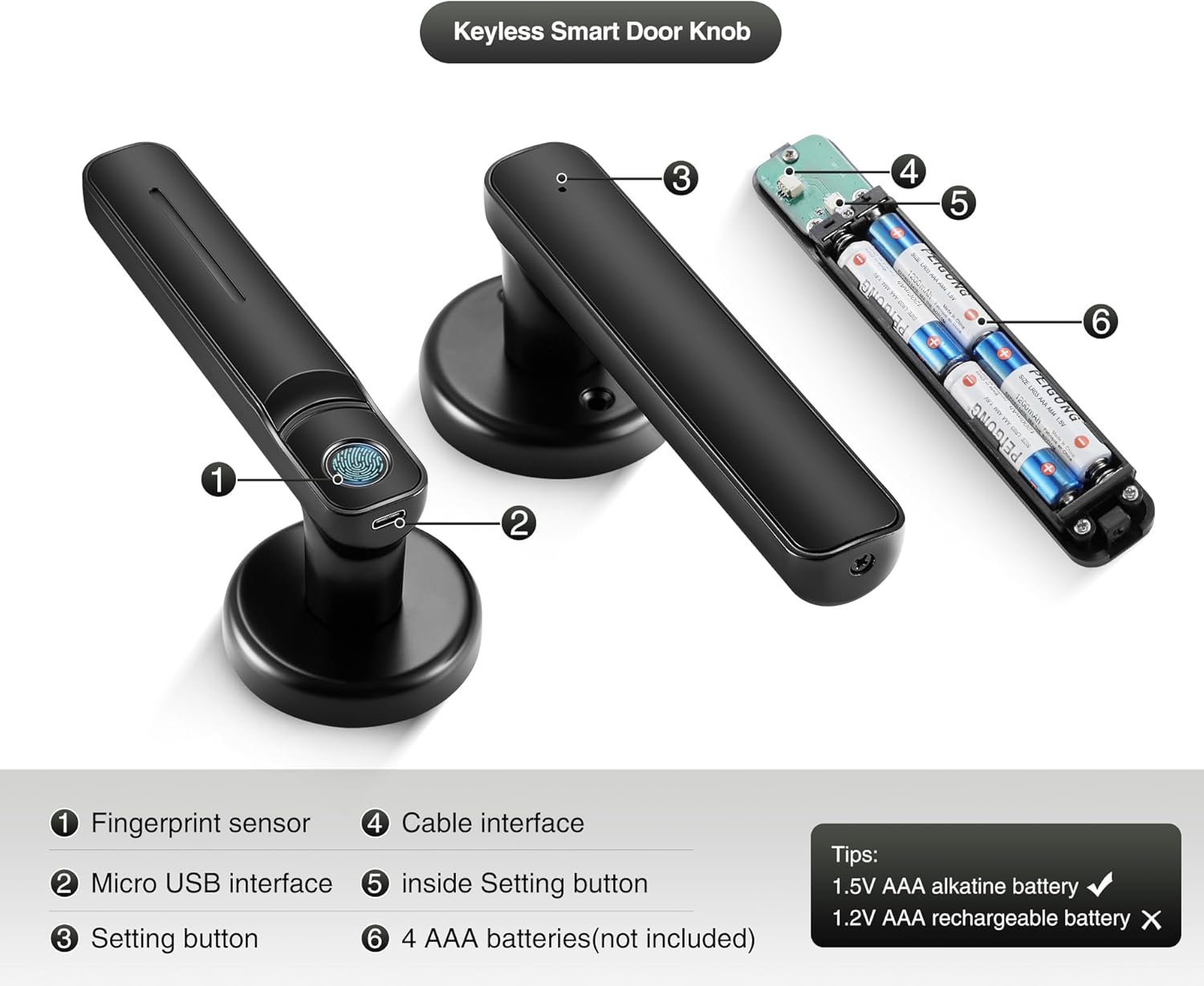
Image: Detailed view of the door knob's internal and external components.
- Fingerprint Sensor: Used for biometric unlocking.
- Micro USB Interface: For emergency power supply.
- Setting Button (Exterior): Used for initial setup and pairing.
- Cable Interface: Connects the exterior and interior components.
- Inside Setting Button: Used for internal settings and resets.
- AAA Batteries Compartment: Holds 4 AAA batteries (not included).
4. Installation Guide
This section provides instructions for installing your new Pulido Fingerprint Door Knob. It is designed to replace standard mechanical door knobs.

Image: Visual representation of replacing a mechanical lock with the smart door knob.
4.1 Preparation
- Ensure your door thickness is compatible with the lock.
- Remove any existing door hardware.
- Verify the door bore hole and backset dimensions match the installation template.
4.2 Installation Steps
- Install the Latch: Insert the latch into the door edge and secure it with screws. Ensure the latch bolt faces the correct direction for your door swing.
- Install the Strike Plate: Mount the strike plate on the door frame, aligning it with the latch bolt.
- Install the Exterior Handle: Feed the cable and spindle through the door bore hole from the exterior side.
- Install the Interior Handle: Connect the cable from the exterior handle to the interior handle. Align the interior handle with the spindle and mounting posts.
- Secure the Handles: Use the provided screws to firmly attach the interior handle to the exterior handle, ensuring the lock is flush with the door surface.
- Insert Batteries: Open the battery compartment on the interior handle and insert 4 new AAA alkaline batteries.
- Test Operation: After installation, test the mechanical function of the knob to ensure smooth rotation and latch engagement.
5. Initial Setup & App Configuration
To fully utilize your smart door knob, you will need to set it up with the mobile application and register fingerprints.
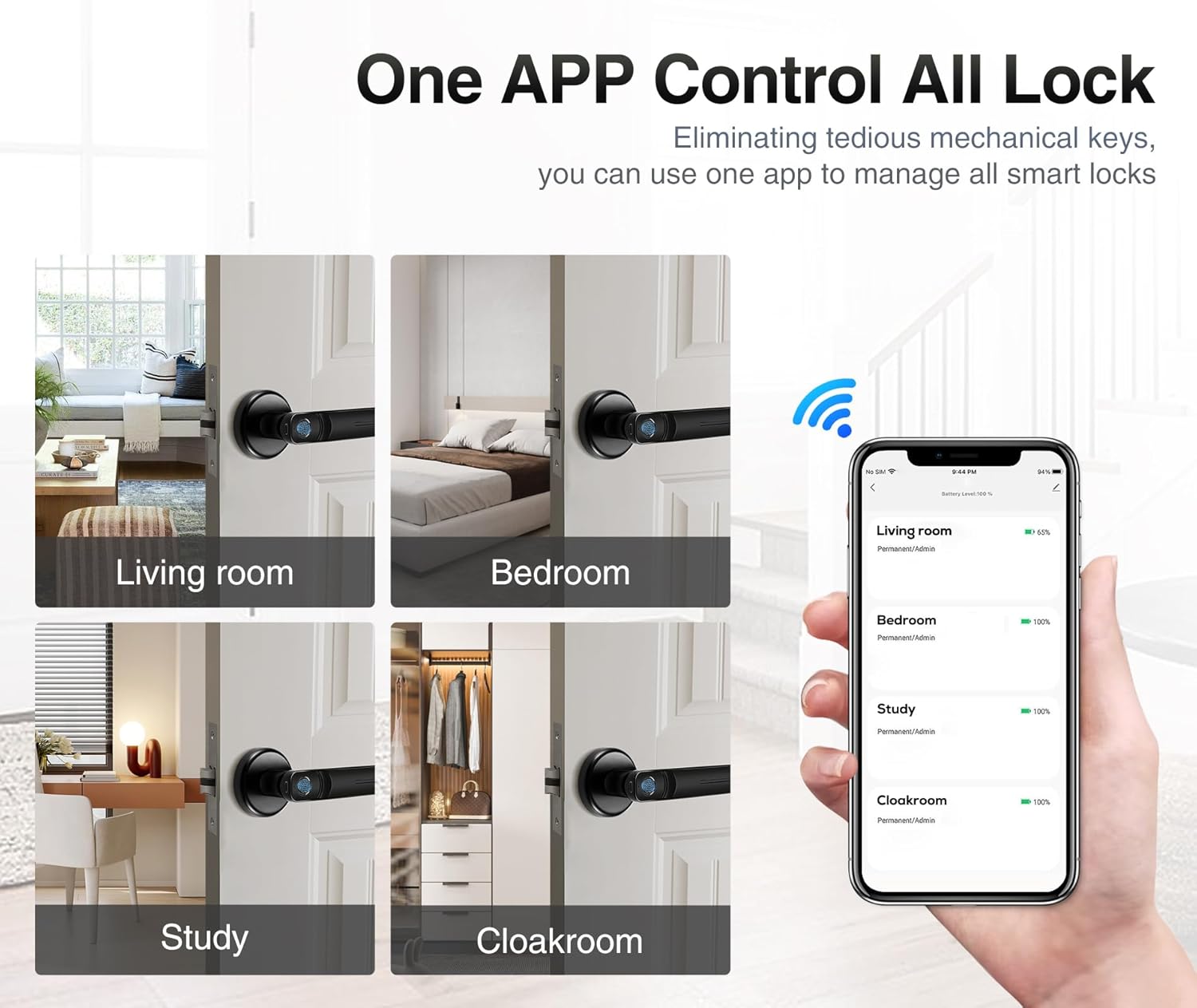
Image: The mobile application interface demonstrating control over multiple locks.
5.1 App Download and Pairing
- Download the App: Search for the 'Tuya Smart' or 'Smart Life' app in your smartphone's app store (iOS or Android) and install it.
- Create an Account: Open the app and register for a new account or log in if you already have one.
- Add Device: In the app, tap '+' to add a new device. Select 'Door Lock' or 'Smart Lock' from the device categories.
- Pair the Lock: Follow the in-app instructions to put the door knob into pairing mode (usually by pressing and holding the setting button on the exterior handle until an indicator light flashes). The app will detect and connect to the lock via Bluetooth.
5.2 Fingerprint Registration
The lock supports up to 100 user fingerprints. Fingerprint information is stored locally on the lock for security.
- Access Fingerprint Management: In the app, navigate to the settings for your connected door lock and find the 'Fingerprint Management' section.
- Add Fingerprint: Select 'Add Fingerprint' and follow the on-screen prompts.
- Scan Fingerprint: Place your finger on the fingerprint sensor multiple times, adjusting the position slightly with each scan, until the app confirms successful registration.
- Repeat for Additional Users: Repeat the process for any other users who require fingerprint access.
6. Operation
Your Pulido Fingerprint Door Knob offers convenient and secure unlocking methods.
6.1 Unlocking with Fingerprint

Image: Demonstrating the quick fingerprint unlock feature.
- Place your registered finger firmly on the fingerprint sensor.
- The lock will unlock within 0.5 seconds if the fingerprint is recognized.
- Rotate the door knob to open the door.
6.2 Unlocking with the App
- Open the 'Tuya Smart' or 'Smart Life' app on your smartphone.
- Select the desired door lock from your device list.
- Tap the 'Unlock' button within the app interface.
- The app also allows you to view unlocking records and manage user access.
6.3 Passage Mode

Image: The door knob in a hallway, illustrating the Passage Mode feature.
- Passage Mode allows the door to remain unlocked for continuous access without requiring fingerprint or app authentication.
- To activate Passage Mode, open the app, select your door lock, and find the 'Passage Mode' setting.
- Enable Passage Mode as needed. Remember to disable it when you require the door to be locked.
7. Battery Management
The Pulido Fingerprint Door Knob is powered by 4 AAA batteries.
7.1 Battery Installation/Replacement
- Locate the battery compartment on the interior handle (refer to Section 3, Component 6).
- Open the compartment cover.
- Insert 4 new 1.5V AAA alkaline batteries, ensuring correct polarity. Do not use 1.2V rechargeable batteries.
- Close the battery compartment cover securely.
7.2 Low Battery Warning
- The lock will provide an audible or visual indicator when battery power is low.
- Replace batteries promptly to ensure continuous operation.
7.3 Emergency Power
- In case of complete battery depletion, the lock can be temporarily powered via the Micro USB interface (refer to Section 3, Component 2) using a standard power bank or USB charger.
- This allows you to unlock the door and replace the batteries.
8. Troubleshooting
This section addresses common issues you might encounter with your Pulido Fingerprint Door Knob.
8.1 Fingerprint Not Recognized
- Clean Sensor: Ensure the fingerprint sensor is clean and free of dirt or moisture.
- Proper Placement: Place your finger firmly and completely on the sensor. Try different angles if necessary.
- Re-register Fingerprint: If issues persist, delete the existing fingerprint in the app and re-register it, ensuring a thorough scanning process.
- Multiple Attempts: The lock allows multiple attempts. If still unsuccessful, use the app to unlock.
8.2 App Connectivity Issues
- Bluetooth Enabled: Ensure Bluetooth is enabled on your smartphone.
- Proximity: Be within Bluetooth range of the door knob.
- App Restart: Close and reopen the app.
- Re-pair Device: If the app consistently fails to connect, try removing the device from the app and re-pairing it.
- Check Batteries: Low batteries can affect Bluetooth connectivity.
8.3 Lock Does Not Engage/Disengage
- Check Batteries: Ensure batteries are not depleted. Replace if necessary.
- Installation Check: Verify that the lock was installed correctly and that the spindle and latch mechanism are properly aligned.
- Obstructions: Check for any physical obstructions preventing the latch from extending or retracting fully.
9. Specifications
| Feature | Specification |
|---|---|
| Model Number | door konb 140 |
| Material | Aluminum, Stainless Steel |
| Product Dimensions | 5.7"L x 2.5"W |
| Item Weight | 1.61 Pounds |
| Unlock Methods | Fingerprint, Mobile App |
| Fingerprint Recognition Rate | Up to 99% |
| Unlock Speed | Within 0.5 seconds |
| User Capacity | Up to 100 fingerprints |
| Power Supply | 4 x 1.5V AAA Alkaline Batteries (not included) |
| Emergency Power | Micro USB |
10. Warranty and Support
Pulido is committed to providing reliable products and customer satisfaction.
10.1 Warranty Information
This product includes a free replacement service for 12 months from the date of purchase for non-human caused damage. Please retain your proof of purchase for warranty claims.
10.2 Technical Support
Lifelong technical support is provided for the Pulido Fingerprint Door Knob. If you have any questions, require assistance with installation, setup, or troubleshooting, please contact our customer service team.
For support, please refer to the contact information provided on the product packaging or our official website.