
Introduction
This manual provides comprehensive instructions for the Scanmarker Pro, a portable reading and translation pen. It is designed to assist with reading comprehension, language learning, and text translation for various users, including those with dyslexia. Please read this manual thoroughly to ensure proper use and to maximize the device's capabilities.
Product Overview
The Scanmarker Pro is a versatile device that scans printed text and offers various functions:
- Reading Aid: Scans and reads printed text aloud, word by word, with on-screen display.
- Language Translator: Translates scanned text into over 100 languages online, with offline translation available for select languages.
- Wireless Scanner with Dictionary: Integrates a dictionary and word translation features to enhance vocabulary and comprehension.
- Reading Ruler Function: Guides text scanning and helps maintain focus line by line.
- Portable Design: Lightweight and compact for easy transport and discreet listening with headphones.
Device Components
The Scanmarker Pro includes the main scanning pen, a charging cable, and a user manual. The device features a touchscreen display, scanning tip, power button, and connectivity options.

Image: The Scanmarker Pro device, a black pen-shaped scanner with a screen displaying various function icons like Translate, Dictionary, Read, and Export.
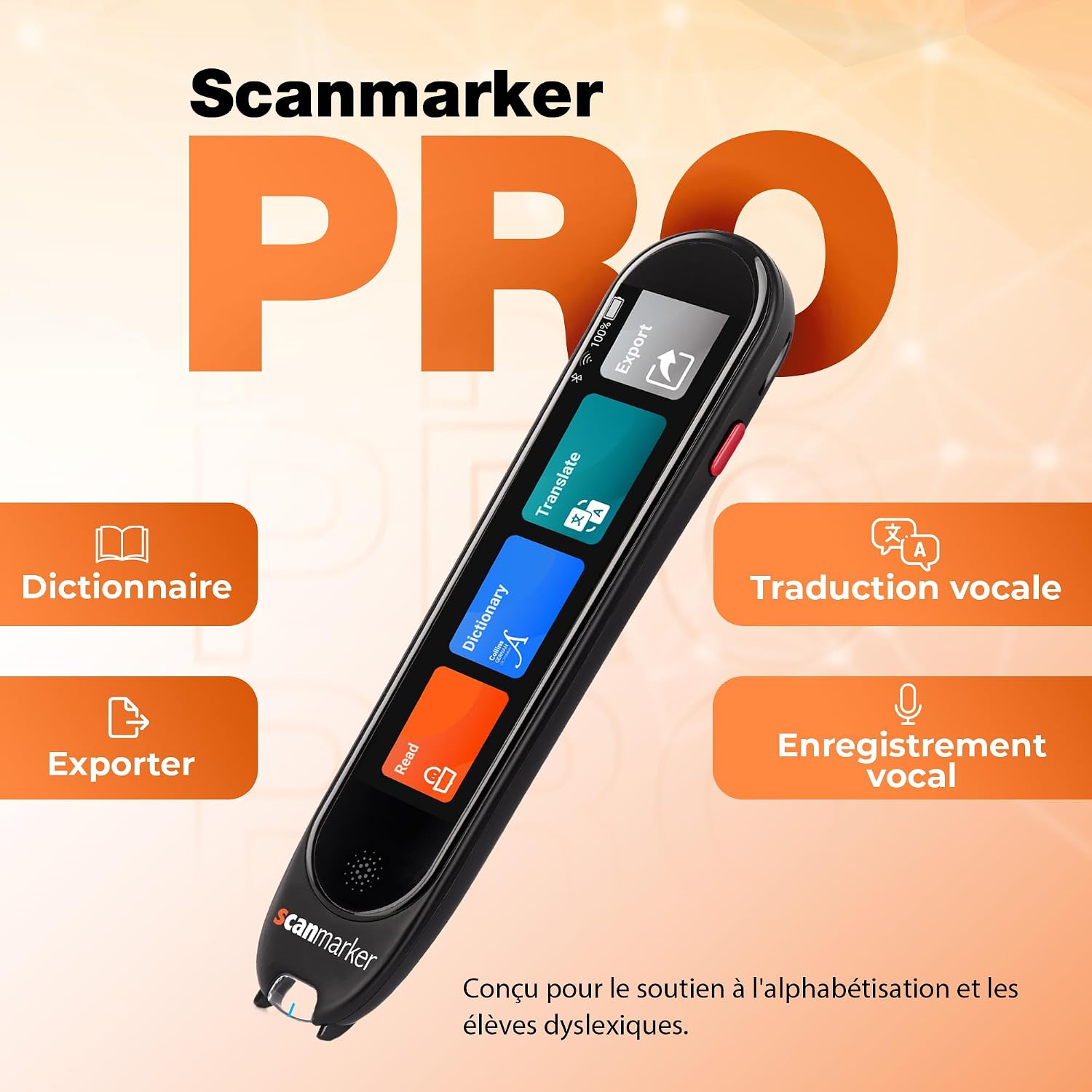
Image: A close-up of the Scanmarker Pro's screen interface, highlighting icons for Dictionary, Export, Voice Translation, and Translate functions. The text "PRO" is prominently displayed.
Setup Guide
- Charging the Device: Before first use, fully charge the Scanmarker Pro using the provided USB-C cable. Connect the cable to the device's charging port and a compatible USB power adapter. The screen will indicate charging status.
- Powering On/Off: Press and hold the power button (usually located on the side) for a few seconds to turn the device on or off.
- Initial Language Selection: Upon first startup, you will be prompted to select your preferred interface language.
- Network Connection: To access online translation and updates, connect the device to a Wi-Fi network. Navigate to Settings > Wi-Fi and select your network.
- Bluetooth Pairing: For discreet audio, pair Bluetooth headphones. Go to Settings > Bluetooth, enable Bluetooth, and select your headphones from the list of available devices.

Image: A child wearing headphones and writing, with an overlay showing the Scanmarker Pro and a Bluetooth symbol, illustrating wireless connectivity for private listening.
Operating Instructions
1. Scanning Text
Hold the Scanmarker Pro like a pen. Place the scanning tip gently at the beginning of the text line you wish to scan. Glide the pen smoothly and steadily across the text. Ensure the entire line is covered. The scanned text will appear on the device's screen.

Image: A hand holding the Scanmarker Pro, scanning a line of text in a book. The device's screen shows the scanned text and options for original or translated view.
2. Reading Aloud
After scanning, the device can read the text aloud. Tap the 'Read' icon on the screen. You can adjust the reading speed and voice type in the settings menu. This feature is particularly useful for improving reading comprehension and for individuals with reading difficulties.
3. Translation Function
To translate scanned text, select the 'Translate' option after scanning. Choose your desired target language. The device supports over 100 languages online. For offline translation, ensure the language packs are downloaded in advance via the settings.

Image: An illustration showing the Scanmarker Pro translating phrases between German, Spanish, French, Italian, and English, demonstrating its multi-language translation capability.
4. Dictionary Lookup
When a word is scanned, you can tap on it to access its definition through the integrated dictionary. This feature helps in vocabulary expansion and understanding unfamiliar terms.

Image: The Scanmarker Pro scanning text on a document, with icons indicating dictionary lookup, listening to definitions, and vocabulary development.
5. Exporting Text
Scanned text can be exported to other devices or applications. Select the 'Export' option on the screen and follow the prompts to transfer your text via Bluetooth or Wi-Fi, depending on the available options.
6. Adjusting Settings
Access the 'Settings' menu to customize your Scanmarker Pro experience. Here you can adjust:
- Reading Speed: Increase or decrease the speed of text-to-speech.
- Brightness: Adjust screen brightness for optimal viewing.
- Language: Change interface language, download offline translation packs, and set default translation languages.
- Connectivity: Manage Wi-Fi and Bluetooth connections.
Maintenance
- Cleaning: Use a soft, dry cloth to clean the device's exterior. For the scanning tip, gently wipe with a microfiber cloth. Avoid using liquid cleaners directly on the scanning lens or screen.
- Battery Care: To prolong battery life, avoid fully discharging the device frequently. Charge it regularly and store it in a cool, dry place when not in use for extended periods.
- Software Updates: Periodically check for software updates via the device's settings menu. Updates can improve performance, add new features, and fix bugs.
- Storage: Store the Scanmarker Pro in its protective casing or a safe place to prevent damage to the scanning tip and screen.
Troubleshooting
| Problem | Possible Cause | Solution |
|---|---|---|
| Device does not turn on. | Low battery; device frozen. | Charge the device for at least 30 minutes. If still unresponsive, perform a soft reset by holding the power button for 10-15 seconds. |
| Scanning is inaccurate or fails. | Incorrect scanning technique; dirty scanning tip; poor lighting; text too small/large or unusual font. | Ensure a smooth, steady scan. Clean the scanning tip. Scan in well-lit conditions. Try different text sizes or fonts. |
| Translation not working or incorrect. | No internet connection (for online translation); incorrect language selected; offline language pack not downloaded. | Verify Wi-Fi connection. Check selected source and target languages. Download necessary offline language packs. |
| Audio is unclear or not playing. | Volume too low; headphones not connected properly; device speaker issue. | Adjust volume. Re-pair Bluetooth headphones or check wired connection. Test with internal speaker. |
| Battery drains quickly. | High screen brightness; continuous Wi-Fi/Bluetooth usage; background processes. | Reduce screen brightness. Turn off Wi-Fi/Bluetooth when not in use. Close unnecessary applications. Ensure device is fully charged before use. |
Specifications
- Model Name: Scanmarker Pro
- Brand: Scanmarker
- Scanner Type: Text
- Connectivity Technology: Bluetooth
- Resolution: 1200 dpi
- Color Depth: 8 bpp
- Optical Sensor Technology: CCD
- Maximum Media Size: 8.5 x 14 inches
- Number of Items: 1
- Media Type: Paper
- Light Source Type: LED
- UPC: 850044444045
- ASIN: B0CKRMQPN5
- Country of Origin: China
Warranty and Support
Warranty: The Scanmarker Pro comes with a 2-year manufacturer's warranty from the date of purchase. This warranty covers defects in materials and workmanship under normal use. Please retain your proof of purchase for warranty claims.
Customer Support: For technical assistance, troubleshooting not covered in this manual, or warranty inquiries, please contact Scanmarker customer support. Refer to the official Scanmarker website for the most up-to-date contact information and support resources.
Online Resources: Visit www.scanmarker.com for FAQs, software downloads, and additional user guides.


