
Product Overview
The ORICO 10-in-1 USB-C Docking Station with M.2 SSD Enclosure is a versatile and innovative device designed to expand your connectivity and storage capabilities. It integrates multiple essential ports with a high-speed M.2 SSD enclosure, making it an ideal solution for laptops, MacBooks, gaming consoles, and iPads.

Figure 1: ORICO 10-in-1 USB-C Docking Station with M.2 SSD Enclosure.
Key Features:
- Integrated M.2 SSD Enclosure: Compatible with M.2 NVMe and SATA SSDs (2230/2242/2260/2280) for storage expansion up to 4TB. Features a tool-free magnetic top cover for easy installation.
- Advanced Cooling System: Built-in fan and aluminum heatsink with copper heatpipes ensure optimal temperature control for the M.2 SSD, preventing overheating during intensive use.
- High-Speed Data Transfer: Equipped with one USB-A and one USB-C port supporting USB 3.2 Gen2 10Gbps speeds, capable of transferring 1GB in just 1 second. Two additional USB 3.0 USB-A ports offer 5Gbps transfer rates.
- 100W Power Delivery: A dedicated PD100W power supply interface allows for fast charging of your laptop while using the hub.
- 4K@60Hz HDMI Output: Easily mirror or extend your Type-C laptop, MacBook, Switch, or Steam Deck to an external screen for high-resolution display.
- Gigabit Ethernet: RJ45 port provides stable and fast wired network connectivity up to 1000Mbps.
- SD/TF Card Reader: USB 3.0 card reader supports simultaneous use of SD and TF cards for convenient file transfer from cameras and drones.
What's in the Box
- USB C Docking Station (DPM2P9)
- USB C to C Cable
- Manual
- M.2 Heatsink
Product Diagram & Ports
Familiarize yourself with the various ports and components of your ORICO docking station.

Figure 2: Front and Side View with Port Labels.
- PC IN (USB-C): Connects to your host device (laptop, phone, etc.). This port handles data and video transmission.
- PD100W (USB-C): Dedicated Power Delivery input for charging your host device. Connect a 100W (or higher) USB-C power adapter here.
- USB 3.2 Gen2 (USB-A): 10Gbps data transfer port.
- USB 3.2 Gen2 (USB-C): 10Gbps data transfer port.
- USB 3.0 (USB-A) x 2: 5Gbps data transfer ports.
- HDMI: 4K@60Hz video output for external displays.
- LAN (RJ45): Gigabit Ethernet port for wired network connection.
- SD Card Slot: For standard SD memory cards.
- TF Card Slot: For Micro SD (TF) memory cards.
- M.2 SSD Enclosure: Internal slot for M.2 NVMe/SATA SSDs.
Setup & Installation
1. M.2 SSD Installation
The ORICO docking station features a tool-free design for M.2 SSD installation.

Figure 3: Step-by-step M.2 SSD installation.
- Open the Magnetic Suction Upper Cover: Gently lift the top cover of the docking station. It is held by magnets.
- Install the M.2 SSD with Heatsink: Apply the provided thermal pad to your M.2 SSD. Place the heatsink on top of the thermal pad.
- Place the M.2 SSD with Heatsink in the Slot: Carefully insert your M.2 SSD (with heatsink attached) into the M.2 slot at a 30-degree angle, then gently press down until it clicks into place. Ensure the SSD is properly seated.
- Close the Magnetic Suction Upper Cover: Align the top cover and place it back onto the docking station. The magnets will secure it.
Note: SSDs larger than 1TB may require an external power supply connected to the PD100W port to ensure a stable connection and proper functionality.
2. Connecting to Host Device
Use the provided USB-C to USB-C cable to connect the docking station to your computer or compatible device.
- Connect one end of the USB-C to USB-C cable to the PC IN port on the docking station.
- Connect the other end of the cable to a compatible USB-C port on your laptop, MacBook, or other host device.
- For optimal performance and to charge your laptop, connect a 100W (or higher) USB-C power adapter to the PD100W port on the docking station.
Important: For HDMI output functionality, ensure your host device's Type-C port supports video transmission (DisplayPort Alternate Mode).
Operating Instructions
Data Transfer
Utilize the high-speed USB ports for rapid data transfer.

Figure 4: High-speed data transfer capabilities.
- Connect your USB devices (external hard drives, flash drives, etc.) to the available USB-A (10Gbps or 5Gbps) or USB-C (10Gbps) ports.
- Transfer files between your host device and connected USB storage at speeds up to 10Gbps.
- Note: When multiple interfaces are used simultaneously, the transfer speed of each port may be slightly reduced.
4K@60Hz HDMI Display Output
Extend or mirror your display to an external monitor or TV.

Figure 5: Connecting to an external 4K display.
- Connect an HDMI cable from the docking station's HDMI port to your external display.
- Ensure your host device's USB-C port supports DisplayPort Alternate Mode for video output.
- Adjust display settings (mirror, extend) through your operating system's display preferences.
Gigabit Ethernet
Enjoy stable and fast wired internet connection.

Figure 6: Stable wired network connection.
- Connect an Ethernet cable from your router/modem to the LAN (RJ45) port on the docking station.
- Your host device will automatically detect the wired connection.
SD/TF Card Reader
Transfer files from your memory cards quickly.
- Insert your SD card into the SD slot or your Micro SD (TF) card into the TF slot.
- Both card slots can be used simultaneously.
- Access the card's contents via your host device's file explorer.
PD 100W Fast Charging
Charge your laptop while using the docking station.

Figure 7: Charging your laptop via PD 100W.
- Connect a USB-C power adapter (100W or higher recommended) to the PD100W port on the docking station.
- This will provide power to your connected laptop or host device.
Compatibility
The ORICO 10-in-1 USB-C Docking Station is widely compatible with various operating systems and devices.
- Operating Systems: Windows, Mac OS, Linux, Chromebook OS.
- Compatible Devices: Laptops (with USB-C port supporting DisplayPort Alternate Mode), MacBook Pro, Gaming Consoles, iPad.
- OTG Function: Supports OTG function for mobile phones and tablets (ensure your mobile device supports OTG).
Maintenance
Cooling System
The docking station is designed with an active cooling system to maintain optimal performance of the M.2 SSD.
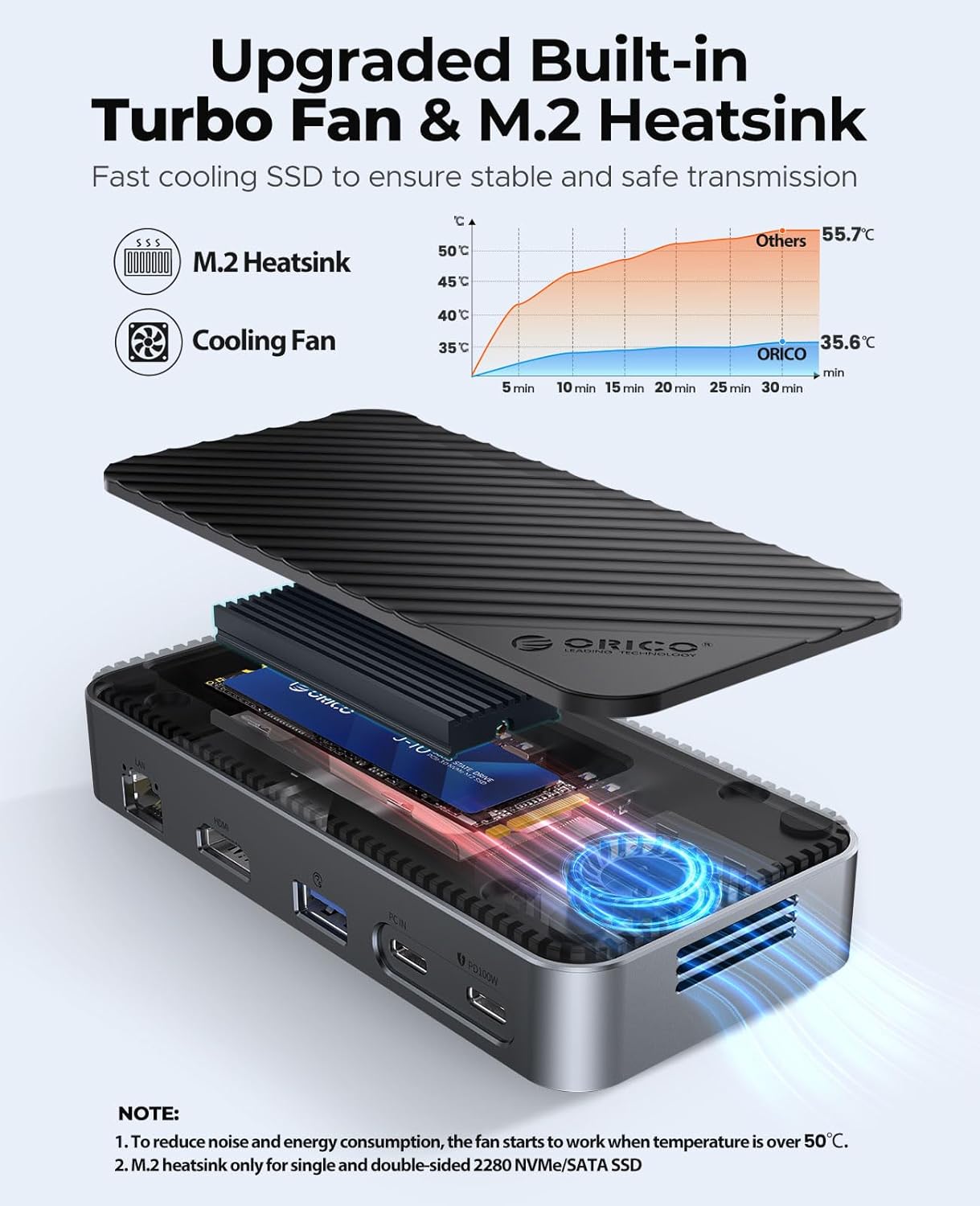
Figure 8: Internal cooling components.
- The built-in fan activates automatically when the internal temperature of the M.2 SSD exceeds 50°C to ensure stable and safe transmission.
- The aluminum heatsink with copper heatpipes further aids in heat dissipation.
- No user maintenance is typically required for the fan or heatsink.
Troubleshooting
- No Display Output via HDMI: Ensure your host device's USB-C port supports DisplayPort Alternate Mode (video transmission). Check all cable connections.
- SSD Not Detected or Unstable Connection: For SSDs larger than 1TB, ensure an external power supply (PD100W) is connected to the docking station. Verify the M.2 SSD is correctly installed and seated in the enclosure.
- Slow Data Transfer Speeds: Ensure you are using the 10Gbps USB 3.2 Gen2 ports for high-speed devices. Note that simultaneous use of multiple ports may slightly reduce speeds. Verify your host device's USB-C port supports the advertised speeds.
- Fan Noise: The built-in fan activates when the M.2 SSD temperature exceeds 50°C. This is normal operation to prevent overheating. If the fan is excessively loud or constantly running at low temperatures, contact support.
- iPhone/iPad File Transfer Limitations: While iPhones/iPads can access files from SD cards and M.2 SSDs via the hub, direct writing of files from the iPhone/iPad to the M.2 SSD may be limited by iOS software. Writing to SD cards is generally supported.
- No Power Brick Included: The product does not include a power brick for the PD100W port. A separate 100W USB-C PD charger is required for laptop charging.
Specifications
| Feature | Specification |
|---|---|
| Brand | ORICO |
| Model Number | DPM2P9 |
| Color | Black |
| Package Dimensions | 6.5 x 4.41 x 1.85 inches |
| Item Weight | 11.3 ounces |
| Hardware Interface | USB Type C |
| Special Feature | Integrated Functionality |
| M.2 SSD Compatibility | M.2 NVMe and SATA SSD (2230/2242/2260/2280), up to 4TB |
| USB Ports | 1x USB 3.2 Gen2 (USB-A 10Gbps), 1x USB 3.2 Gen2 (USB-C 10Gbps), 2x USB 3.0 (USB-A 5Gbps) |
| HDMI Output | 4K@60Hz |
| Ethernet | Gigabit Ethernet (RJ45, 10/100/1000Mbps) |
| Power Delivery | PD100W (Input) |
| Card Reader | SD/TF 3.0 (simultaneous use) |
Official Product Videos
Watch these official videos from ORICO Direct US Store for more insights into the product's features and usage.
USB C Hub with M.2 Enclosure (Preview)
Description: A brief overview of the ORICO USB C Hub with M.2 Enclosure, highlighting its compact design and key functionalities. This short preview demonstrates the product's form factor and integrated features.
USB C Docking Station with M.2 Enclosure
Description: A detailed look at the ORICO USB C Docking Station, showcasing its various ports, M.2 enclosure, and how it integrates into a modern workspace. The video demonstrates its use for data transfer, display extension, and power delivery.
Warranty & Support
ORICO products typically come with a standard manufacturer's warranty. Please refer to the warranty card included in your product packaging for specific terms and conditions.
- Warranty Period: Standard 1-year manufacturer warranty.
- Technical Support: For technical assistance, troubleshooting, or warranty claims, please contact ORICO customer support through their official website or the contact information provided in your product manual.
- Online Resources: Visit the ORICO official website for updated drivers, FAQs, and additional product information.


