1. Introduction
This manual provides essential instructions for setting up, operating, and maintaining your ZOTAC ZBOX-CI343-BE Intel N100 Mini PC. Please read this manual thoroughly before using the device to ensure proper functionality and longevity.
2. Package Contents
Verify that all items listed below are included in your package. If any items are missing or damaged, please contact your retailer.

Image 2.1: Contents of the ZOTAC ZBOX-CI343-BE package, including the mini PC unit, power adapter, power cable, WiFi antenna, VESA mounting kit, and a quick start guide.
- ZOTAC ZBOX-CI343-BE Mini PC Unit
- Power Adapter
- Power Cable (type may vary by region)
- WiFi Antenna
- VESA Mounting Kit
- Quick Start Guide
3. Product Overview
Familiarize yourself with the various components and ports of your ZOTAC ZBOX-CI343-BE Mini PC.
3.1 Front Panel

Image 3.1: Front view of the ZOTAC ZBOX-CI343-BE, showing the power button, USB 3.1 ports, USB-C port, SD card slot, and audio jack.
- Power Button: Press to power on or off the device.
- SD Card Slot: For inserting SD memory cards.
- USB 3.1 Type-C Port: For connecting USB-C compatible devices.
- USB 3.1 Type-A Port: For connecting USB devices.
- Headphone/Microphone Combo Jack: For audio output and input.
3.2 Rear Panel

Image 3.2: Rear view of the ZOTAC ZBOX-CI343-BE, displaying the WiFi antenna connector, dual LAN ports, USB 3.1 port, DisplayPort, HDMI port, and DC power input.
- WiFi Antenna Connector: For attaching the included WiFi antenna.
- Dual LAN Ports: For wired network connections.
- USB 3.1 Type-A Port: For connecting USB devices.
- DisplayPort (DP): For connecting to a display.
- HDMI Port: For connecting to a display.
- DC IN: For connecting the power adapter.
3.3 Top and Side Views

Image 3.3: Top view of the ZOTAC ZBOX-CI343-BE, showing the ZOTAC logo and ribbed passive cooling design.
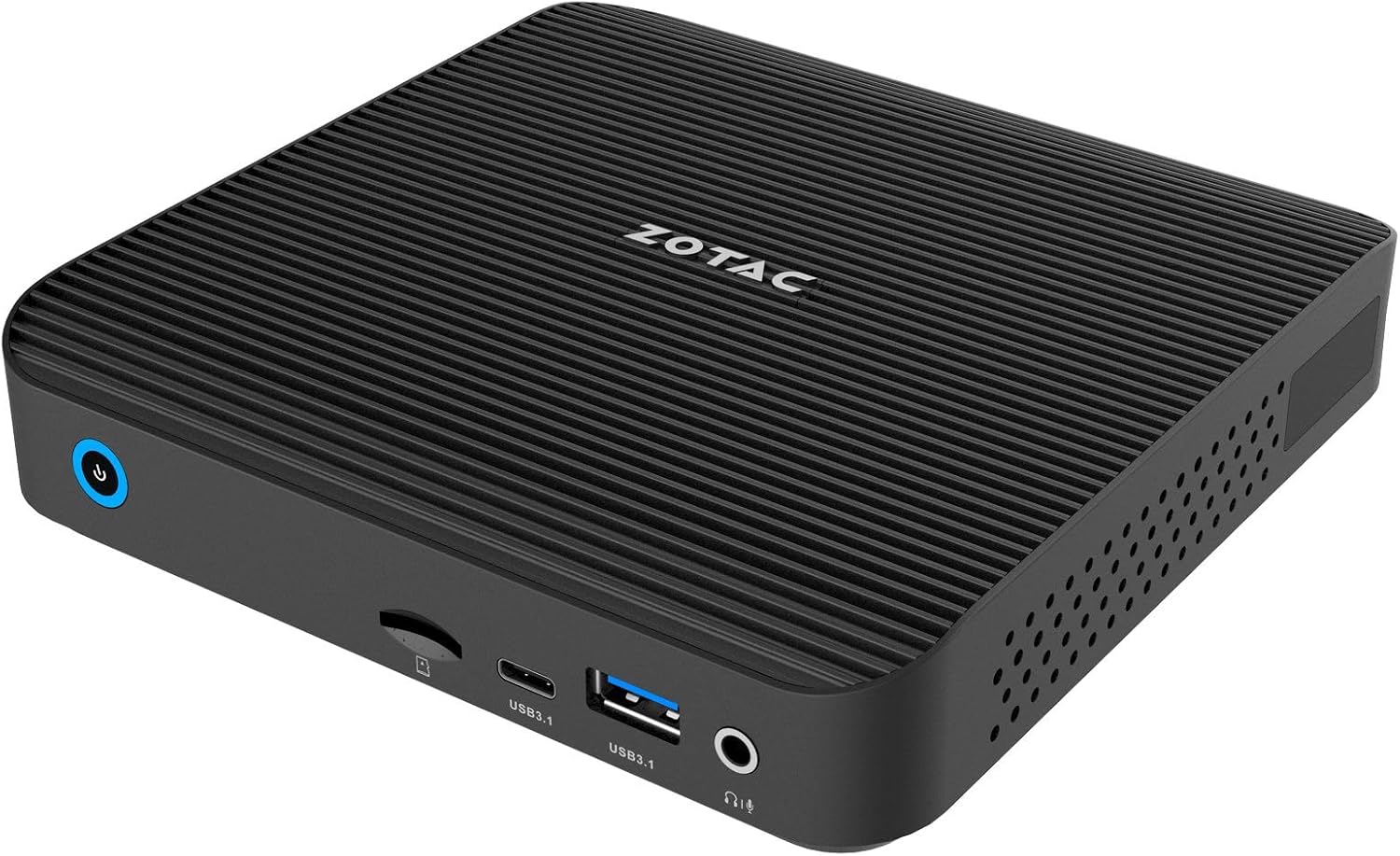
Image 3.4: Angled front view of the ZOTAC ZBOX-CI343-BE, highlighting the compact form factor and front panel ports.

Image 3.5: Angled rear view of the ZOTAC ZBOX-CI343-BE, showing the rear panel ports and side ventilation.
4. Setup Instructions
Follow these steps to set up your ZOTAC ZBOX-CI343-BE Mini PC.
- Install Memory and Storage (if not pre-installed): As a barebone system, you will need to install compatible DDR5 RAM and an SSD. Refer to the Quick Start Guide for detailed instructions on opening the chassis and installing components.
- Connect Peripherals:
- Connect your monitor(s) to the HDMI or DisplayPort on the rear panel.
- Connect your keyboard and mouse to the available USB ports (front or rear).
- If using a wired network, connect an Ethernet cable to one of the LAN ports.
- Attach the included WiFi antenna to the connector on the rear panel for wireless connectivity.
- Connect Power: Connect the power adapter to the DC IN port on the rear panel, then plug the power cable into an electrical outlet.
- Initial Boot and OS Installation:
- Press the power button on the front panel to turn on the Mini PC.
- Since this is a barebone system, you will need to install an operating system (e.g., Windows 10/11, Linux). Prepare a bootable USB drive with your preferred OS installer.
- Follow the on-screen prompts to install the operating system. You may need to enter the BIOS/UEFI settings (typically by pressing DEL or F2 during boot) to configure boot order.
- After OS installation, install necessary drivers, which can usually be found on the ZOTAC support website.
5. Operating Instructions
Once the operating system is installed and configured, your ZBOX-CI343-BE is ready for use.
- Power On/Off: Press the power button once to turn on. To turn off, use the operating system's shutdown function. A short press of the power button can also put the system to sleep. A long press (approx. 5 seconds) will force a shutdown.
- Connectivity: Utilize the various USB ports for external devices, HDMI/DisplayPort for displays, and LAN/WiFi for network access.
- VESA Mounting: The included VESA mounting kit allows you to attach the Mini PC to the back of a compatible monitor or to a wall mount, saving desk space.
6. Maintenance
Regular maintenance helps ensure optimal performance and extends the lifespan of your Mini PC.
- Cleaning:
- Gently wipe the exterior with a soft, dry cloth.
- Use compressed air to clear dust from ventilation openings periodically. Ensure the device is powered off before cleaning.
- Avoid using liquid cleaners or solvents directly on the device.
- Software Updates:
- Keep your operating system and drivers updated to the latest versions for security and performance improvements.
- Check the ZOTAC website for updated drivers specific to the ZBOX-CI343-BE model.
- Environmental Conditions: Operate the device in a well-ventilated area, away from direct sunlight, heat sources, and excessive moisture.
7. Troubleshooting
This section addresses common issues you might encounter.
- No Power:
- Ensure the power adapter is securely connected to both the Mini PC and a working electrical outlet.
- Verify the power cable is not damaged.
- No Display Output:
- Check that the monitor is powered on and correctly connected to the HDMI or DisplayPort.
- Try a different display cable or monitor if available.
- Ensure the correct input source is selected on your monitor.
- Operating System Not Booting:
- Verify that an operating system has been successfully installed.
- Check BIOS/UEFI settings to ensure the correct boot device is selected.
- If recently installed, ensure all necessary drivers are present.
- No Internet Connection:
- For wired connections, ensure the Ethernet cable is properly connected and router/modem is working.
- For wireless connections, ensure the WiFi antenna is attached, WiFi is enabled in the OS, and you are connected to the correct network with the correct password.
- Update network drivers if necessary.
For further assistance, refer to the ZOTAC support website or contact customer service.
8. Specifications
Detailed technical specifications for the ZOTAC ZBOX-CI343-BE Mini PC.
| Feature | Specification |
|---|---|
| Brand | ZOTAC |
| Model Name | ZBOX-CI343-BE |
| Processor | Intel N100 (1.1 GHz) |
| Graphics Coprocessor | Intel UHD Graphics |
| Memory Type | DDR5 RAM (Barebone - user installable) |
| Storage Type | SSD (Barebone - user installable) |
| Max Screen Resolution | 3840x2160 |
| Video Output | HDMI, DisplayPort |
| Wireless Connectivity | 802.11ax, Bluetooth |
| LAN | Dual Gigabit Ethernet |
| USB Ports | USB 3.1 Type-A, USB 3.1 Type-C |
| Card Reader | SD Card Slot |
| Audio | Headphone/Microphone Combo Jack |
| Operating System | Barebone (Compatible with Windows 10/11, Linux) |
| Item Weight | 2.2 pounds |
| Product Dimensions | 3.94 x 1.97 x 0.5 inches |
9. Warranty and Support
ZOTAC products are covered by a limited warranty. Please refer to the official ZOTAC website for detailed warranty terms and conditions specific to your region.
For technical support, driver downloads, and frequently asked questions, visit the ZOTAC support portal:
When contacting support, please have your product model (ZBOX-CI343-BE) and serial number ready.


