
TP-Link Deco X10
TP-Link Deco X10 AX1500 Whole Home Mesh Wi-Fi 6 System User Manual
Model: Deco X10
1. Introduction
This manual provides comprehensive instructions for setting up, operating, maintaining, and troubleshooting your TP-Link Deco X10 AX1500 Whole Home Mesh Wi-Fi 6 System. The Deco X10 system is designed to deliver seamless, high-speed Wi-Fi coverage throughout your home, utilizing Wi-Fi 6 technology for enhanced performance and capacity.
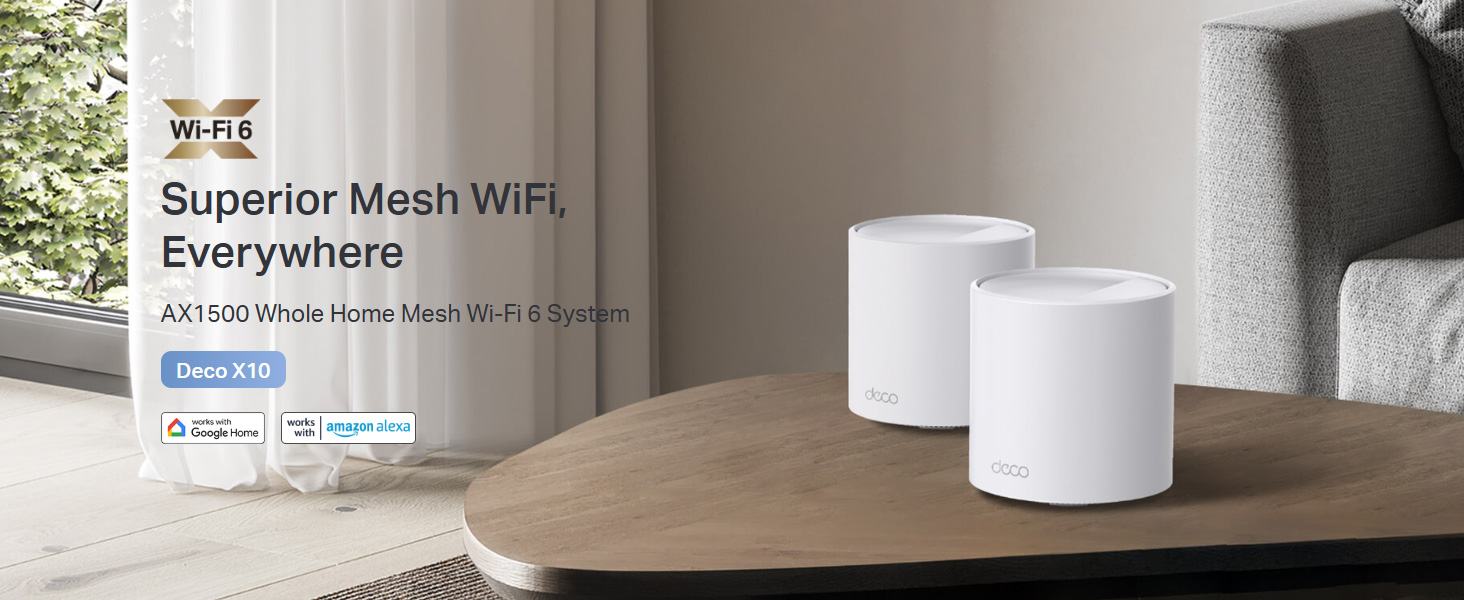
Image 1.1: The TP-Link Deco X10 AX1500 Whole Home Mesh Wi-Fi 6 System, designed for superior mesh Wi-Fi coverage.
2. Package Contents
Verify that your package contains the following items:
- 1 Deco X10 Unit
- 1 RJ45 Ethernet Cable
- 1 Power Adapter
- Quick Installation Guide
3. Product Overview
The Deco X10 unit features a minimalist design with essential ports and indicators for network operation.

Image 3.1: Front view of a single TP-Link Deco X10 unit.
3.1. Ports and LED Indicators
Each Deco X10 unit is equipped with two Gigabit Ethernet ports for wired connections and a status LED.
- Ethernet Ports: Two Gigabit ports for connecting to your modem or other wired devices. These ports automatically detect WAN/LAN connections.
- Power Port: Connects to the provided power adapter.
- LED Indicator: Displays the status of the Deco unit.
- Solid Green: Deco is working correctly.
- Solid Red: Deco has an issue (e.g., no internet connection).
- Pulsing Blue: Deco is ready for setup or pairing.
- Solid Blue: Deco is starting up.

Image 3.2: Overview of Deco X10 features including Wi-Fi 6, dual-band AX1500, 2 Gigabit ports, Wi-Fi dead zone killer, seamless AI-driven mesh, parental controls, and connectivity for up to 120 devices.
4. Setup
Setting up your TP-Link Deco X10 system is managed through the Deco mobile application, available for iOS and Android devices. Follow these steps for a quick and easy installation:
- Download the Deco App: Search for "TP-Link Deco" in the Apple App Store or Google Play Store, or scan the QR code below.
- Connect and Power On: Connect one Deco unit to your modem using the provided Ethernet cable. Power on both the modem and the Deco unit.
- Launch the Deco App: Open the Deco app on your smartphone or tablet.
- Follow In-App Instructions: The app will guide you step-by-step through the process of creating a TP-Link ID (if you don't have one), selecting your Deco model, and configuring your network settings. This includes naming your Wi-Fi network and setting a password.
- Add More Deco Units: If you have multiple Deco units, the app will prompt you to add them to your mesh network. Place additional units strategically to maximize coverage.
For optimal performance, ensure your primary Deco unit is connected to your modem, and subsequent units are placed within range of each other to create a strong mesh network.
5. Operating Your Deco X10 System
The Deco X10 system offers advanced features to optimize your home network experience.
5.1. Seamless Roaming
Your Deco units work together to form a single unified network. As you move through your home, your devices will automatically connect to the Deco unit with the strongest signal, ensuring uninterrupted streaming and browsing.
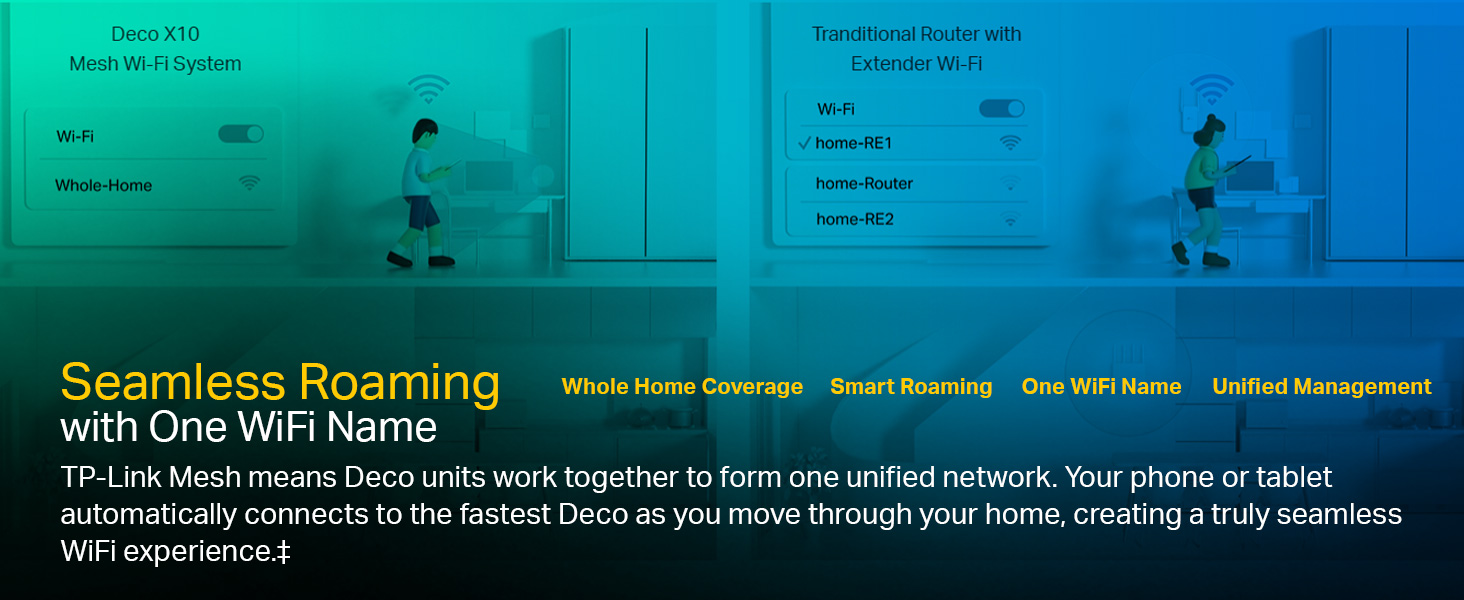
Image 5.1: Illustration of seamless roaming, where devices automatically switch to the strongest Deco signal without manual intervention.
5.2. Parental Controls
Manage and monitor internet usage for family members. Create unique profiles, set time limits, and block inappropriate websites directly from the Deco app.
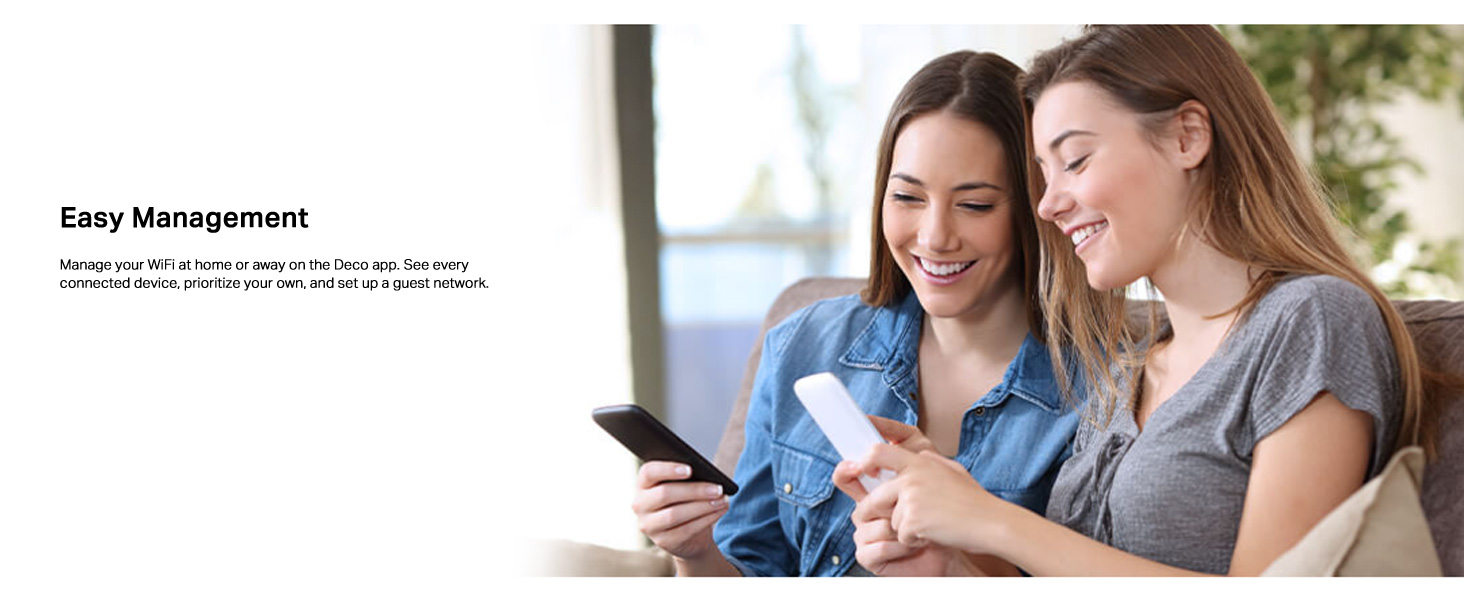
Image 5.2: Features for personalizing and controlling your home network, including QoS, Parental Control, Content Filtering, and Comprehensive Reports.
5.3. Quality of Service (QoS)
Prioritize bandwidth for specific devices or activities (e.g., gaming, streaming) to ensure optimal performance when network traffic is high.
5.4. Voice Control
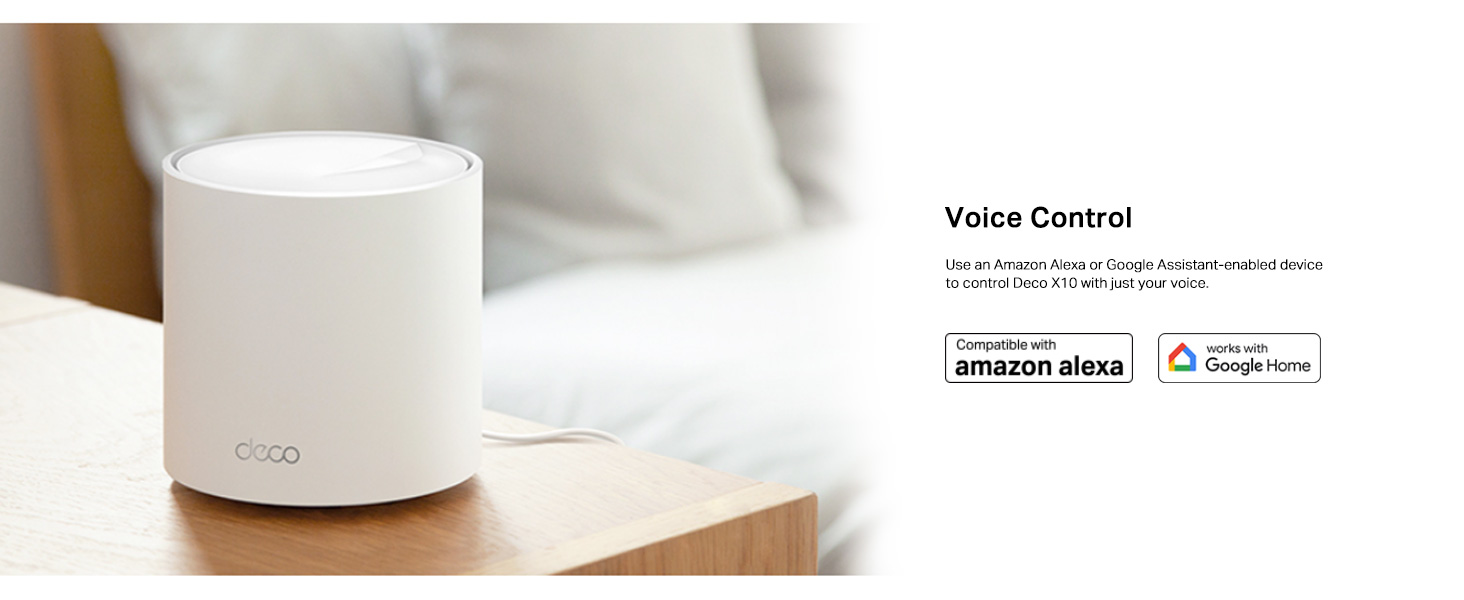
The Deco X10 is compatible with Amazon Alexa and Google Assistant. Use voice commands to control your Wi-Fi network, such as turning on/off the guest network or pausing internet access for specific profiles.
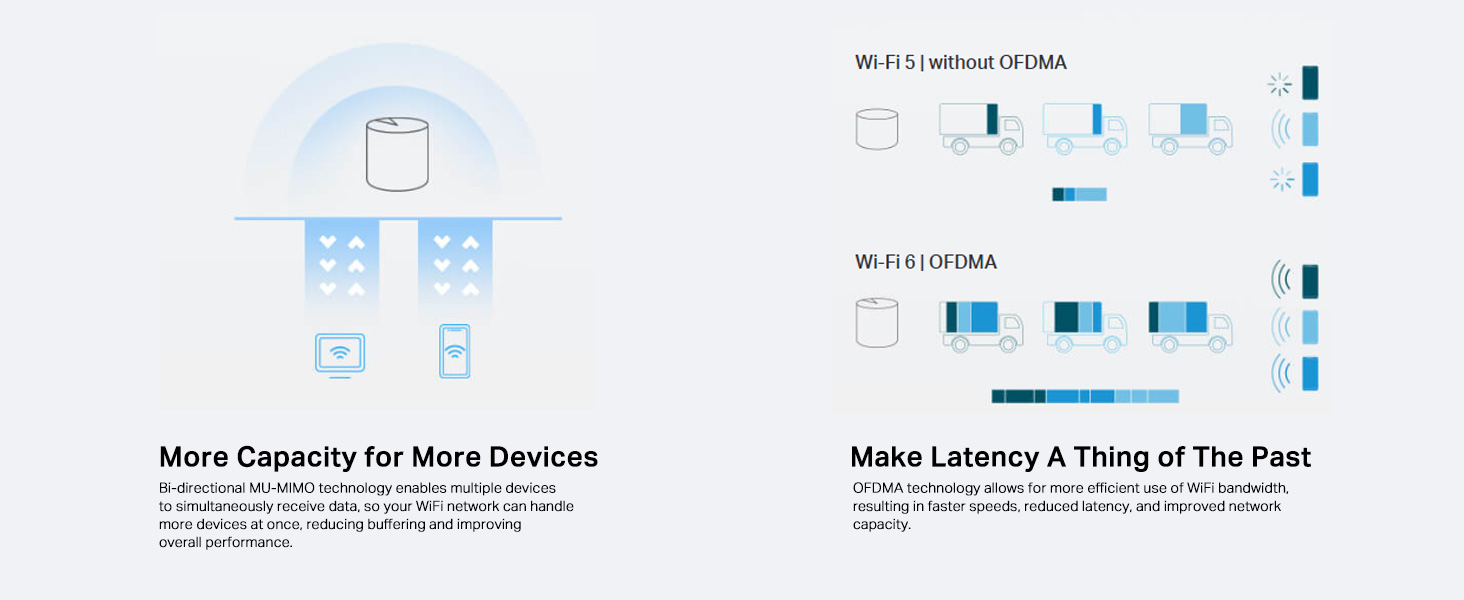
Image 5.3: The Deco X10 unit shown with logos indicating compatibility with Amazon Alexa and Google Home for voice control.
6. Maintenance
Regular maintenance ensures your Deco X10 system operates efficiently and securely.
- Firmware Updates: The Deco app will notify you of available firmware updates. It is recommended to keep your Deco units updated to benefit from the latest features, security enhancements, and performance improvements.
- Network Management: Use the Deco app to monitor connected devices, prioritize traffic, and manage guest networks.
- Physical Cleaning: Keep the Deco units clean and free from dust to ensure proper ventilation. Use a soft, dry cloth for cleaning.
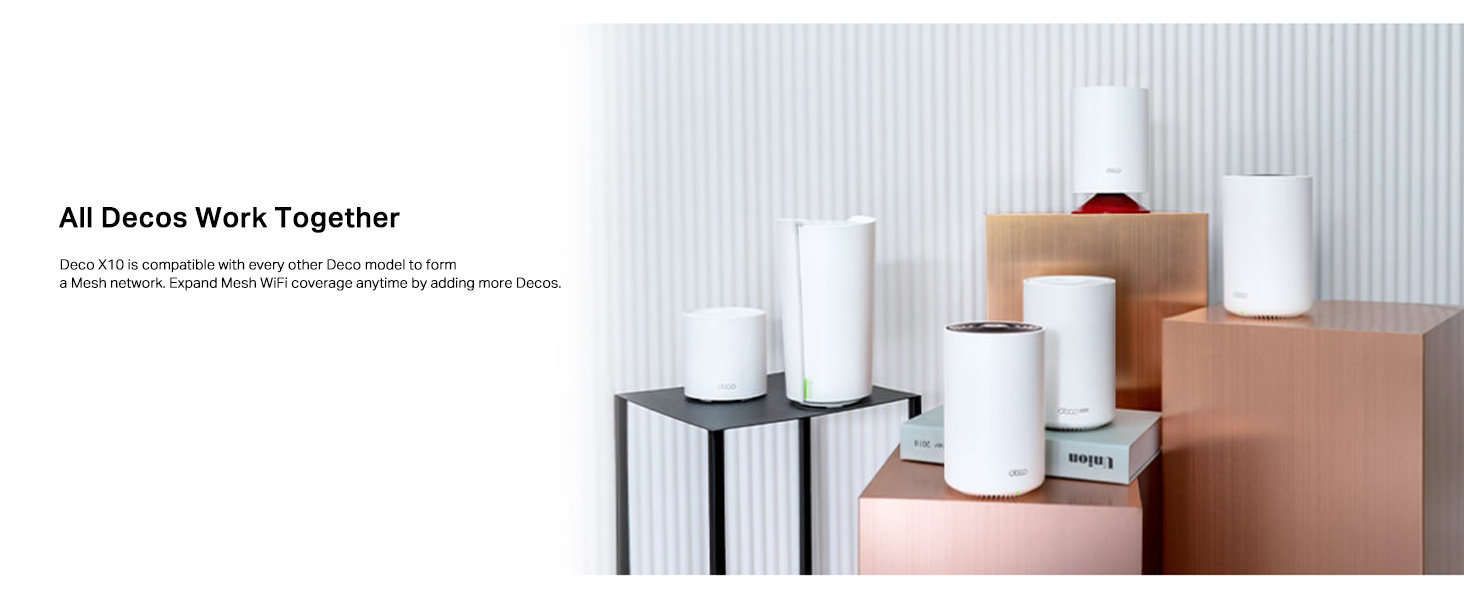
Image 6.1: Illustration of easy network management through the Deco app, allowing users to monitor devices, prioritize traffic, and set up guest networks.
7. Troubleshooting
If you encounter issues with your Deco X10 system, refer to the following common solutions:
- No Internet Connection:
- Check the LED status on your main Deco unit. If it's red, ensure your modem is working and the Ethernet cable is securely connected.
- Restart your modem and the main Deco unit.
- Verify your internet service provider (ISP) connection.
- Weak Wi-Fi Signal or Dead Zones:
- Relocate Deco units closer to each other or to the areas with weak signals.
- Ensure there are no major obstructions (e.g., thick walls, large metal objects) between Deco units.
- Add additional Deco units to expand coverage if necessary.
- Deco Unit Not Pairing:
- Ensure the Deco unit is pulsing blue, indicating it's ready for setup.
- Move the unit closer to an already configured Deco unit during the pairing process.
- Perform a factory reset on the problematic Deco unit (refer to the Quick Installation Guide for instructions).
- Slow Speeds:
- Check your internet plan speed with your ISP.
- Ensure your Deco units have the latest firmware.
- Minimize interference from other electronic devices.
- Use the Deco app's network optimization features.
8. Specifications
Detailed technical specifications for the TP-Link Deco X10 AX1500 system:
| Brand | TP-Link |
| Model | Deco X10 |
| Wireless Type | 802.11ax (Wi-Fi 6) |
| Frequency Band Class | Dual-Band |
| Wi-Fi Speeds | AX1500 (1201 Mbps on 5 GHz, 300 Mbps on 2.4 GHz) |
| Ethernet Ports | 2 Gigabit Ports per Deco unit |
| Coverage | Up to 2100 ft² (1-pack), 3900 ft² (2-pack), 5600 ft² (3-pack) |
| Max Devices | Connects up to 120 devices |
| Special Features | 4 Streams, Alexa Compatible, Beamforming, 1024-QAM, Router & Access Point Mode, Parental Controls, OFDMA and MU-MIMO, AI-Driven Mesh, Google Assistant |
| Operating System Compatibility | Android 5.0 or later, iOS 9.0 or later |
| Item Weight | 400 g |
| Country of Origin | China |

Image 8.1: Breakdown of AX1500 Wi-Fi 6 speeds, showing 1201 Mbps on 5 GHz and 300 Mbps on 2.4 GHz, with 1024-QAM and backward compatibility.
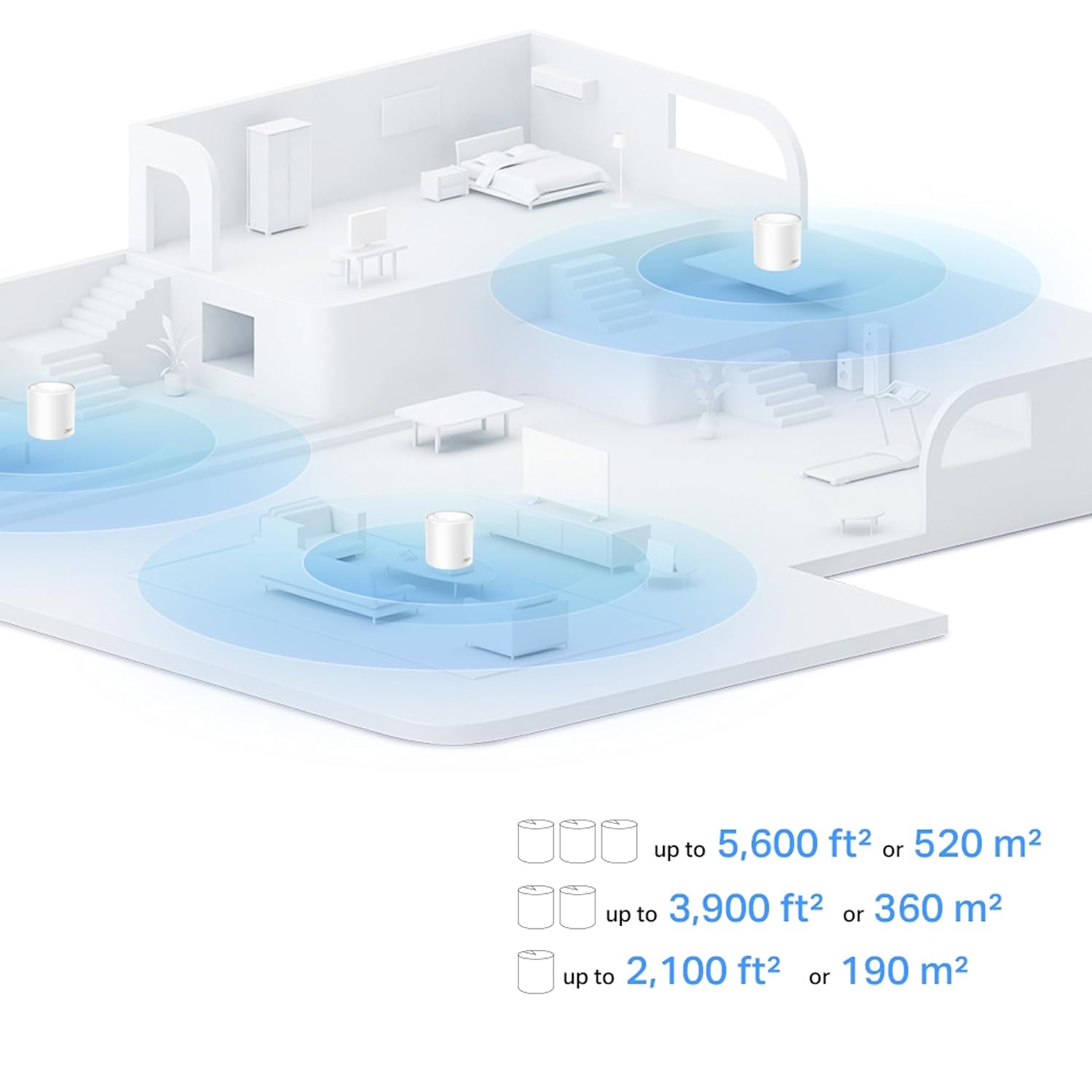
Image 8.2: Illustration of home coverage provided by Deco units, showing up to 2,100 ft² for a single unit, 3,900 ft² for two units, and 5,600 ft² for three units.

Image 8.3: Visual representation of the Deco X10's capacity to handle connections for up to 120 devices, supporting various activities like web browsing, smart home devices, 4K streaming, and high-speed downloading.
9. Warranty and Support
For warranty information and technical support, please contact TP-Link customer service.
- Manufacturer: TP-Link Corporation PTE.LTD.
- Importer (India): TP-Link India Private Limited.
- Contact: Toll Free 1800 2094 168, support.in@tp-link.com
- Online Support: Visit the official TP-Link website for FAQs, firmware downloads, and additional support resources.
Related documentsDeco X10


Ask a question about this manual
Ask about setup, troubleshooting, compatibility, parts, safety, or missing instructions. Manuals+ will review the question and use this page’s manual context to help answer it.