
Introduction
This manual provides comprehensive instructions for the YOSUN universal replacement remote control, designed for various LG Smart TV models. This remote features advanced functionalities including pointer control, voice commands, and dedicated shortcut buttons for popular streaming services. Please read this manual carefully to ensure proper setup and operation.

Setup
1. Battery Installation
The remote control requires two AAA batteries (not included). To install, open the battery compartment cover on the back of the remote. Insert the batteries, ensuring the correct polarity (+ and -) as indicated inside the compartment. Close the cover securely.
2. Pairing the Remote Control
The remote control must be paired with your LG Smart TV to enable pointer and voice functions. There are two primary methods for pairing:

- First Method:
- Turn on your LG Smart TV.
- Approximately 20 seconds after the TV is on, point the remote control towards the TV screen.
- Press the Wheel (OK) button (located in the center of the directional pad) until a pairing completion message appears on your TV screen.
- Second Method (Reset and Pair):
- Press and hold the Home button and the Back button simultaneously for 10 seconds to reset the remote control.
- After resetting, press the Wheel (OK) button. A message indicating successful pairing should appear on your TV screen.
Operating Instructions
1. Pointer Function
The pointer function allows for intuitive navigation by moving the remote control. A cursor will appear on your TV screen, which you can control by moving the remote in the air.

- To activate the pointer, simply move the remote control.
- To select an item, point the cursor at it and press the Wheel (OK) button.
- The pointer can be used for clicking and scrolling through menus and content.
2. Voice Control
The remote control supports voice commands, allowing you to control your TV and search for content using your voice.
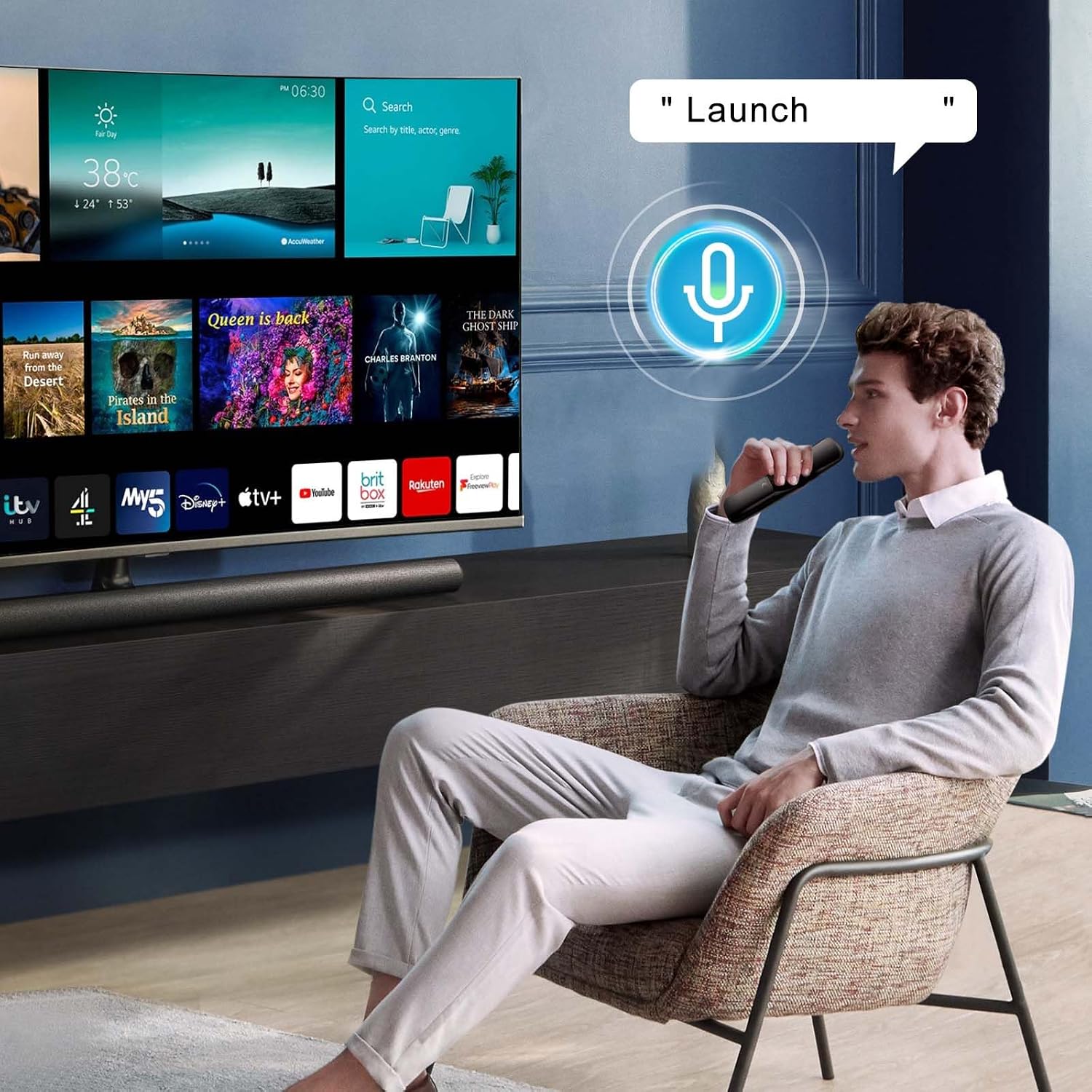
- Press and hold the Microphone button (usually located below the directional pad).
- While holding the button, speak your command clearly into the remote. Examples include "Launch Netflix," "Play music," or "Search movies."
- Release the button when you have finished speaking. The TV will process your command.
3. Shortcut Buttons
The remote includes dedicated shortcut buttons for quick access to popular streaming services and voice assistants.

- Press the corresponding button to launch Netflix, Prime Video, Disney+, or Rakuten TV.
- Use the Google Assistant or Alexa buttons to activate their respective voice assistant features.
4. General Button Functions
Familiarize yourself with the functions of the various buttons on your remote control:

- Power Button: Turns the TV on or off.
- Number Pad (0-9): Direct channel input or numerical selection.
- GUIDE: Checks saved channels or launches the TV guide.
- QUICK ACCESS (0): Displays the quick access edit screen.
- SAP: Configures Secondary Audio Program.
- Volume Up/Down: Adjusts the volume level.
- Mute: Selects to turn off the sound from the TV.
- Accessibility: Enters the Accessibility menu.
- Recommended Content: Checks recommended content (availability may vary by region).
- Voice Recognition: Push and hold while speaking to use voice recognition.
- Home: Displays the Home menu.
- Recent Apps: Launches the last used application.
- Input: Selects an input source.
- Home Dashboard: Enters the Home Dashboard.
- Back: Moves to the previous step or closes the menu.
- Quick Settings: Enters the Quick Settings menu.
- All Settings: Enters the All Settings menu.
- Shortcut Buttons (Netflix, Prime Video, Rakuten TV, Disney+, Google, Alexa): Launches the indicated application or voice assistant. (Some models may not support all shortcuts.)
Compatibility
This YOSUN universal replacement remote control is compatible with a wide range of LG Smart TVs, including UHD, OLED, QNED, and NanoCell Evo 4K/8K models. Specific compatible remote models include MR21GA, MR22GA, MR23GA, and AKB76039901.
It is also compatible with numerous LG TV series and models, such as:
- OLED Series: OLED65CS6LA, OLED97G29LA, OLED55CS6LA, OLED83C24LA, OLED77C24LA, OLED65C24LA, OLED55C24LA, OLED48C24LA, OLED42C24LA, OLED77C26LD, OLED65C26LD, OLED55C26LD, OLED55B26LA, OLED65B26LA, OLED77B26LA, OLED83G26LA, OLED77G26LA, OLED65G26LA, OLED55G26LA, OLED65A26LA, OLED55A26LA, OLED48A26LA, OLED48C26LB
- QNED Series: 86QNED866QA, 75QNED866QA, 65QNED866QA, 55QNED866QA, 86QNED816QA, 75QNED816QA, 65QNED816QA, 55QNED816QA, 50QNED816QA
- NanoCell Series: 86NANO766QA, 75NANO766QA, 70NANO766QA
- Other Series: 55LX1Q6LA, 48LX1Q6LA, 42LX1Q6LA, 65ART90E6QA
For optimal performance, ensure your TV model is listed or falls within the compatible series.
Maintenance
1. Cleaning
To clean the remote control, use a soft, dry cloth. For stubborn dirt, lightly dampen the cloth with water or a mild, non-abrasive cleaner. Avoid using harsh chemicals, solvents, or abrasive materials, as these can damage the remote's surface or internal components.
2. Battery Care
- Replace batteries when the remote's response becomes sluggish or inconsistent.
- Do not mix old and new batteries, or different types of batteries.
- Remove batteries if the remote control will not be used for an extended period to prevent leakage and potential damage.
- Dispose of used batteries according to local regulations.
Troubleshooting
- Remote Not Responding:
- Check if the batteries are correctly installed and have sufficient charge. Replace if necessary.
- Ensure there are no obstructions between the remote control and the TV's infrared receiver.
- Try re-pairing the remote control using the instructions in the Setup section.
- Pointer Not Working:
- Ensure the remote is properly paired with the TV.
- Move the remote to activate the pointer. If it still doesn't appear, try re-pairing.
- Check for any interference from other electronic devices.
- Voice Control Not Working:
- Confirm the remote is paired. Voice control requires a successful pairing.
- Ensure you are pressing and holding the Microphone button while speaking.
- Speak clearly and at a moderate volume.
- Check your TV's network connection, as voice commands often require internet access.
- Shortcut Buttons Not Launching Apps:
- Ensure your TV is connected to the internet.
- Verify that the apps are installed and updated on your LG Smart TV.
- Some older TV models or specific regions may not support all shortcut functions.
Specifications
| Feature | Description |
|---|---|
| Brand | YOSUN |
| Compatible Remote Models | MR21GA, MR22GA, MR23GA, AKB76039901 |
| Special Features | Voice Control, Pointer Function, Hotkeys for Streaming Services |
| Color | Black |
| Maximum Supported Devices | 1 |
| Compatible Devices | LG Smart TV (UHD, OLED, QNED, NanoCell Evo 4K/8K series) |
| Connectivity Technology | Infrared |
| Number of Shortcut Buttons | 6 (Netflix, Prime Video, Disney+, Rakuten Tv, Google Assist, Alexa) |
| Controller Type | Button Control |
| Maximum Range | 10 Meters |
| Battery Type | 2 x AAA (not included) |
Warranty and Support
Information regarding product warranty and customer support is not available in this manual. Please refer to the product packaging or contact the retailer for details on warranty coverage and support options.
