
Rapoo p3
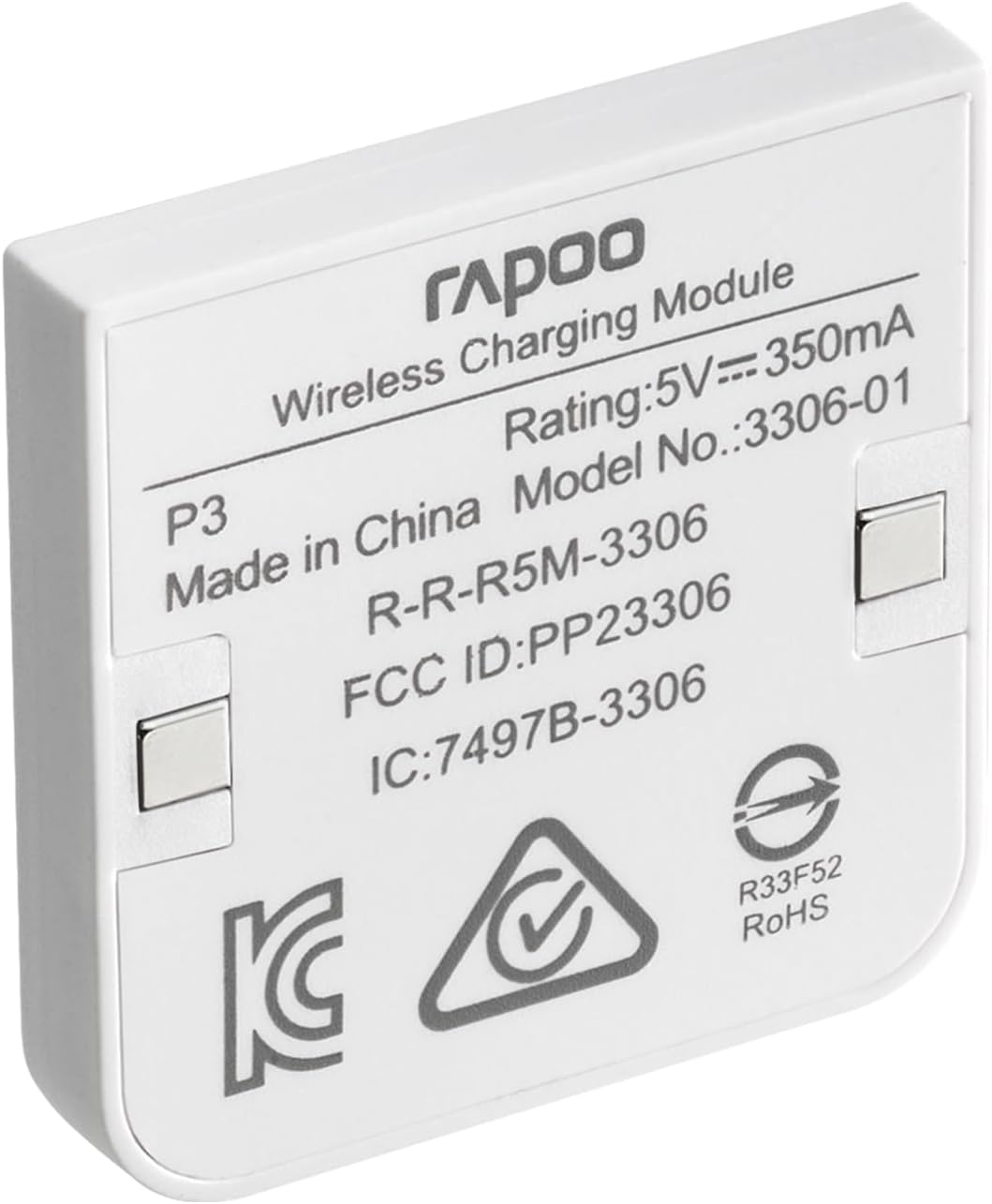
Rapoo P3 Wireless Charging Pack User Manual
Model: P3
Introduction
The Rapoo P3 Wireless Charging Pack is designed to provide seamless wireless charging capabilities for compatible Rapoo gaming and multi-device mice. This compact and lightweight module integrates easily into your mouse, enabling continuous power delivery when used with a compatible wireless charging mouse pad (not included). It adheres to the Qi wireless charging protocol, ensuring broad compatibility and efficient power transfer.
What's in the Box
Please check the package contents to ensure all items are present:
- 1 x Rapoo P3 Wireless Charging Pack
Note: Compatible wireless charging mouse pads and mice are sold separately and are not included with this product.
Specifications
| Feature | Detail |
|---|---|
| Model Number | P3 |
| Rated Voltage | 5V |
| Rated Current | 350mA |
| Charging Time | Approximately 3 hours (with compatible setup) |
| Product Dimensions | 0.98in x 0.98in x 0.16in (25mm x 25mm x 4mm) |
| Product Weight | 0.1oz (3g) |
| Connectivity Technology | Wireless (Qi Protocol) |
| Color | White |
| Manufacturer | Shenzhen Rapoo Technology Co., Ltd. |
Compatibility
The Rapoo P3 Wireless Charging Pack is compatible with the following Rapoo mouse models:
Gaming Mice:
- VT9 Pro
- VT9 Pro 4K
- VT3 PRO MAX
- VT3 Gen-2
- VT3 MAX Gen-2
- VT7
- VT7 MAX
Multi-Device Mice:
- MT760
- MT760 PRO
Setup Instructions
Follow these steps to install the P3 Wireless Charging Pack into your compatible Rapoo mouse:
- Locate the Charging Module Slot: On the underside of your compatible Rapoo mouse, identify the designated slot for the wireless charging module. This slot is typically secured by a magnetic cover or a small latch.
- Remove Existing Cover (if any): Gently remove the existing cover or placeholder from the charging module slot.
- Insert the P3 Wireless Charging Pack: Align the P3 Wireless Charging Pack with the slot. The pack is designed for easy, magnetic connection. Ensure the contacts on the P3 pack align with the contacts inside the mouse. It should snap into place securely.
- Verify Installation: Once inserted, the P3 pack should sit flush with the mouse's base.

Operating Instructions
Once the P3 Wireless Charging Pack is installed in your mouse, you can begin wireless charging:
- Place Mouse on Wireless Charging Pad: Position your mouse, with the P3 pack installed, onto a compatible Qi-enabled wireless charging mouse pad. Ensure the mouse is centered over the charging area of the pad.
- Initiate Charging: The mouse will automatically begin charging wirelessly. The charging time is approximately 3 hours for a full charge, depending on the mouse's battery capacity and the charging pad's output.
- Continuous Charging: The P3 pack enables continuous wireless charging, allowing you to use your mouse while it charges, provided it remains on the active charging area of the pad.
Important Caution:
Do not plug a Type-C cable into your mouse while it is wirelessly charging via the P3 pack. Simultaneous wired and wireless charging can lead to product damage.

Maintenance
The Rapoo P3 Wireless Charging Pack requires minimal maintenance. Follow these guidelines to ensure its longevity:
- Cleaning: If necessary, gently wipe the charging pack with a soft, dry cloth. Avoid using harsh chemicals or abrasive materials.
- Storage: When not in use, store the charging pack in a cool, dry place, away from direct sunlight and extreme temperatures.
- Handling: Handle the pack with care. Avoid dropping it or subjecting it to strong impacts.
Troubleshooting
If you encounter issues with your Rapoo P3 Wireless Charging Pack, refer to the following common problems and solutions:
- Mouse not charging wirelessly:
- Ensure the P3 pack is correctly and securely installed in your mouse.
- Verify that your wireless charging mouse pad is powered on and functioning correctly.
- Make sure the mouse is properly aligned and centered on the charging area of the pad.
- Confirm that your mouse model is listed under the "Compatibility" section.
- Slow charging:
- Ensure your wireless charging mouse pad provides sufficient power output (e.g., 5V).
- Avoid placing any foreign objects between the mouse and the charging pad.
- Product feels warm during charging:
- It is normal for the charging pack and mouse to become slightly warm during wireless charging. If it becomes excessively hot, discontinue use and contact support.
- Damage warning:
- Remember the caution: Do not plug a Type-C cable into your mouse while it is wirelessly charging. This can cause damage.
Warranty and Support
For warranty information and technical support, please refer to the official Rapoo website or contact Rapoo customer service directly. Keep your purchase receipt as proof of purchase for warranty claims.
You can visit the official Rapoo store for more information: Rapoo Official Store
Product Overview Images


Related documentsp3


Ask a question about this manual
Ask about setup, troubleshooting, compatibility, parts, safety, or missing instructions. Manuals+ will review the question and use this page’s manual context to help answer it.