
Powerwave Purple Rush
Powerwave Wireless Controller Purple Rush
User Manual
1. Introduction
Thank you for purchasing the Powerwave Wireless Controller. This controller is designed to enhance your gaming experience on PlayStation 4 consoles, offering advanced features such as motion sensing, dual motor vibration, and a built-in speaker. Please read this manual carefully to ensure proper use and maintenance of your device.
This controller is compatible with PS4, PS4 Slim, and PS4 Pro models. Please note that PlayStation Lightbar, PSVR, turbo functionality, and PS5 compatibility are not supported.
2. Package Contents
- 1 x Powerwave Wireless Controller (Purple Rush)
- 1 x USB Charging Cable
- 1 x User Manual (this document)

Image: The Powerwave Wireless Controller shown within its retail packaging, highlighting the product and its box.
3. Controller Features
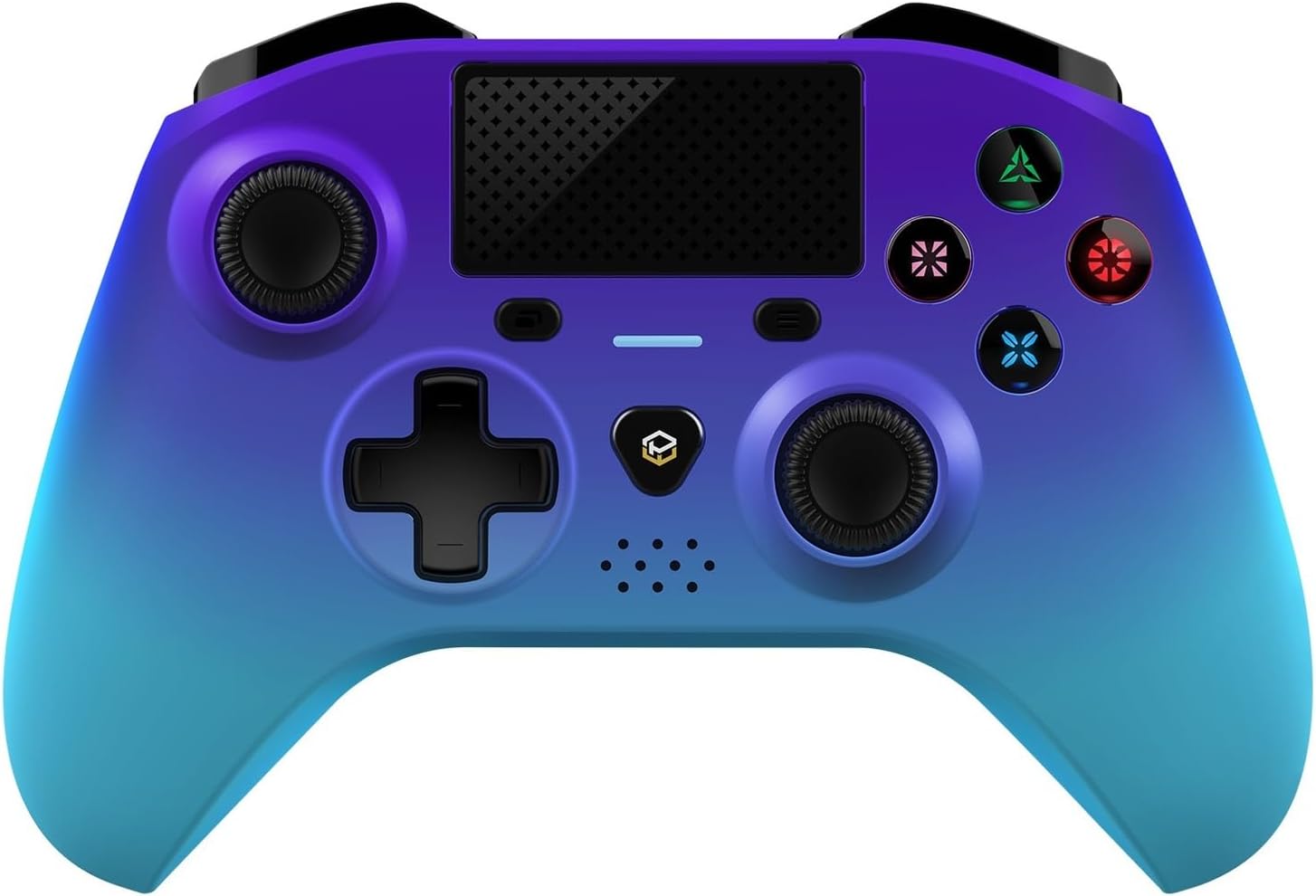
Image: A detailed front view of the Powerwave Wireless Controller in Purple Rush color, showcasing its buttons, joysticks, touchpad, and LED display.
- Wireless Bluetooth Connectivity: For seamless gaming without cables.
- LED Display Buttons: Illuminated buttons for enhanced visibility.
- Rechargeable Battery: Built-in lithium polymer battery for extended playtime.
- Motion Sensing Technology: Integrated sensors for intuitive control in compatible games.
- Dual Motor Vibration: Provides immersive haptic feedback during gameplay.
- Touchpad: Interactive surface for unique gameplay mechanics.
- Built-in Speaker: Enhances audio experience directly from the controller.
- 3.5mm Stereo Audio Jack: For connecting headphones or headsets.
4. Setup Guide
4.1 Charging the Controller
- Connect the small end of the supplied USB charging cable to the micro-USB port on the front of the controller.
- Connect the larger end of the USB cable to an available USB port on your PlayStation 4 console or a compatible USB wall adapter (5V/1A recommended).
- The controller's LED indicator will show charging status. It will typically turn off or change color once fully charged.
4.2 Pairing with PlayStation 4
- Ensure your PlayStation 4 console is powered on.
- Connect the controller to the PS4 console using the supplied USB charging cable.
- Press the PS button (the button with the PlayStation logo) in the center of the controller.
- The controller will automatically pair with the console. Once paired, you can disconnect the USB cable for wireless play.
- To pair additional controllers, repeat the steps above.
Note: If the controller does not pair, ensure it is fully charged and try connecting it to a different USB port on the console.
5. Operating the Controller
5.1 Basic Controls
The Powerwave Wireless Controller features standard PlayStation layout buttons, including:
- Directional Pad (D-Pad): For directional input.
- Action Buttons (Triangle, Circle, Cross, Square): For in-game actions.
- Left and Right Analog Sticks: For precise movement and camera control.
- L1/R1 and L2/R2 Buttons: Shoulder and trigger buttons.
- SHARE Button: For sharing gameplay moments.
- OPTIONS Button: For accessing in-game menus.
- PS Button: For accessing the PS4 home screen and power options.
- Touchpad: Functions as a clickable button and multi-touch surface.
5.2 Advanced Functions
- Motion Sensing: Tilt and move the controller to interact with games that support motion controls.
- Vibration Feedback: Experience realistic vibrations during gameplay, such as impacts or explosions.
- Audio Output: Connect a 3.5mm headset to the audio jack for in-game sound and voice chat. Adjust volume through the PS4 system settings.
6. Maintenance and Care
- Cleaning: Use a soft, dry cloth to clean the controller. For stubborn dirt, slightly dampen the cloth with water. Do not use harsh chemicals or abrasive cleaners.
- Storage: Store the controller in a cool, dry place away from direct sunlight and extreme temperatures.
- Battery Care: To prolong battery life, avoid fully discharging the controller frequently. Charge it regularly, even if not in use for extended periods.
- Avoid Drops: Protect the controller from physical shocks and drops, which can damage internal components.
7. Troubleshooting
| Problem | Possible Solution |
|---|---|
| Controller does not turn on. | Ensure the controller is fully charged. Connect it to the PS4 via USB cable and try pressing the PS button. |
| Controller does not pair with PS4. |
|
| Input lag or disconnection during wireless play. |
|
| Vibration or motion sensing not working. | Check in-game settings and PS4 system settings to ensure these features are enabled. Some games may not support these features. |
8. Specifications
| Feature | Detail |
|---|---|
| Connectivity | Wireless Bluetooth |
| Compatibility | PlayStation 4, PS4 Slim, PS4 Pro |
| Battery Type | 1 Lithium Polymer battery (included) |
| Dimensions (approx.) | 17.5 x 15.6 x 6.9 cm |
| Weight (approx.) | 987 Grams |
| Audio Port | 3.5mm Stereo Audio Jack |
| Model Identifier (ASIN) | B0CKPF5X2N |
9. Warranty and Support
For warranty information and customer support, please refer to the documentation provided with your purchase or visit the official Powerwave website. Keep your proof of purchase for warranty claims.
For further assistance, you may also contact the retailer where the product was purchased.
No official seller videos were found for this product.
Related documentsPurple Rush


Ask a question about this manual
Ask about setup, troubleshooting, compatibility, parts, safety, or missing instructions. Manuals+ will review the question and use this page’s manual context to help answer it.