
VssoPlor B0CKP9461G
VssoPlor Compact Wireless Keyboard Mouse Combo
Model: B0CKP9461G
Introduction
Thank you for choosing the VssoPlor Compact Wireless Keyboard Mouse Combo. This ultra-thin and portable set is designed for convenience and efficiency, making it ideal for daily use, business travel, and various computing environments. This manual provides essential information for setting up, operating, maintaining, and troubleshooting your new wireless keyboard and mouse.
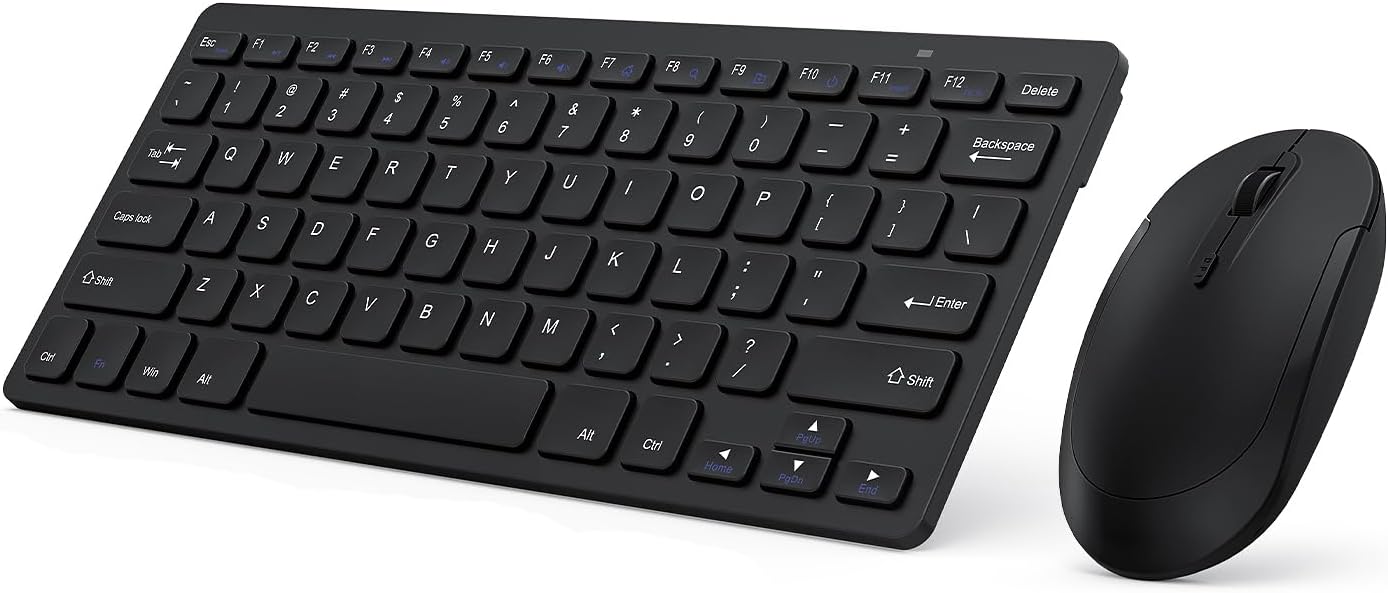
Image: The VssoPlor Compact Wireless Keyboard and Mouse Combo, featuring a sleek black design.
Key Features
- Ultra-Thin & Portable Design: Compact and lightweight, designed for easy transport and space-saving use.
- Stable 2.4GHz Wireless Connection: Provides a powerful and reliable connection up to 33 feet (10 meters) with a single Nano USB receiver.
- Quiet Typing Experience: Equipped with scissor-switch construction keys for comfortable typing with fast response and good resilience, minimizing noise.
- High Sensitivity Mouse: Features sensitive clicks with less noise and 3 adjustable DPI levels (800/1000/1200) for precise control.
- Broad Compatibility: Well compatible with Windows XP, Vista, 7, 8, and 10. (Note: Not fully compatible with Mac OS System).
- Auto Sleep Function: Designed to save energy by entering sleep mode after periods of inactivity.
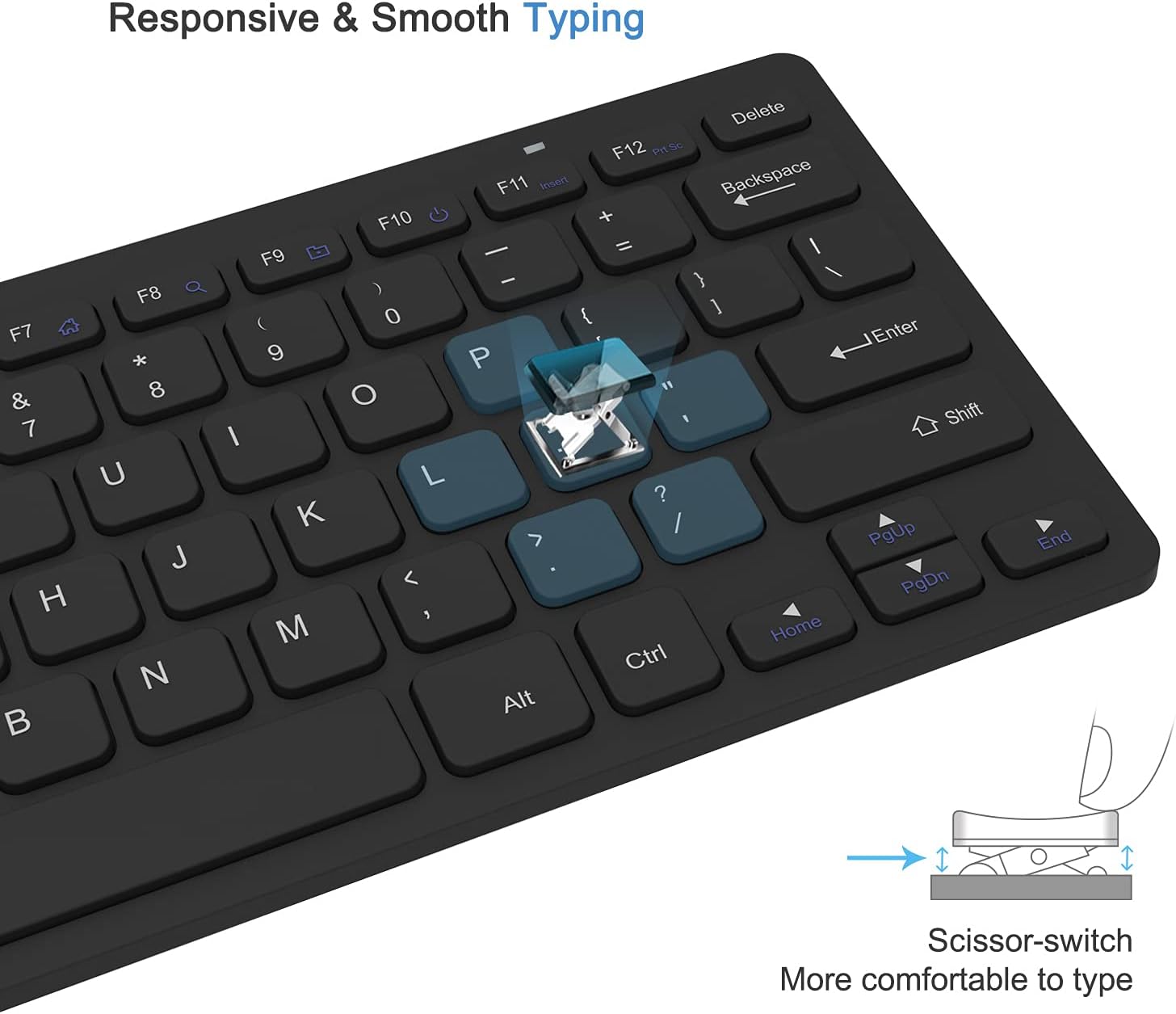
Image: Close-up of the keyboard demonstrating the scissor-switch key mechanism for responsive and smooth typing.

Image: The ultra-thin keyboard and mouse combo being easily stored in a bag, highlighting its portability for leisure, travel, and home use.
Package Contents
Please check the package contents upon opening to ensure all items are present:
- 1 x Compact Wireless Keyboard
- 1 x Wireless Mouse
- 1 x Nano USB Receiver (stored in the keyboard's battery compartment)
- 1 x User Manual (this document)
Setup Instructions
- Install Batteries:
The keyboard requires 2 AAA batteries and the mouse requires 1 AA battery (batteries are not included). Open the battery compartments on the underside of both the keyboard and the mouse, insert the batteries according to the polarity indicators, and close the covers.
- Locate USB Receiver:
The Nano USB receiver is conveniently stored inside the battery compartment of the keyboard. Carefully remove it.
- Connect Receiver:
Plug the Nano USB receiver into an available USB port on your computer (desktop or laptop). Your operating system will automatically detect and install the necessary drivers. This is a plug-and-play device, requiring no additional software installation.

Image: Diagram illustrating the 2.4GHz wireless connection, showing the USB receiver plugged into a laptop and the wireless signal to the keyboard and mouse.
- Power On Devices:
Locate the power switch on the underside of both the keyboard and the mouse. Slide the switches to the "ON" position. The devices should now be connected and ready for use.
Operating Instructions
Keyboard Usage
- Typing: Begin typing as you would with any standard keyboard. The scissor-switch keys provide a comfortable and responsive experience.
- Function Keys: The top row of keys (F1-F12) may have secondary functions (e.g., media control, volume) accessible by pressing the Fn key simultaneously. Refer to the key legends for specific functions.
- Auto Sleep: To conserve battery life, the keyboard will enter sleep mode after approximately 10 minutes of inactivity. To wake it up, press any key for 3 seconds.
Mouse Usage
- Basic Operation: Use the left and right click buttons for standard mouse functions. The scroll wheel allows for vertical scrolling.
- DPI Adjustment: The mouse features 3 adjustable DPI levels (800/1000/1200) for varying cursor sensitivity. Press the DPI button (usually located near the scroll wheel) to cycle through the settings and find your preferred speed.
- Auto Sleep: The mouse will enter sleep mode after approximately 8 minutes of inactivity. To wake it up, simply move the mouse or click any button.

Image: Illustration of the auto-sleep feature for both the keyboard and mouse, indicating battery requirements and how to reactivate the devices.
Maintenance
- Cleaning: Use a soft, dry cloth to clean the surfaces of the keyboard and mouse. For stubborn dirt, a slightly damp cloth with mild soap can be used, ensuring no liquid enters the device. Avoid abrasive cleaners or solvents.
- Battery Replacement: When the devices become unresponsive or exhibit delayed input, it is likely time to replace the batteries. Follow the "Install Batteries" steps in the Setup section. Always dispose of used batteries responsibly.
- Storage: When not in use for extended periods, turn off both the keyboard and mouse to conserve battery life. Store them in a cool, dry place away from direct sunlight and extreme temperatures.
Troubleshooting
| Problem | Solution |
|---|---|
| Keyboard or mouse is unresponsive. |
|
| Cursor movement is erratic or slow. |
|
| Some keys on the keyboard do not work. |
|
Product Specifications
| Attribute | Detail |
|---|---|
| Brand | VssoPlor |
| Model | B0CKP9461G |
| Connectivity Technology | 2.4GHz Wireless USB |
| Compatible Devices | Laptop, Personal Computer (Windows XP/Vista/7/8/10) |
| Keyboard Dimensions (L x W x H) | Approx. 11 x 4.8 x 0.7 inches (at thickest point) |
| Mouse Dimensions (L x W x H) | Approx. 4.3 x 2.2 x 0.6 inches |
| Item Weight | 13.1 ounces (Keyboard and Mouse combined) |
| Keyboard Battery | 2 x AAA batteries (not included) |
| Mouse Battery | 1 x AA battery (not included) |
| DPI Levels (Mouse) | 800 / 1000 / 1200 DPI |
| Special Features | Lightweight, Portable, Scissor-switch keys, Auto-sleep function |

Image: Detailed dimensions of the compact wireless keyboard and mouse.
Warranty and Support
For warranty information and technical support, please refer to the warranty card included with your product or visit the official VssoPlor website. You may also contact the seller directly through the platform where you purchased the product for assistance.
For common questions and further assistance, please visit the VssoPlor Store on Amazon.
Related documentsB0CKP9461G


Ask a question about this manual
Ask about setup, troubleshooting, compatibility, parts, safety, or missing instructions. Manuals+ will review the question and use this page’s manual context to help answer it.