
1. Introduction
Thank you for choosing the Coibeu IP WiFi Outdoor Security Camera HD 3MP, Model A28B. This manual provides essential information for the proper installation, operation, and maintenance of your security camera. Please read this manual thoroughly before using the product to ensure optimal performance and safety.
The Coibeu A28B is designed for outdoor surveillance, offering high-definition video, advanced motion detection, and robust weather resistance. Its dual-lens system and PTZ (Pan-Tilt-Zoom) capabilities provide comprehensive coverage for your property.
2. Product Overview and Features
The Coibeu A28B camera is equipped with several advanced features to enhance your security experience:
- 360° Panoramic View & Dual Screen: Features a unique combination of fixed and rotating wide-angle lenses, providing a 360° panoramic view without blind spots. The dual-screen functionality allows for simultaneous viewing of different angles, effectively replacing the need for two traditional cameras.
- AI Human Detection & Alarm Notification: Utilizes intelligent AI human detection technology to accurately identify human movement, filtering out other non-human triggers. This significantly reduces false alarms and records a 10-second alarm video upon detection.
- Two-Way Voice Intercom: Built-in microphone and speaker enable two-way audio communication. You can remotely interact with visitors or deter intruders via the mobile application, with an effective range of up to 5 meters.
- IP66 Dustproof & Waterproof: Constructed from industrial-grade ABS injection molding with sealed waterproof rubber rings. This ensures stable operation in harsh weather conditions, including rain, snow, and high temperatures, within a range of -20°C to 60°C.
- Intelligent Night Vision: Offers 355° horizontal pan and 90° vertical tilt for a full 360° coverage. The lower camera features 4 LED lights and 4 infrared lights for night vision, while the upper camera has 4 infrared night vision LEDs. Lights can be adjusted, and the camera intelligently switches between three night vision modes (color, infrared, dual light alarm).
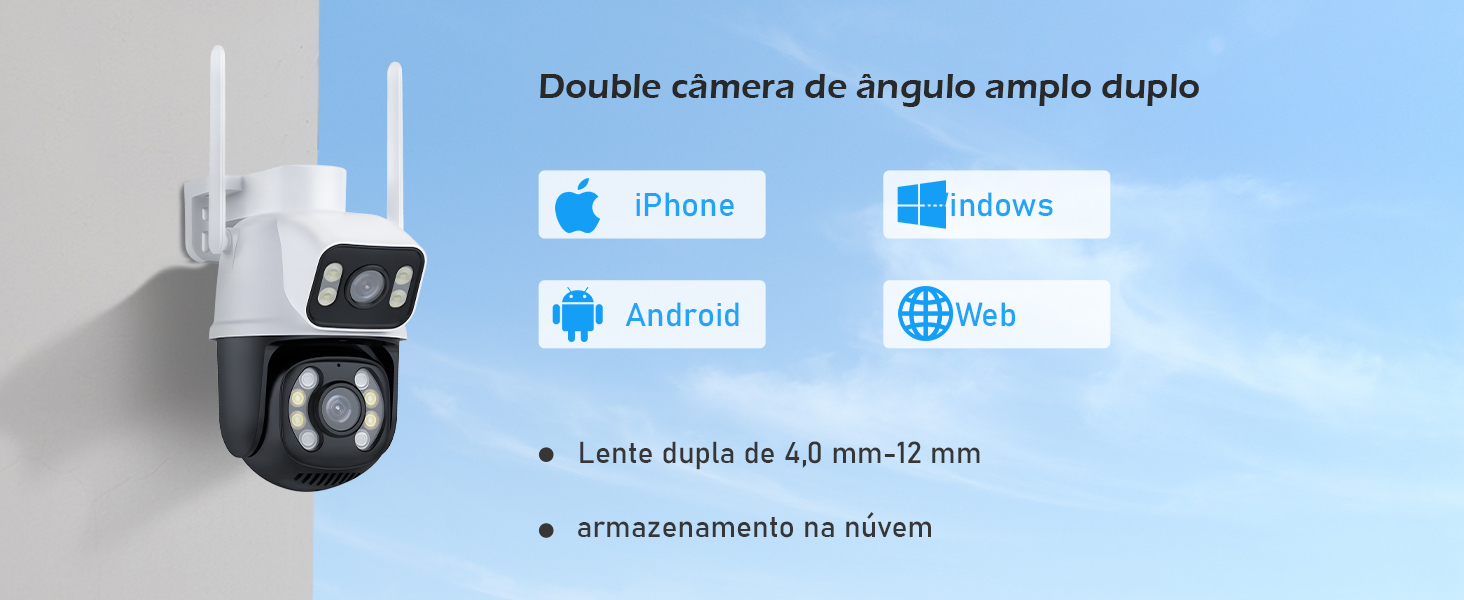
Image: A comparison illustrating the superior 3MP HD image quality of the Coibeu A28B camera, capturing fine details compared to lower resolution cameras.
3. Package Contents
Please check the package for the following items:
- Coibeu IP WiFi Outdoor Security Camera (Model A28B)
- Power Adapter
- Mounting Screws and Wall Plugs
- Waterproof Connector Kit
- Quick Start Guide
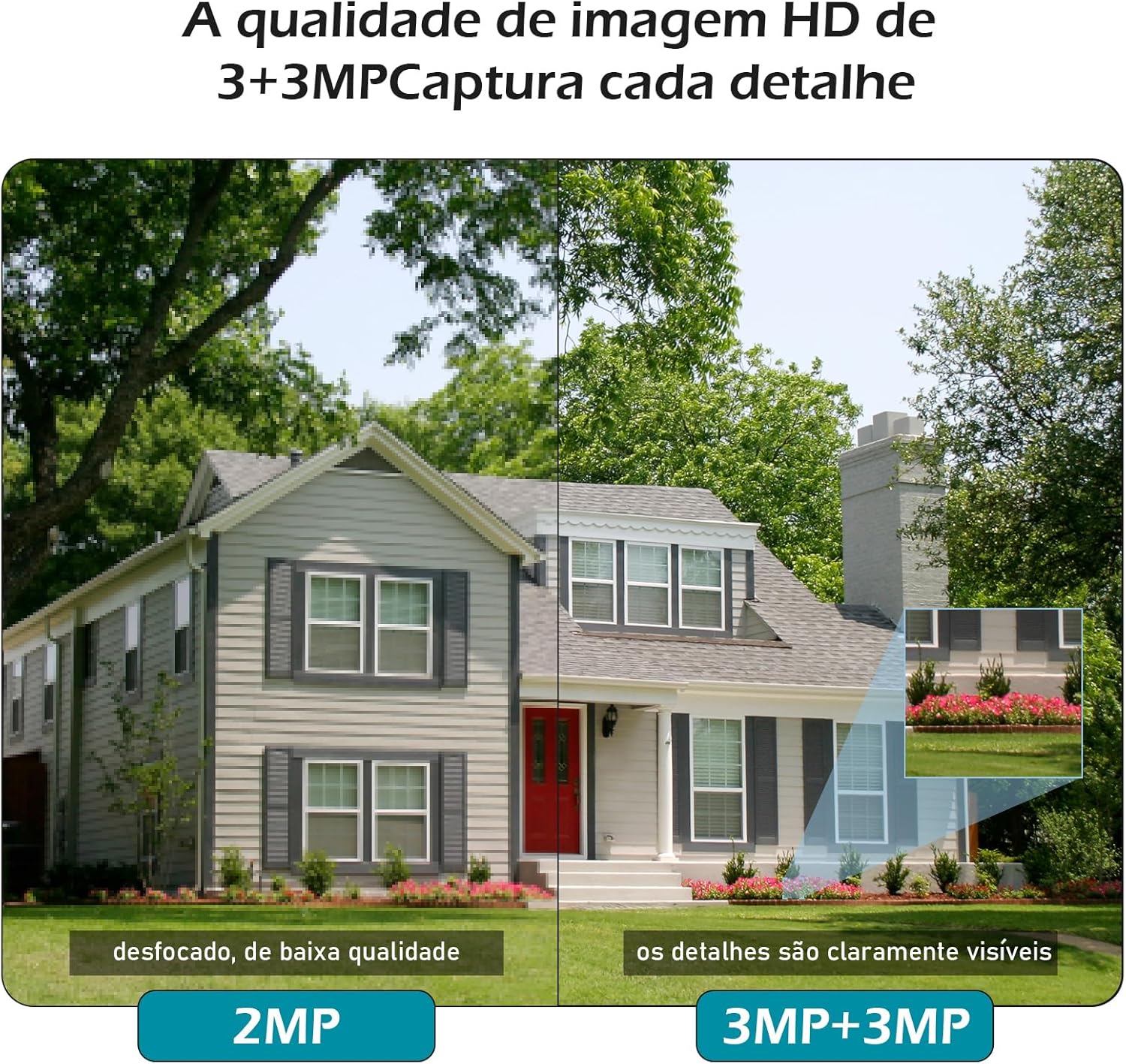
Image: The Coibeu A28B camera and its included accessories, such as the power adapter, mounting hardware, and quick start guide, neatly presented.
4. Setup Instructions
4.1. Physical Installation
- Choose a Location: Select an outdoor location with a clear view of the area you wish to monitor. Ensure the camera is within range of your Wi-Fi network and has access to a power outlet. The camera is designed for wall mounting.
- Mount the Camera:
- Use the included mounting template (if provided) or mark the drill holes on the wall.
- Drill holes and insert the wall plugs.
- Secure the camera bracket to the wall using the provided screws.
- Attach the camera to the bracket.
- Connect Power: Connect the power adapter to the camera and plug it into a suitable AC power outlet. Ensure the connection is secure and protected from moisture using the waterproof connector kit.

Image: The Coibeu A28B camera securely mounted on an exterior wall, demonstrating its IP66 waterproof and dustproof design, capable of withstanding various weather conditions.
4.2. Network Connection & App Setup
- Download the App: Search for the recommended mobile application (e.g., "ICSee" or similar smart home app) on your smartphone's app store (iOS or Android).
- Register/Log In: Open the app and follow the on-screen instructions to register a new account or log in if you already have one.
- Add Device:
- Tap the "+" icon or "Add Device" option in the app.
- Select "IP Camera" or "Smart Camera" and choose the Wi-Fi setup method.
- Follow the app's instructions to connect the camera to your 2.4GHz Wi-Fi network. This usually involves scanning a QR code generated by the app with the camera, or connecting via an access point.
- Once connected, name your camera and set a password for security.
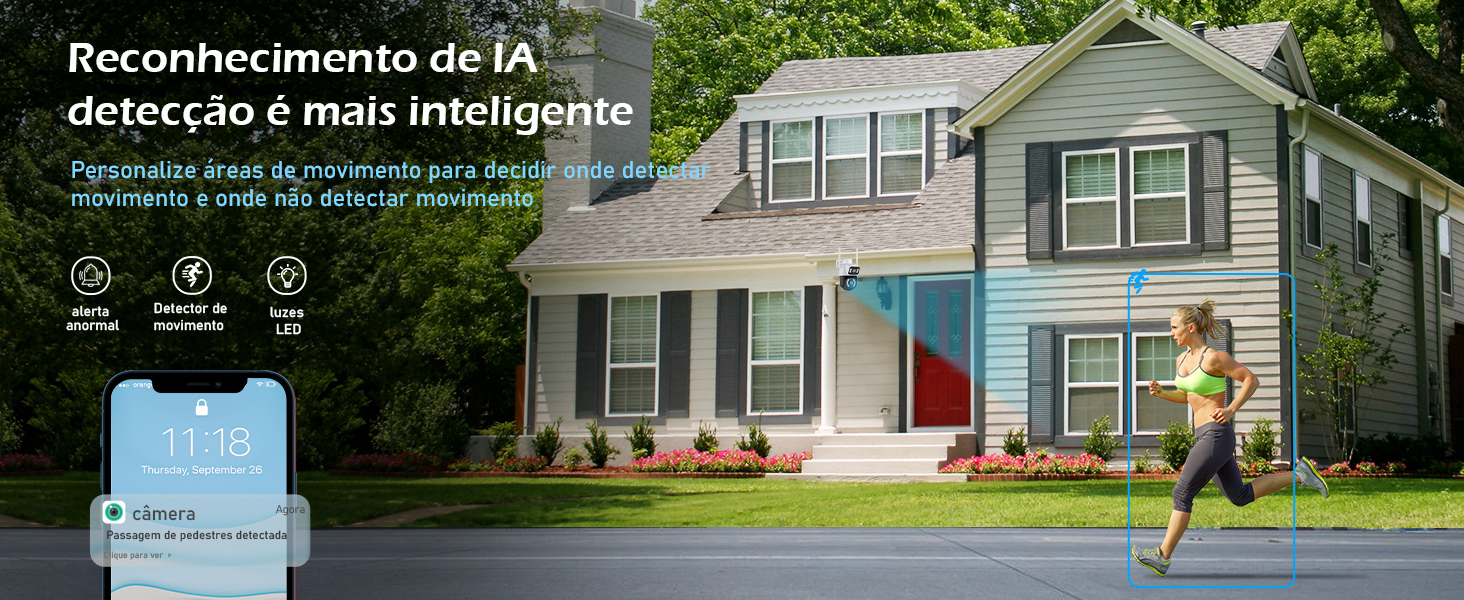
Image: A visual representation of the Coibeu A28B camera wirelessly connected to a home network via 2.4GHz Wi-Fi, illustrating its stable transmission range of up to 40 meters.
5. Operating Instructions
5.1. Live View & PTZ Control
- Open the app and select your camera to view the live feed.
- Use the on-screen controls to pan (355° horizontally) and tilt (90° vertically) the camera to adjust its viewing angle.
- Pinch to zoom in/out on the live feed for closer inspection.
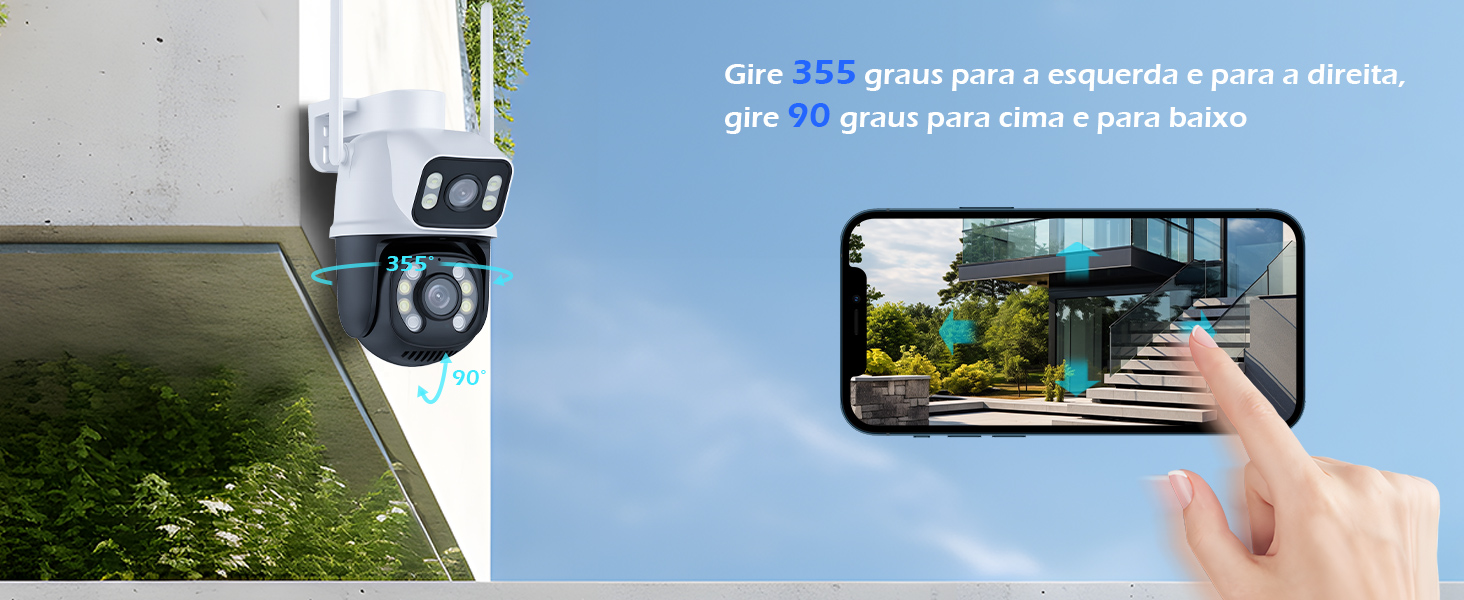
Image: The Coibeu A28B camera demonstrating its pan and tilt capabilities, allowing for a 355-degree horizontal rotation and a 90-degree vertical tilt, controlled via a smartphone app.
5.2. Two-Way Audio
- Tap the microphone icon in the app to speak through the camera's speaker.
- Tap the speaker icon to listen to audio from the camera's microphone.

Image: A user interacting with a person at their doorstep via the Coibeu A28B camera's two-way audio feature, visible on a smartphone screen.
5.3. Motion Detection & Alerts
- Access the camera settings in the app to configure motion detection sensitivity and alert preferences.
- Enable AI human detection to minimize false alarms.
- You will receive push notifications on your smartphone when motion is detected.

Image: The Coibeu A28B camera detecting a person in a restricted area, triggering an abnormal behavior alarm and sending a notification to a smartphone.
5.4. Night Vision Modes
- The camera automatically switches to infrared night vision in low light conditions.
- You can manually select between color night vision, infrared night vision, or dual light alarm mode via the app settings.

Image: The Coibeu A28B camera's intelligent infrared sensor demonstrating its night vision capabilities, showing both standard infrared and color night vision when human presence is detected.
5.5. Storage Options
- Micro SD Card: Insert a Micro SD card (up to 128GB, not included) into the designated slot for local video storage. The slot is typically located under a protective cover on the camera body.
- Cloud Storage: The camera supports cloud storage services (subscription may be required). Refer to the app for details on activating and managing cloud storage.
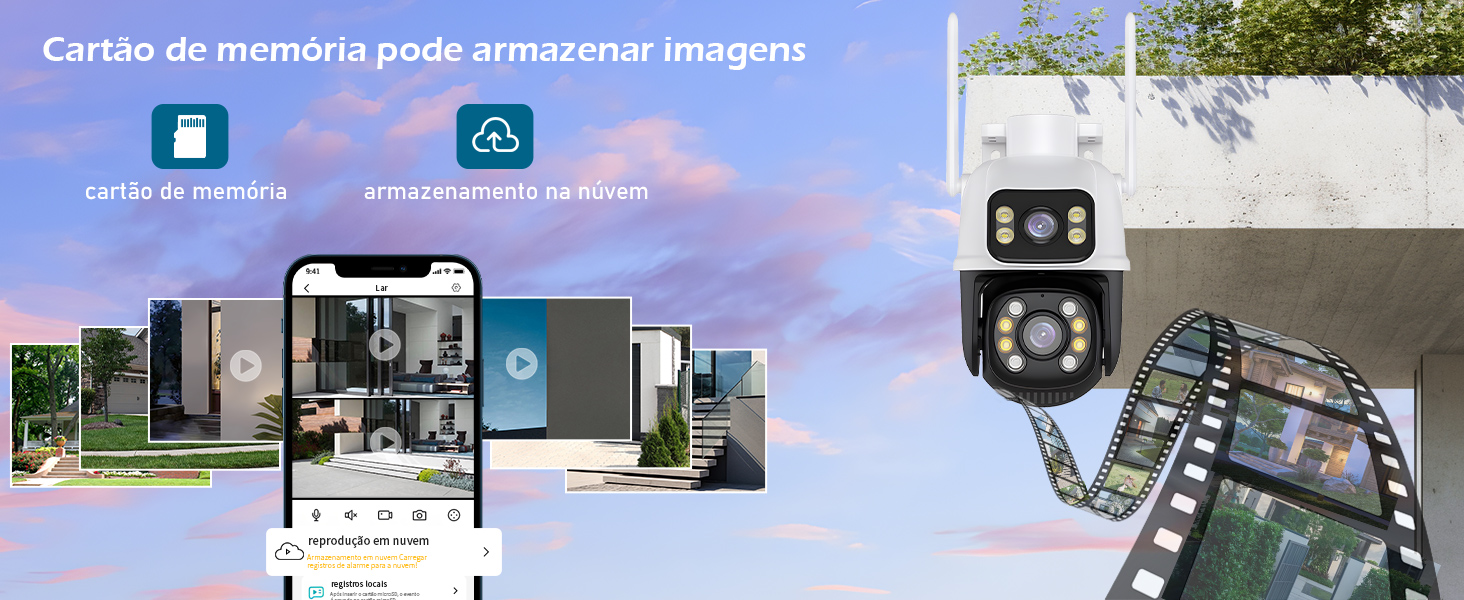
Image: An illustration of the Coibeu A28B camera's video storage options, including local storage via a Micro SD card and remote cloud storage, accessible through the mobile application.
6. Maintenance
- Cleaning: Regularly clean the camera lens and housing with a soft, damp cloth to remove dust and dirt. Do not use harsh chemicals or abrasive materials.
- Firmware Updates: Check the mobile application periodically for available firmware updates. Keeping your camera's firmware up-to-date ensures optimal performance and security.
- Power Supply: Ensure the power adapter and cable are in good condition and free from damage.
- Network Stability: Maintain a stable Wi-Fi connection for uninterrupted surveillance.
7. Troubleshooting
| Problem | Possible Solution |
|---|---|
| Camera not connecting to Wi-Fi |
|
| No live video feed |
|
| Frequent false alarms |
|
| Poor night vision quality |
|
8. Specifications
- Model Number: A28B
- Brand: Coibeu
- Connectivity: Wireless (Wi-Fi, 2.4GHz)
- Resolution: 3 MP (HD)
- Sensor Technology: CMOS
- Field of View: 360 Degrees (Pan: 355°, Tilt: 90°)
- Night Vision: Infrared, Color Night Vision (up to 5 meters)
- Special Features: Integrated light, Motion sensor, PTZ Technology, AI Human Detection, Two-Way Audio
- Water Resistance: IP66 (Waterproof and Dustproof)
- Operating Temperature: -20°C to 60°C
- Power Source: AC
- Control Method: Mobile Application (iOS/Android)
- Mounting Type: Wall Mount
- Material: Plastic
- Item Dimensions: 16.5 x 8.5 x 8.5 cm
9. Warranty and Support
This Coibeu product comes with a standard manufacturer's warranty. For specific warranty details, please refer to the warranty card included in your package or contact Coibeu customer support.
For technical support, troubleshooting assistance, or any inquiries regarding your product, please visit the official Coibeu website or contact their customer service team. Contact information can typically be found on the product packaging or the official brand website.
Online Resources: For additional support, FAQs, and video tutorials, please visit the Coibeu support page or the product's Amazon listing for community forums and customer reviews.