
Introduction
Thank you for choosing the Yuposl WiFi 5G Automatic Pet Feeder. This device is designed to provide convenient and scheduled feeding for your pets, ensuring they receive their meals on time, every time. With dual-band WiFi connectivity (2.4GHz and 5GHz) and app control, managing your pet's diet has never been easier. Please read this manual thoroughly before use to ensure proper operation and maintenance.
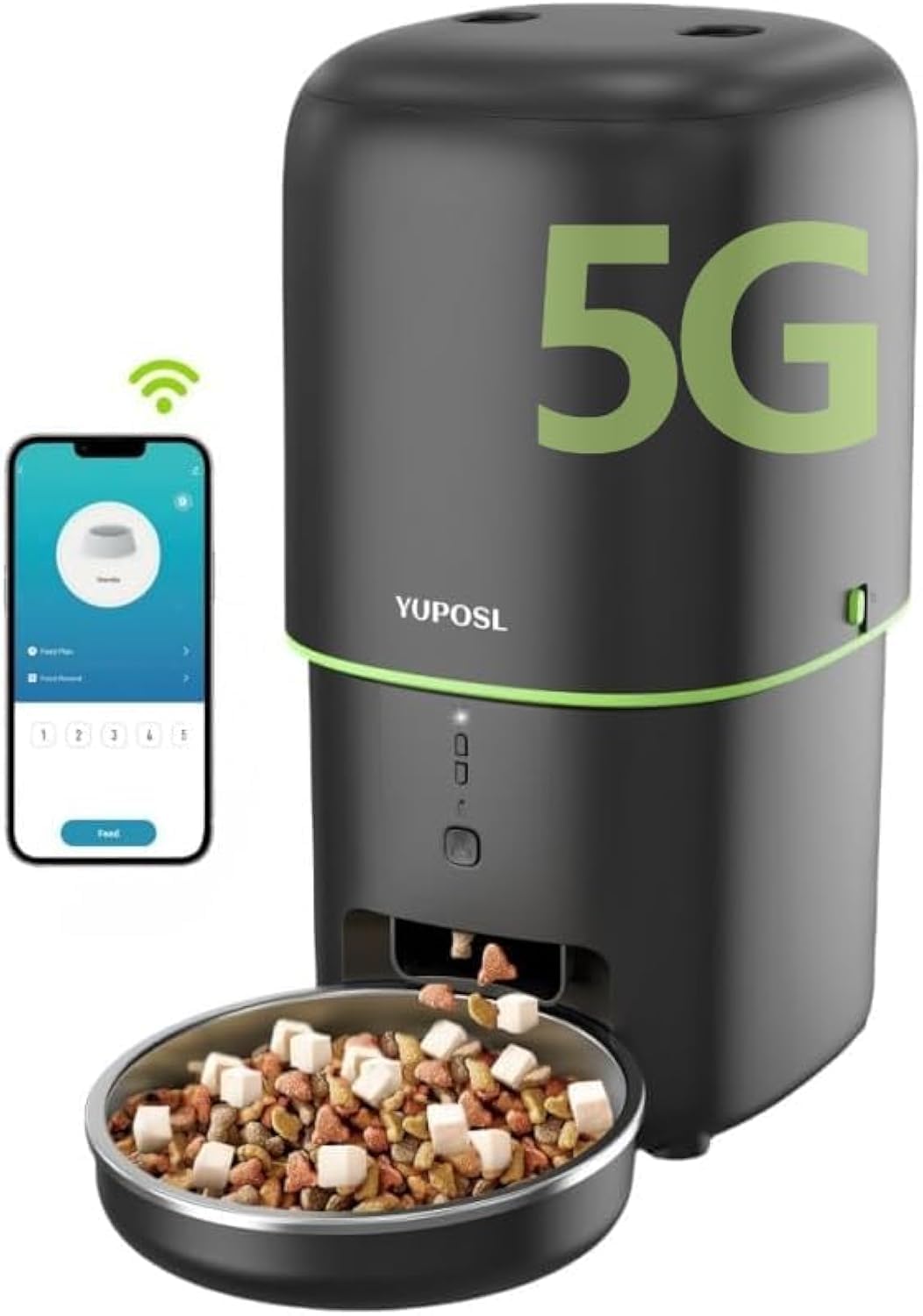
Image: The Yuposl WiFi 5G Automatic Pet Feeder, showcasing its sleek design, the food dispensing mechanism, and a smartphone displaying the control app. The feeder is black with a green accent line and a '5G' logo.
Safety Information
- Always place the feeder on a stable, level surface to prevent tipping.
- Keep the power adapter and cord away from pets to prevent chewing or damage.
- Do not immerse the main unit in water or any other liquid. The host unit cannot be washed.
- Use only dry pet food with a diameter between 5-15mm.
- Ensure the feeder is unplugged before cleaning or performing any maintenance.
- This appliance is not intended for use by persons (including children) with reduced physical, sensory or mental capabilities, or lack of experience and knowledge, unless they have been given supervision or instruction concerning use of the appliance by a person responsible for their safety.
Package Contents
Please check the box for the following items:
- Yuposl Automatic Pet Feeder Main Unit
- Stainless Steel Food Bowl
- Power Adapter
- User Manual (this document)
Product Overview
Familiarize yourself with the main components of your Yuposl Automatic Pet Feeder:
- Food Hopper: Top compartment for storing dry pet food.
- Lid: Seals the food hopper to maintain freshness.
- Control Panel: Includes indicator lights and manual feed button.
- Food Outlet: Where food is dispensed.
- Stainless Steel Bowl: Removable bowl for pet food.
- Power Port: For connecting the power adapter.
- Battery Compartment: For optional D-cell batteries (not included) for backup power.
Setup
1. Power Connection
- Connect the power adapter to the power port on the back of the feeder.
- Plug the adapter into a standard wall outlet.
- For backup power during outages, install 3 D-cell batteries (not included) into the battery compartment at the bottom of the unit. The feeder will automatically switch to battery power if the main power is interrupted.
2. App Installation
Download the "Pet Zero" app from your smartphone's app store (iOS or Android). You can search for "Pet Zero" or scan the QR code provided in the quick start guide (if applicable).
3. WiFi Connection
The Yuposl feeder supports both 2.4GHz and 5GHz WiFi networks, offering flexible connectivity options.

Image: A woman interacting with her smartphone while her dog eats from the Yuposl feeder, highlighting the feeder's compatibility with both 2.4GHz and 5GHz WiFi networks.
- Open the "Pet Zero" app and create an account or log in.
- Tap "Add Device" or the "+" icon to add a new feeder.
- Follow the on-screen instructions in the app to connect your feeder to your home WiFi network. This typically involves selecting your WiFi network and entering the password.
- The app will guide you through the pairing process, which may involve pressing a button on the feeder.
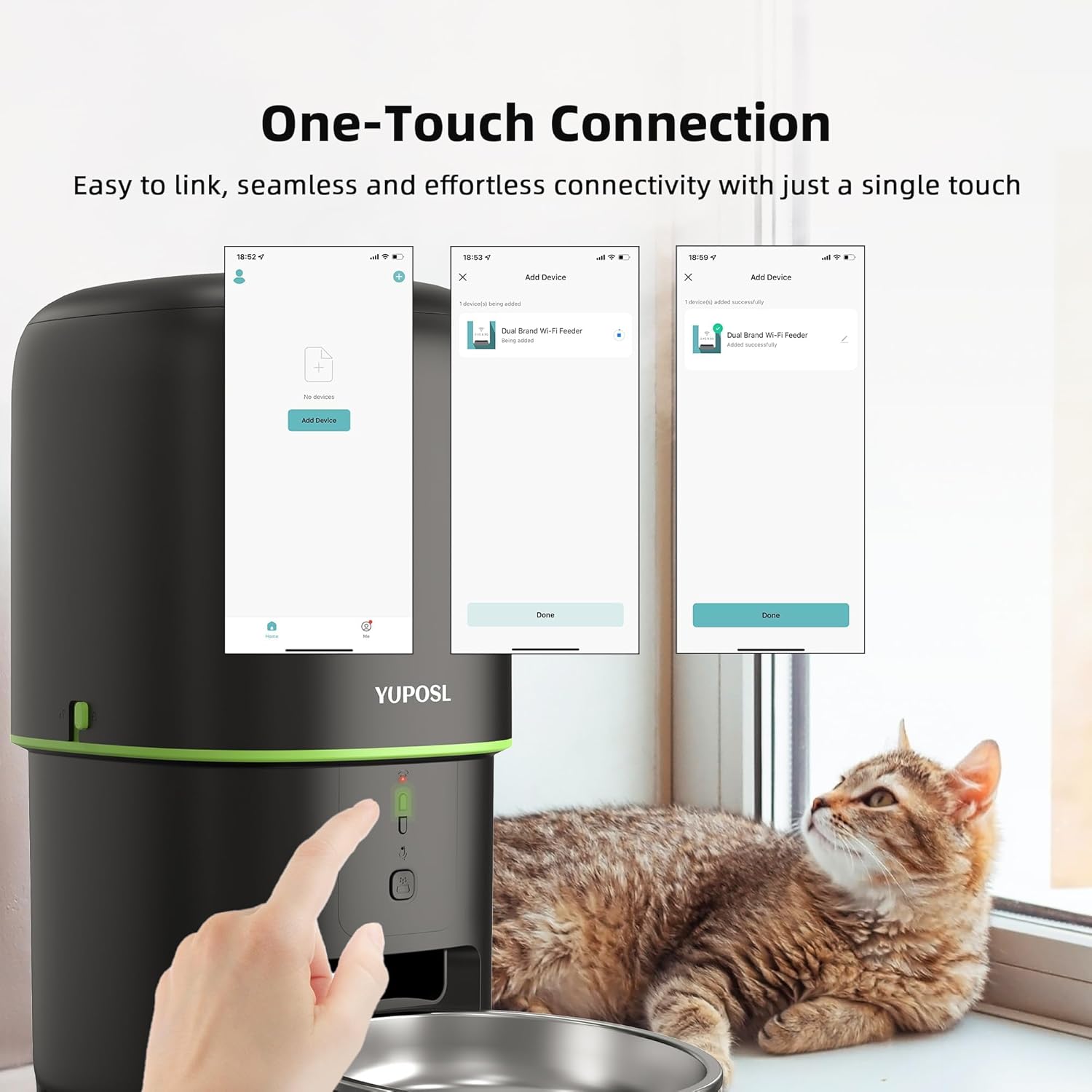
Image: A sequence of three smartphone screens demonstrating the "One-Touch Connection" process within the Pet Zero app, from adding a device to successful pairing with the dual-band WiFi feeder.
4. Filling the Food Hopper
- Open the lid of the food hopper.
- Pour dry pet food into the hopper. Ensure the food is within the recommended size (5-15mm) to prevent blockages.
- Close the lid securely to maintain food freshness.
Operating Instructions
1. Scheduling Feeds via App
The "Pet Zero" app allows you to customize your pet's feeding schedule:

Image: A split image showing a hand holding a smartphone with the Pet Zero app open, displaying feeding options, and a cat eating from the Yuposl feeder, illustrating the convenience of remote feeding.
- In the app, navigate to the feeder's control interface.
- Select "Meal Plan" or "Schedule" to set up feeding times.
- You can program up to 15 meals per day.
- For each meal, specify the number of portions (up to 16 portions per meal) according to your pet's dietary needs.
- Save your settings. The feeder will automatically dispense food at the scheduled times.
2. Manual Feeding
- Via App: On the app's main screen for the feeder, tap the "Feed" button to dispense a single portion immediately. You may be able to select the number of portions for manual feed.
- Via Feeder Button: Press the manual feed button on the feeder's control panel to dispense one portion.
3. Voice Recording Function
Record a personalized message to call your pet to eat:

Image: A smartphone screen displaying the voice recording settings within the Pet Zero app, alongside a cat attentively looking at the Yuposl feeder, with a visual representation of a recorded voice message playing.
- In the app, go to the feeder settings and find the "Voice Recording" option.
- Record a message up to 10 seconds long.
- You can set the recording to play up to 5 times per feeding event.
- This feature helps to comfort your pet and encourage them to eat, even when you are not home.
4. Multi-Feeder Control
The Pet Zero app allows you to manage multiple Yuposl feeders simultaneously, ideal for multi-pet households or if you have feeders in different locations.

Image: Three Yuposl pet feeders lined up, with two cats eating from them, while a smartphone displays the Pet Zero app managing multiple devices, demonstrating multi-feeder control.
- Add each feeder to the app following the initial setup steps.
- From the app's device list, you can select and control each feeder individually or set them to dispense food simultaneously if multiple pets share the same feeding time.
Maintenance
1. Cleaning
Regular cleaning ensures hygiene and proper functioning of the feeder.
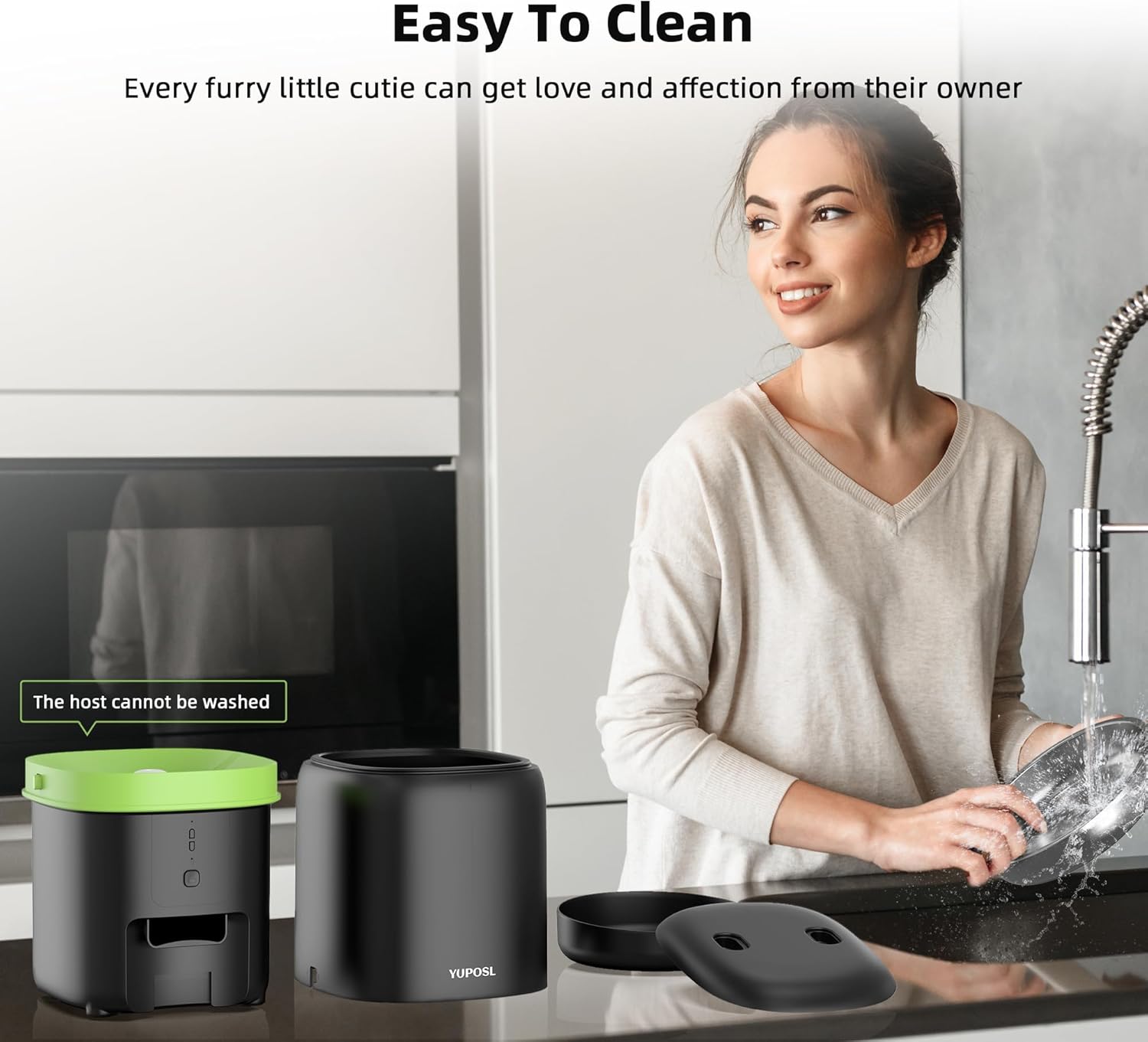
Image: A woman cleaning the stainless steel food bowl of the Yuposl feeder at a sink, with the feeder's main body and food hopper lid disassembled nearby, illustrating the ease of cleaning removable parts.
- Stainless Steel Bowl: The food bowl is made of stainless steel and is removable for easy cleaning. It can be hand-washed with mild soap and water or placed in a dishwasher. Ensure it is completely dry before reattaching.
- Food Hopper and Lid: These parts can be wiped clean with a damp cloth. Do not wash them under running water or immerse them. Ensure they are dry before reassembling.
- Main Unit: The main unit (host) containing electronics cannot be washed. Wipe it with a dry or slightly damp cloth.
- Clean the feeder regularly, especially the food contact areas, to prevent bacterial growth and maintain food freshness.
2. Food Freshness
The feeder is designed with a soft rubber rotor and a sealed top lid to effectively block air and maintain the freshness of the stored food. Always ensure the lid is securely closed after refilling.
Troubleshooting
| Problem | Possible Cause | Solution |
|---|---|---|
| Feeder not connecting to WiFi | Incorrect WiFi password; Feeder too far from router; Router is 5GHz only (unlikely as it supports both); Network interference. |
|
| Food not dispensing | Food hopper empty; Food blockage; Incorrect food size; Feeder not powered. |
|
| App not responding or crashing | Outdated app version; Phone operating system issues; Network connectivity problems. |
|
| Voice recording not playing | No recording saved; Volume too low; Feeder malfunction. |
|
Specifications
| Feature | Detail |
|---|---|
| Brand | Yuposl |
| Model Number | YPF03-D001 |
| Capacity | 4L (approx. 136 Ounces) |
| Dimensions (L x W x H) | 17.78 x 24.38 x 20.07 cm (7 x 9.6 x 7.9 inches) |
| Weight | 1.48 kg (3.26 lbs) |
| Material | Plastic, Stainless Steel, ABS Plastic |
| Connectivity Technology | WiFi (2.4GHz & 5GHz dual-band support) |
| Power Source | AC Power Adapter (Batteries for backup, 3x D-cell, not included) |
| Max Meals per Day | Up to 15 |
| Max Portions per Meal | Up to 16 |
| Voice Recording | 10 seconds, up to 5 plays per meal |
| Target Species | Cats, Dogs, Small Animals |
| Care Instructions | Store in a dry place, Hand wash removable parts only, Keep indoors |
Warranty and Support
Yuposl products are manufactured to high-quality standards. For warranty information and technical support, please refer to the contact details provided on the product packaging or the official Yuposl website. Keep your purchase receipt as proof of purchase for warranty claims.
For further assistance, you may also contact the retailer where you purchased the product.


