
1. Introduction
This manual provides instructions for the installation, configuration, and operation of your TP-Link EC220-G5 AC1200 Wireless Dual Band Gigabit Router. Please read this manual carefully before using the device to ensure proper functionality and safety.
The EC220-G5 is designed to provide high-speed dual-band Wi-Fi connectivity, supporting both 2.4 GHz and 5 GHz frequencies for optimal performance across various devices.
2. Package Contents
Verify that your package contains the following items:
- TP-Link EC220-G5 AC1200 Wireless Dual Band Gigabit Router
- Power Adapter
- Ethernet Cable
- Quick Installation Guide
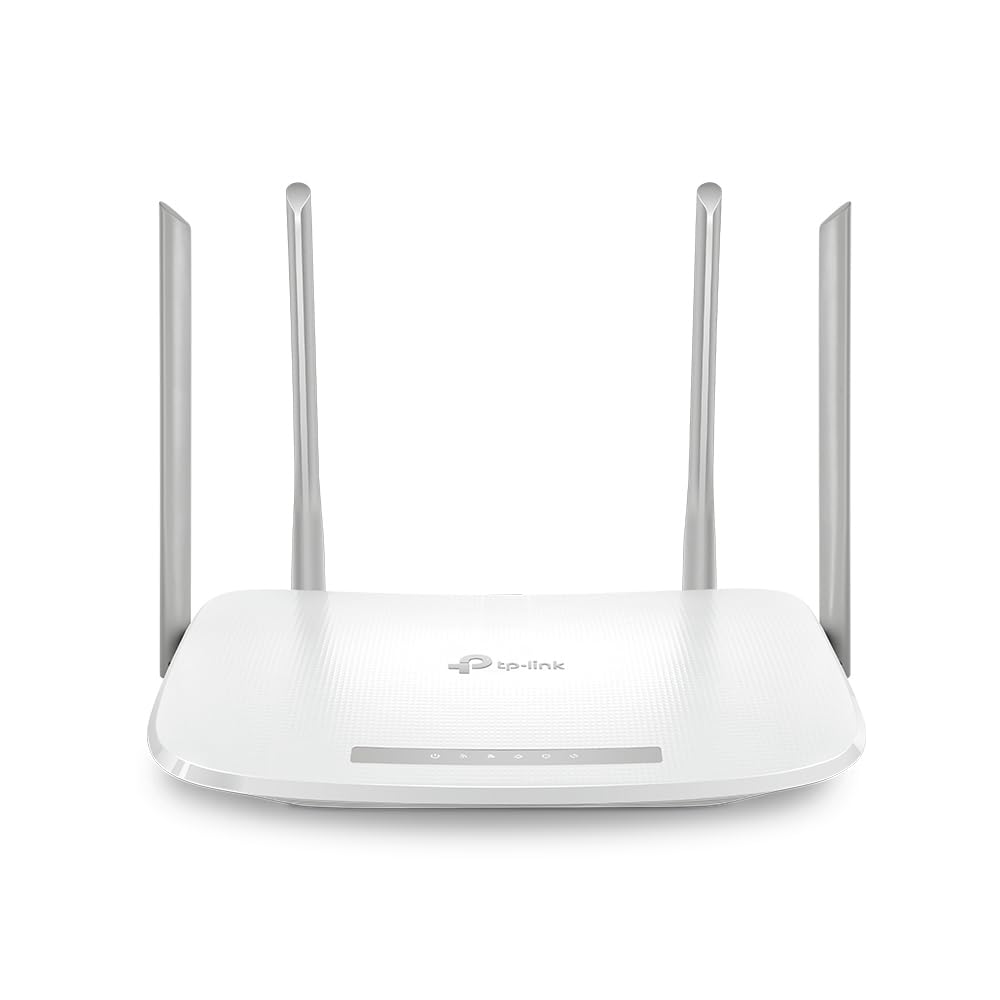
Figure 1: Front view of the TP-Link EC220-G5 router, showing its four external antennas and LED indicators.
3. Hardware Overview
3.1 Front Panel
The front panel features LED indicators for power, internet status, Wi-Fi activity, and LAN port status.
3.2 Rear Panel
The rear panel includes various ports and buttons for connectivity and control.
Figure 2: Rear view of the TP-Link EC220-G5 router, displaying the WAN port, LAN ports, power input, and reset button.
- WAN Port: Connects to your modem or internet service provider's (ISP) network.
- LAN Ports (1-4): Connect to wired devices such as computers, gaming consoles, or smart TVs.
- Power Port: Connects to the provided power adapter.
- Reset Button: Used to restore the router to factory default settings.
- WPS/Wi-Fi Button: Press to enable/disable Wi-Fi or initiate WPS (Wi-Fi Protected Setup).
4. Setup
4.1 Hardware Connection
- Power Off: Disconnect power from your modem and router (if applicable).
- Connect Modem: Connect your modem to the router's WAN port using an Ethernet cable.
- Connect Power: Connect the power adapter to the router's power port and plug it into an electrical outlet.
- Power On: Power on your modem first, then power on the router. Wait for the LED indicators to stabilize.
- Connect Devices: Connect your computer or other devices to the router via an Ethernet cable to a LAN port, or wirelessly using the default Wi-Fi network name (SSID) and password found on the router's label.
4.2 Initial Configuration
- Access Router: Open a web browser on a connected device and enter the default access address (e.g.,
http://tplinkwifi.netor192.168.0.1). - Login: Enter the default username and password (usually
adminfor both, or as specified on the router's label). - Run Quick Setup: Follow the on-screen instructions of the Quick Setup wizard to configure your internet connection and wireless settings.
- Change Default Credentials: For security, change the default login password for the router's management interface.
5. Operating the Router
5.1 Wireless Settings
To modify your Wi-Fi network name (SSID) or password:
- Log in to the router's web management interface.
- Navigate to Wireless > Wireless Settings.
- Change the SSID and password for both 2.4 GHz and 5 GHz bands.
- Save your changes.
5.2 Guest Network
The router supports a guest network feature, allowing visitors to access the internet without sharing your main network resources. This enhances security.
- Log in to the router's web management interface.
- Go to Guest Network.
- Enable the guest network and configure its settings (e.g., password, access duration).
5.3 Parental Controls
Manage internet access for specific devices or users on your network.
- Access Parental Controls in the web interface.
- Configure time limits or website restrictions for designated devices.
5.4 Quality of Service (QoS)
Prioritize network traffic for specific applications or devices to ensure smooth performance for critical tasks like gaming or video streaming.
- Navigate to QoS settings in the web interface.
- Enable QoS and configure bandwidth priorities as needed.
6. Maintenance
6.1 Firmware Update
Regularly update your router's firmware to ensure optimal performance, security, and access to new features.
- Visit the official TP-Link support website for the EC220-G5 model.
- Download the latest firmware file.
- Log in to the router's web management interface.
- Go to System Tools > Firmware Upgrade.
- Upload the downloaded firmware file and follow the instructions. Do not power off the router during the upgrade process.
6.2 Backup and Restore Configuration
It is recommended to back up your router's configuration settings before performing major changes or firmware updates.
- In the web interface, navigate to System Tools > Backup & Restore.
- Click Backup to save your current configuration.
- To restore, upload a previously saved configuration file.
6.3 Factory Reset
If the router is not functioning correctly or you forget the login password, you can perform a factory reset.
- Method 1 (Software): Log in to the web interface, go to System Tools > Factory Defaults, and click Restore.
- Method 2 (Hardware): With the router powered on, press and hold the Reset button on the rear panel for approximately 5-10 seconds until the system LED blinks rapidly. Release the button and wait for the router to restart.
7. Troubleshooting
7.1 No Internet Access
- Check all cable connections between the modem, router, and your devices.
- Verify that the WAN LED on the router is lit. If not, check the connection to your modem.
- Restart your modem and router.
- Contact your Internet Service Provider (ISP) to confirm service status.
7.2 Unable to Access Router's Web Management Page
- Ensure your device is correctly connected to the router (wired or wireless).
- Verify the router's IP address (default is usually
192.168.0.1or192.168.1.1) and ensure your device is on the same subnet. - Clear your browser's cache or try a different browser.
- If you forgot the login password, perform a factory reset (refer to Section 6.3).
7.3 Slow Wireless Speed
- Ensure your devices are connected to the 5 GHz band if supported, as it offers higher speeds and less interference.
- Reduce the distance between your devices and the router.
- Minimize obstacles (walls, large metal objects) between the router and devices.
- Check for interference from other wireless devices (cordless phones, microwaves).
- Update your router's firmware and your device's wireless adapter drivers.
8. Specifications
| Feature | Detail |
|---|---|
| Model | EC220-G5 |
| Wireless Standard | IEEE 802.11ac/n/a 5 GHz, IEEE 802.11n/b/g 2.4 GHz |
| Wi-Fi Speed | AC1200 (300 Mbps on 2.4 GHz, 867 Mbps on 5 GHz) |
| Antennas | 4 External Antennas |
| Ethernet Ports | 1x Gigabit WAN Port, 4x Gigabit LAN Ports |
| Dimensions (L x W x H) | 28.8 x 6 x 31 cm |
| Operating System | RouterOS (TP-Link Custom) |
| Power Input | 12V |
| Special Features | QoS, Parental Controls, Guest Network |
9. Warranty and Support
9.1 Warranty Information
TP-Link provides a limited warranty for this product. Please refer to the warranty card included in your package or visit the official TP-Link website for detailed warranty terms and conditions specific to your region.
9.2 Technical Support
For technical assistance, firmware updates, or additional product information, please visit the TP-Link support website or contact their customer service:
- Website: www.tp-link.com/in/support/
- Contact: Refer to the contact information available on the official support page for your region.


