
ZTE S9131037
ZTE T3000 Router User Manual
Model: S9131037
Introduction
This manual provides comprehensive instructions for the ZTE T3000 Router, designed to offer reliable and high-speed network connectivity for home and professional environments. It covers essential information regarding product features, setup procedures, operational guidelines, maintenance tips, and troubleshooting solutions to ensure optimal performance and user experience.
Safety Information
- Power Supply: Use only the power adapter provided with the device. Using an incompatible power adapter may damage the router and void the warranty.
- Ventilation: Ensure adequate ventilation around the router. Do not block ventilation openings. Avoid placing the device in enclosed spaces or near heat sources.
- Water and Moisture: Keep the router away from water, moisture, and high humidity environments. Do not operate the device with wet hands.
- Cleaning: Disconnect the power before cleaning. Use a soft, dry cloth. Do not use liquid or aerosol cleaners.
- Placement: Place the router on a stable, flat surface. Avoid placing it in direct sunlight or areas with extreme temperatures.
- Servicing: Do not attempt to disassemble or repair the router yourself. Refer all servicing to qualified personnel.
Package Contents
Verify that all items are present in your package:
- ZTE T3000 Router
- Power Adapter
- Ethernet Cable
- Quick Start Guide (if applicable)
Product Overview
Familiarize yourself with the components of your ZTE T3000 Router.
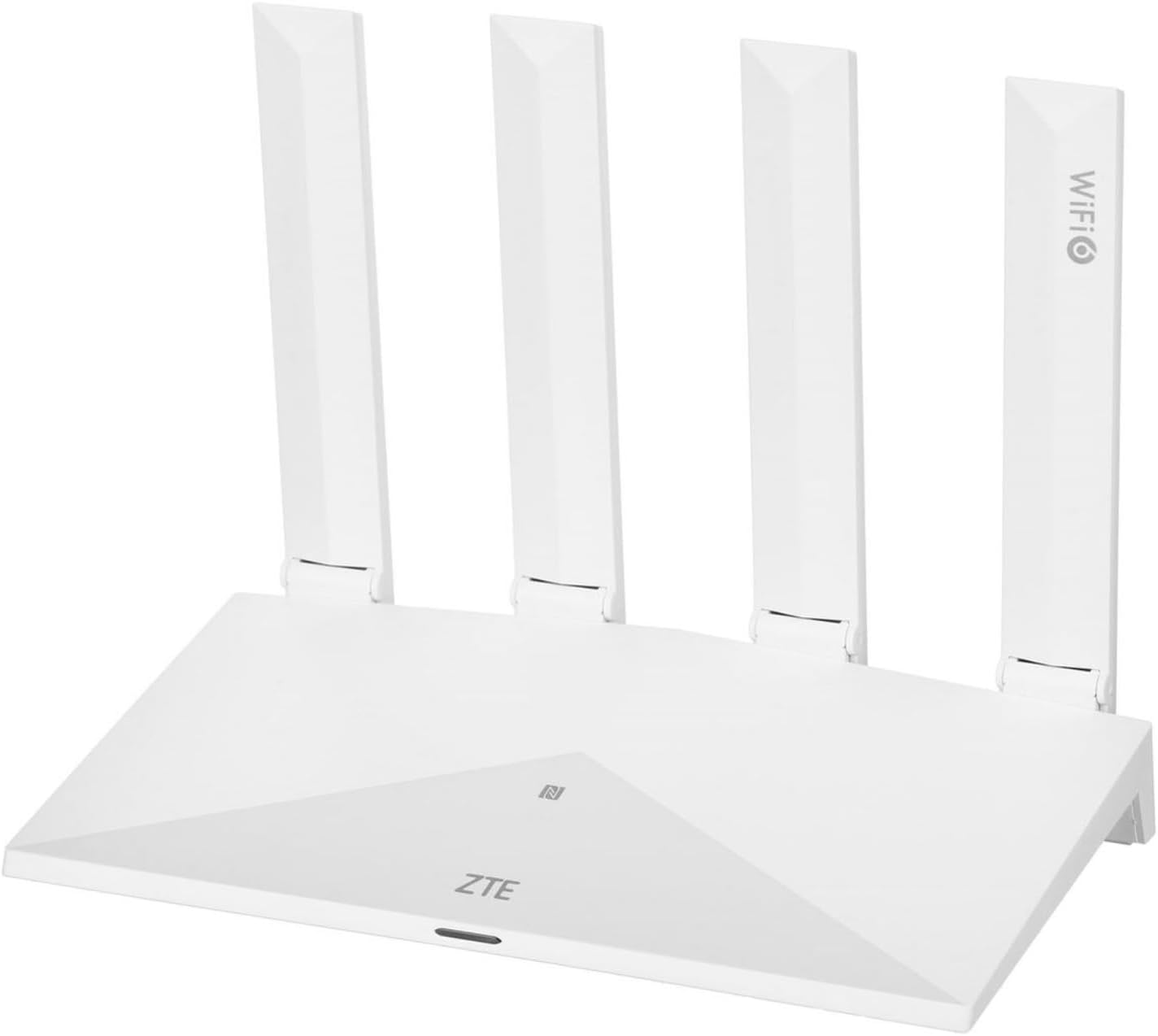
Figure 1: Front view of the ZTE T3000 Router. The router is white with four external antennas. The ZTE logo is visible on the front panel, along with an LED indicator and a Wi-Fi 6 logo on one of the antennas.
LED Indicators
| Indicator | Status | Description |
|---|---|---|
| Power | Solid Green | Device is powered on and operating normally. |
| Power | Off | Device is powered off. |
| Internet | Solid Green | Connected to the internet. |
| Internet | Flashing Green | Connecting to the internet or data transmission. |
| Internet | Solid Red | No internet connection. |
| Wi-Fi | Solid Green | Wi-Fi is enabled. |
| Wi-Fi | Flashing Green | Wi-Fi Protected Setup (WPS) in progress. |
| Wi-Fi | Off | Wi-Fi is disabled. |
Ports and Buttons
- Power Port: Connects to the power adapter.
- WAN Port: Connects to your modem or internet service provider's (ISP) network.
- LAN Ports (RJ-45): Connects to wired devices such as computers, gaming consoles, or smart TVs.
- Reset Button: Used to restore the router to factory default settings. Press and hold for 5-10 seconds while the router is powered on.
- WPS/Wi-Fi Button: Press to activate WPS for easy Wi-Fi connection, or press and hold to toggle Wi-Fi on/off.
Setup
Step 1: Connect the Hardware
- Place the router in a central location to maximize Wi-Fi coverage, away from obstructions and electronic devices that may cause interference.
- Connect one end of the provided Ethernet cable to the WAN port on your ZTE T3000 Router.
- Connect the other end of the Ethernet cable to your modem's LAN port or the Ethernet wall jack provided by your ISP.
- Connect the power adapter to the router's power port and then plug the adapter into a power outlet.
- Wait for the router to power on. The Power LED should turn solid green. The Internet LED may flash or turn solid green once a connection is established.
Step 2: Connect to the Network
You can connect to the router's network via Wi-Fi or a wired connection.
Wi-Fi Connection:
- Locate the Wi-Fi network name (SSID) and password printed on the label at the bottom or back of your router.
- On your computer or mobile device, search for available Wi-Fi networks.
- Select your router's SSID from the list and enter the Wi-Fi password when prompted.
Wired Connection:
- Connect one end of an Ethernet cable to a LAN port on your router.
- Connect the other end of the Ethernet cable to the Ethernet port on your computer or other wired device.
Operating Instructions
Accessing the Web Management Interface
- Open a web browser (e.g., Chrome, Firefox, Edge) on a device connected to the router.
- In the address bar, type the default IP address of the router (usually
192.168.1.1or192.168.0.1) and press Enter. Refer to the router's label for the exact IP address. - Enter the default username and password when prompted. These are typically
adminfor both, or found on the router's label. - Upon successful login, you will access the router's web management interface, where you can configure various settings.
Basic Wi-Fi Configuration
From the web management interface, navigate to the Wi-Fi settings section (often labeled "Wireless" or "WLAN").
- Change SSID: You can change the network name (SSID) to something more memorable.
- Change Password: It is highly recommended to change the default Wi-Fi password to a strong, unique password for security.
- Security Mode: Ensure the security mode is set to WPA2-PSK or WPA3-PSK for optimal security.
- Guest Network: If available, consider enabling a guest network for visitors to keep your main network secure.
Access Point Mode
The ZTE T3000 Router supports Access Point (AP) mode, allowing it to extend an existing wired network's Wi-Fi coverage. To enable AP mode:
- Connect the router's LAN port to a LAN port on your existing main router. Do not use the WAN port.
- Access the web management interface.
- Navigate to the operating mode settings (often under "Operation Mode" or "System Settings").
- Select "Access Point" mode and save the settings. The router will restart.
- Ensure the router's IP address is on the same subnet as your main router but outside its DHCP range to avoid conflicts.
Maintenance
- Regular Restart: Periodically restart your router (e.g., once a month) by unplugging it for 10 seconds and plugging it back in. This can resolve minor performance issues.
- Firmware Updates: Check the ZTE official website for firmware updates. Keeping your router's firmware up-to-date ensures optimal performance, security, and new features.
- Physical Cleaning: Keep the router free from dust. Use a soft, dry cloth to wipe the exterior. Ensure ventilation holes are not blocked.
- Password Management: Regularly change your Wi-Fi and router login passwords to strong, unique combinations.
Troubleshooting
| Problem | Possible Cause | Solution |
|---|---|---|
| No Internet Access | Incorrect cable connection; ISP issue; Router/modem malfunction. | Check all cable connections. Restart the modem and router. Contact your ISP if the issue persists. |
| Wi-Fi Signal is Weak or Drops Frequently | Router placement; Interference from other devices; Too many connected devices. | Relocate the router to a central, open area. Avoid placing near microwaves, cordless phones. Reduce the number of active devices. |
| Cannot Access Router Management Page | Incorrect IP address; Device not connected to router; Browser issue. | Ensure your device is connected to the router (wired or Wi-Fi). Verify the correct IP address (e.g., 192.168.1.1). Try a different web browser. |
| Forgot Wi-Fi Password or Login Password | Password forgotten. | Perform a factory reset by pressing the Reset button for 5-10 seconds. This will revert all settings to default, including passwords. |
Specifications
| Feature | Detail |
|---|---|
| Brand | ZTE |
| Model Number | S9131037 |
| Color | White |
| Operating System | RouterOS |
| Connectivity Technology | Wi-Fi, Ethernet |
| Special Feature | Access Point Mode |
| Compatible Devices | Personal Computer |
| Frequency Band Class | Dual Band |
| Wireless Communication Standard | 802.11n |
| Recommended Uses | Home, Professional |
Warranty and Support
ZTE products typically come with a limited warranty. Please refer to the warranty card included in your product package or visit the official ZTE website for detailed warranty terms and conditions specific to your region.
For technical support, troubleshooting assistance, or to inquire about repairs, please contact ZTE customer support through their official website or the contact information provided in your product documentation. Ensure you have your model number (S9131037) and purchase details ready when contacting support.
Online Resources:
Related documentsS9131037


Ask a question about this manual
Ask about setup, troubleshooting, compatibility, parts, safety, or missing instructions. Manuals+ will review the question and use this page’s manual context to help answer it.