
ZEBRONICS ZEB VITA (WITH RGB)
ZEBRONICS VITA (with RGB) Portable Bar Speaker User Manual
Model: ZEB VITA (WITH RGB)
Introduction
Thank you for purchasing the ZEBRONICS VITA (with RGB) Portable Bar Speaker. This manual provides essential information for setting up, operating, and maintaining your speaker. Please read it carefully to ensure optimal performance and longevity of your device.

Image: The ZEBRONICS VITA (with RGB) Portable Bar Speaker, showcasing its compact bar design and mesh grille.
What's in the Box
Please check the package contents to ensure all items are present:
- Speaker - 1 Unit
- Charging Cable - 1 Unit
- User Manual - 1 Unit
Key Features
- Wireless Bluetooth Connectivity: Seamless audio streaming from compatible devices.
- 10W Audio Output: Powerful sound for its compact size.
- RGB Lighting: Dynamic LED lights for an enhanced visual experience.
- Multiple Playback Options: Supports USB, Micro SD card, and AUX input.
- Built-in FM Radio: Enjoy your favorite radio stations on the go.
- TWS Function: Connect two ZEB-VITA speakers for a true wireless stereo experience.
- Call Function: Built-in microphone for hands-free calling.
- Portable Design: Compact and lightweight with a convenient carry loop.
- Long Playback Time: Up to 5 hours of playback on a single charge (at 50% volume with LED off).

Image: Illustration highlighting 5 hours of playback time.
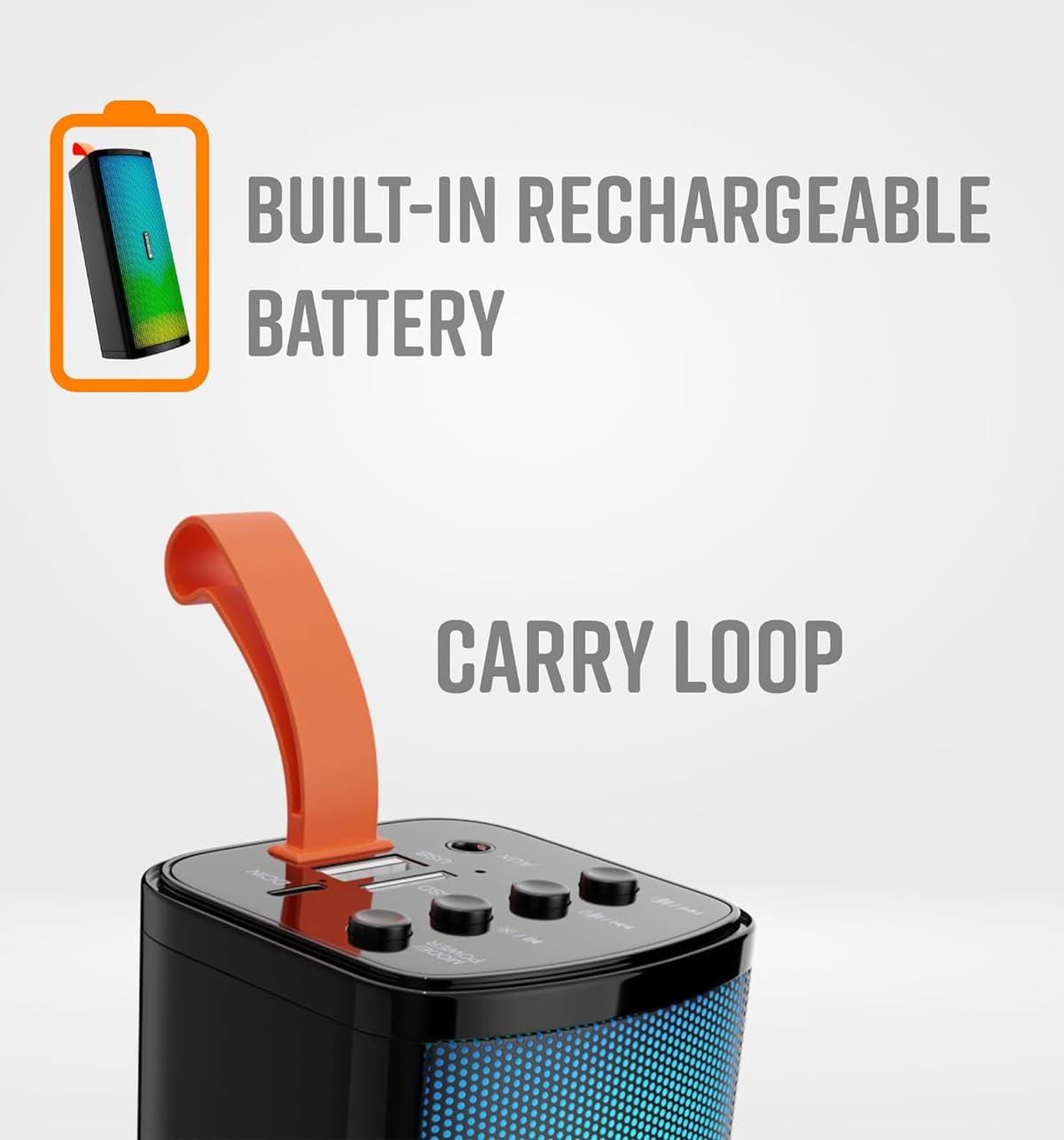
Image: Two ZEB-VITA speakers demonstrating the TWS (True Wireless Stereo) function.
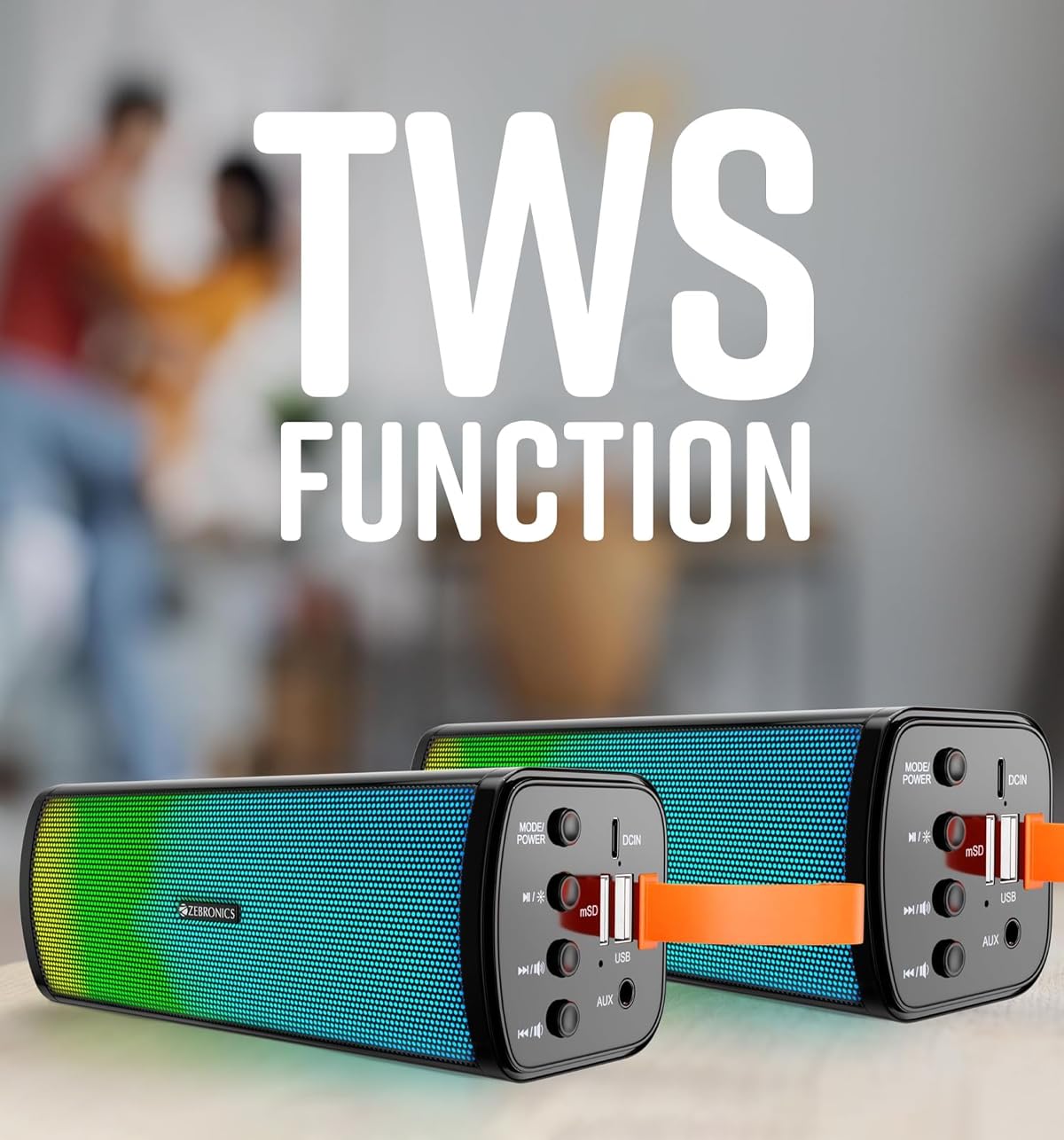
Image: Close-up of the speaker showing the built-in rechargeable battery icon and the orange carry loop.
Setup
Charging the Speaker
Before first use, fully charge the speaker. Use the provided charging cable to connect the speaker's DCIN port to a USB power adapter (not included) or a computer's USB port.
- Connect the small end of the charging cable to the DCIN port on the speaker.
- Connect the large end of the charging cable to a 5V USB power source.
- The charging indicator light will illuminate during charging and turn off once fully charged.
- Charging time is approximately 4 hours.
Identifying Controls and Ports
Familiarize yourself with the speaker's controls and ports for easy operation.

Image: Close-up view of the speaker's control panel and ports, including Mode/Power, Play/Pause, Volume/Track controls, USB, mSD (Micro SD), AUX, and DCIN.
- MODE/POWER Button: Long press to power ON/OFF. Short press to switch between modes (Bluetooth, USB, SD, AUX, FM).
- Play/Pause Button (►▮): Play or pause audio. In FM mode, long press to auto-scan channels.
- Previous Track/Volume Down Button (◀◀): Short press for previous track. Long press to decrease volume.
- Next Track/Volume Up Button (►►): Short press for next track. Long press to increase volume.
- DCIN Port: For charging the speaker.
- USB Port: For USB drive playback.
- mSD Slot: For Micro SD card playback.
- AUX Port: For connecting external audio devices via a 3.5mm audio cable.
Operating Instructions
Bluetooth Mode
- Power on the speaker by long pressing the MODE/POWER button. The speaker will enter Bluetooth mode by default.
- The speaker will indicate it is ready for pairing.
- Enable Bluetooth on your mobile device and search for "ZEB-VITA".
- Tap to connect. Once connected, you will hear an indication sound.
- You can now play music from your device through the speaker.
USB/Micro SD Card Mode
- Insert a USB drive or Micro SD card into the respective port/slot.
- The speaker will automatically detect the storage device and switch to USB/SD mode, beginning playback of supported audio files (MP3).
- If it does not switch automatically, short press the MODE/POWER button to cycle through modes until you reach USB/SD mode.
AUX Mode
- Connect one end of a 3.5mm audio cable (not included) to the AUX port on the speaker.
- Connect the other end to the audio output jack of your external device (e.g., smartphone, tablet, laptop).
- The speaker will automatically switch to AUX mode. If not, short press the MODE/POWER button to select AUX mode.
- Audio will now play through the speaker from your connected device.
FM Radio Mode
- Short press the MODE/POWER button to switch to FM mode.
- Long press the Play/Pause button (►▮) to initiate an automatic channel scan. The speaker will scan and save available FM stations.
- Use the Previous Track (◀◀) and Next Track (►►) buttons to navigate between saved stations.
Call Function
- When connected via Bluetooth, incoming calls will be routed through the speaker.
- Press the Play/Pause button (►▮) to answer an incoming call.
- Press the Play/Pause button (►▮) again to end the call.
- Long press the Play/Pause button (►▮) to reject an incoming call.
TWS (True Wireless Stereo) Function
The TWS function allows you to connect two ZEB-VITA speakers together for a stereo audio experience.
- Ensure both ZEB-VITA speakers are powered on and in Bluetooth mode, but not connected to any device.
- On one of the speakers (this will be the primary speaker), long press the Play/Pause button (►▮) until you hear a pairing tone.
- The two speakers will automatically connect to each other. You will hear a confirmation tone once connected.
- Now, connect your mobile device to the primary speaker via Bluetooth (search for "ZEB-VITA").
- Audio will now play in stereo through both speakers.
Maintenance
- Keep the speaker away from water, moisture, and direct sunlight. This product is not waterproof.
- Do not expose the speaker to extreme temperatures.
- Clean the speaker with a soft, dry cloth. Do not use harsh chemicals or abrasive cleaners.
- Avoid dropping or subjecting the speaker to strong impacts.
- Do not attempt to disassemble or repair the speaker yourself. This will void the warranty.
- Store the speaker in a cool, dry place when not in use for extended periods.
Troubleshooting
| Problem | Possible Cause | Solution |
|---|---|---|
| Speaker does not power on. | Low battery. | Charge the speaker fully. |
| Cannot pair with Bluetooth device. | Speaker not in pairing mode; device too far; previously paired device connected. | Ensure speaker is in Bluetooth pairing mode. Move device closer. Disconnect from other devices. |
| No sound from speaker. | Volume too low; incorrect mode selected; audio cable not connected properly. | Increase volume on speaker and device. Ensure correct mode (Bluetooth, USB, AUX, FM) is selected. Check audio cable connection. |
| USB/SD card not playing. | Unsupported file format; card/drive not inserted correctly; corrupted files. | Ensure files are MP3 format. Reinsert card/drive. Try a different card/drive. |
| FM radio reception is poor. | Weak signal. | Move the speaker to a location with better signal. Re-scan channels. |
Specifications
| Output Power | 10W |
| Driver Size | 52mm |
| Frequency Response | 100Hz-18kHz |
| Bluetooth Version | v5.3 |
| Charging Time | 4 Hours |
| Playback Time | 5 Hours (at 50% volume with LED off) |
| Signal-to-Noise Ratio | 70 dB |
| Impedance | 4 Ohm |
| Product Dimensions (D x W x H) | 6.2D x 17.5W x 6.2H Centimeters |
| Item Weight | 570 Grams |
| Connectivity Options | Bluetooth, USB, Micro SD, AUX, FM |
| Supported Audio Formats | MP3 |
| Control Method | Touch Buttons |
| Waterproof | No |
Warranty and Support
Your ZEBRONICS VITA (with RGB) Portable Bar Speaker comes with a limited warranty. Please refer to the warranty card included in your package for detailed terms and conditions.
For technical support, service, or any queries regarding your product, please contact ZEBRONICS customer service:
- Manufacturer: ZEBRONICS, 13/7, Smith Road, Royapettah CHENNAI-600002
- Visit the official ZEBRONICS website for contact information and support resources.
Please retain your purchase receipt for warranty claims.
Ask a question about this manual
Ask about setup, troubleshooting, compatibility, parts, safety, or missing instructions. Manuals+ will review the question and use this page’s manual context to help answer it.