
CHiQ U55QG7V
CHIQ U55QG7V 55-inch 4K QLED Android TV User Manual
Model: U55QG7V
1. Introduction
This manual provides essential information for the safe and efficient use of your CHIQ U55QG7V 55-inch 4K QLED Android TV. Please read this manual thoroughly before operating the device and retain it for future reference.
The CHIQ U55QG7V features a frameless QLED display, delivering an immersive visual experience with stunning, realistic images. It integrates Android TV for seamless access to your favorite entertainment, music, and games, supporting popular streaming services like Netflix, Prime Video, and Google Play. Connectivity options include HDMI, USB, and Bluetooth, along with support for Chromecast and Google Smart Home.

Image: Front view of the CHIQ U55QG7V 55-inch 4K QLED Android TV, highlighting its frameless design and key features like 4K QLED, HDR10, Dolby Vision, and Alexa compatibility.
2. Setup
2.1 Unboxing and Package Contents
Carefully remove the TV from its packaging. Ensure all components are present before proceeding with the setup. The package typically includes:
- CHIQ U55QG7V TV Unit
- TV Stand (2 pieces)
- Bluetooth Remote Control
- Batteries (AAA, 2 included)
- Power Charger
- User Manual (this document)

Image: The CHIQ U55QG7V TV displayed alongside its remote control, illustrating typical package contents.
2.2 Attaching the TV Stand
If you are not wall-mounting the TV, attach the included stands. Place the TV face down on a soft, clean surface to prevent screen damage. Align each stand with the corresponding screw holes on the bottom of the TV and secure them with the provided screws.

Image: A close-up view of the TV stand, showing its design and how it connects to the television unit.
2.3 Physical Dimensions and Placement
Consider the dimensions for proper placement and ventilation. Ensure adequate space around the TV for airflow.
- Dimensions with stand (W x D x H): 1230.9 × 275 × 768.4 mm
- Dimensions without stand (W x D x H): 1230.9 × 88.6 × 713.4 mm

Image: Technical drawing illustrating the precise dimensions of the CHIQ U55QG7V television, both with and without its stand.
2.4 Connecting Peripherals
The TV offers various connectivity options. Connect your devices such as gaming consoles, Blu-ray players, soundbars, or external storage devices to the appropriate ports.
- HDMI Ports: For high-definition audio and video devices.
- USB Ports: For connecting USB drives for media playback or external devices.
- Ethernet Port: For a wired internet connection.
- Bluetooth: For wireless connection to compatible audio devices or accessories.

Image: Side profile of the CHIQ U55QG7V TV, highlighting the location of its various input and output ports for connecting external devices.
After connecting all necessary cables, plug the power cord into the TV and then into a wall outlet.
3. Operation
3.1 Initial Setup and Android TV Interface
Upon first power-on, the TV will guide you through the initial setup process, including language selection, network connection (Wi-Fi or Ethernet), and Google account sign-in. The Android TV interface provides easy access to apps, settings, and content.

Image: A screenshot of the Android TV home screen, displaying a selection of popular streaming applications and content recommendations.
You can download over 5000+ apps from the Google Play Store directly on your TV.
3.2 Picture and Sound Settings
The CHIQ U55QG7V features 4K QLED technology with Dolby Vision HDR10 for enhanced visual quality. You can adjust picture modes (e.g., Standard, Vivid, Movie, Game) and sound settings (e.g., Standard, Music, Movie) to optimize your viewing experience. The TV also supports Dolby Audio and dbx-tv for improved sound.

Image: A visual comparison demonstrating the enhanced color and contrast provided by HDR10 and Dolby Vision technologies compared to standard 4K.
3.3 Smart Features and Voice Control
The TV works with Alexa and Google Assistant, allowing you to control the TV and other smart home devices using voice commands. Simply press the voice assistant button on your remote and speak your command.
Built-in Chromecast allows you to cast content from your smartphone, tablet, or computer directly to the TV screen.
4. Maintenance
4.1 Cleaning the Screen
To clean the screen, gently wipe it with a soft, lint-free cloth. For stubborn marks, slightly dampen the cloth with water or a screen-specific cleaning solution. Avoid using harsh chemicals, abrasive materials, or direct spraying onto the screen.
4.2 General Care
- Keep the TV away from direct sunlight and heat sources.
- Ensure proper ventilation by not blocking the vents on the back of the TV.
- Unplug the TV during lightning storms or when it will be unused for extended periods.
5. Troubleshooting
If you encounter issues with your TV, refer to the following common solutions before contacting support.
5.1 No Power
- Check if the power cord is securely plugged into both the TV and the wall outlet.
- Verify that the wall outlet is functioning by plugging in another device.
- Try a different power outlet.
5.2 No Picture / Poor Picture Quality
- Ensure the correct input source is selected (e.g., HDMI 1, TV).
- Check all cable connections between the TV and external devices.
- Adjust picture settings (brightness, contrast, color) in the TV menu.
- If using an antenna, check antenna connection and signal strength.
5.3 No Sound / Poor Sound Quality
- Increase the volume on the TV and any connected audio devices.
- Check if the TV is muted.
- Verify audio cable connections to external sound systems.
- Adjust sound settings in the TV menu.
5.4 Remote Control Not Working
- Ensure batteries are correctly inserted and not depleted. Replace if necessary.
- Remove any obstacles between the remote and the TV's IR sensor.
- For Bluetooth remote, ensure it is paired with the TV. Refer to the pairing instructions in the TV's on-screen manual.
5.5 Network Connectivity Issues
- For Wi-Fi, ensure the Wi-Fi router is on and within range.
- Restart your router and modem.
- For wired connection, ensure the Ethernet cable is securely connected.
- Check network settings on the TV to ensure correct configuration.
6. Specifications
Below are the key technical specifications for the CHIQ U55QG7V 55-inch 4K QLED Android TV.
| Feature | Detail |
|---|---|
| Brand | CHiQ |
| Model Number | U55QG7V |
| Screen Size | 55 Inches |
| Display Technology | QLED |
| Resolution | 4K (3840 x 2160 pixels) |
| Refresh Rate | 60 Hz |
| Operating System | Android TV |
| Connectivity | Bluetooth, Ethernet, USB, Wi-Fi, HDMI |
| USB Ports | 1 |
| Special Features | Dolby Vision, HDR10, Frameless Design, Works with Alexa, Google Assistant, Chromecast built-in |
| Product Dimensions (with stand) | 1230.9 × 275 × 768.4 mm |
| Product Dimensions (without stand) | 1230.9 × 88.6 × 713.4 mm |
| Power Supply | AC100-240V / 50-60HZ |
| Energy Efficiency Class | G (SDR), G (HDR) |
| Power Consumption (1000h) | 84 kWh (SDR), 84 kWh (HDR) |
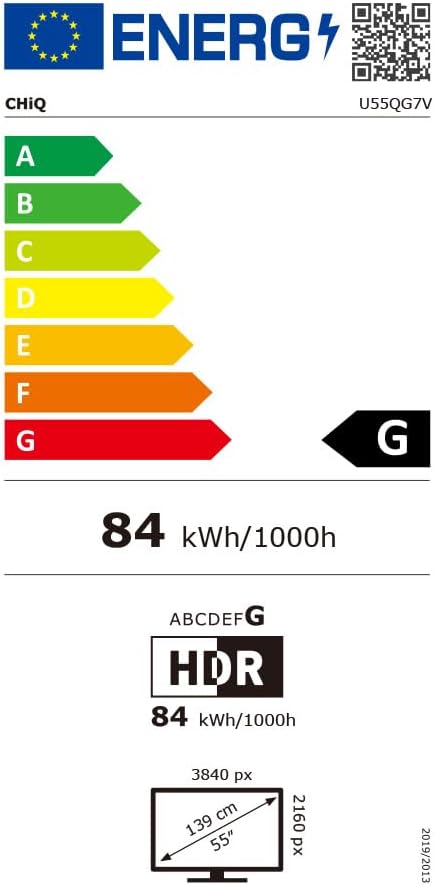
Image: The energy efficiency label for the CHIQ U55QG7V television, indicating its power consumption and class.
For detailed product information and energy label data, visit: EPREL Product Information
7. Warranty and Support
7.1 Warranty Information
CHiQ provides a 24-month after-sales service for this product. All products come with a 2-year warranty (3 years for ES regions). Please retain your proof of purchase for warranty claims.
Additionally, Amazon offers a 30-day return policy without requiring a specific reason for return.
7.2 Customer Support
For technical assistance or service inquiries, please contact CHiQ customer support. An online hotline staffed by professional employees is available on weekdays to assist you.
For the most up-to-date contact information, please refer to the official CHiQ website or your product documentation.
Related documentsU55QG7V

Ask a question about this manual
Ask about setup, troubleshooting, compatibility, parts, safety, or missing instructions. Manuals+ will review the question and use this page’s manual context to help answer it.