
1. Introduction
This manual provides detailed instructions for the usangreen USB to RS485 Serial Converter Cable. This device facilitates reliable serial communication between a computer's USB port and RS485 devices, utilizing an imported FTDI FT232RL chip for stable and high-speed data transfer. It is designed for various applications requiring RS485 connectivity, such as industrial control, data acquisition, and programming.

Figure 1: The usangreen USB to RS485 Converter Cable, coiled with its USB connector and bare wire ends.
2. Product Features
- High-Performance FTDI Chip: Equipped with an imported FTDI FT232RL chip from the UK, ensuring stable and reliable serial communication.
- Wide OS Compatibility: Supports a broad range of operating systems including Windows (all versions), Mac OS, Linux, Vista, Wince, and Android.
- Durable Construction: Features an aluminum USB shell that protects the internal RS485 PCBA, enhancing durability and longevity.
- Standard RS485 Signal Output: Provides clear signal identification with White-A+, Green-B-, and Black-GND wiring.
- Convenient Bare Wire End: A 3-pin bare wire termination allows for flexible connection to various RS485 devices.
- Optimal Length: The cable measures 1.8 meters (approximately 6 feet) for versatile placement.
- Quality Material: Constructed with a PVC jacket and 26 AWG bare copper wires for efficient signal transmission.

Figure 2: Close-up view of the FTDI FT232RL chip, highlighting its role in high-speed and stable data transfer.
3. Package Contents
Upon opening the package, please verify that all items are present and in good condition:
- 1 x usangreen USB to RS485 Serial Converter Adapter Cable
4. Setup and Installation
4.1. Driver Installation
The usangreen USB to RS485 converter cable requires specific drivers for proper operation on your computer. The FTDI FT232RL chip uses Virtual COM Port (VCP) drivers.
- Download Drivers: Visit the official FTDI website to download the latest VCP drivers compatible with your operating system. You can find them at: https://ftdichip.com/drivers/vcp-drivers/
- Installation Guides: For detailed installation instructions specific to your OS, refer to the FTDI installation guides: https://ftdichip.com/document/installation-guides/
- Install Drivers: Follow the on-screen instructions to install the drivers. It is recommended to install the drivers before connecting the cable to your computer.
4.2. Physical Connection
Once the drivers are installed, you can connect the cable to your devices.
- Connect to Computer: Plug the USB 2.0 connector (aluminum shell) of the cable into an available USB port on your computer.
- Identify Wires: The bare wire end consists of three wires: White (A+), Green (B-), and Black (GND).
- Connect to RS485 Device: Connect these wires to the corresponding A+, B-, and GND terminals on your RS485 device. Ensure correct polarity to avoid communication issues.
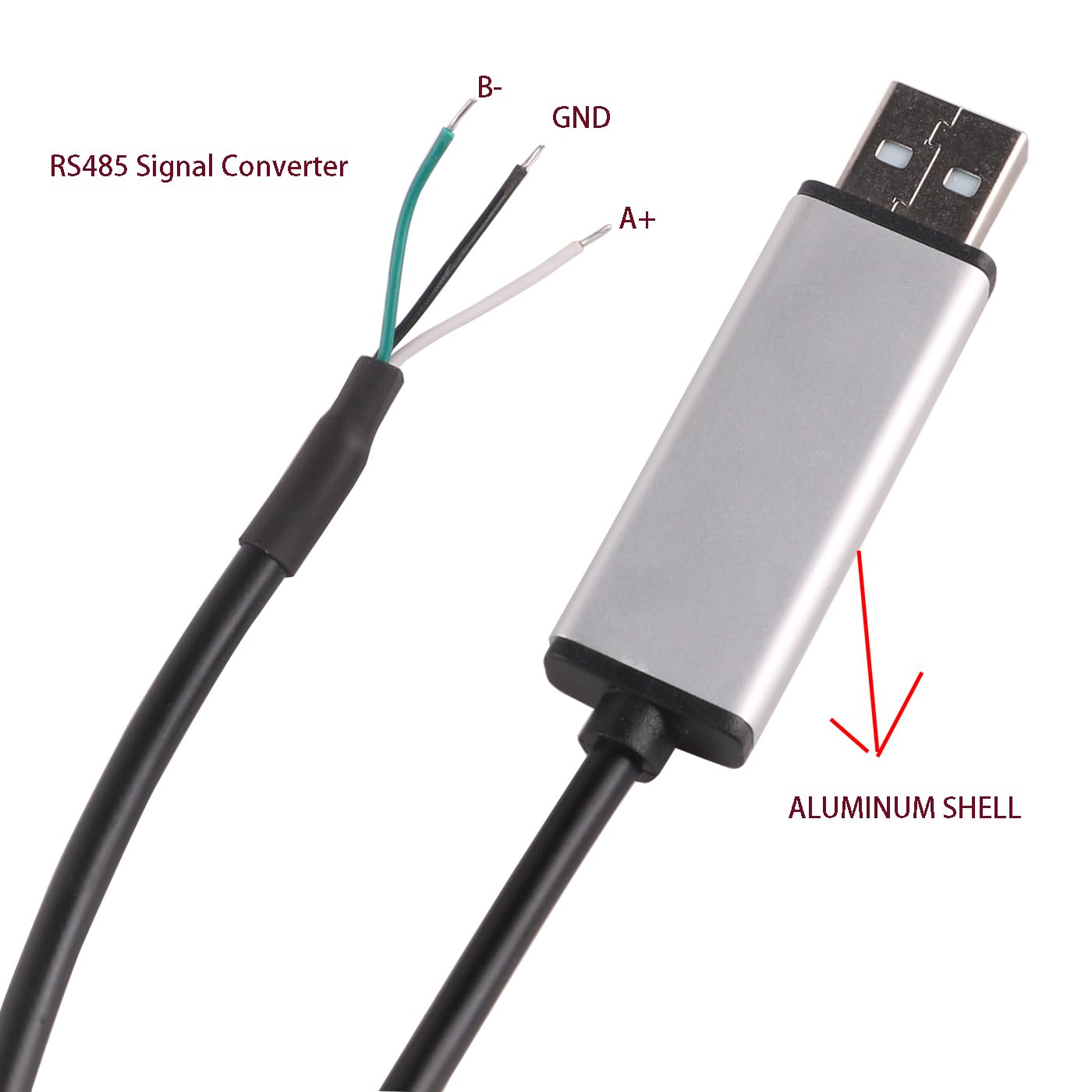
Figure 3: Diagram illustrating the RS485 signal converter wiring: White for A+, Green for B-, and Black for GND.
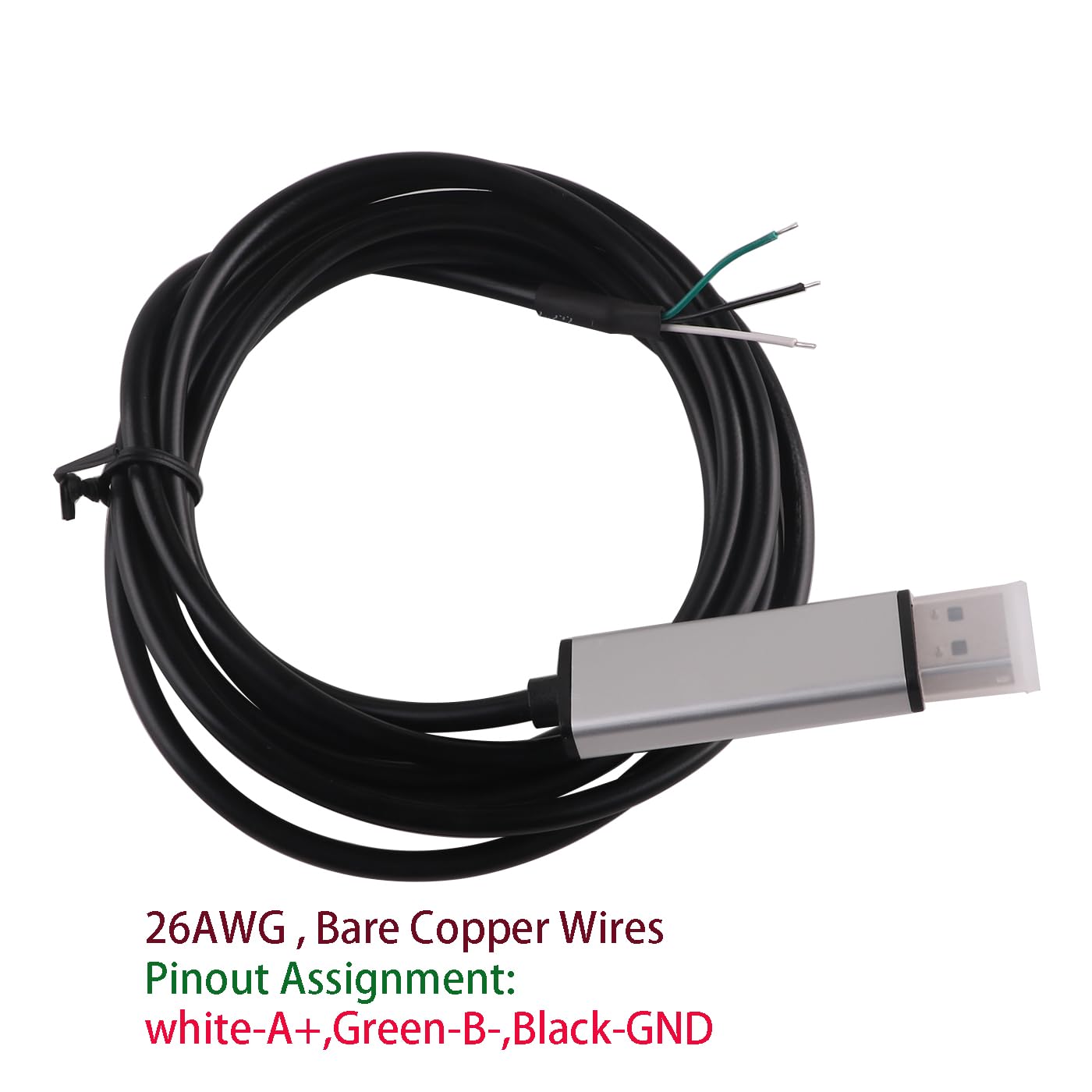
Figure 4: Pinout assignment for the 3-pin bare wire end, showing White-A+, Green-B-, and Black-GND.
5. Operating Instructions
After successful driver installation and physical connection, your computer should recognize the USB to RS485 converter as a Virtual COM Port (VCP).
- Verify COM Port: Open your computer's Device Manager (Windows) or equivalent system information tool (Mac/Linux) to identify the assigned COM port number for the FTDI USB Serial Port.
- Software Configuration: Configure your RS485 communication software or application to use the identified COM port. Ensure that communication parameters such as baud rate, data bits, parity, and stop bits match those of your RS485 device.
- Initiate Communication: Once configured, you can initiate data transfer or control commands through your software. The cable will convert USB signals to RS485 differential signals and vice-versa.
- Data Transfer: The cable supports full-duplex or half-duplex communication depending on your RS485 device and software configuration.
6. Specifications
| Feature | Specification |
|---|---|
| Model Number | 746566428048 |
| Chipset | FTDI FT232RL (Imported from UK) |
| Connector A | USB 2.0 (Aluminum Shell) |
| Connector B | 3-pin Bare Wire (White-A+, Green-B-, Black-GND) |
| Cable Length | 1.8 meters |
| Cable Material | PVC Jacket, 26 AWG Bare Copper Wires |
| Outer Diameter (OD) | 4.0 mm |
| Compatible OS | Windows, Mac OS, Linux, Vista, Wince, Android |
| Special Feature | Data Transfer |
| Color | Black |
| Manufacturer | shanglv technology |
7. Troubleshooting
If you encounter issues while using the usangreen USB to RS485 converter cable, consider the following troubleshooting steps:
- No Device Recognition:
- Ensure FTDI drivers are correctly installed. Re-download and reinstall if necessary.
- Try a different USB port on your computer.
- Restart your computer after driver installation.
- Communication Errors:
- Verify the correct COM port is selected in your communication software.
- Check that all communication parameters (baud rate, data bits, parity, stop bits) match between your software and the RS485 device.
- Confirm the bare wire connections (A+, B-, GND) are correctly wired to your RS485 device, paying close attention to polarity.
- Ensure the RS485 device is powered on and functioning correctly.
- Intermittent Connection:
- Check for loose physical connections at both the USB and bare wire ends.
- Avoid using excessively long USB extension cables, which can degrade signal quality.
8. Warranty and Support
For warranty information or technical support regarding your usangreen USB to RS485 Serial Converter Cable, please refer to the product's purchase documentation or contact the seller directly. Specific warranty details are typically provided at the point of purchase or on the manufacturer's official website.