
Introduction
Welcome to the user manual for your MSI Vigor GK50 Elite TKL Mechanical RGB Gaming Keyboard. This keyboard is designed for optimal gaming and typing performance, featuring durable Kahil Blue Switches for a tactile and clicky feedback, customizable RGB lighting, and dedicated multimedia keys. This manual provides essential information for setup, operation, maintenance, and troubleshooting to ensure you get the most out of your device.

Package Contents
Please verify that all items are present in your package:
- MSI Vigor GK50 Elite TKL Mechanical RGB Gaming Keyboard
- USB Cable
- Keycap Puller (typically included)
- Carrying Pouch (typically included)

Setup Guide
Connecting the Keyboard
- Locate the USB-A connector on the keyboard's cable.
- Insert the USB-A connector into an available USB port on your computer.
- The keyboard is plug-and-play and should be automatically recognized by your operating system (Windows 10 or later recommended).

Operating Instructions
Key Features
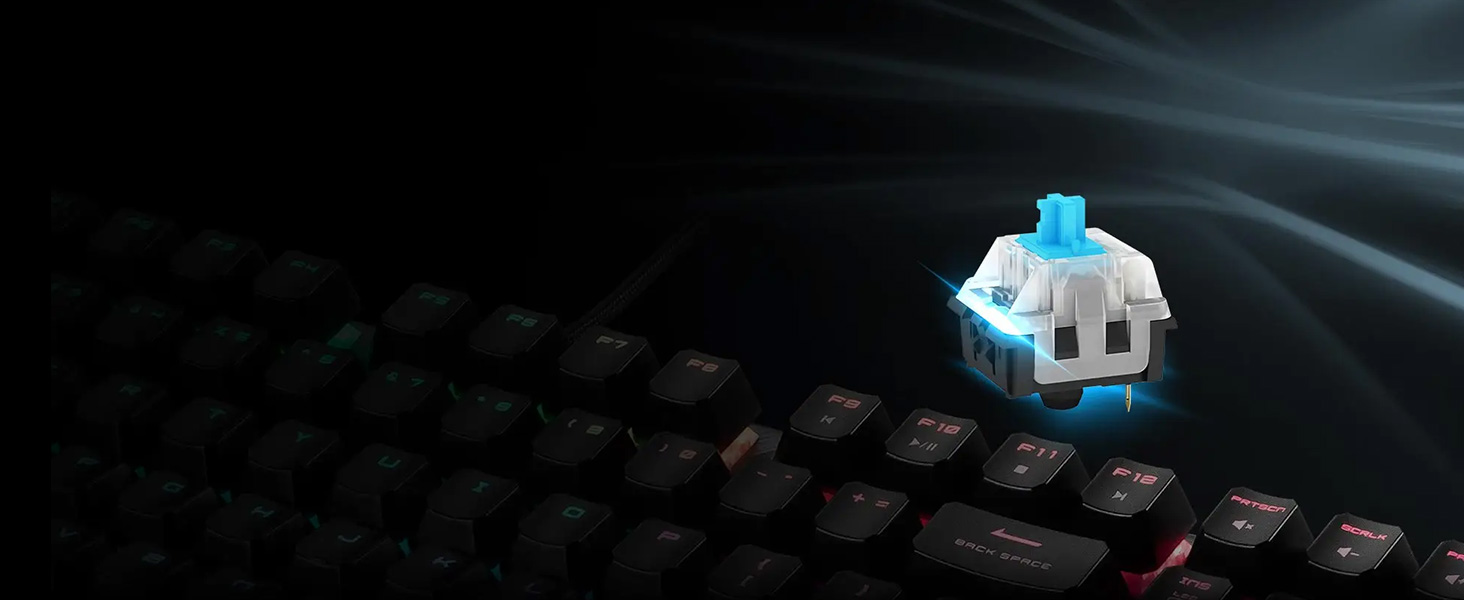
- Kahil Blue Switches: Provide a distinct tactile bump and audible click for precise keystrokes.
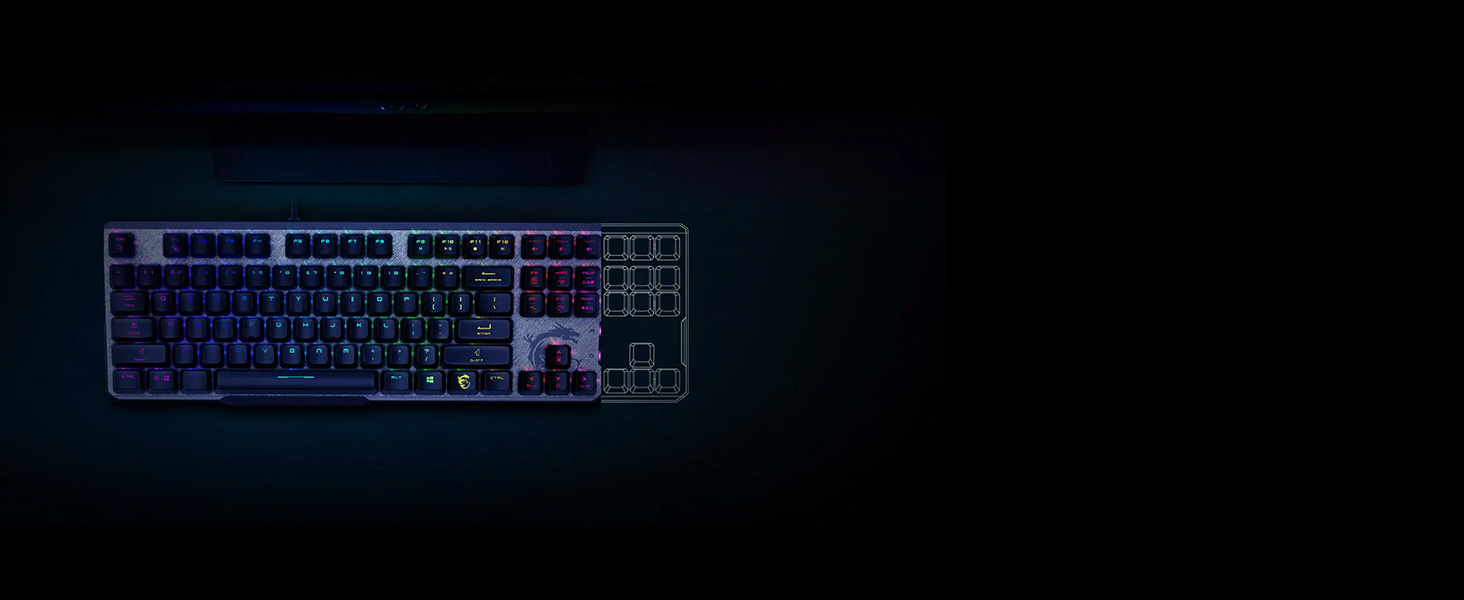
- Tenkeyless (TKL) Design: Compact layout without a numeric keypad, saving desk space.
- RGB Backlighting: Customizable per-key RGB lighting with various effects.
- Multimedia Keys: Dedicated or function-layer keys for audio and media control.
RGB Lighting Control
The MSI Vigor GK50 Elite TKL features hardware controls for RGB lighting effects and colors. Refer to the keyboard's function keys (often combined with the 'Fn' key) for direct adjustments.
- Fn + F1-F12: May control various lighting modes, brightness, and speed. Specific combinations are usually printed on the keycaps.
- MSI Mystic Light Software: For advanced customization and synchronization with other MSI Mystic Light compatible devices, download the software from the official MSI website.


Multimedia Keys
The keyboard includes independent multimedia keys or function-layer multimedia controls for convenient access to audio and video playback functions.

Maintenance
Cleaning Your Keyboard
- Disconnect the keyboard from your computer before cleaning.
- Use a can of compressed air to remove dust and debris from between the keycaps.
- For surface cleaning, gently wipe the keycaps and frame with a soft, slightly damp cloth. Avoid excessive moisture.
- Do not use harsh chemicals or abrasive materials.
Keycap Removal (Optional)
If deeper cleaning is required, you can carefully remove keycaps using the provided keycap puller.
- Gently attach the keycap puller to the keycap you wish to remove.
- Pull straight up with even pressure until the keycap detaches from the switch stem.
- To reattach, align the keycap with the switch stem and press down firmly until it clicks into place.
Troubleshooting
Keyboard Not Recognized / Not Functioning
- Check USB Connection: Ensure the USB cable is securely plugged into both the keyboard and the computer. Try a different USB port.
- Restart Computer: A simple restart can often resolve connectivity issues.
- Test on Another Computer: If possible, connect the keyboard to a different computer to determine if the issue is with the keyboard or your system.
- Driver Update: While typically plug-and-play, ensure your operating system's USB drivers are up to date.
- MSI Support: If issues persist, visit the official MSI support website for the latest drivers, firmware updates, or contact technical support.

Specifications
| Feature | Detail |
|---|---|
| Model Name | VIGOR GK50 ELITE TKL LL US |
| Switch Type | Kahil Blue Mechanical Switches |
| Connectivity | USB-A (Corded Electric) |
| Layout | Tenkeyless (TKL) |
| Backlighting | RGB (Customizable via hardware and software) |
| Operating System | Windows 10 (or later) |
| Dimensions (LxWxH) | 15 x 7 x 2 inches |
| Weight | 2 pounds |
| Number of Keys | 104 |
Warranty and Support
For warranty information, technical support, and driver downloads, please visit the official MSI website. Keep your proof of purchase for warranty claims.
MSI Official Website: www.msi.com