
Sharp 4T-C65FV1U
Sharp 65" Class AQUOS XLED 4K Ultra HD Mini LED Google TV Instruction Manual
Model: 4T-C65FV1U
Introduction
This manual provides essential instructions for setting up, operating, maintaining, and troubleshooting your Sharp 65" Class AQUOS XLED 4K Ultra HD Mini LED Google TV (Model 4T-C65FV1U). Please read this manual thoroughly before using your television to ensure proper and safe operation.
1. Setup
1.1 Unpacking and Inspection
Carefully remove the television from its packaging. Inspect the TV and all accessories for any signs of damage. Keep the original packaging materials for future transport or service needs.
- Sharp 65" Class AQUOS XLED 4K Ultra HD Mini LED Google TV
- Power Cable
- Remote Control
- Documentation (Quick Start Guide, Safety Information)
1.2 Stand Installation / Wall Mounting
If using the included stand, follow the instructions provided in the separate Quick Start Guide for secure attachment. Ensure all screws are tightened properly. If wall-mounting, use a compatible VESA mount (not included) and consult a professional for installation to prevent damage or injury.
1.3 Connecting Peripherals
Before connecting any cables, ensure the television and all external devices are powered off. Refer to the image below for common connection ports.

Image 1.3.1: Rear Panel Connections. This image displays the back of the Sharp AQUOS XLED TV, highlighting the various input and output ports available for connecting external devices such as HDMI, USB, and audio outputs. Proper connection ensures optimal performance.
- Power: Connect the supplied power cable to the TV's power input and then to a wall outlet.
- HDMI: For high-definition video and audio, connect devices like Blu-ray players, game consoles, or cable/satellite boxes to the HDMI ports.
- USB: Connect USB storage devices for media playback or software updates.
- Antenna/Cable: Connect an antenna or cable TV feed for broadcast channels.
- Ethernet: For a stable wired internet connection, connect an Ethernet cable from your router.
1.4 Initial Power-On and Google TV Setup
After connecting all necessary cables, plug the power cable into an electrical outlet. Press the power button on the TV or remote control. Follow the on-screen instructions to complete the initial setup, which includes:
- Language selection
- Network connection (Wi-Fi or Ethernet)
- Google Account sign-in (required for Google TV features)
- Channel scanning (if using antenna/cable)

Image 1.4.1: Google Account Setup. This image shows the Google TV interface prompting the user to select or add a Google account, which is essential for accessing smart features and personalized content.
2. Operating
2.1 Remote Control Functions
The remote control allows you to navigate the Google TV interface, adjust settings, and control playback. Familiarize yourself with the buttons for power, volume, channel, input selection, and smart assistant activation.
2.2 Google TV Interface Navigation
The Google TV home screen provides access to your favorite streaming apps, live TV, and personalized recommendations. Use the directional pad on your remote to navigate through menus and select content.

Image 2.2.1: Google TV Home Screen. This image shows the Sharp AQUOS XLED TV displaying the Google TV interface, featuring various streaming applications and content recommendations, demonstrating the user-friendly navigation.
2.3 Smart Features
- Chromecast Built-in: Cast content from your compatible smartphone, tablet, or computer directly to your TV.
- Wi-Fi & Bluetooth: Connect to your home network wirelessly and pair Bluetooth devices like headphones or game controllers.
- Voice Control: Use the built-in Google Assistant via your remote control to search for content, control smart home devices, and get information.

Image 2.3.1: Google TV Remote App. This image illustrates a smartphone screen running the Google TV remote application, providing an alternative method for controlling the television and accessing its features.
2.4 Picture and Sound Settings
Access the TV's settings menu to customize picture and sound. Your AQUOS XLED TV features:
- Xtreme Mini LED with over 2,000 Dimming Zones: Provides precise contrast and brightness control.
- Deep Chroma Quantum Dot: Enhances color accuracy and vibrancy.
- 4K Ultra HD Resolution: Delivers sharp, detailed images.
- 85W (2.1.2 Channel) Speaker System: Offers immersive audio experience.

Image 2.4.1: Integrated Speaker System. A close-up view of the side-mounted speaker on the Sharp AQUOS XLED TV, illustrating the integrated audio components designed for an immersive sound experience.
3. Maintenance
3.1 Cleaning the Television
- Screen: Gently wipe the screen with a soft, lint-free cloth. For stubborn marks, slightly dampen the cloth with water or a specialized screen cleaner. Avoid harsh chemicals or abrasive materials.
- Cabinet: Wipe the TV cabinet with a soft, dry cloth.
- Ventilation: Ensure the ventilation openings on the back of the TV are not blocked to prevent overheating.
3.2 Software Updates
Your Google TV may receive automatic software updates. Ensure your TV is connected to the internet to receive the latest features and performance improvements. You can also manually check for updates in the TV's settings menu.
4. Troubleshooting
If you encounter issues with your television, refer to the following common troubleshooting steps. If the problem persists, contact customer support.
| Problem | Possible Cause / Solution |
|---|---|
| No Power |
|
| No Picture / Black Screen |
|
| No Sound |
|
| Network Connection Issues |
|
5. Specifications
The following are key technical specifications for the Sharp 65" Class AQUOS XLED 4K Ultra HD Mini LED Google TV (Model 4T-C65FV1U).
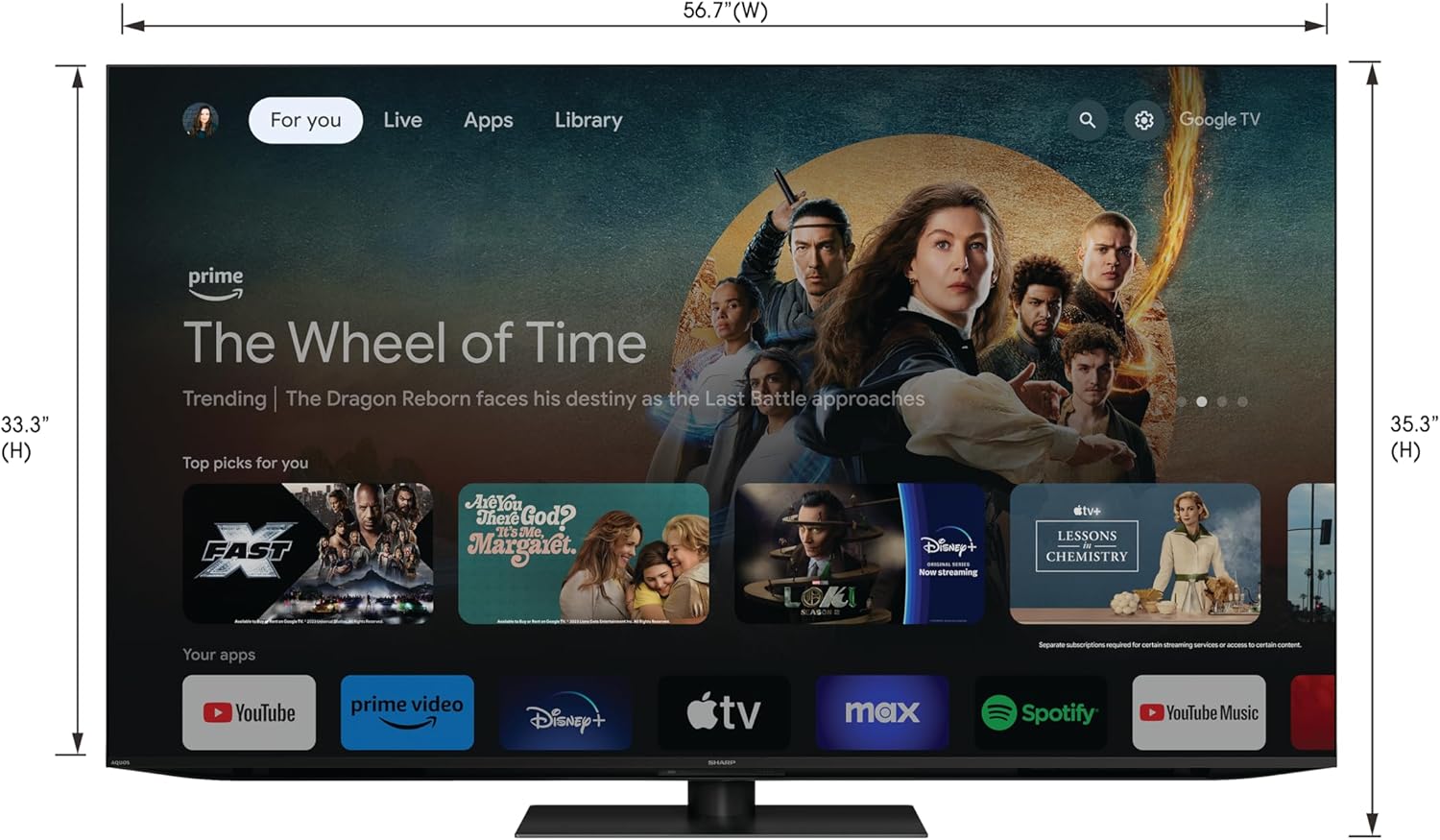
Image 5.1: Television Dimensions. This image provides a front view of the Sharp AQUOS XLED TV, clearly indicating its width and height measurements for installation planning.
| Feature | Detail |
|---|---|
| Model Number | 4T-C65FV1U |
| Screen Size | 65 inches (64.5 inches Diag.) |
| Display Technology | AQUOS XLED, Mini LED, Quantum Dot |
| Resolution | 4K Ultra HD (3840 x 2160p) |
| Refresh Rate | 120 Hz |
| Dimming Zones | Over 2,000 Xtreme Mini LED Dimming Zones |
| Speaker System | 85W (2.1.2 Channel) Built-In Speaker |
| Smart TV Platform | Google TV |
| Special Features | Chromecast Built-in, Google Assistant |
| Connectivity | Wi-Fi, Bluetooth, HDMI, USB, Ethernet |
| Product Dimensions (W x D x H) | 68.1" x 8.4" x 38.7" (with stand) |
| Item Weight | 106 pounds |
| Voltage | 120 Volts (AC) |
| Wattage | 85 watts |
6. Warranty and Support
6.1 Product Warranty
Your Sharp AQUOS XLED TV is covered by a limited warranty. For detailed information regarding warranty terms, conditions, and duration, please refer to the warranty card included with your product or visit the official Sharp support website. Keep your proof of purchase for warranty claims.
6.2 Customer Support
For technical assistance, troubleshooting beyond this manual, or service inquiries, please contact Sharp customer support. Contact information can typically be found on the Sharp official website or in the documentation provided with your television.
Online Support: Visit the official Sharp website for FAQs, software downloads, and support resources.
Telephone Support: Refer to your product documentation for regional customer service phone numbers.
Related documents4T-C65FV1U


Ask a question about this manual
Ask about setup, troubleshooting, compatibility, parts, safety, or missing instructions. Manuals+ will review the question and use this page’s manual context to help answer it.