
Introduction
This manual provides comprehensive instructions for the setup, operation, and maintenance of your Accudart Rogue Electronic Dartboard. Please read this manual thoroughly before use to ensure proper functionality and to maximize your darting experience.
Package Contents
Your Accudart Rogue Electronic Dartboard package should include:
- Accudart Rogue Electronic Dartboard
- Soft-tip darts (quantity as supplied)
- Instruction Manual (this document)
Safety Information
Always use soft-tip darts with this electronic dartboard. Hard-tip darts can damage the playing surface and internal electronics. Keep darts away from children and pets. Ensure the dartboard is securely mounted before play to prevent accidental falls.
Setup
1. Mounting the Dartboard
The Accudart Rogue Electronic Dartboard is designed for wall mounting. Select a sturdy wall location. The standard dartboard height is 5 feet 8 inches (1.73 meters) from the floor to the center of the bullseye. Ensure adequate space around the dartboard for safe play. Use appropriate mounting hardware (not included) for your wall type to secure the dartboard firmly.

2. Powering the Dartboard
Connect the included power adapter to the dartboard's power input jack and then to a standard electrical outlet. The dartboard will power on, and the display will illuminate.
3. Inserting Darts
The dartboard features built-in dart holders for convenient storage. Gently insert the soft-tip darts into the designated slots when not in use.

Operating Instructions
1. Power On/Off
Press the 'POWER' button located on the control panel to turn the dartboard on or off. The display will show the current game settings or a welcome screen upon startup.
2. Game Selection
The Accudart Rogue offers 29 distinct games with 90 variations. Use the 'GAME' button to cycle through available games. The display will show the game number or name. Refer to the game list printed on the dartboard for details on each game.

3. Player Selection
After selecting a game, use the 'PLAY/PAGE' button to adjust the number of players. The dartboard supports multiple players, with scores displayed on the LED screen.
4. Scoring Display
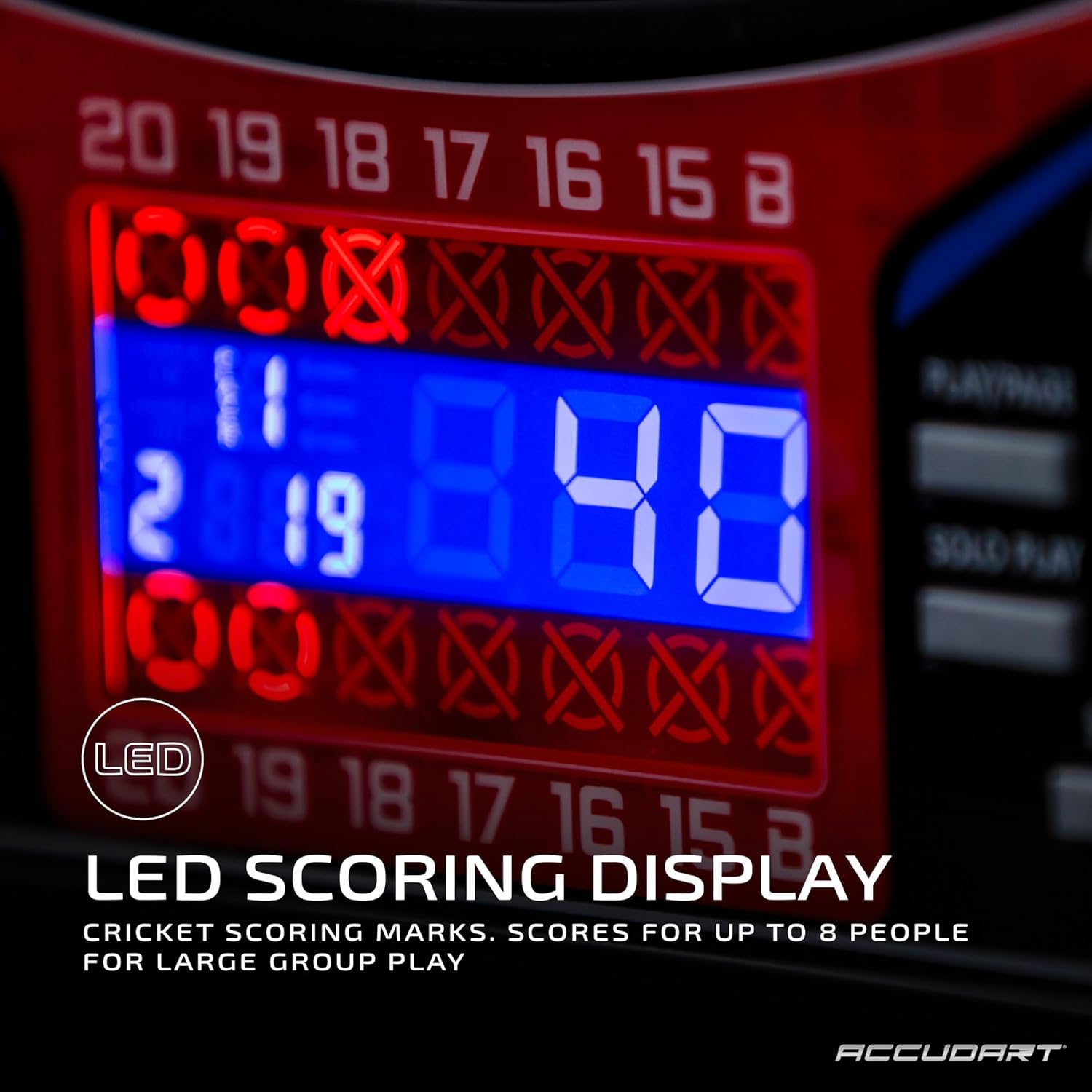
The dartboard features an easy-to-read LED display with a multicolored backlight for optimal visibility. Cricket scoring marks are integrated into the display, showing X/O for closed numbers.

5. Special Features
- Virtual Opponent: Engage in challenging gameplay against the dartboard's virtual opponent. Use the 'SOLO PLAY' button to activate this feature and select from five different skill levels.
- Heckler Feature: For an immersive experience, activate the 'HECKLER' feature. This provides interactive taunting and sound effects during gameplay. Press the 'HECKLER' button to toggle this function.
- Bounce Out: The 'BOUNCE OUT' button allows you to enable or disable the bounce-out rule, where darts that hit the board but do not stick are not counted.
- Double In/Out, Master Out: Certain games offer 'DOUBLE IN/OUT' and 'MASTER OUT' options. Use the 'DOUBLE/MISS' button to cycle through these settings when applicable, allowing for advanced game variations.


6. Game Play Basics
Throw darts at the target area. The dartboard automatically registers scores. Follow the specific rules of the selected game. The 15.5-inch target area is designed for official soft-tip tournament play.
Maintenance
1. Cleaning
To clean the dartboard, gently wipe the surface with a soft, dry cloth. Do not use abrasive cleaners or solvents, as these can damage the display and playing surface. Ensure the dartboard is unplugged before cleaning.
2. Dart Care
Inspect your soft-tip darts regularly for wear and tear. Replace damaged tips to ensure accurate play and prevent damage to the dartboard segments. Store darts in the built-in holders or a dart case to protect them.
3. Storage
When not in use for extended periods, store the dartboard in a cool, dry place, away from direct sunlight and extreme temperatures.
Troubleshooting
- Dartboard Not Powering On: Check the power adapter connection to both the dartboard and the electrical outlet. Ensure the outlet is functional. If issues persist, try a different outlet.
- Darts Not Registering: Ensure you are using soft-tip darts. Check if the dart tips are intact and not bent. Darts must stick firmly into the segments to register. If a specific segment consistently fails, contact customer support.
- Display Issues: If the display is dim or flickering, ensure the power connection is stable. If segments of the display are not working, contact customer support.
- Sound Issues: Check the 'SOUND' button to ensure the sound is not muted.
- Game Malfunctions: If a game is not functioning as expected, try turning the dartboard off and then on again to reset it. If the problem continues, consult the manufacturer's website or customer support.
Specifications
| Feature | Detail |
|---|---|
| Model Number | DA9400W |
| Brand | Accudart |
| Product Dimensions | 45.97 x 45.97 x 18.1 cm |
| Item Weight | 2.77 kg |
| Material | Plastic |
| Target Area Size | 15.5 inches (Tournament Standard) |
| Game Modes | 29 games with 90 variations |
| Display Type | LED with multicolored backlight |
| Player Capacity | Up to 8 players (scoring display) |
| UPC | 754806381268 |
Customer Support
For further assistance, technical support, or warranty inquiries, please refer to the Accudart official website or contact their customer service department. Keep your purchase receipt and model number (DA9400W) handy.