
1. Introduction
This manual provides detailed instructions for the installation and use of the FFtopu iPhone 12 Pro Max Screen Replacement Kit. Please read all instructions carefully before beginning the repair process. Proper installation ensures optimal performance and longevity of your device's new screen.
2. Package Contents
The FFtopu iPhone 12 Pro Max Screen Replacement Kit includes the following items:
- 1x iPhone 12 Pro Max LCD Screen Replacement
- 1x Tempered Glass Screen Protector
- 1x Waterproof Frame Sticker
- A set of Repair Tools (screwdrivers, prying tools, suction cup, tweezers, SIM ejector tool, cleaning cloth)

Image: Kit contents showing the replacement screen, tempered glass, waterproof sticker, and various repair tools.
Video: Unboxing and overview of the FFtopu iPhone 12 Pro Max screen replacement kit contents.
3. Compatibility
This screen replacement kit is compatible only with the iPhone 12 Pro Max (6.7 inch) models. Please verify your device's model number before proceeding. Compatible model numbers include: A2342, A2410, A2412, A2411.

Image: Visual confirmation of compatibility for iPhone 12 Pro Max 6.7-inch models.
4. Key Features & Specifications
- Screen Type: AAA LCD, Full High Definition (HD)
- Touch Technology: 3D Touch, smooth and sensitive response
- Coating: Fingerprint-resistant oleophobic coating
- Durability: High strength glass to resist sharp objects
- Functionality: Supports Face ID (requires transfer of original components)
- Note: True Tone functionality requires activation by a programmer.

Image: Key features of the replacement screen.
Specifications:
- Package Dimensions: 7.4 x 6.54 x 0.71 inches
- Item Weight: 5.3 ounces
- Item Model Number: iPhone 12 Pro Max
5. Safety Precautions
- Always power off your device completely before starting any repair.
- Use appropriate tools and follow instructions carefully to avoid damage.
- The screen connecting cable is relatively fragile. Care must be taken during operation to avoid excessive movement, which may cause the screen connecting cable to break.
- Handle all components with care, especially flex cables and connectors.
- Keep track of all screws and small parts, noting their original positions.
6. Installation Guide
Follow these steps to replace your iPhone 12 Pro Max screen. For a visual guide, please refer to the embedded video.
Video: Detailed installation guide for iPhone 12 Pro Max screen replacement.
6.1. Preparation
- Power Off Device: Ensure your iPhone 12 Pro Max is completely powered off.
- Gather Tools: Lay out all tools and components from your kit.

Image: Powering off the iPhone.
6.2. Remove Bottom Screws
- Using the Pentalobe screwdriver, remove the two screws located on either side of the charging port at the bottom of the iPhone.

Image: Removing bottom screws.
6.3. Heat Screen Edges
- Apply gentle heat to the edges of the screen using a hairdryer or heat gun for 1-2 minutes. This softens the adhesive holding the screen in place.

Image: Heating the screen edges.
6.4. Separate the Screen
- Attach the suction cup to the bottom of the screen, just above the home button area.
- Gently pull up on the suction cup while inserting a thin prying tool (e.g., triangle opening tool) into the seam between the screen and the frame.
- Carefully slide the tool around the edges to loosen the adhesive, being cautious not to insert it too deeply to avoid damaging internal components.

Image: Separating the screen.
6.5. Remove Metal Plate
- Once the screen is slightly open, carefully open it like a book from the right side. Do not pull it completely off as it is still connected by flex cables.
- Locate the metal plate covering the battery and screen connectors. Use the Philips screwdriver to remove the screws securing this plate.
- Carefully remove the metal plate using tweezers.

Image: Removing the metal plate.
6.6. Disconnect Cables
- Using a plastic spudger, carefully disconnect the battery flex cable first to prevent accidental power-on.
- Then, disconnect the screen and digitizer flex cables.

Image: Disconnecting all cables.
6.7. Transfer Earpiece Speaker and Sensors
- The original earpiece speaker and front sensor assembly must be transferred from your old screen to the new replacement screen to retain Face ID functionality.
- Carefully remove the screws holding the earpiece speaker and sensor assembly on the old screen.
- Gently pry the assembly off the old screen.
- Align and secure the earpiece speaker and sensor assembly onto the new screen using the original screws.

Image: Heating and removing the old earpiece cable.
6.8. Connect New Screen
- Connect the digitizer and screen flex cables of the new screen to the corresponding connectors on the iPhone's logic board.
- Reconnect the battery flex cable.

Image: Connecting all cables.
6.9. Reinstall Metal Plate
- Place the metal plate back over the connectors and secure it with the original screws.

Image: Reinstalling the metal plate.
6.10. Close the Screen
- Carefully align the top edge of the new screen with the iPhone frame, then gently press down along the sides until the screen snaps securely into place.
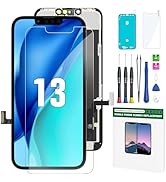
Image: Closing the screen.
6.11. Tighten Bottom Screws
- Reinstall the two Pentalobe screws at the bottom of the iPhone.

Image: Tightening the bottom screws.
7. Testing Functions
- Power on your iPhone.
- Test the touch functionality across the entire screen.
- Check display brightness and color accuracy.
- Verify Face ID functionality.
- Test the front camera and earpiece speaker.
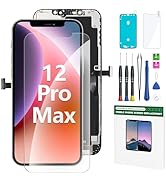
Image: Powering on and testing functions.
8. Troubleshooting
If you encounter any issues after installation, refer to the common problems and solutions below:

Image: Installation FAQ for common issues.
- Screen is black or defective: Ensure all digitizer cables are securely connected. Try restarting the phone. Make sure the battery connector is disconnected before installing the display.
- Lines on screen or unresponsive touch: Do not apply pressure to the 4 corners of the display panel. Pressure can damage the display. Be gentle and cautious during installation and ensure no debris is on the connectors.
- Phone is hot after installing a new screen: Try to reinstall the screen.
- New screen shows bright spots or yellow dots: The backlight may be rotten due to being hit during installation.
- True Tone not working: True Tone needs to be activated by a programmer.
- Face ID not working: Ensure the original earpiece and sensor assembly was correctly transferred and connected.
9. Warranty and Support
Every FFtopu iPhone 12 Pro Max LCD screen replacement is rigorously tested to work perfectly before shipment. If you have any problems after receiving or during installation, please contact us. We offer quality customer service and will respond within 24 hours.
- Customer Service: Available 24 Hours
- Warranty: 365-Days Warranty
- Replacements: Free replacement for eligible issues