1. Introduction
This manual provides instructions for the setup, operation, and maintenance of your AgfaPhoto Realiview APF700 Wi-Fi Digital Photo Frame. Please read this manual thoroughly before using the device to ensure proper functionality and to prevent damage.
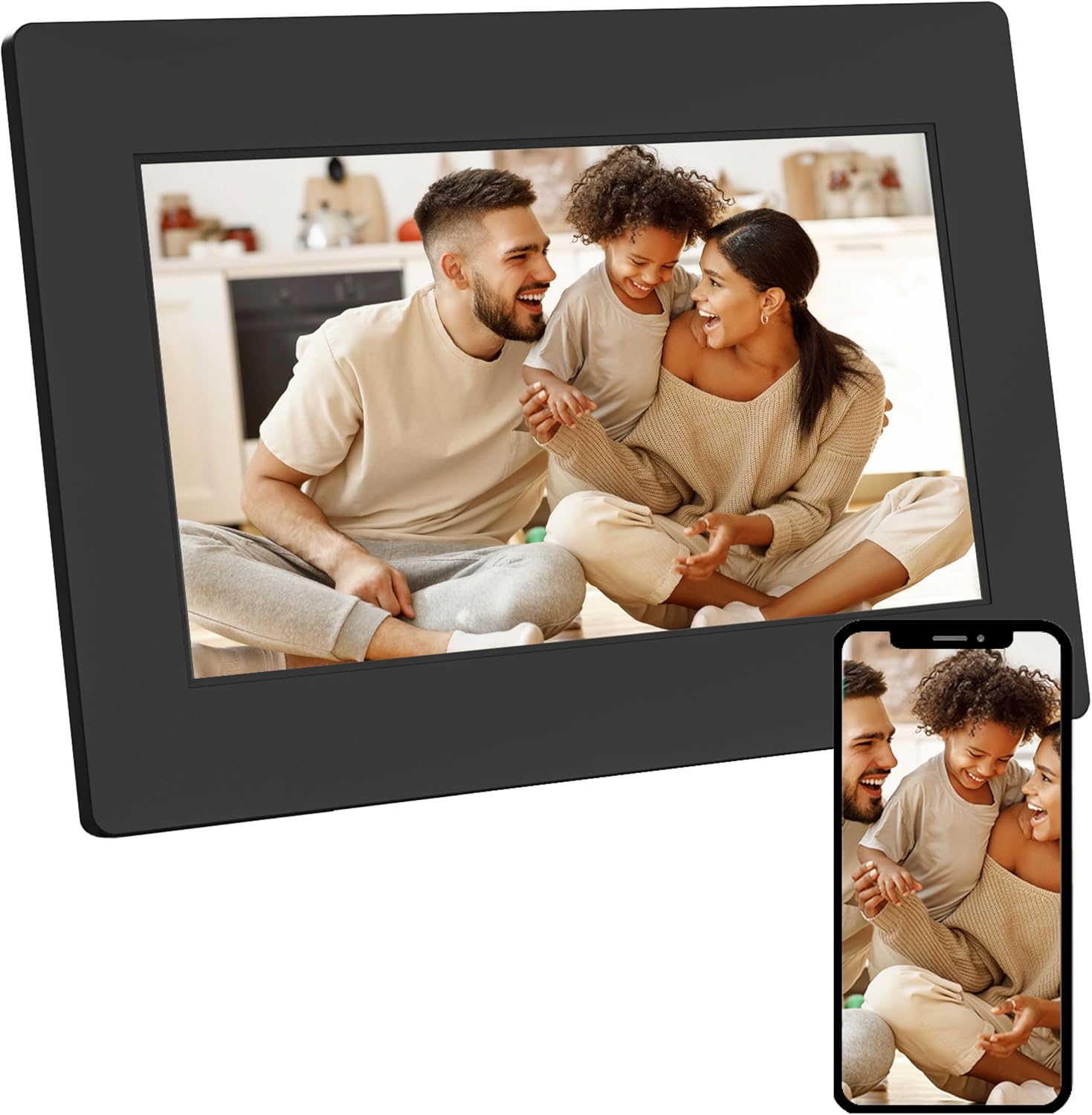
Image 1.1: AgfaPhoto Realiview APF700 Digital Photo Frame with a family photo displayed.
2. Package Contents
Verify that all items are present in the package:
- AgfaPhoto Realiview APF700 Digital Photo Frame (7-inch)
- Power Adapter
- User Manual (this document)
- Stand (pre-attached or separate)
3. Product Overview
The AgfaPhoto Realiview APF700 is a 7-inch Wi-Fi enabled digital photo frame designed to display photos and videos. It features a touchscreen interface and integrates with the FRAMEO application for easy content sharing.
3.1 Front View
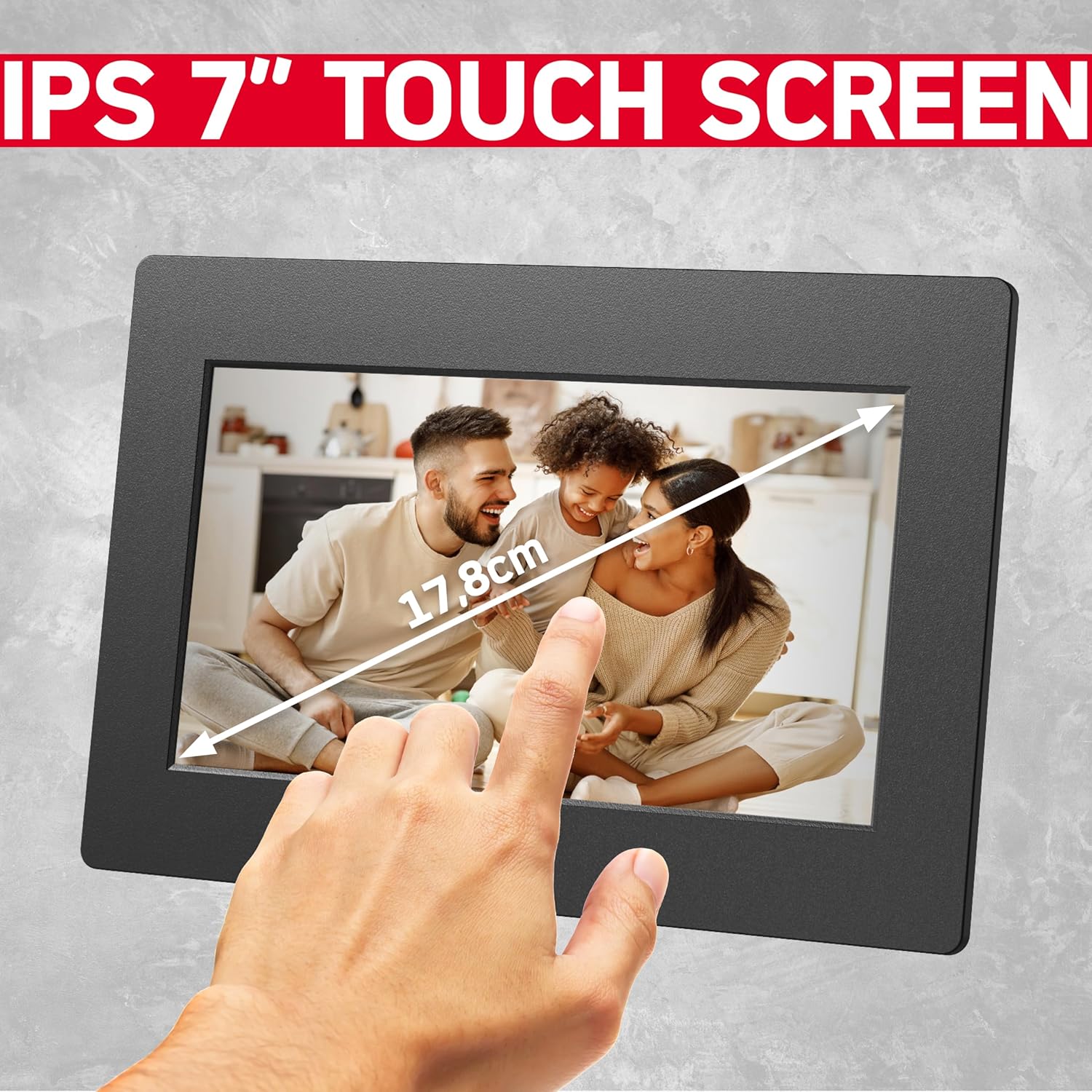
Image 3.1: Front view of the 7-inch touchscreen display.
The front of the frame features the 7-inch IPS touchscreen display, which is the primary interface for interaction.
3.2 Rear View and Ports

Image 3.2: Front and rear views of the digital photo frame, highlighting ports and features.
The rear of the frame typically includes:
- Power Input Port
- USB Port (for external storage)
- MicroSD Card Slot (for external storage)
- Reset Button
- Mounting Holes (for wall mounting, if applicable)
4. Setup
4.1 Powering On the Frame
- Connect the power adapter to the frame's power input port.
- Plug the power adapter into a wall outlet.
- The frame will automatically power on and display the startup screen.
4.2 Initial Setup and Wi-Fi Connection
Upon first use, the frame will guide you through the initial setup process:
- Select your preferred language.
- Choose your time zone.
- Connect to a Wi-Fi network: The frame will scan for available networks. Select your network and enter the password.
- Once connected, the frame will display a unique device ID. Note this ID for connecting with the FRAMEO app.
5. Operating Instructions
5.1 Using the FRAMEO App
The FRAMEO app is essential for sending photos and videos to your digital frame.
- Download the App: Download the "FRAMEO" app from the Apple App Store (for iOS) or Google Play Store (for Android).
- Create an Account: Open the app and follow the instructions to create a user account.
- Connect to Frame: In the app, select "Add Friend" or a similar option. Enter the unique device ID displayed on your AgfaPhoto Realiview frame. This establishes a connection, allowing you to send media.

Image 5.1: The FRAMEO application interface on a smartphone.
5.2 Sending Photos and Videos
Once connected via the FRAMEO app:
- Open the FRAMEO app on your smartphone.
- Select the photos or videos you wish to send from your device's gallery.
- Choose your AgfaPhoto Realiview frame as the recipient.
- Add a caption if desired, then send. The media will appear on your frame shortly, provided both the frame and your phone are connected to the internet.

Image 5.2: Instant sharing functionality with the FRAMEO app.
5.3 Display Settings
Access display settings by tapping the screen and navigating to the settings menu.
- Brightness: Adjust screen brightness for optimal viewing.
- Sleep Mode: Set a schedule for the frame to automatically turn off/on.
- Slideshow Interval: Customize how long each photo or video is displayed.
- Auto-Rotation: The frame supports automatic rotation of content based on its orientation (portrait or landscape).

Image 5.3: Demonstration of the auto-rotate function.
5.4 Clock and Weather Functions
The frame can display current time and weather information. These functions are typically enabled and configured within the frame's settings menu, requiring an active internet connection to retrieve data.

Image 5.4: Icons representing the frame's various display functions.
6. Storage Management
The AgfaPhoto Realiview APF700 comes with 32GB of built-in memory. You can also expand storage using a MicroSD card or a USB drive.

Image 6.1: Illustration of the frame's 32GB built-in storage capacity.
6.1 Managing Internal Storage
Within the frame's settings, you can view storage usage and delete unwanted photos or videos to free up space.
6.2 Using External Storage
Insert a MicroSD card into the designated slot or connect a USB drive to the USB port. The frame will typically detect the external storage, allowing you to import media to the internal memory or play content directly from the external source.
7. Troubleshooting
This section addresses common issues you might encounter.
| Problem | Possible Cause | Solution |
|---|---|---|
| Frame does not power on. | No power connection. | Ensure the power adapter is securely connected to the frame and a working power outlet. |
| Cannot connect to Wi-Fi. | Incorrect password, out of range, or network issue. | Verify Wi-Fi password. Move the frame closer to the router. Restart the router. |
| Photos/Videos not appearing on frame. | No internet connection, incorrect frame ID, or app issue. | Check frame's Wi-Fi connection. Confirm the correct frame ID is entered in the FRAMEO app. Ensure the app is updated. |
| Touchscreen unresponsive. | Temporary software glitch. | Restart the frame by unplugging and replugging the power adapter. |
8. Specifications
- Model: APF700
- Screen Size: 7 Inches
- Display Type: LCD Touchscreen
- Resolution: 1024 x 600 (as per A+ content, overriding 1080p from specs list for consistency with typical 7-inch frames)
- Internal Memory: 32GB
- Connectivity: Wi-Fi
- Compatible Apps: FRAMEO (iOS & Android)
- External Storage: MicroSD Card, USB Drive
- Product Dimensions: 7.7 x 5.3 x 0.99 inches
- Item Weight: 1.34 pounds
9. Care and Maintenance
- Cleaning: Use a soft, dry cloth to clean the screen and frame. Avoid abrasive cleaners or solvents.
- Placement: Place the frame on a stable surface, away from direct sunlight, heat sources, and moisture.
- Power: Use only the provided power adapter.
- Software Updates: Periodically check for and install software updates via the frame's settings menu to ensure optimal performance and security.
10. Warranty and Support
For warranty information and technical support, please refer to the official AgfaPhoto website or contact their customer service directly. Keep your purchase receipt as proof of purchase.
Online Support: www.agfaphoto.com


