
AFEXOA DY29Z-01
AFEXOA Multi-functional Smart Device User Manual
Model: DY29Z-01
1. Product Overview
The AFEXOA Multi-functional Smart Device is an all-in-one solution designed to enhance your daily routine and sleep environment. It integrates a dimmable multi-color night light, a sound machine with 30 soothing sounds, an alarm clock, a Bluetooth speaker, and an MP3 player. Its compact and versatile design makes it suitable for various settings, including bedrooms, living rooms, offices, and for travel.
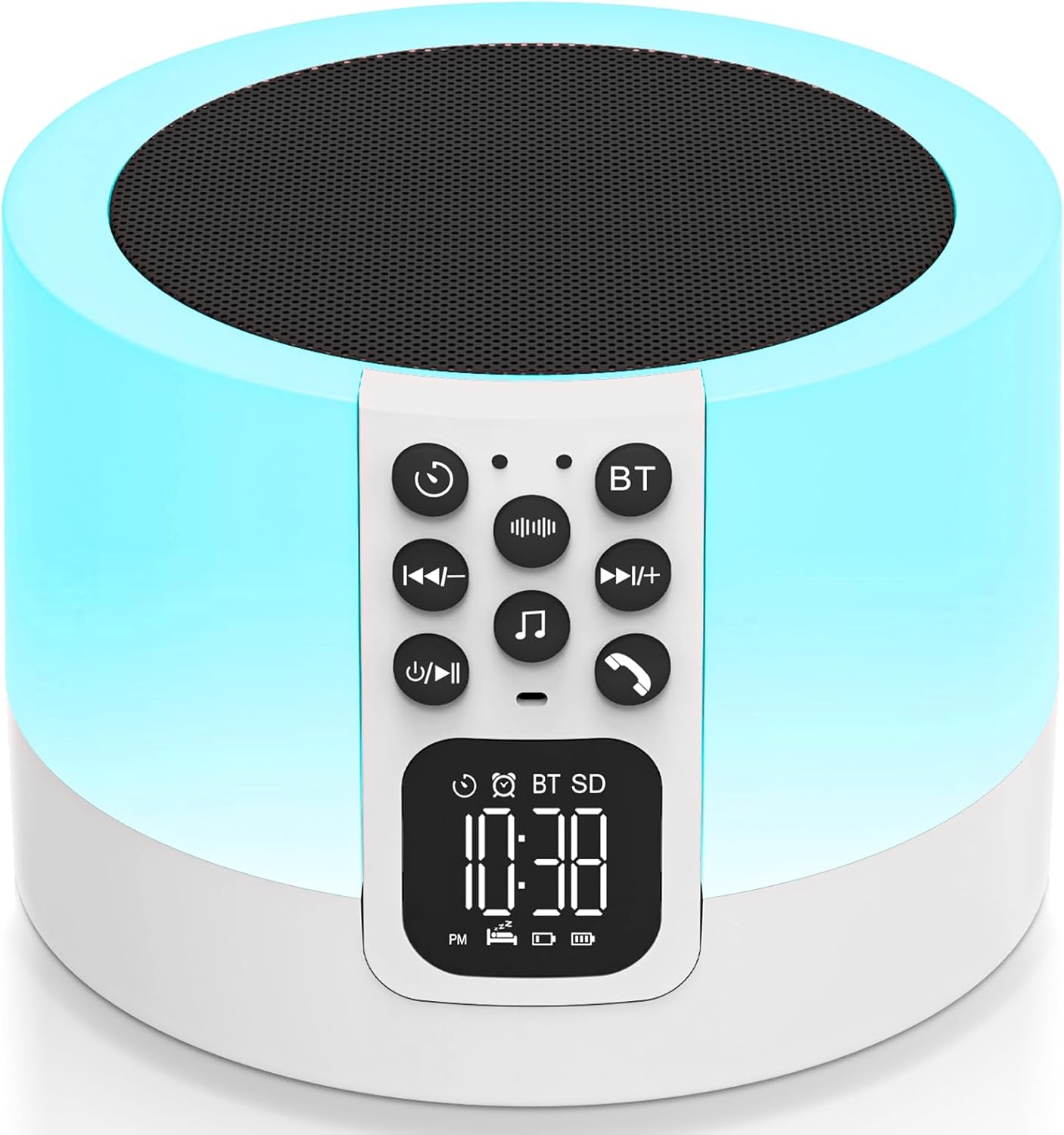
Image: The AFEXOA Multi-functional Smart Device, a white cylindrical unit with a control panel and digital display, emitting a soft blue light. It features a top speaker grille and a front control panel with buttons and a digital clock display.
Key Features:
- Multi-color Night Light: Dimmable touch control with 3-level warm white brightness and 7 solid RGB color options, plus a multi-color cycle mode.
- Sound Machine: Features 30 built-in soothing sounds, including white noise, fan noise, pink noise, nature sounds (insect, flowing water, bonfire, bird singing, wind, waves, raining), and lullabies. Includes sleep timer options (15, 30, 60, 90 minutes).
- Alarm Clock: LED display with 12/24 hour mode switching. Allows custom alarm ringtones from USB flash drive or Micro SD card. Features a 9-minute snooze function.
- Bluetooth Speaker: Hi-Fi stereo sound with powerful bass, compatible with all Bluetooth devices for wireless audio streaming.
- MP3 Player: Supports playback from USB Flash Drive or Micro SD Card.

Image: A visual representation highlighting the five main functions of the device: Sound Machine, MP3 Player, Night Light, Alarm Clock, and Bluetooth Speaker.
2. Safety Information
Please read all safety instructions carefully before using the device to ensure safe and proper operation.
- Use only the correct type and number of batteries as specified.
- Keep small parts, such as the Micro SD card, out of reach of children to prevent choking hazards.
- Avoid covering the device during operation to prevent overheating.
- Do not expose the device to direct sunlight, extreme temperatures, or high humidity.
- Do not disassemble, repair, or modify the device yourself. Contact customer support for assistance.
- Ensure the device is placed on a stable, flat surface to prevent it from falling.
3. Setup Guide
3.1 Charging the Device
Before first use, fully charge the device using the provided Type-C cable. The charging port is located at the back of the unit.

Image: The device with a USB flash drive inserted into the USB host port and a Type-C cable connected to the charging port, illustrating its MP3 playback and charging capabilities.
3.2 Setting the Time
To adjust the time display on the LED screen:
- Press and hold the Time Setting button (usually indicated by a clock icon) on the control panel.
- Use the Previous/Next Track buttons to adjust the hours and minutes.
- Press the Time Setting button again to confirm and move to the next setting (e.g., 12/24 hour mode).
- Press the Time Setting button once more to save and exit.
Video: Demonstrates how to adjust the time display on the device's LED screen using the control buttons.
3.3 Connecting via Bluetooth
To connect your mobile device to the speaker via Bluetooth:
- Ensure the speaker is powered on.
- Press the BT button on the control panel to enter Bluetooth pairing mode. The display will show "BT" and an icon indicating pairing.
- On your mobile device, go to Bluetooth settings and search for "DY29Z" or "AFEXOA Speaker".
- Select the device to pair. A confirmation sound will indicate successful connection.
Video: Shows the process of connecting a mobile device to the speaker via Bluetooth.
3.4 Using MP3 Player Mode
To play music directly from a USB flash drive or Micro SD card:
- Insert a USB flash drive into the USB HOST port or a Micro SD card into the Micro SD/TF card slot at the back of the device.
- The device will automatically switch to MP3 player mode and begin playing supported audio files.
- Use the Previous/Next Track buttons to navigate through songs and the Volume Up/Down buttons to adjust volume.
Video: Illustrates how to enter and use the MP3 player mode by inserting a USB drive.
4. Operating Instructions
4.1 Night Light Operation
The night light offers various modes and brightness levels:
- Warm White Light: Lightly tap the top mesh of the device to cycle through 3 levels of warm white brightness (30%, 60%, 100%).
- Color Changing Mode: Continue tapping the top mesh to activate the ambient light multi-color cycle.
- Fixed Color Night Light: To select a specific color, long press the top mesh and release when your desired color appears. There are 7 different nightlight colors to choose from.
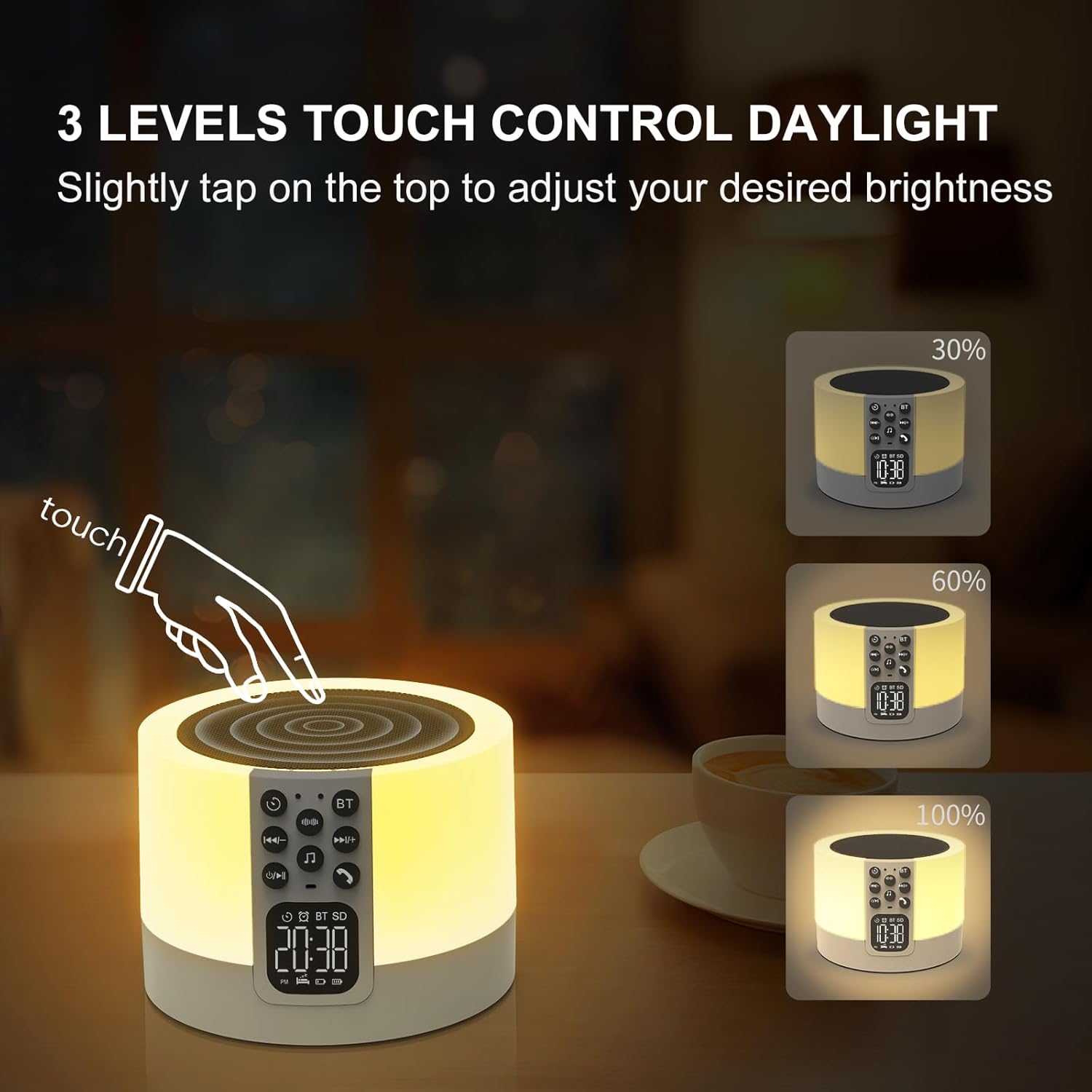
Image: A hand tapping the top of the device, demonstrating the touch control for adjusting warm white light brightness levels (30%, 60%, 100%).
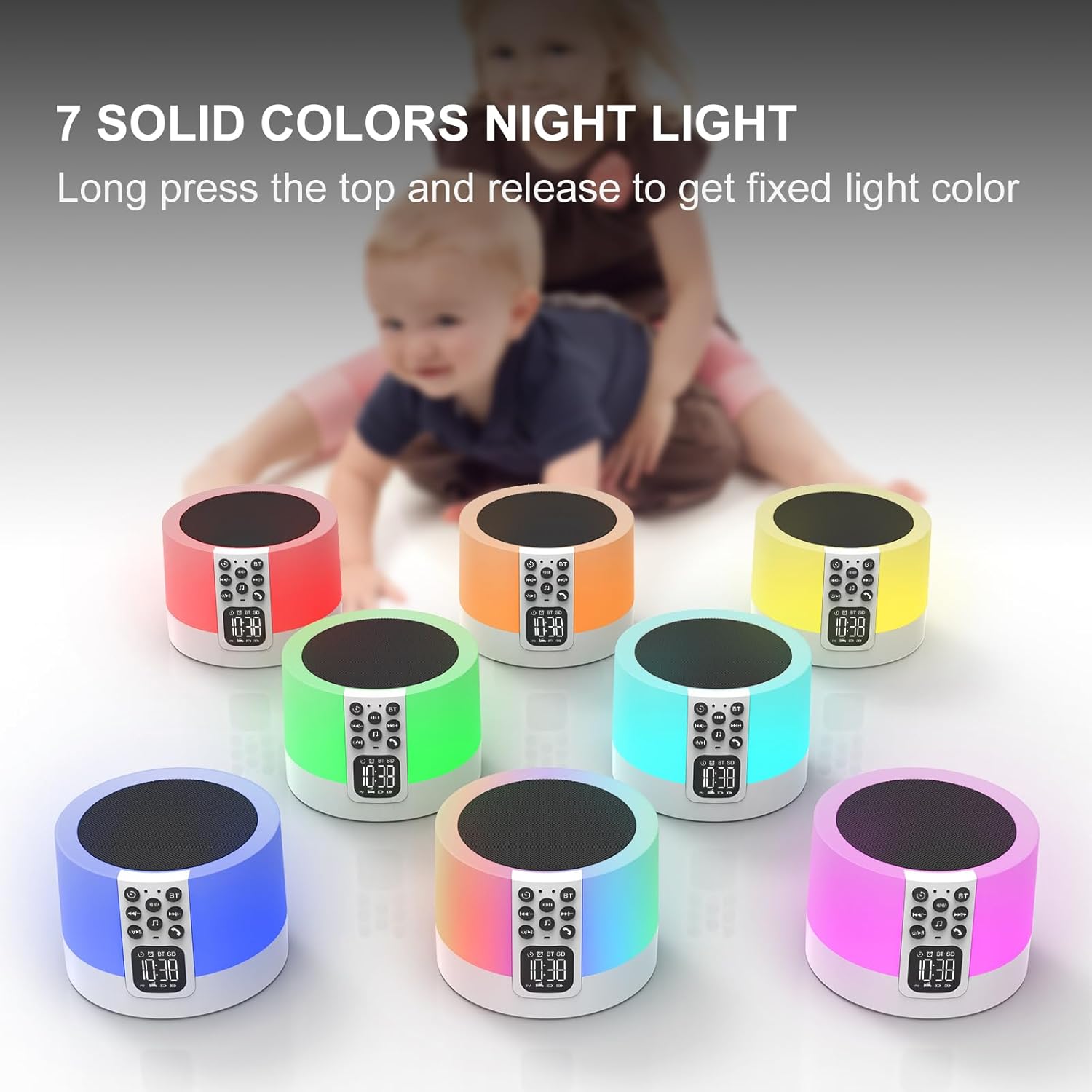
Image: Seven identical devices, each displaying a different solid color night light (red, orange, yellow, green, light blue, dark blue, purple), illustrating the fixed color options.
Video: Demonstrates how to switch between different light modes and colors by tapping and holding the top of the device.
4.2 Sound Machine Operation
The device features 30 built-in soothing sounds for relaxation and sleep:
- Press the White Noise Sound button (indicated by sound waves icon) to cycle through white noise and fan sounds.
- Press the Natural Sound & Lullaby button (indicated by a music note icon) to cycle through nature sounds and lullabies.
- Adjust the volume using the Volume Up/Down buttons.
- Set a sleep timer (15, 30, 60, or 90 minutes) by pressing the Timer button (indicated by a clock with an arrow icon). The sound will automatically turn off when the timer expires.

Image: A graphic illustrating the 30 soothing sounds available (natural sounds, white noise, fan sounds, lullabies) and the sleep timer options (15/30/60/90 minutes).
Video: Demonstrates how to choose and cycle through the various built-in sound options on the device.
4.3 Alarm Clock Functionality
To set and manage alarms:
- Press the Alarm Setup button (indicated by an alarm clock icon) to enter alarm setting mode.
- Use the Previous/Next Track buttons to set the desired alarm time.
- Press the Alarm Setup button again to confirm.
- You can set your favorite music from a USB Flash Drive or Micro SD Card as your alarm ringtone.
- When the alarm sounds, tap the top mesh to activate the 9-minute snooze function. You can snooze an unlimited number of times.
- Press any other button to stop the alarm from sounding.
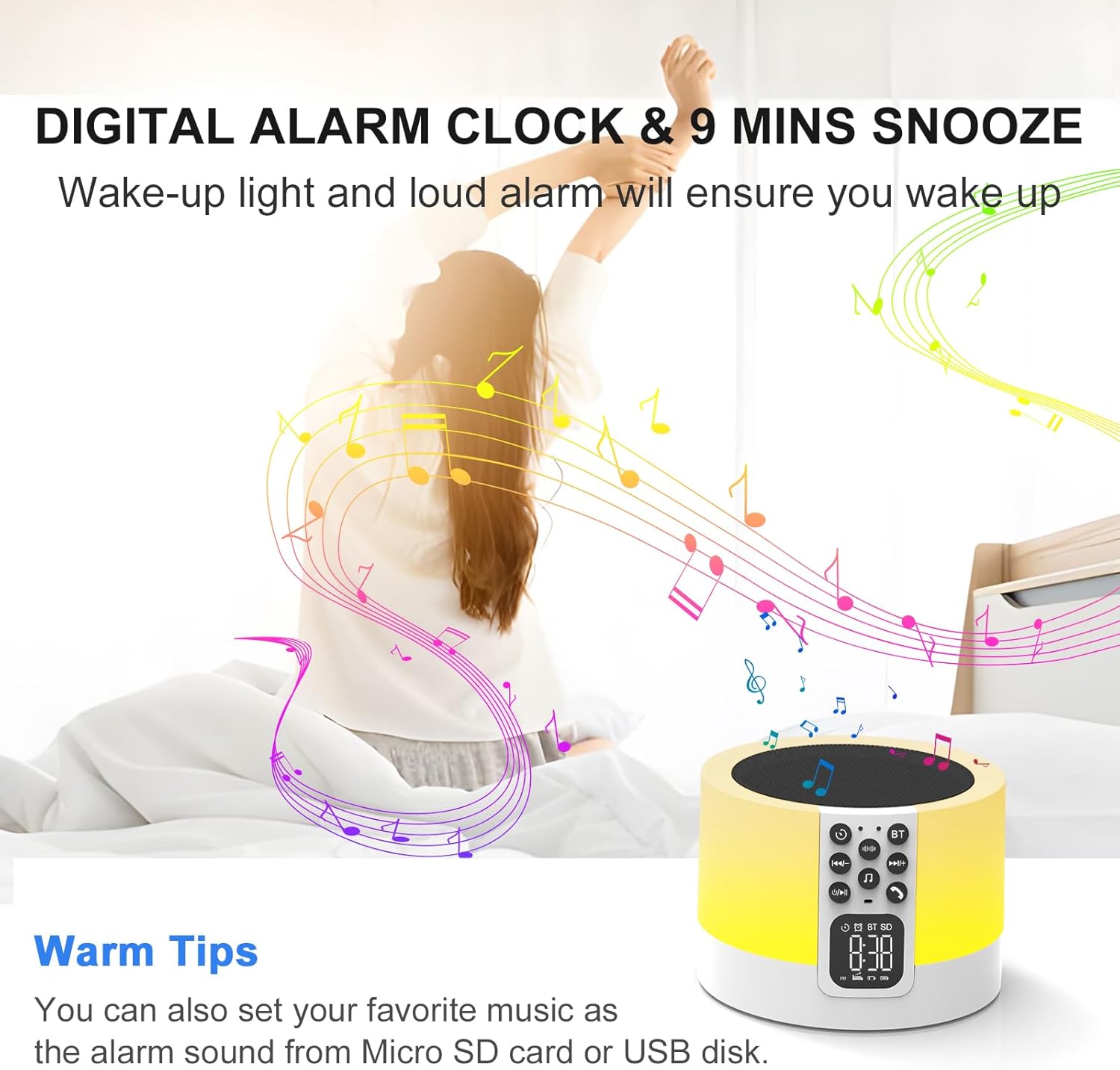
Image: A person stretching in bed as the device emits light and music, illustrating the digital alarm clock and snooze function.
5. Maintenance and Care
To ensure the longevity and optimal performance of your AFEXOA Smart Device, follow these maintenance guidelines:
- Cleaning: Use a soft, dry cloth to wipe the exterior of the device. Do not use abrasive cleaners, waxes, or solvents as they may damage the finish.
- Storage: When not in use for extended periods, store the device in a cool, dry place away from direct sunlight and extreme temperatures.
- Battery Care: To maintain battery health, avoid fully discharging the battery frequently. Recharge the device regularly, even if not in constant use.
- Avoid Moisture: Keep the device away from water and other liquids. It is not waterproof.
- Handle with Care: Avoid dropping or subjecting the device to strong impacts, which can damage internal components.
6. Troubleshooting
If you encounter any issues with your device, please refer to the following common problems and solutions:
| Problem | Possible Cause | Solution |
|---|---|---|
| Device does not turn on. | Low battery or power switch is off. | Ensure the power switch is in the "ON" position. Charge the device using the provided Type-C cable. |
| No sound from speaker. | Volume too low, incorrect mode, or faulty wiring. | Increase volume. Ensure correct mode (Bluetooth, MP3, Sound Machine) is selected. If still no sound, contact customer support. |
| Bluetooth not connecting. | Device not in pairing mode, too far from source, or interference. | Press the BT button to enter pairing mode. Ensure devices are within 10 meters. Turn off other Bluetooth devices to reduce interference. |
| Night light not working or stuck on one color. | Incorrect touch input or internal issue. | Lightly tap the top mesh to cycle modes. Long press to select a fixed color. If unresponsive, try resetting the device (if a reset button is available) or contact support. |
| Alarm does not sound. | Alarm not set, volume too low, or device powered off. | Verify alarm settings. Increase alarm volume. Ensure device is powered on and charged. |
If the problem persists after trying these solutions, please contact AFEXOA Customer Support for further assistance.
7. Specifications
| Feature | Detail |
|---|---|
| Product Dimensions | 3.54 x 3.54 x 2.36 inches |
| Weight | 1.08 Pounds |
| Model Number | DY29Z-01 |
| Batteries | 1 Lithium Ion battery (included) |
| Color | White |
| Material | Plastic |
| Power Source | Battery Powered |
| Manufacturer | AFEXOA |
| ASIN | B0CJY74P1H |
8. Warranty and Support
For warranty information, technical support, or any inquiries regarding your AFEXOA Multi-functional Smart Device, please contact the manufacturer directly through their official channels or the retailer where the product was purchased.
Visit the AFEXOA Store on Amazon for more information and contact details.
Related documentsDY29Z-01


Ask a question about this manual
Ask about setup, troubleshooting, compatibility, parts, safety, or missing instructions. Manuals+ will review the question and use this page’s manual context to help answer it.