
1. Product Overview
The VENTION 15-in-1 USB-C MST Docking Station is a versatile and powerful solution designed to expand the connectivity of your USB-C enabled laptop or other compatible devices. It transforms a single USB-C port into a comprehensive workstation, offering multiple display outputs, high-speed data transfer ports, network connectivity, power delivery, and audio capabilities.
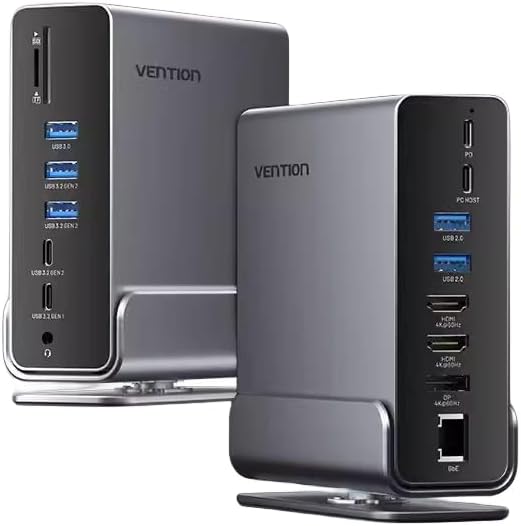
Image 1.1: Front and rear view of the Vention 15-in-1 USB-C MST Docking Station, showcasing its compact design and various ports.
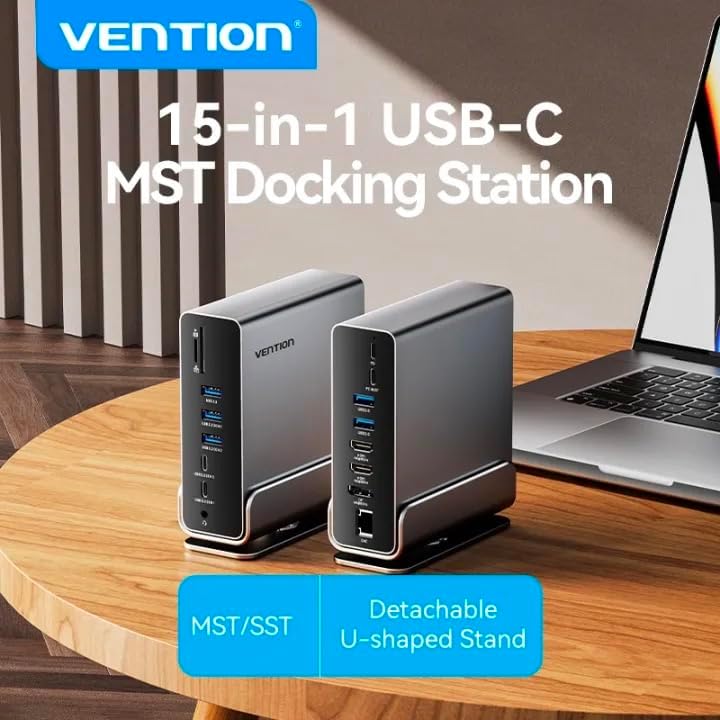
Image 1.2: The Vention 15-in-1 USB-C MST Docking Station connected to a laptop, illustrating its role as a central hub for multiple peripherals.
2. Key Features
- 15-in-1 Multi-Ports: Comprehensive connectivity including DP, HDMI, USB-A, USB-C, RJ45, SD/TF card slots, and 3.5mm audio jack.
- High-Speed Data Transfer: Up to 10Gbps via USB 3.2 Gen 2 ports, 5Gbps via USB 3.2 Gen 1 and USB 3.0, and 480Mbps via USB 2.0.
- 4K@60Hz HD Display: Supports high-resolution video output for single, dual, or triple monitor setups.
- MST/SST Modes: Enables extended or mirrored display configurations for Windows and macOS systems.
- 100W Power Delivery: Provides pass-through charging for your host device.
- Gigabit Ethernet: Integrated RJ45 port for stable 1000Mbps wired network connection.
- SD/TF Card Reader: Simultaneously read and write from SD and TF cards.
- Detachable U-shaped Stand: Allows for vertical docking and efficient space utilization.

Image 2.1: Detailed diagram illustrating all 15 ports and their functions on the docking station, highlighting its comprehensive connectivity.
3. Package Contents
Please verify that all items are present and in good condition upon opening the package:
- Vention 15-in-1 USB-C MST Docking Station
- Detachable U-shaped Stand
- User Manual (this document)
4. Setup Guide
4.1 Attaching the U-shaped Stand
The docking station comes with a detachable U-shaped stand for vertical placement, optimizing desk space and improving heat dissipation.
- Align the grooves on the bottom of the docking station with the rails on the U-shaped stand.
- Gently slide the docking station onto the stand until it clicks securely into place.
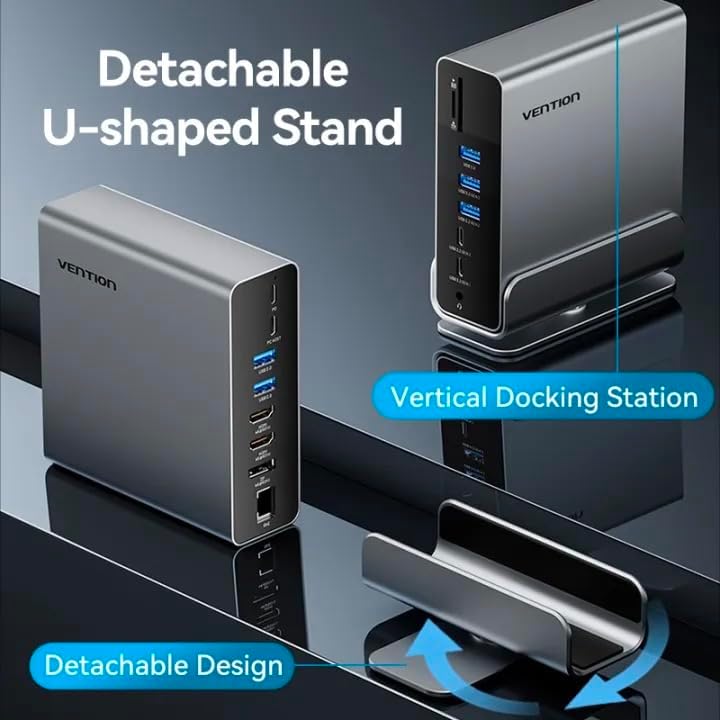
Image 4.1: Illustration of the detachable U-shaped stand and how it supports the docking station in a vertical orientation.
4.2 Connecting to Your Host Device
Ensure your host device (laptop, smartphone, etc.) has a full-featured USB-C port that supports video output (DisplayPort Alternate Mode), data transfer, and power delivery.
- Connect the USB-C cable from the docking station's Host Port to the USB-C port on your laptop or compatible device.
- For power delivery to your host device, connect your laptop's original USB-C power adapter to the Power Delivery (PD) port on the docking station. The docking station supports up to 100W power pass-through.
5. Operating Instructions
5.1 Display Connections (HDMI & DisplayPort)
The docking station supports single, dual, and triple display setups with resolutions up to 4K@60Hz. It supports both MST (Multi-Stream Transport) and SST (Single-Stream Transport) modes.
- Connect your monitors to the HDMI and/or DP ports on the docking station using appropriate cables.
- MST Mode: Allows for extended desktop across multiple displays (Windows) or mirrored/extended displays (macOS, depending on specific model/chipset limitations).
- SST Mode: Mirrors the display across all connected monitors.
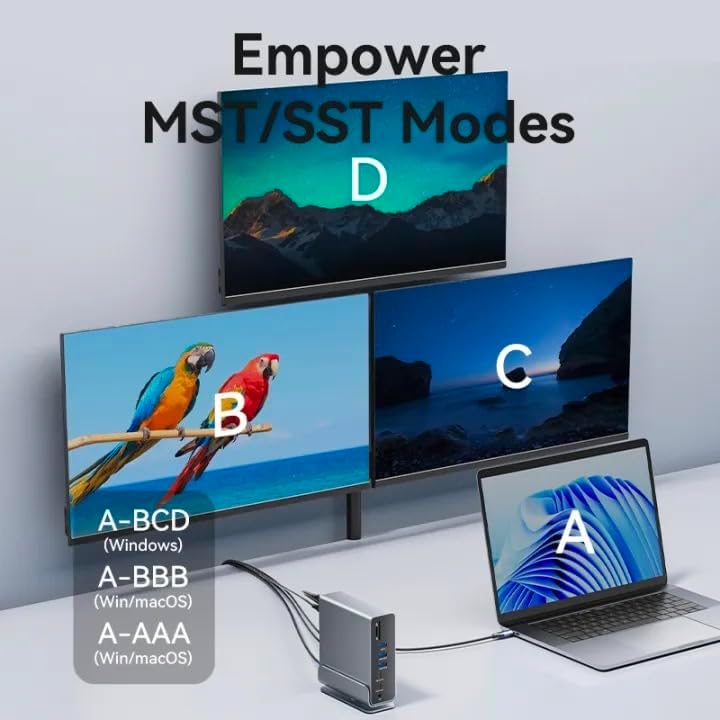
Image 5.1: Visual representation of MST (Multi-Stream Transport) and SST (Single-Stream Transport) display modes, demonstrating how the docking station can extend or mirror your desktop across multiple screens.

Image 5.2: Examples of various display configurations (A-BCD, A-BBB, A-AAA) achievable on both Windows and macOS systems using the docking station.

Image 5.3: Table detailing the maximum resolution performance for single, dual, and triple display setups on Windows and macOS systems, including MST/SST support.
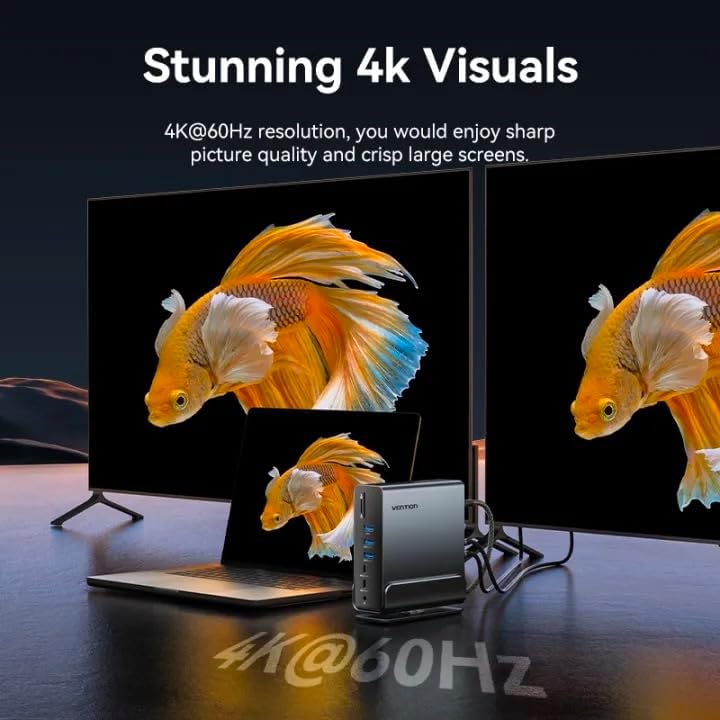
Image 5.4: A visual demonstrating the crisp 4K@60Hz resolution output achievable when connecting displays through the docking station.
5.2 Data Transfer Ports
Connect your USB devices (external hard drives, flash drives, keyboards, mice, etc.) to the available USB ports:
- USB 3.2 Gen 2-C (10Gbps): For high-speed USB-C peripherals.
- USB 3.2 Gen 2-A (10Gbps): For high-speed USB-A peripherals.
- USB 3.2 Gen 1-C (5Gbps): For standard USB-C peripherals.
- USB 3.0-A (5Gbps): For standard USB-A peripherals.
- USB 2.0-A (480Mbps): For peripherals like keyboards, mice, or printers.
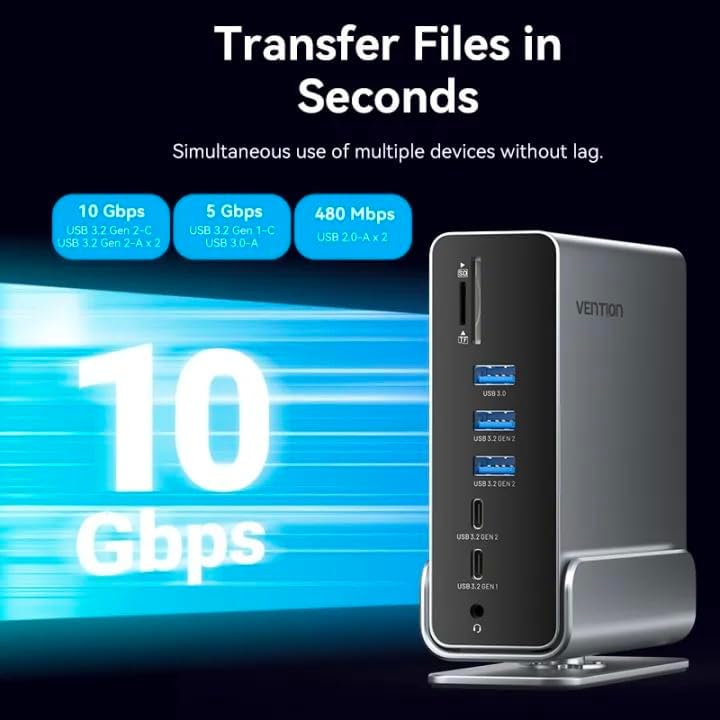
Image 5.5: Illustration highlighting the various data transfer speeds supported by the docking station's USB ports, including 10Gbps, 5Gbps, and 480Mbps.
5.3 Network Connection (RJ45)
For a stable and fast wired internet connection:
- Connect an Ethernet cable from your router or modem to the RJ45 port on the docking station.
- The docking station supports Gigabit Ethernet (1000Mbps).
5.4 Audio Connection (3.5mm TRRS)
Connect your headphones, speakers, or microphone to the 3.5mm TRRS jack for audio input/output.
5.5 SD/TF Card Reader
Insert your SD or TF (microSD) cards into the respective slots. The docking station supports simultaneous reading and writing of two cards.
6. Troubleshooting
- No Display Output:
- Ensure your host device's USB-C port supports DisplayPort Alternate Mode.
- Check all cable connections (USB-C to host, HDMI/DP to monitors).
- Try updating your graphics drivers on your host device.
- Restart your host device and reconnect the docking station.
- No Power Delivery:
- Ensure your power adapter is connected to the PD port on the docking station.
- Verify your power adapter meets the required wattage for your laptop (e.g., 65W, 100W).
- USB Devices Not Recognized:
- Try connecting the USB device to a different port on the docking station.
- Ensure the device drivers are installed on your host system.
- Disconnect and reconnect the docking station from your host device.
- Network Connection Issues:
- Check the Ethernet cable connection to both the docking station and your router/modem.
- Verify network settings on your host device.
7. Specifications
| Feature | Description |
|---|---|
| Model Name | 15-in-1 USB-C MST Docking Station |
| Brand | VENTION |
| Host Connection | USB-C (Full-featured) |
| Video Output | 1x DisplayPort (DP), 2x HDMI (4K@60Hz Max) |
| USB Data Ports | 1x USB 3.2 Gen 2 Type-C (10Gbps) 2x USB 3.2 Gen 2 Type-A (10Gbps) 1x USB 3.2 Gen 1 Type-C (5Gbps) 1x USB 3.0 Type-A (5Gbps) 2x USB 2.0 Type-A (480Mbps) |
| Ethernet | 1x RJ45 Gigabit Ethernet (1000Mbps) |
| Card Reader | 1x SD Card Slot, 1x TF (MicroSD) Card Slot (Simultaneous Read/Write) |
| Audio | 1x 3.5mm TRRS Audio Jack (Microphone/Audio) |
| Power Delivery | Up to 100W (Max) via USB-C PD port |
| Material | Aluminum Alloy Shell |
| Color | Gray |
| Compatible Devices | Laptops, Smartphones, Other Type-C Devices |
| Country of Origin | China |
8. Care and Maintenance
- Cleaning: Use a soft, dry cloth to clean the surface of the docking station. Avoid liquid cleaners or abrasive materials.
- Storage: Store the device in a cool, dry place away from direct sunlight and extreme temperatures.
- Handling: Avoid dropping or subjecting the device to strong impacts. Do not attempt to disassemble the unit.
- Ventilation: Ensure the ventilation openings are not blocked to prevent overheating, especially when using the vertical stand.
9. Warranty and Support
For warranty information and technical support, please refer to the official VENTION website or contact your local distributor. Keep your purchase receipt for warranty claims.
For further assistance, you may visit the VENTION Store online: Vention Official Store