
DIERYA K68SE
DIERYA K68se Gaming Mechanical Keyboard User Manual
Model: K68SE | Brand: DIERYA
1. Introduction
Thank you for choosing the DIERYA K68se Gaming Mechanical Keyboard. This ultra-compact 60% keyboard is designed for gamers and typists seeking a high-performance, space-saving solution with customizable RGB lighting and responsive red linear switches. This manual will guide you through the setup, operation, and maintenance of your new keyboard.
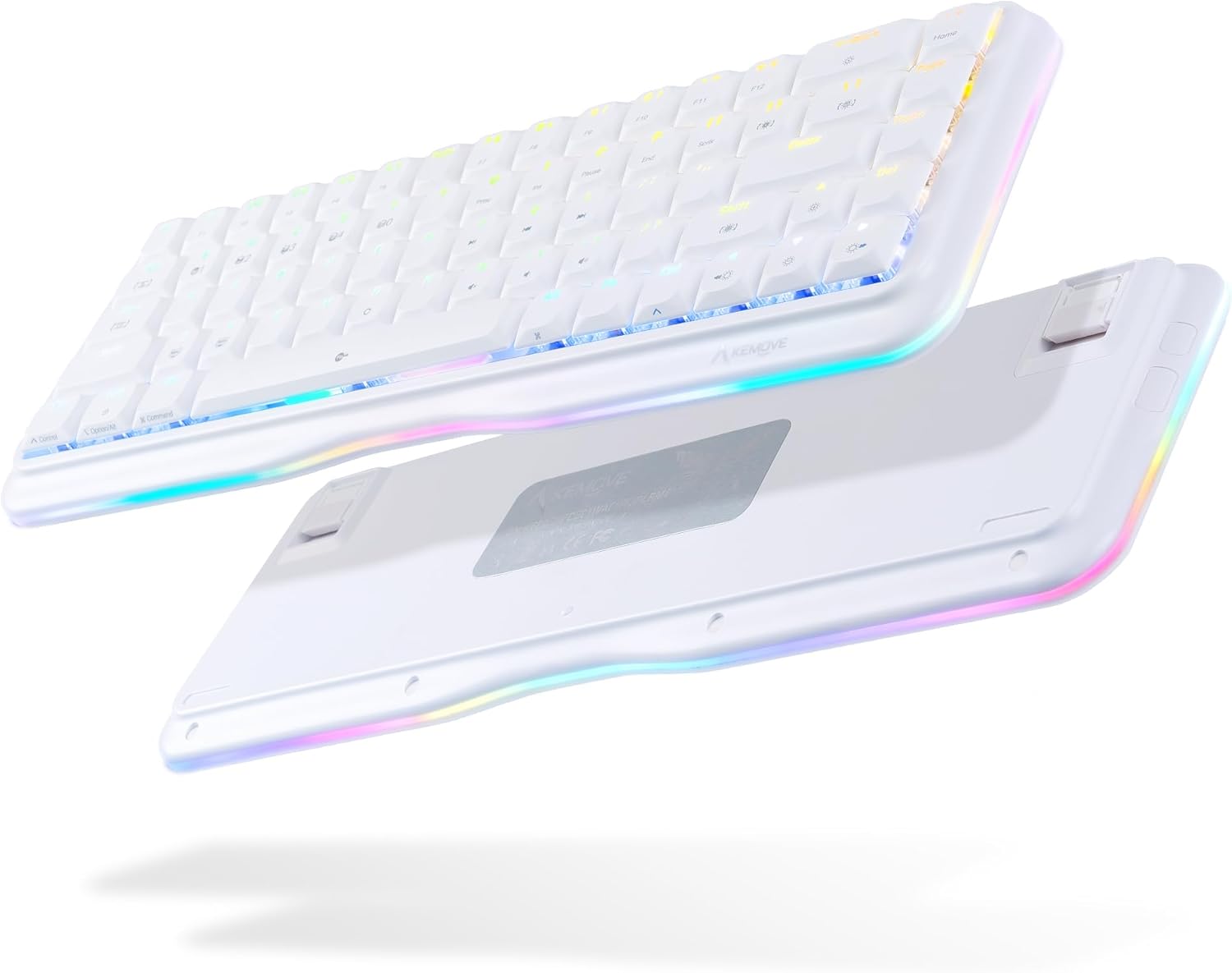
This image displays the DIERYA K68se mechanical keyboard from both a top-down and an angled bottom-up perspective, highlighting its compact 60% layout and the vibrant RGB lighting visible along the sides and through the keycaps. The bottom view shows the adjustable feet.
2. What's in the Box
Please check the package contents to ensure all items are present:
- DIERYA K68se Mechanical Keyboard
- Detachable USB Type-C Cable
- User Manual (this document)

This image displays the contents of the DIERYA K68se keyboard package, including the keyboard itself, the detachable USB cable, and the instruction manual, all neatly arranged next to the product box.
3. Setup
Setting up your DIERYA K68se keyboard is straightforward:
- Connect the Cable: Insert the USB Type-C end of the provided cable into the port on the back of the keyboard.
- Connect to Computer: Plug the USB-A end of the cable into an available USB port on your computer (PC or Laptop).
- Driver Installation: The keyboard is plug-and-play and should be automatically recognized by your operating system (Windows). No additional drivers are typically required.
- Software Installation (Optional): For advanced customization, including macro programming and detailed RGB lighting effects, download the official DIERYA software from the manufacturer's website.
4. Operating Instructions
4.1 Basic Functionality
The DIERYA K68se is a 68-key keyboard, offering a compact layout while retaining essential functionality through FN key combinations. All keys feature anti-ghosting for accurate and simultaneous key presses.
4.2 RGB Lighting Control
Your K68se keyboard features a rich RGB dynamic lighting system with multiple modes and customization options. You can control these directly from the keyboard using FN key combinations or via the dedicated software.
- Backlight Modes: The keyboard supports 19 different backlight modes.
- Side Light Modes: There are 5 distinct side light modes in basic operation.
- Custom Colors: The software allows for 16.8 million custom color options.

This image illustrates the DIERYA K68se keyboard on a desk setup, with a monitor in the background showcasing various RGB lighting customization options, including 16.8 million custom colors, 19 basic backlight modes, 5 side light strip modes, and customized lighting record capabilities.

This composite image highlights three key features of the DIERYA K68se keyboard: its "Light and Color" system with 19 backlight modes and 5 side light modes, its "Classic layout" showing the compact 68-key design compared to a full-size keyboard, and its "Ergonomic" design with adjustable 8-degree feet for comfortable long-term use.
4.3 FN Key Combinations
The FN key allows access to secondary functions printed on the keycaps. Press and hold the FN key, then press the desired function key.

This detailed diagram outlines the various FN (Function) key combinations for the DIERYA K68se keyboard, including controls for Mac/Win layout switching, RGB lighting effects (speed, brightness, modes), multimedia functions (play/pause, volume), F-keys (F1-F12), navigation keys (Home, End, Print Screen), and other special functions like Scroll Lock and factory reset.
- FN + Z/X: Switch Mac/Win key layout.
- FN + ←: Decrease the speed of the light effect.
- FN + →: Increase the speed of the light effect.
- FN + ↑: Increase the brightness of the light.
- FN + ↓: Decrease the brightness of the light.
- FN + J: The brightness of the light is weakened.
- FN + Win: Lock/Unlock the Windows key.
- FN + ]: Software lighting switching.
- FN + [: Scroll Lock.
- FN + T: Switch back to Standard layer (cannot set macro command).
- FN + R: Keyboard switch to profile 4.
- FN + E: Keyboard switch to profile 3.
- FN + W: Keyboard switch to profile 2.
- FN + Q: Keyboard switch to profile 1.
- FN + Capslock: Switch keyboard light with light effect.
- FN + Backspace: Turn off the light effect.
- FN + Tab: Switch the keyboard light strip color.
- FN + \: Hardware lighting switch.
- FN + Space: FN key function lock.
- FN + B: Press and hold for five seconds to restore the keyboard to factory default settings.
- FN + Home: Home key.
- FN + U: Print Screen.
- FN + Pause: Pause key.
- FN + I: Insert key.
- FN + P: End key.
- FN + F1 to F12: Access F1-F12 functions (e.g., FN + 1 = F1, FN + 2 = F2, etc.).
- FN + M, <, >, ?: Multimedia controls (Play/Pause, Previous Track, Next Track, Mute).
4.4 Software Customization
The DIERYA K68se supports programmable software that allows you to:
- Define custom macro keys.
- Set up 16.8 million backlit colors.
- Create and save personalized lighting profiles.
Refer to the software's user interface for detailed instructions on customization.
5. Maintenance
To ensure the longevity and optimal performance of your DIERYA K68se keyboard, follow these maintenance guidelines:
- Cleaning Keycaps: Use a soft, damp cloth with mild soap and water to clean the keycaps. Ensure they are completely dry before reattaching them. For deeper cleaning, you may carefully remove keycaps using a keycap puller (not included) and clean underneath.
- Cleaning the Keyboard Body: Wipe the keyboard body with a dry or slightly damp cloth. Avoid using harsh chemicals or abrasive materials.
- Dust Removal: Use compressed air to remove dust and debris from between the keycaps and switches regularly.
- Avoid Liquids: Do not spill liquids on the keyboard. If a spill occurs, immediately disconnect the keyboard from your computer and allow it to dry completely before reconnecting.
- Storage: Store the keyboard in a cool, dry place away from direct sunlight and extreme temperatures.
6. Troubleshooting
If you encounter issues with your DIERYA K68se keyboard, please refer to the following common solutions:
- Keyboard Not Responding:
- Ensure the USB cable is securely connected to both the keyboard and your computer.
- Try connecting the keyboard to a different USB port on your computer.
- Test the keyboard on another computer to rule out a computer-specific issue.
- RGB Lighting Not Working/Incorrect:
- Check FN key combinations for lighting control (e.g., FN + \ for hardware lighting switch, FN + Backspace to turn off/on).
- Ensure the brightness is not set to minimum (FN + ↓).
- If using software, ensure it is running correctly and not conflicting with other applications.
- Perform a factory reset: Press and hold FN + B for five seconds.
- Keys Not Registering:
- Clean around the affected key to remove any debris that might be obstructing the switch.
- If a specific key is consistently failing, it might indicate a hardware issue.
- Unexpected Behavior:
- Try restarting your computer.
- Perform a factory reset (FN + B for 5 seconds).
7. Specifications
| Feature | Description |
|---|---|
| Model Number | K68SE |
| Product Dimensions | 12.99 x 4.53 x 1.18 inches |
| Item Weight | 14.2 ounces |
| Manufacturer | Kemove |
| Connectivity Technology | USB-C (Detachable Braided Cable) |
| Keyboard Description | Mechanical |
| Switch Type | Red Linear Switch (50M+ keystrokes life) |
| Number of Keys | 68 |
| Keycap Type | Low-profile Double-shot PBT Keycaps |
| Backlighting | RGB (19 backlight modes, 5 side light modes, 16.8M custom colors) |
| Special Features | Ergonomic, Lightweight, Backlit, Low-Profile Key, Customizable Display Keys, Full Anti-Ghosting |
| Compatible Devices | Laptop, PC (Windows) |
| Color | White |

This diagram provides an exploded view of the DIERYA K68se keyboard, detailing its internal structure and solid hardware materials. Components shown include Low-Profile PBT Keycaps, Upper Housing, True Mechanical Switches, Fine-tune Satellite Switches, Fixed Plate, Silicone Pad, PCB, Lamp Strip Shell, EVA Foam, Bottom Shell, Anti Slip Foot Mats, and Adjustable Foot Stand.

A detailed view of the DIERYA K68se's low-profile PBT keycaps, emphasizing their lightweight and short U-shape design. The image also shows a disassembled red mechanical switch, highlighting its internal components and indicating a lifespan of over 60 million keystrokes.

This image provides close-up views of the DIERYA K68se's key components: Double-Shot PBT Keycaps, known for durability; DSA Profile Keycaps, designed for reduced fatigue; and the mechanical switches, noting that the K68se offers red, blue, and brown switch options (this model features red switches).
8. Warranty and Support
DIERYA offers a one-year warranty for the K68se mechanical keyboard from the date of purchase. This warranty covers manufacturing defects and ensures your product functions as intended under normal use.
For any questions, technical support, or warranty claims, please contact the DIERYA customer support team. You can typically find contact information on the official DIERYA website or through the retailer where you purchased the product.
Related documentsK68SE


Ask a question about this manual
Ask about setup, troubleshooting, compatibility, parts, safety, or missing instructions. Manuals+ will review the question and use this page’s manual context to help answer it.