
1. Product Overview
The Davolink Minions Series WiFi 6E Gaming Router (Model AXE-5400) is designed to provide ultra-fast and reliable wireless internet connectivity for both home and office environments. Featuring advanced Wi-Fi 6E technology, this router supports dual and tri-band operation, ensuring high efficiency, low latency, and seamless performance even in busy networks. Its unique design integrates powerful networking capabilities with a distinctive aesthetic.
Key Features:
- Ultra-Fast Dual Band Wi-Fi 6 Performance: Delivers speeds up to 1.77Gbps (573Mbps @2.4GHz + 1.2Gbps @5GHz), providing fast and stable wireless internet.
- Connect Up to 100 Devices Simultaneously: Ensures smooth and reliable connections for numerous devices without lag or interruption.
- Next-Gen Wi-Fi 6 Technology: Built with 2x2 MIMO, OFDMA, and 1024QAM for higher efficiency and lower latency.
- High-Speed Gigabit Ports: Equipped with 1Gbps WAN/LAN ports for optimized wired and wireless speeds, ideal for online gaming and 4K streaming.
- Advanced WPA3 Security: Features WPA3 encryption and Enhanced Open to protect your data and privacy.
- Seamless Mesh Coverage: Easy-to-use Mesh Wi-Fi system expands coverage across large homes and offices, eliminating dead zones.

Figure 1: Davolink Minions Series WiFi 6E Gaming Router (Kevin model).
2. Package Contents
Verify that all items are included in your package:
- 1 x Davolink Minions Kevin WiFi 6E Router
- 1 x Power Adapter
- 1 x Ethernet Cable (LAN Cable)
- 1 x Wi-Fi Setup Sticker with QR Code
- 1 x Quick Start Guide

Figure 2: Contents of the Davolink Minions Series WiFi 6E Router package.
3. Hardware Components
Familiarize yourself with the ports and buttons on your Davolink Minions Series WiFi 6E Router:

Figure 3: Detailed view of the router's ports and buttons.
- LED On/Off Switch: Controls the status indicator lights.
- Mesh Button: Used for configuring the Mesh Wi-Fi system.
- Factory Default Button: Resets the router to its original factory settings.
- LAN Ports: Connect wired devices such as PCs, gaming consoles, or set-top boxes.
- WAN Port: Connects to your modem for internet access.
- 12V/2A Power Input: Connects the power adapter to the router.
4. Setup Guide
4.1. Connecting the Hardware
Follow these steps to connect your router for internet access:
- Power Off Modem: Unplug the power from your modem. If your modem has a backup battery, remove it.
- Connect WAN Port: Connect an Ethernet cable from your wall port or modem to the router's WAN port.
- Connect Power Adapter: Connect the provided power adapter to the router's 12V/2A Power Input and plug it into a power outlet.
- Power On Modem: Plug in your modem and wait approximately 2 minutes for it to restart and establish a connection.
- Power On Router: Press the On/Off button on the router.
- Verify Connection: Check the LED indicators on the router to confirm a successful connection.

Figure 4: Installation diagram for connecting the router to your internet service.
4.2. LED Indicator Guide
The LED indicators provide a quick status update of your router's operation:
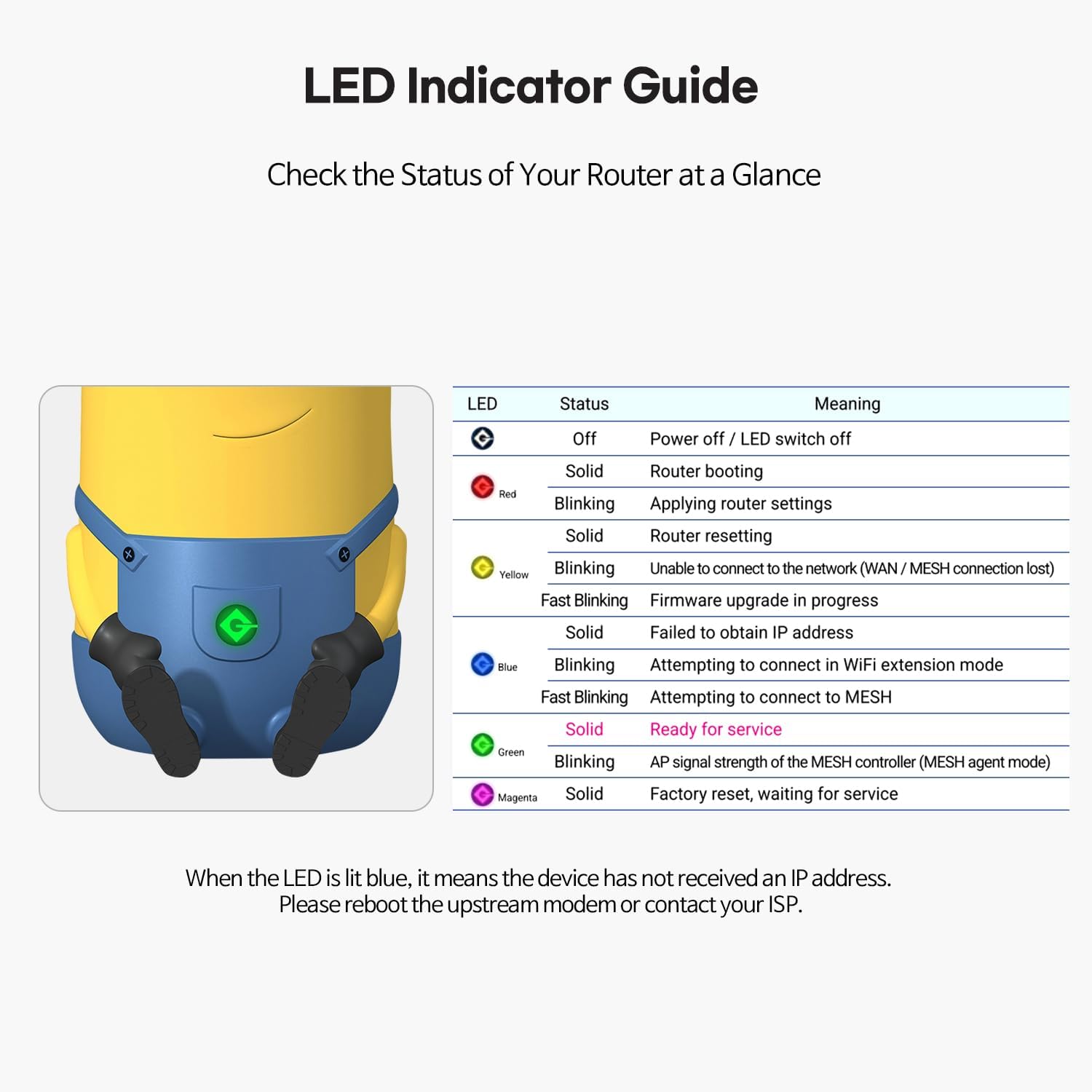
Figure 5: Guide to understanding the router's LED indicators.
| LED | Status | Meaning |
|---|---|---|
| Off | Power off / LED switch off | |
| Solid | Router booting | |
| Blinking | Applying router settings | |
| Solid | Router resetting | |
| Blinking | Unable to connect to the network (WAN / MESH connection lost) | |
| Solid | Failed to obtain IP address | |
| Blinking | Attempting to connect in WIFI extension mode | |
| Fast Blinking | Attempting to connect to MESH | |
| Solid | Ready for service | |
| Blinking | AP signal strength of the MESH controller (MESH agent mode) | |
| Solid | Factory reset, waiting for service |
If the blue LED is lit solid, the device has not received an IP address. Please reboot the upstream modem or contact your ISP.
4.3. Network Configuration
You can configure your network settings using the provided Wi-Fi Setup Sticker or by accessing the router's web interface.
- Using the Wi-Fi Setup Sticker: The sticker includes a QR code and default Wi-Fi credentials (SSID and password). Scan the QR code with your smartphone or manually enter the details to connect to the default Wi-Fi network.
- Accessing Web Interface: Launch a web browser and enter the router's default IP address (usually
192.168.0.1or192.168.1.1) in the address bar. Follow the on-screen instructions to create a password and configure your network.
5. Operating Instructions
5.1. Wi-Fi Bands and Performance
The Davolink Minions Series Router supports Tri-Band Wi-Fi, offering dedicated bands for various needs:

Figure 6: Overview of the router's Tri-Band Wi-Fi capabilities.
- 2.4 GHz Band (Up to 574 Mbps): Ideal for basic internet use, browsing, and connecting smart home devices over longer distances.
- 5 GHz Band (Up to 2,402 Mbps): Suitable for high-bandwidth activities like 4K streaming, online gaming, and video conferencing.
- 6 GHz Band (Up to 2,402 Mbps): Provides the fastest speeds and lowest latency, perfect for dedicated gaming devices, VR headsets, and 8K streaming, minimizing interference from older devices.
5.2. Optimizing for Gaming and Streaming
Leverage the router's capabilities for an enhanced gaming and streaming experience:

Figure 7: The router enhances gaming speed and responsiveness.

Figure 8: Ideal for low-latency VR gaming experiences.
- Prioritize Devices: Use the router's settings to prioritize bandwidth for gaming consoles or streaming devices to reduce lag.
- Wired Connections: For critical gaming or streaming setups, utilize the Gigabit LAN ports for the most stable and fastest connection.
- 6 GHz Band for VR: Dedicate the 6 GHz band to VR headsets for optimal performance and minimal interference, crucial for immersive experiences.
5.3. Mesh Wi-Fi System
Expand your Wi-Fi coverage and eliminate dead zones by setting up a Mesh Wi-Fi system. The Davolink Minions Series Router supports seamless mesh networking, allowing you to add compatible extenders for broader coverage.
- Easy Setup: Use the Mesh button on the router to easily pair with compatible mesh extenders.
- Unified Network: Enjoy a single Wi-Fi network name (SSID) throughout your home, with devices automatically connecting to the strongest signal.
5.4. WPA3 Security
The router employs WPA3 encryption to secure your network:
- Enhanced Encryption: WPA3 provides stronger encryption for your Wi-Fi password and data.
- Enhanced Open: Offers increased privacy even on open, unencrypted Wi-Fi networks.
6. Maintenance
Regular maintenance ensures optimal performance and security for your router:
- Firmware Updates: Periodically check for and install firmware updates from the manufacturer's website to ensure your router has the latest features and security patches.
- Regular Reboot: Rebooting your router every few weeks can help clear its memory and resolve minor network issues.
- Physical Placement: Ensure the router is placed in a central location, away from obstructions and other electronic devices that may cause interference.
7. Troubleshooting
If you encounter issues with your router, try the following solutions:
- No Internet Connection (WAN LED Blinking/Solid Blue):
- Check the connection between your modem and the router's WAN port.
- Reboot your modem and router.
- Contact your Internet Service Provider (ISP) to ensure there are no service outages.
- Cannot Access Web Management Page:
- Ensure your device is connected to the router's Wi-Fi or via an Ethernet cable.
- Try different web browsers or clear your browser's cache.
- Verify the router's IP address (e.g., 192.168.0.1) and ensure your device is set to obtain an IP address automatically.
- Forgot Wi-Fi Password or Login Password:
- Refer to the Wi-Fi Setup Sticker for default credentials.
- Perform a factory reset by pressing and holding the Factory Default Button for about 10 seconds until the LEDs indicate a reset. Note that this will erase all custom settings.
- Poor Wi-Fi Signal or Slow Speeds:
- Relocate the router to a central, elevated position, away from large metal objects or walls.
- Minimize interference from other electronic devices (microwaves, cordless phones).
- Consider adding a mesh extender for larger homes or areas with weak signals.
8. Specifications
| Feature | Detail |
|---|---|
| Product Dimensions | 4.2 x 4.8 x 9.6 inches |
| Item Weight | 3.39 pounds |
| Item Model Number | AXE-5400 |
| Brand | smart air (DAVOLINK) |
| Special Feature | WPS |
| Frequency Band Class | Tri-Band |
| Wireless Communication Standard | 802.11ax (Wi-Fi 6/6E) |
| Compatible Devices | Gaming Console |
| Recommended Uses For Product | Home |
| Connectivity Technology | Wi-Fi |
| Color | Yellow, Blue |
| Antenna Type | Internal |
9. Official Product Video
Video 1: An overview of the Davolink Minions Kevin WiFi 6E Router, highlighting its features and design.
10. Warranty and Support
For warranty information and technical support, please refer to the official Davolink Smartair website or contact their customer service. Details can typically be found in the Quick Start Guide included with your product or on the manufacturer's official support pages.