
1. Introduction
Welcome to your new Porodo 2-in-1 Wireless Office Mouse. This device offers versatile connectivity options (2.4G USB and Bluetooth 5.1), adjustable DPI settings, and a long-lasting battery, designed for efficient and comfortable use across various devices.
This manual provides detailed instructions for setup, operation, maintenance, and troubleshooting to ensure you get the most out of your mouse.
2. Package Contents
- Porodo 2-in-1 Wireless Office Mouse
- USB Receiver (for 2.4G connection)
- Charging Cable
- User Manual
3. Product Overview
Familiarize yourself with the components and design of your Porodo wireless mouse.

Image: Top-down view of the Porodo PD-21MIOM-BK wireless mouse, highlighting the scroll wheel, main buttons, and brand logo.
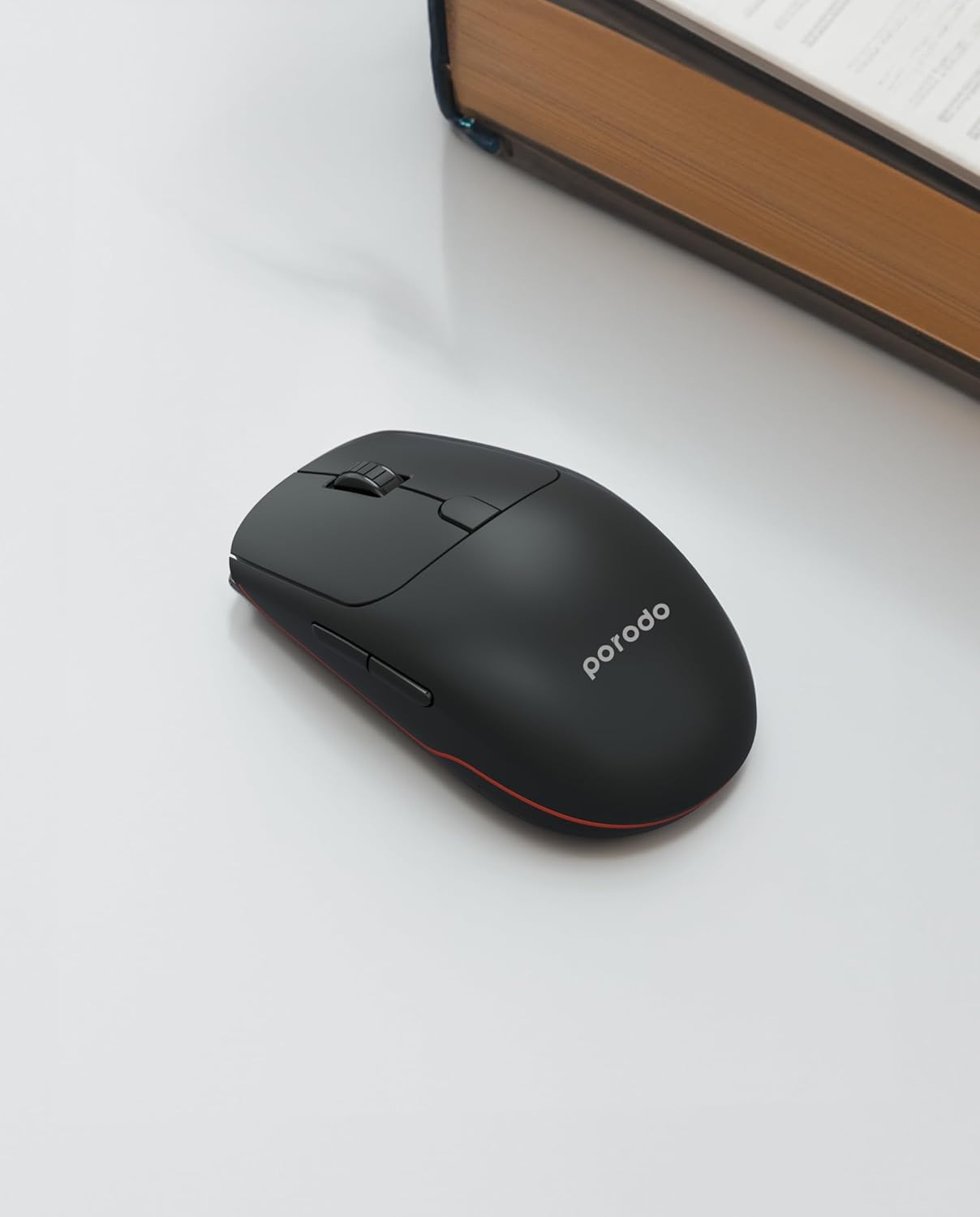
Image: Angled view of the Porodo PD-21MIOM-BK wireless mouse, showing its ergonomic design and side buttons.
4. Setup
4.1 Charging the Mouse
The mouse features a built-in 500mAh 3.7V battery. Before first use, or when the battery is low, connect the mouse to a USB power source using the provided charging cable. A full charge provides approximately 480 hours of usage.
4.2 Connecting via 2.4G USB Receiver
- Locate the USB receiver, typically stored in a compartment on the underside of the mouse.
- Plug the USB receiver into an available USB port on your computer.
- Turn on the mouse using the power switch (usually on the underside). The mouse should automatically connect to the receiver.
- Your computer will typically install the necessary drivers automatically.
4.3 Connecting via Bluetooth 5.1
- Ensure the mouse is powered on.
- Switch the mouse to Bluetooth mode using the mode switch on the underside.
- On your device (laptop, tablet, smartphone), navigate to the Bluetooth settings.
- Search for new devices. The mouse should appear as "Porodo Mouse" or similar.
- Select the mouse to pair.
- Once paired, the mouse is ready for use.
5. Operating Instructions
5.1 DPI Adjustment
The mouse supports adjustable DPI settings between 800 and 1600. To change the DPI, press the DPI button (usually located near the scroll wheel or on the underside). Each press cycles through the available DPI settings. Adjust the DPI to suit your preference for cursor speed and precision.
5.2 Switching Connection Modes
If your mouse supports both 2.4G and Bluetooth, there is a switch on the underside to select the desired connection mode. Move the switch to the 2.4G position for USB receiver connection or to the Bluetooth position for Bluetooth pairing.
5.3 Basic Functions
- Left Click: Primary selection and activation.
- Right Click: Accesses contextual menus.
- Scroll Wheel: Scrolls documents and web pages. Can also be clicked for middle-click functionality.
- Side Buttons: Often used for forward/back navigation in web browsers.
6. Maintenance
6.1 Cleaning
To clean your mouse, use a soft, dry cloth. For stubborn dirt, slightly dampen the cloth with water or a mild cleaning solution. Avoid using harsh chemicals or abrasive materials. Do not immerse the mouse in water or any liquid.
6.2 Battery Care
To prolong battery life, avoid fully discharging the mouse frequently. Recharge when the low battery indicator appears. If storing the mouse for an extended period, ensure it is partially charged and turn off the power.
7. Troubleshooting
7.1 Mouse Not Responding
- Check battery level and recharge if necessary.
- Ensure the mouse is powered on.
- For 2.4G connection: Ensure the USB receiver is securely plugged into a working USB port. Try a different USB port.
- For Bluetooth connection: Ensure Bluetooth is enabled on your device and the mouse is in pairing mode or already paired. Try re-pairing the mouse.
- Restart your computer or device.
7.2 Erratic Cursor Movement
- Clean the optical sensor on the underside of the mouse.
- Ensure you are using the mouse on a suitable surface (non-reflective, uniform color).
- Check for interference from other wireless devices.
8. Specifications
| Feature | Detail |
|---|---|
| Brand | Porodo |
| Model Number | PD-21MIOM-BK (7267547498421) |
| Connectivity Technology | 2.4G USB, Bluetooth 5.1 |
| Battery Type | 500mAh 3.7V Built-In Lithium Battery |
| Average Battery Life | Up to 480 Hours |
| Wireless Range | 8 meters |
| Movement Detection Technology | Optical |
| DPI Settings | 800-1600 DPI |
| Number of Buttons | 3 |
| Hand Orientation | Ambidextrous |
| Item Weight | 60 g |
| Product Dimensions | 12 x 6 x 0.1 cm |
| Compatible Devices | Laptop, Personal Computer, Smartphone, Tablet |
| Operating System | Linux, Windows XP (and modern operating systems) |
9. Warranty and Support
Your Porodo PD-21MIOM-BK 2-in-1 Wireless Office Mouse comes with a standard manufacturer's warranty. Please refer to the warranty card included in your package or visit the official Porodo website for detailed warranty terms and conditions.
For technical support or customer service, please contact Porodo customer support through their official channels.