
BENFEI 000347grey
BENFEI 12-in-1 USB Docking Station User Manual
Model: 000347grey
Introduction
This manual provides comprehensive instructions for the setup, operation, and maintenance of your BENFEI 12-in-1 USB Type-A/USB Type-C Docking Station. This versatile docking station expands your laptop's connectivity, offering dual HDMI display outputs, multiple USB ports, SD/TF card readers, Gigabit Ethernet, and a 3.5mm headphone jack.
Please read this manual thoroughly before using the device to ensure proper functionality and to prevent damage.
Product Features
- Instant Expansion: Adds 2 HDMI ports, 4 USB 3.0 ports, 2 USB 2.0 ports, 1 Micro SD card slot, 1 SD card slot, 1 Gigabit Ethernet LAN port, and 1 3.5mm Headphone Jack.
- Dual HDMI Display: Supports resolutions up to 2560x1440@50Hz or 1920x1080@60Hz for extended or mirrored displays. Utilizes DisplayLink Chipset.
- High-Speed Data Transfer: USB 3.0 ports offer speeds up to 5Gbps. SD/TF card readers support UHS-I mode up to 104MB/sec.
- Gigabit Ethernet: Provides stable 10/100/1000Mbps wired network access.
- Wide Compatibility: Compatible with Windows and Mac operating systems.
Package Contents
Verify that all items are present in the package:
- BENFEI 12-in-1 USB Docking Station
- USB Type-A to USB Type-B Cable
- USB-C to USB-A Adapter
- Power Adapter (12V)
Setup Guide
1. Driver Installation
Before connecting the docking station, it is crucial to install the necessary DisplayLink driver. If you have previously installed a similar USB to HDMI driver, please uninstall it first to avoid conflicts.
- Visit the official DisplayLink website to download the latest driver for your operating system (Windows or macOS).
- Run the downloaded installer and follow the on-screen prompts to complete the installation.
- Restart your computer after the driver installation is complete.
2. Connecting the Docking Station
- Connect the provided power adapter to the DC 12V port on the docking station and plug it into a power outlet.
- Connect the USB Type-A to USB Type-B cable from the docking station's USB-B port to an available USB-A port on your laptop or computer. If your computer only has USB-C ports, use the included USB-C to USB-A adapter.
- Connect your external monitors to the HDMI ports on the docking station using HDMI cables.
- Connect any USB peripherals (keyboard, mouse, external drives) to the available USB 3.0 or USB 2.0 ports.
- Insert SD or TF cards into the corresponding slots if needed.
- For wired network access, connect an Ethernet cable from your router/modem to the Gigabit Ethernet port on the docking station.
- Connect headphones or speakers to the 3.5mm audio jack for audio output.
Operating Instructions
Display Configuration
Once the docking station is connected and drivers are installed, your operating system should detect the connected displays. You can configure display settings as follows:
- Windows: Right-click on the desktop and select "Display settings" or "Screen resolution". Here you can extend, duplicate, or show only one display.
- macOS: Go to "System Preferences" > "Displays". You can arrange displays, set resolutions, and choose between extended desktop or mirroring.
The docking station supports dual HDMI output, allowing for a three-screen setup (laptop screen + two external monitors).
Data Transfer
The USB 3.0 ports provide high-speed data transfer for external hard drives, USB flash drives, and other compatible devices. The SD and TF card slots allow direct access to memory card content.
Network Connectivity
The Gigabit Ethernet port provides a stable and fast wired network connection, which is often more reliable than Wi-Fi, especially for large data transfers or online gaming.
Audio Output
The 3.5mm headphone jack provides audio output. Ensure your operating system's sound settings are configured to output audio through the docking station if you experience no sound.
Specifications
| Feature | Detail |
|---|---|
| Model Number | 000347grey |
| Dimensions | 5.5 x 2.9 x 1 inches |
| Weight | 1.17 pounds |
| Input Port | USB Type-B (connects to host via USB-A or USB-C with adapter) |
| Video Output | 2 x HDMI (Max resolution 2560x1440@50Hz, 1920x1080@60Hz) |
| USB Ports | 4 x USB 3.0, 2 x USB 2.0 |
| Card Reader | SD, TF (UHS-I up to 104MB/s) |
| Ethernet Port | Gigabit Ethernet (10/100/1000Mbps) |
| Audio Port | 1 x 3.5mm Headphone Jack |
| Power Input | DC 12V (external power adapter required) |
| Compatibility | Windows, macOS |
Maintenance and Care
- Keep the docking station in a dry environment, away from direct sunlight and extreme temperatures.
- Avoid dropping or subjecting the device to strong impacts.
- Clean the surface with a soft, dry cloth. Do not use liquid cleaners or aerosols.
- Ensure proper ventilation around the device to prevent overheating.
- Disconnect the power adapter when the device is not in use for extended periods.
Troubleshooting
- No display output:
- - Ensure the DisplayLink driver is correctly installed and your computer has been restarted.
- - Verify that the docking station is powered on and connected securely to your computer.
- - Check HDMI cable connections to both the docking station and the monitors.
- - Try different HDMI cables or monitors to rule out faulty peripherals.
- - Adjust display settings in your operating system (extend/duplicate displays).
- USB devices not recognized:
- - Ensure the docking station is properly connected to your computer's USB port.
- - Try connecting the USB device to a different port on the docking station.
- - Connect the USB device directly to your computer to verify its functionality.
- - Ensure the docking station has external power connected.
- No network connection:
- - Verify the Ethernet cable is securely connected to both the docking station and your router/modem.
- - Check network settings on your computer.
- - Ensure the network cable is functional by testing it with another device.
- No audio output from 3.5mm jack:
- - Check your computer's sound settings to ensure the docking station's audio output is selected as the default device.
- - Verify that your headphones/speakers are properly connected and functional.
Warranty and Support
BENFEI provides an unconditional 18-month warranty for this product. For any issues or support inquiries, please contact BENFEI customer service. Keep your purchase receipt for warranty claims.
For further assistance, visit the BENFEI Store on Amazon.
Product Images

Image: The BENFEI 12-in-1 USB Docking Station, shown with its various ports and included accessories such as USB cables, HDMI cables, and memory cards, highlighting its comprehensive connectivity options.

Image: A laptop connected to the BENFEI 12-in-1 Docking Station, illustrating its "Massive Expansion" capability with various cables (power, HDMI, Ethernet, audio) extending from the unit, demonstrating its role as a central hub.

Image: A laptop connected to the docking station, which in turn is connected to two external monitors, each displaying content at 2K resolution (2048x1152@60Hz), showcasing the dual display functionality.

Image: The docking station with USB 3.0 flash drives and SD/TF cards inserted, visually representing the high-speed data transfer capability of 5Gbps for USB 3.0 and 104MB/s for SD/TF cards, compared to USB 2.0.
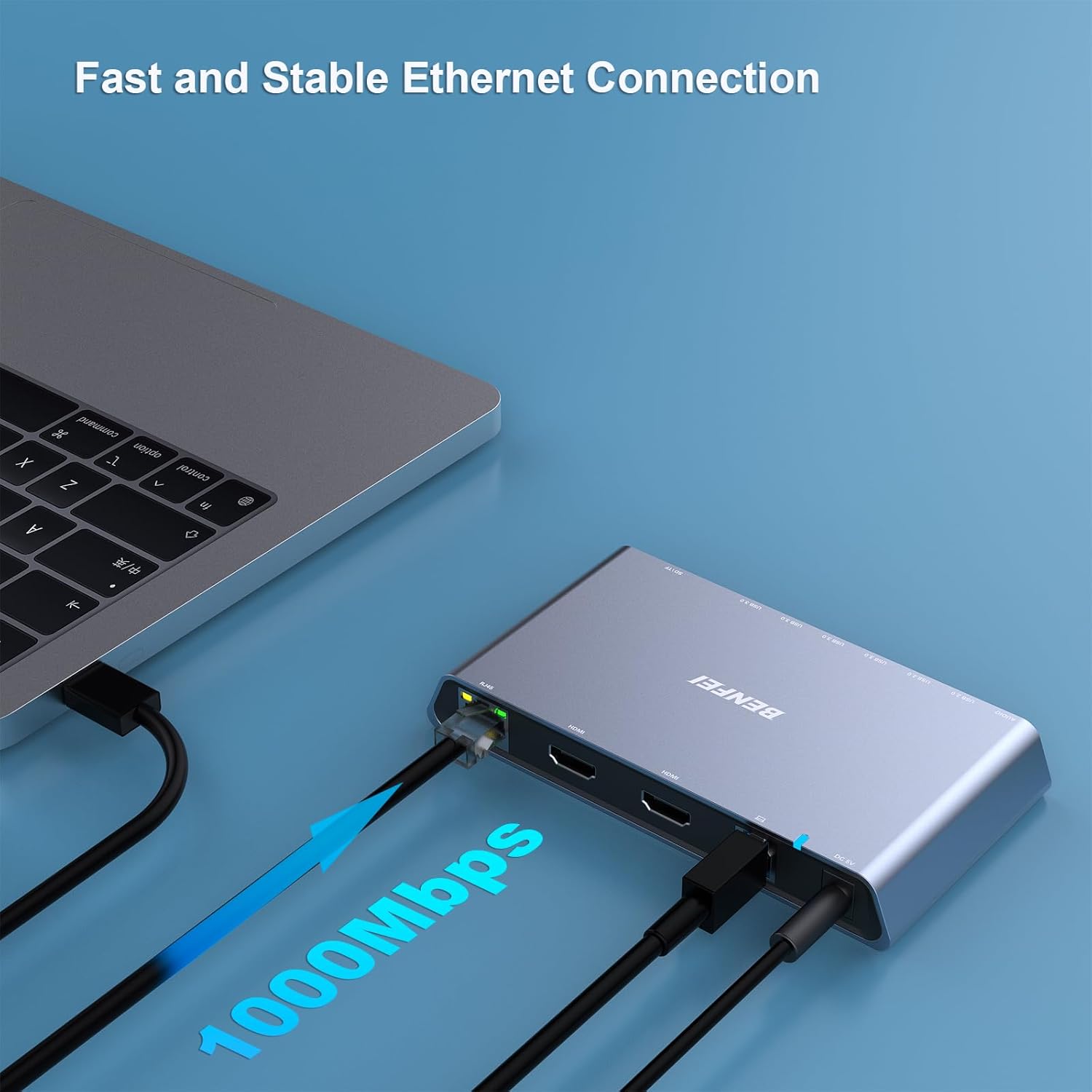
Image: The docking station connected to a laptop and an Ethernet cable, indicating a fast and stable 1000Mbps network connection, highlighting the Gigabit Ethernet port's function.

Image: The docking station with headphones plugged into its 3.5mm audio output jack, demonstrating its high-fidelity audio capability for connecting external audio devices.

Image: A visual representation of the docking station's wide compatibility, listing various devices (Desktop PC, Laptop, Mac Book Pro, Dell XPS, Lenovo, HP Envy) and operating systems (Windows, Mac OS, Chrome OS, Android, Ubuntu, Linux) it supports.
Related documents000347grey


Ask a question about this manual
Ask about setup, troubleshooting, compatibility, parts, safety, or missing instructions. Manuals+ will review the question and use this page’s manual context to help answer it.