
Tiandy TC-R3110 Spec: I/B/P8/L/S
Tiandy TC-R3110 Spark Series 10-Channel PSE NVR User Manual
Model: TC-R3110 Spec: I/B/P8/L/S
1. Product Overview
The Tiandy TC-R3110 Spark Series Network Video Recorder (NVR) is a 10-channel device designed for surveillance systems. It supports third-party network cameras and features 8 Power over Ethernet (PoE) ports for direct camera connection and power. This NVR is capable of recording and playing back video at resolutions up to 6MP and offers HDMI output at up to 4K resolution. It includes one SATA interface for an HDD (not included) up to 8TB.
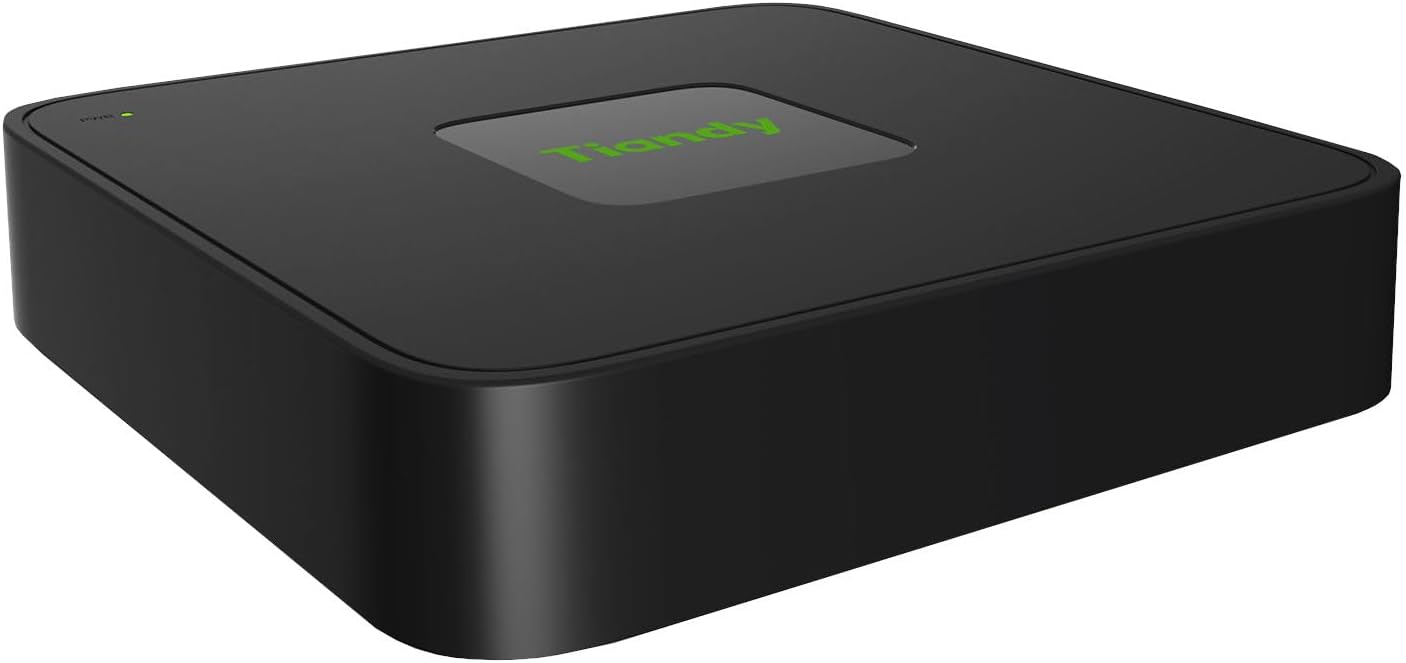
Image: Front view of the Tiandy TC-R3110 NVR. This compact black device features a subtle green Tiandy logo on its top surface and a small green LED indicator for power status, located near the front left corner.
Key Features:
- HDD Not Included (Sold Separately)
- Plug and play functionality
- Supports S+265/H.265/H.264 video formats
- Connectable to third-party network cameras
- Up to 10-channel input capacity
- Equipped with 8 PoE ports
- Supports live view, storage, and playback up to 6MP resolution
- 1x HDMI output for display
- 1 SATA interface, supporting up to 8TB per HDD
- 1x RJ45 self-adaptive 10/100 Mbps network interface
2. Setup Guide
2.1 Unpacking and Inspection
Carefully unpack the NVR and all accessories. Inspect for any signs of damage during transit. If any components are missing or damaged, contact your supplier immediately.
2.2 Hard Disk Drive (HDD) Installation (Optional)
The NVR does not include a pre-installed HDD. To enable video recording, you must install a compatible 3.5-inch SATA HDD (up to 8TB). Refer to the detailed installation instructions provided in the separate HDD installation guide or the full product manual for proper procedure.
2.3 Connecting the NVR
- Connect Cameras: Connect your IP cameras to the PoE ports (RJ45) on the rear panel of the NVR. The NVR will provide power and data connectivity to PoE-compatible cameras.
- Connect to Network: Connect the NVR's network interface (RJ45) to your local area network (LAN) using an Ethernet cable. This allows access to the NVR from other devices on the network and for internet connectivity.
- Connect Display: Connect a monitor or display to the HDMI output port for local viewing and configuration.
- Connect USB Devices: Connect a USB mouse to one of the USB 2.0 ports for navigation and control. You may also connect a USB flash drive for backup purposes.
- Power On: Connect the DC48V power adapter to the NVR's power input and then plug the adapter into a power outlet. The NVR will power on automatically.
3. Operating Instructions
3.1 Initial Configuration
Upon first power-on, the NVR will guide you through an initial setup wizard. This wizard typically includes setting up the administrator password, network settings (DHCP or static IP), date and time, and scanning for connected IP cameras.
3.2 Live View
After setup, the NVR will display the live view of connected cameras on the HDMI output. You can switch between different camera views using the screen split options (1/3/4/5/6/7/8/9/10) available through the NVR's interface.
3.3 Recording and Playback
Once an HDD is installed and configured, the NVR will begin recording based on your settings (e.g., continuous, motion detection, schedule). To play back recorded footage, access the playback menu, select the desired date, time, and camera, and initiate playback.
3.4 Remote Access
For remote access via a mobile app or web browser, ensure the NVR is connected to the internet and properly configured for remote viewing. This may involve port forwarding on your router or using a cloud service provided by Tiandy.
4. Maintenance
- Regular Cleaning: Keep the NVR free from dust and debris. Use a soft, dry cloth for cleaning. Do not use liquid cleaners.
- Firmware Updates: Periodically check the manufacturer's website for firmware updates. Keeping the firmware updated ensures optimal performance, security, and access to new features.
- Data Backup: Regularly back up important recorded footage to external storage (e.g., USB drive, network storage) to prevent data loss.
- Environmental Conditions: Ensure the NVR is operated within its specified temperature and humidity ranges to prevent damage and ensure longevity. Avoid placing it in direct sunlight or near heat sources.
5. Troubleshooting
| Problem | Possible Cause | Solution |
|---|---|---|
| NVR does not power on. | Power adapter not connected or faulty; power outlet issue. | Check power cable connection. Try a different power outlet. Ensure the power adapter is the correct one (DC48V, 1.875A). |
| No video display on monitor. | HDMI cable loose or faulty; incorrect input selected on monitor. | Ensure HDMI cable is securely connected. Select the correct HDMI input on your monitor. Try a different HDMI cable or monitor. |
| Cameras not showing up. | Camera not powered; network issue; incorrect camera IP settings. | Verify cameras are powered (PoE LED on NVR for port). Check network cables. Ensure cameras are compatible and their IP addresses are discoverable by the NVR. Perform an IP camera search on the NVR. |
| No recording. | No HDD installed; HDD faulty; recording schedule not set. | Install a compatible HDD. Check HDD status in NVR settings. Configure recording schedules for desired cameras. |
6. Specifications
| General | |
|---|---|
| Model | TC-R3110 Spec: I/B/P8/L/S |
| Brand | Tiandy (Generic) |
| Dimensions (L x W x H) | 7.87 x 7.85 x 1.69 inches (1.69 x 7.87 x 7.85 inches listed in description) |
| Weight | 0.99 pounds (15.8 ounces) |
| Power Supply | DC48V, 1.875A |
| Consumption (without HDD) | 90W |
| Chassis | 1U |
| Video/Audio | |
| Video Input | 10-channel |
| Max Resolution | 6 MP |
| Bandwidth | Income 60Mbps; Outgoing 40Mbps |
| HDMI Output | 1-ch, up to 4K (3840x2160) resolution |
| Screen Split Options | 1/3/4/5/6/7/8/9/10 |
| Decoding Format | S+265/H.265/H.264 |
| Recording Resolution | 6MP/5MP/4MP/3MP/1080P/UXGA/720P/VGA/4CIF/DCIF/2CIF/CIF/QCIF |
| Storage | |
| SATA Interface | 1 SATA interface for 1 HDD |
| Max Capacity per HDD | Up to 8TB |
| External Interfaces | |
| Network Interface | 1x RJ45 self-adaptive 10/100 Mbps |
| USB Interface | 2x USB 2.0 |
| PoE Interface | 8x RJ45 self-adaptive 10/100 Mbps |
| Power per PoE Port | 30W |
| Max Current per PoE Port | 600mA |
7. Warranty and Support
For detailed warranty information, please refer to the warranty card included with your product or visit the official Tiandy website. Technical support and customer service contact details are typically available on the manufacturer's support page. Please have your product model number (TC-R3110 Spec: I/B/P8/L/S) and serial number ready when contacting support.
Manufacturer: Tiandy
Related documentsTC-R3110 Spec: I/B/P8/L/S


Ask a question about this manual
Ask about setup, troubleshooting, compatibility, parts, safety, or missing instructions. Manuals+ will review the question and use this page’s manual context to help answer it.