
Voice Caddie A3
Voice Caddie A3 Golf GPS Watch User Manual
Model: A3
1. Introduction
The Voice Caddie A3 is a versatile golf GPS watch designed to enhance your golfing experience and support your fitness goals. This device provides precise yardage measurements, detailed green undulation data, and various course management features. Additionally, it includes a fitness mode to track your physical activity.
This manual provides essential information for setting up, operating, maintaining, and troubleshooting your Voice Caddie A3 Golf GPS Watch. Please read it thoroughly to ensure optimal performance and longevity of your device.
2. What's in the Box
Please check that all the following items are included in your package:
- Voice Caddie A3 Golf GPS Watch
- USB Charging Cable
3. Setup Guide
3.1 Initial Charging
Before first use, fully charge your Voice Caddie A3 watch. Connect the provided USB charging cable to the watch and a power source (e.g., computer USB port or wall adapter). A full charge typically takes approximately 2 hours.
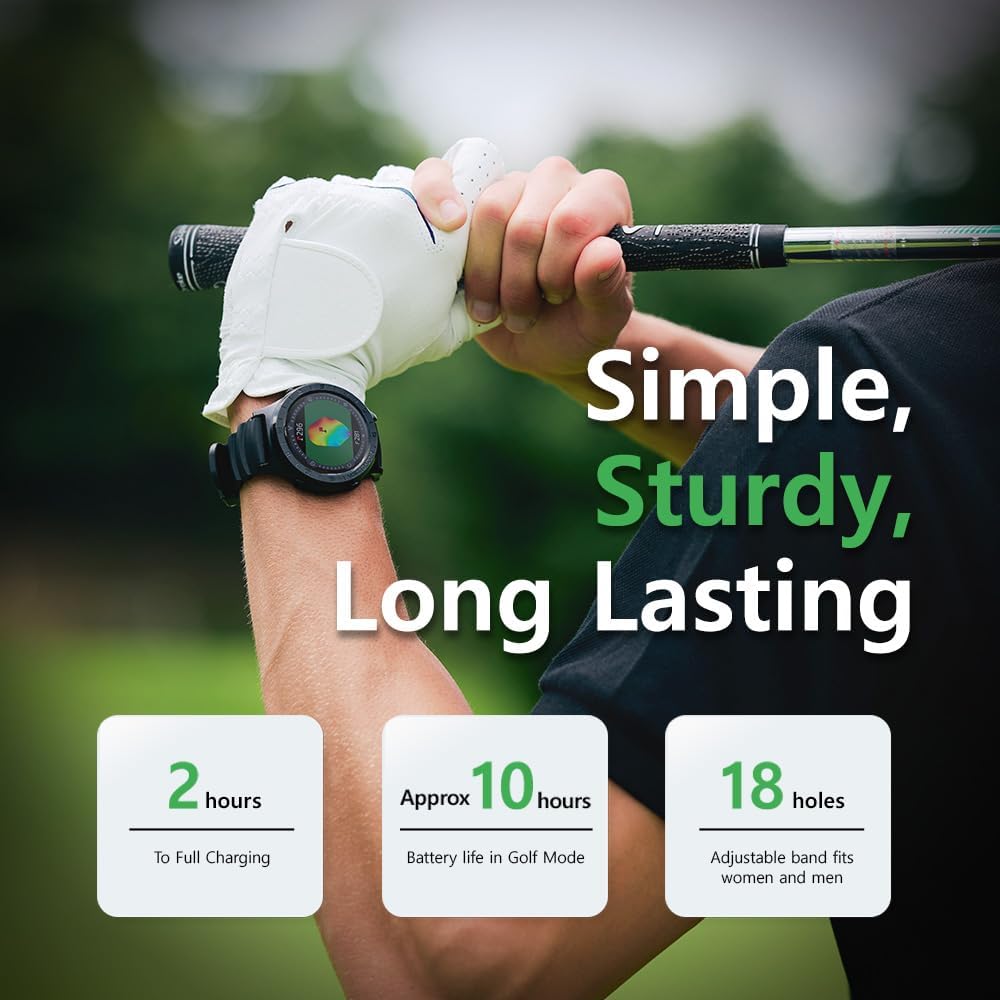
Image: The Voice Caddie A3 watch, highlighting its 'Simple, Sturdy, Long Lasting' features, including approximately 2 hours to full charge and 10 hours battery life in Golf Mode.
3.2 Powering On/Off
- To Power On: Press and hold the power button (usually located on the side of the watch) until the screen illuminates.
- To Power Off: Press and hold the power button, then select 'Power Off' from the options on the touchscreen.
3.3 Course Updates and Account Registration
The A3 comes with over 40,000 courses preinstalled. For the latest course data and complimentary subscriptions, it is recommended to create a free account on the official Voice Caddie website and regularly update your device. Refer to the Voice Caddie website for detailed instructions on course synchronization.

Image: Three Voice Caddie A3 watches showcasing different display modes, overlaid on a world map with numerous pin icons, illustrating the availability of 40,000 preloaded courses globally.
4. Operating Instructions
4.1 General Navigation (Touchscreen)
The Voice Caddie A3 features a 1.3-inch color touchscreen for intuitive navigation. Swipe left/right or up/down to access different menus and features. Tap to select options.
4.2 Golf Mode Features
To enter Golf Mode, select the 'Golf' icon from the main menu. The watch will automatically search for nearby courses.
- Green Undulation Data: The A3 provides detailed slope and contour information for greens, assisting with accurate green reading. This data is displayed visually on the watch face.
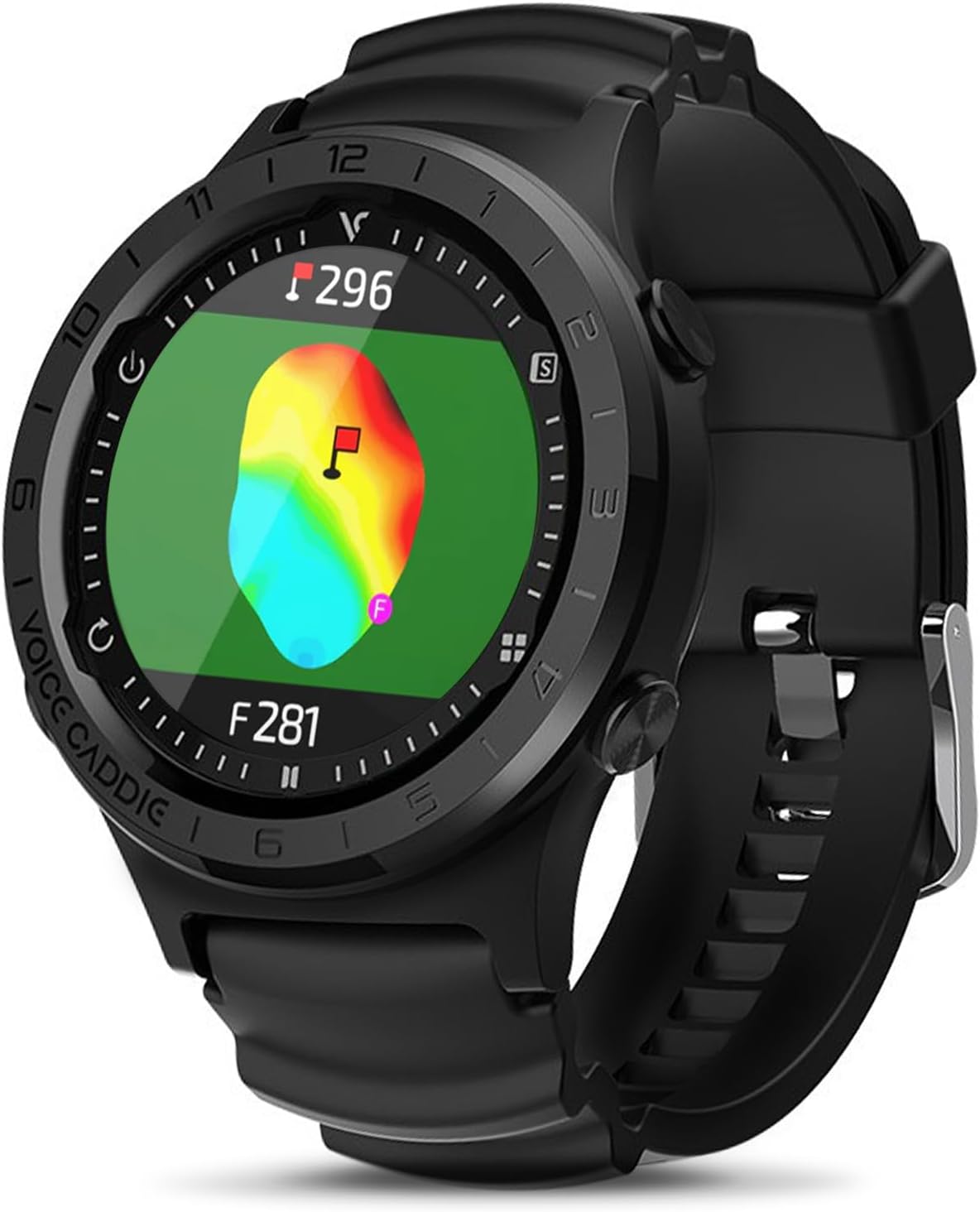
Image: The Voice Caddie A3 watch displaying a golf green with color-coded undulation data, indicating slopes and contours for improved putting accuracy.
- Smart Green View™: This feature automatically orients the green view according to your current position, providing a dynamic and accurate perspective of the green's layout and undulation.

Image: The Voice Caddie A3 watch demonstrating 'Smart Green View', which combines green undulation and course view with a full-color touchscreen, and 'Active Green View' that automatically adjusts the green's orientation based on the user's position.
- Customizable Pin Placement (Pin Reload): You can manually adjust the pin position on the green to get precise yardage calculations to the flag. Tap on the green display to move the pin.

Image: A hand pointing at the Voice Caddie A3 watch screen, illustrating the 'Pin Reload' feature where pin settings can be customized and reset to display distances to the current position.
- Slope Adjustment: The A3 accounts for elevation changes, providing 'Plays Like' distances that adjust for uphill or downhill shots. This feature can be toggled on or off based on tournament rules or personal preference.
- Smart Course View™: This feature provides a comprehensive overview of the hole, including various distance measurements.

Image: The Voice Caddie A3 watch displaying 'Smart Course View' with explanations for 'Aim Point' (distance to any point), 'Shot Distance' (distance from last shot), and 'Driver Landing Area' (visual line for preset driver distances).
- Aim Point: Provides distance to any selected point on the course map from your current position.
- Shot Distance: Measures the distance from your last shot location to your current location.
- Driver Landing Area: Displays a visual line on the map referencing preset driver distances, helping with strategic tee shots.
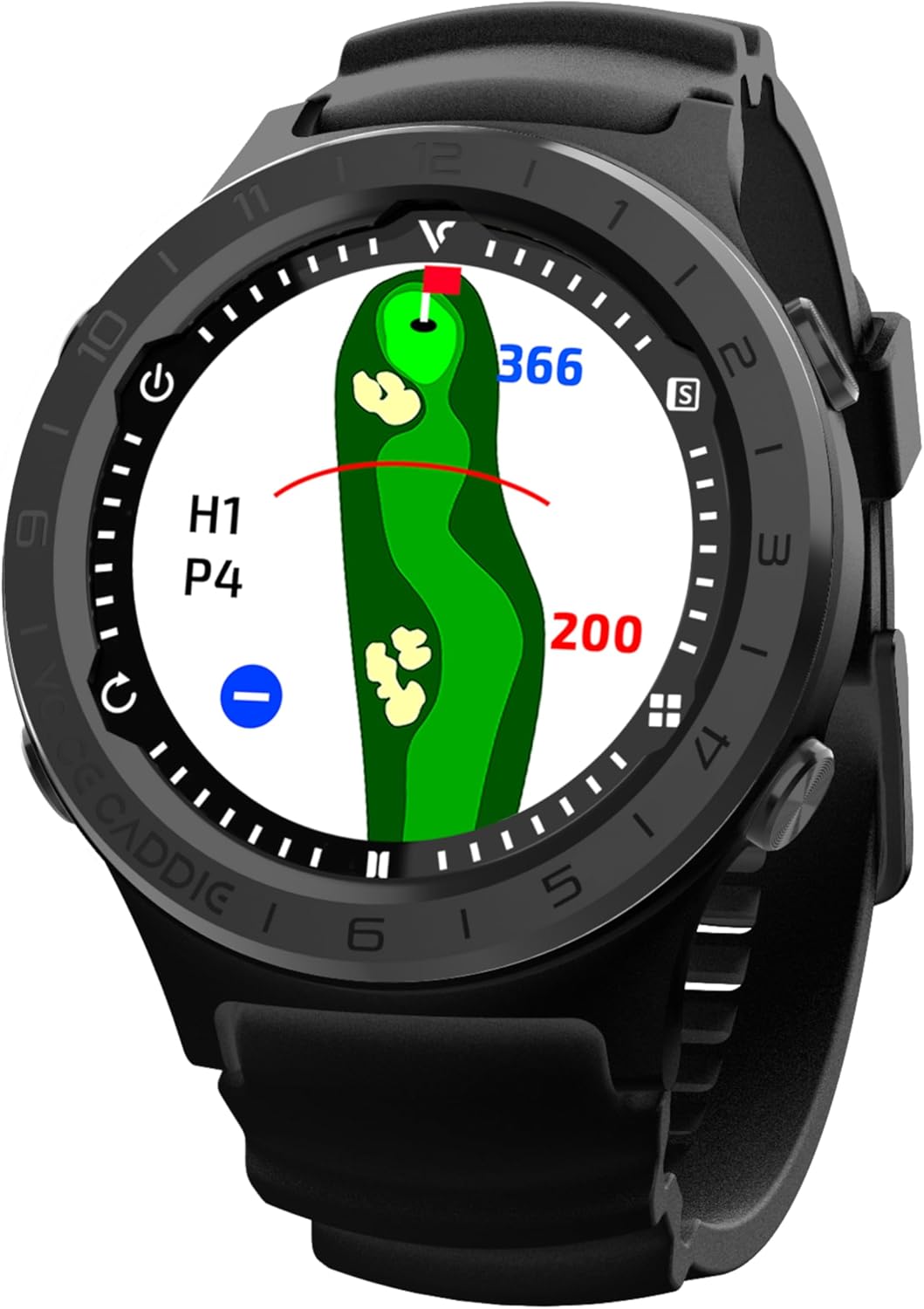
Image: The Voice Caddie A3 watch displaying a detailed course view for a specific hole, showing distances to various points on the fairway and green.
4.3 Fitness Mode
Beyond golf, the A3 includes a fitness mode to track various activities. Select 'Fitness Mode' from the main menu to access options for tracking walking, running, and cycling. The watch will record metrics such as distance, speed, and duration.

Image: A golfer wearing the Voice Caddie A3 watch, with an inset showing the watch displaying fitness mode statistics for walking, running, and cycling, including distance, speed, and time.
5. Maintenance
5.1 Cleaning
Wipe the watch body and screen with a soft, damp cloth. Avoid using harsh chemicals or abrasive materials, as these can damage the device. Ensure the charging port is clean and dry before charging.
5.2 Storage
Store the watch in a cool, dry place away from direct sunlight and extreme temperatures. If storing for an extended period, ensure the battery is partially charged (around 50%) to preserve battery health.
6. Troubleshooting
- Watch Not Powering On: Ensure the watch is fully charged. If the issue persists, try performing a soft reset by holding the power button for an extended period (e.g., 15-20 seconds).
- GPS Signal Not Found / Course Not Loading: Ensure you are in an open area with a clear view of the sky. Allow several minutes for the watch to acquire a GPS signal. Verify that the course data is up-to-date by connecting to the Voice Caddie website for updates.
- Inaccurate Distances: Confirm that the watch has a strong GPS signal. Ensure the correct course and hole are selected. If using Pin Reload, verify the pin position is accurately set.
- Touchscreen Unresponsive / Freezing: Restart the device. If the problem continues, ensure the screen is clean and dry.
- Battery Draining Quickly: Ensure the watch is fully charged before use. Reduce screen brightness or disable unnecessary features if extended battery life is required.
If you encounter persistent issues not covered here, please refer to the support section for further assistance.
7. Specifications
| Feature | Detail |
|---|---|
| Model Name | A3 |
| Display Size | 1.3 Inches |
| Display Type | Color Touchscreen |
| Item Weight | 8.8 ounces |
| Product Dimensions | 1.52 x 1.07 x 2.51 inches |
| Battery Type | 1 C battery (included) |
| Battery Life | Approx. 10 days (general use), Approx. 10 hours (Golf Mode) |
| Connectivity | USB |
| Map Type | Worldwide (40,000+ preinstalled courses) |
| Special Features | Green Undulation, Slope Adjustment, Pin Reload, Smart Green View, Smart Course View, Fitness Mode |
8. Warranty Information
The Voice Caddie A3 Golf GPS Watch comes with a limited warranty:
- Product Warranty: 1 Year from the date of purchase.
- Accessories Warranty: 6 Months from the date of purchase.
This warranty covers manufacturing defects under normal use. It does not cover damage caused by misuse, accidents, unauthorized modifications, or normal wear and tear. Please retain your proof of purchase for warranty claims.
9. Support
For further assistance, product registration, software updates, or to view frequently asked questions, please visit the official Voice Caddie website:
You may also contact Voice Caddie customer service directly through the contact information provided on their website.
Ask a question about this manual
Ask about setup, troubleshooting, compatibility, parts, safety, or missing instructions. Manuals+ will review the question and use this page’s manual context to help answer it.