
1. Product Overview
The DAYBETTER Smart WiFi LED Strip Lights (Model DC50722020W-WAUS0) provide versatile and customizable lighting for indoor spaces. These 100ft LED strips offer 16 million colors, multiple scene modes, and can be controlled via a dedicated smartphone app, voice commands through Alexa or Google Assistant, or an included remote control. Designed for easy installation, they enhance the ambiance of bedrooms, kitchens, stairs, dining rooms, ceilings, and large party areas.
Key Features:
- Smart APP Control: Control via WiFi and Bluetooth with the Daybetter APP, offering 16 million colors and various scene modes.
- Voice Control: Compatible with Alexa Echo and Google Assistant for hands-free operation.
- Music Sync: Activate music mode to synchronize light changes with audio.
- Timer & Schedule: Program automatic on/off times and countdown timers.
- Easy Installation: Self-adhesive backing allows for simple mounting on clean, dry surfaces. Cuttable design for custom lengths.
2. Setup and Installation
Follow these steps for proper installation of your DAYBETTER Smart WiFi LED Strip Lights:
- Unpack Components: Carefully remove all items from the packaging. Ensure you have the LED strip lights, power adapter, and remote control.
- Prepare Surface: Choose a clean, dry, and smooth surface for installation. Wipe down the area to remove any dust or debris.
- Measure and Cut (Optional): If a shorter length is desired, cut the LED strip along the designated cut marks (usually indicated by a copper line or scissor icon). Do not cut elsewhere, as this may damage the strip.
- Connect Power Adapter: Connect the LED strip to the power adapter. Ensure the connection is secure.
- Apply LED Strip: Peel off the adhesive backing from the LED strip. Carefully press the strip onto the prepared surface, ensuring firm contact along its entire length. For corners, gently bend the strip or use corner connectors (if included and desired for a cleaner look).
- Plug In: Plug the power adapter into a standard electrical outlet.
- Initial Test: Use the remote control or the Daybetter app to turn on the lights and test various colors and modes.
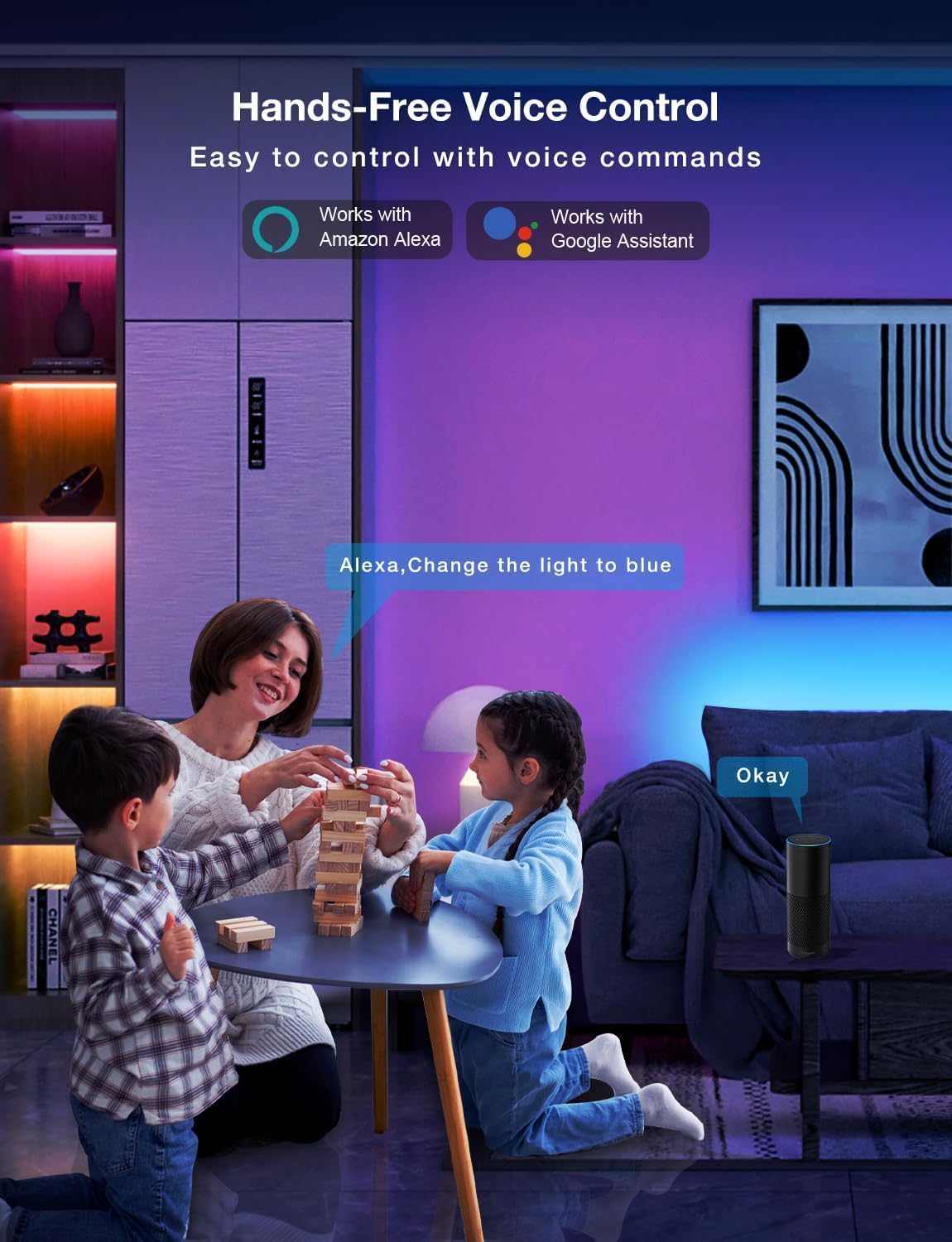
Image: Demonstrating the flexible LED strip and its adhesive backing for easy installation.

Image: Overview of the three easy setup methods: Voice Control, Daybetter App Control, and IR Remote Control.
Video: A user demonstrating the installation process and various color changes of the LED strip lights in a home setting.
3. Operating Instructions
Your DAYBETTER LED Strip Lights offer multiple control options:
3.1. Daybetter App Control (WiFi & Bluetooth)
- Download App: Search for "Daybetter" in your smartphone's app store (iOS or Android) and install the application.
- Register/Login: Create an account or log in if you already have one.
- Add Device: Follow the in-app instructions to add your LED strip lights. This typically involves ensuring the lights are powered on and your phone's Bluetooth is enabled for initial pairing.
- Control Features:
- Color Selection: Choose from 16 million colors using the color wheel.
- Brightness Adjustment: Adjust the light intensity from 0-100%.
- Scene Modes: Select from pre-set dynamic lighting effects (e.g., Party, Valentine Day, Halloween, Christmas).
- Music Sync: Activate music mode to synchronize light changes with audio.
- Timer & Schedule: Set specific times for lights to turn on/off or create countdown timers.

Image: The Daybetter app interface showing color selection and brightness control.
3.2. Voice Control (Alexa & Google Assistant)
- Connect to Smart Assistant: Ensure your Daybetter app is linked to your Amazon Alexa or Google Assistant account. Follow the instructions provided by your smart assistant app to enable the Daybetter skill/service.
- Voice Commands: Use commands such as:
- "Alexa/Hey Google, turn on [Light Name]."
- "Alexa/Hey Google, turn off [Light Name]."
- "Alexa/Hey Google, set [Light Name] to blue."
- "Alexa/Hey Google, dim [Light Name] to 50%."

Image: Voice control in action, showing a user interacting with a smart assistant to control the LED lights.
3.3. Remote Control
The included IR remote control allows for basic functions:
- Power On/Off: Dedicated buttons for turning the lights on and off.
- Color Selection: Buttons for common colors (Red, Green, Blue, White, etc.).
- Brightness Adjustment: Increase or decrease brightness.
- Dynamic Modes: Select from various pre-programmed modes like Jump, Fade, etc.
- Music Modes: Activate music-reactive modes.

Image: The included IR remote control for direct light adjustments.
4. Maintenance
To ensure the longevity and optimal performance of your LED strip lights:
- Cleaning: Gently wipe the LED strips with a soft, dry cloth to remove dust. Avoid using harsh chemicals or abrasive cleaners.
- Adhesive Care: If the adhesive begins to lose its stickiness, ensure the surface is clean and dry. For re-application, consider using additional adhesive clips or double-sided tape designed for light strips.
- Power Supply: Ensure the power adapter is not covered or placed in an area with poor ventilation to prevent overheating.
- Water Resistance: These lights are rated IP20 and are not waterproof. Avoid exposure to water or high humidity environments.
5. Troubleshooting
If you encounter issues with your LED strip lights, refer to the following common solutions:
| Problem | Possible Cause | Solution |
|---|---|---|
| Lights do not turn on. | Loose connection, power outage, faulty adapter. | Check all connections (strip to adapter, adapter to outlet). Ensure the power outlet is functional. Try a different outlet. |
| Remote control not working. | Battery depleted, remote not pointed at receiver, obstruction. | Replace remote battery. Ensure direct line of sight to the IR receiver on the controller. Remove any obstructions. |
| App control not working. | WiFi/Bluetooth issue, incorrect pairing, app glitch. | Ensure your phone's WiFi/Bluetooth is on and connected. Restart the app. Re-pair the device in the Daybetter app. Check your home WiFi network. |
| Lights are dim or flickering. | Insufficient power, damaged strip, incorrect brightness setting. | Check power connections. Adjust brightness via app or remote. If only a section is affected, that section may be damaged. |
| Adhesive is not sticking. | Surface not clean/dry, surface texture, old adhesive. | Clean and dry the surface thoroughly. For textured surfaces, use mounting clips or stronger double-sided tape. |
6. Product Specifications
| Feature | Detail |
|---|---|
| Brand | DAYBETTER |
| Model Number | DC50722020W-WAUS0 |
| Item Length | 100 Feet (2 Rolls of 50ft) |
| Light Color | Multicolor (RGB) |
| Light Source Type | LED |
| Indoor/Outdoor Usage | Indoor Only |
| Water Resistance Level | Not Water Resistant (IP20) |
| Power Source | Corded Electric |
| Voltage | 12 Volts |
| Wattage | 4.5 watts |
| Control Method | App, Voice, Remote |
| Connectivity Technology | Bluetooth, Wi-Fi |
| Smart Home Compatibility | Alexa, Google Assistant |
| Material Type | Plastic |
| Included Components | LED Lights, Power Adapter, Remote Control |
7. Warranty & Support
Manufacturer Warranty: This product comes with a 2-year manufacturer's warranty.
Return Policy: Eligible for refund/replacement within 30 days of purchase.
For further assistance or technical support, please refer to the contact information provided in your product packaging or visit the official DAYBETTER website.

