
1. Product Overview
The Contixo K102 is a 10-inch Android Kids Tablet designed for educational and entertainment purposes. It features a 1.5 GHz Quad-Core Processor, 2GB RAM, and 32GB of internal storage, expandable up to 128GB via microSD. The tablet comes with a durable kid-proof case, a built-in kickstand, and a stylus. It includes pre-installed educational apps and offers full access to Google services with parental controls.
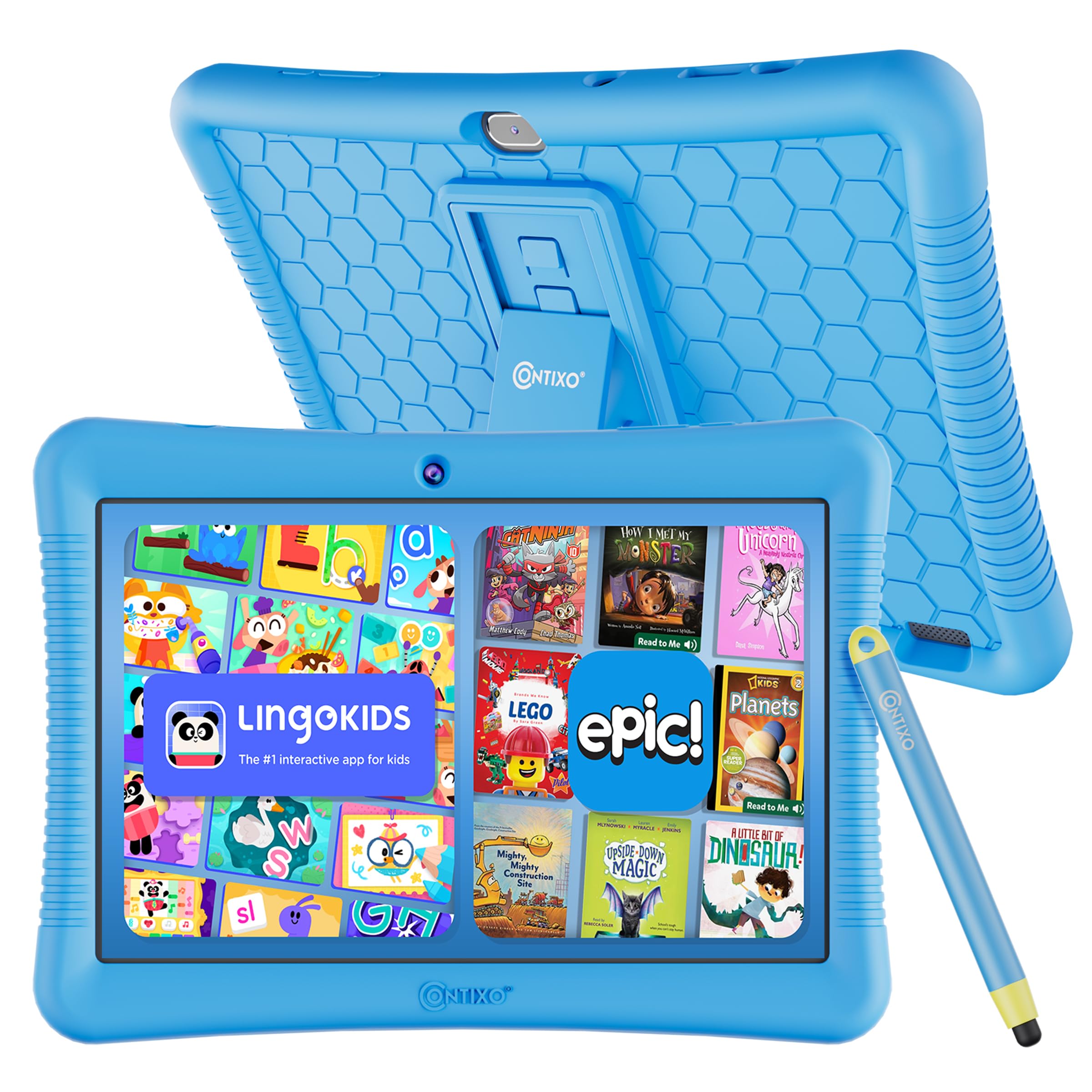
Figure 1: Contixo K102 Kids Tablet with its protective case.
2. Initial Setup
2.1 Unboxing and First Charge
Upon unboxing your Contixo K102 tablet, ensure all components are present: the tablet, kid-proof case, stylus, and charging cable. Before first use, fully charge the tablet. A full charge typically takes approximately 2.5 hours. For optimal battery health, it is recommended to charge the device overnight before initial setup.
2.2 Powering On and Initial Configuration
Press and hold the power button located on the side of the tablet until the Contixo logo appears. Follow the on-screen prompts to select your language, connect to a Wi-Fi network, and set up a Google account. A Google account is required for the tablet to function and access the Google Play Store.
2.3 Installing the Kid-Proof Case
The tablet comes with a soft silicone kid-proof case designed to protect against drops and bumps. Carefully insert the tablet into the case, ensuring all ports and buttons align with the case cut-outs. The built-in kickstand can be extended for hands-free viewing.

Figure 2: The Contixo K102 tablet secured in its shockproof case with the kickstand deployed.
3. Operating the Tablet
3.1 Navigation and Interface
The Contixo K102 operates on the Android platform, offering an intuitive touchscreen interface. Swipe left or right to navigate between home screens, tap icons to open applications, and use pinch-to-zoom gestures for images and web pages. The included stylus can be used for more precise input, especially for drawing or writing applications.
3.2 Accessing Educational Content
The tablet comes pre-loaded with over 14 kid-friendly educational apps and creativity tools from the Contixo Academy. These include games for math, reading, writing, coding, music, and problem-solving. Additionally, the tablet supports Google Kids Space, which provides a personalized experience based on your child's interests, allowing them to discover, create, and learn.

Figure 3: The tablet screen showing the Lingokids application, offering interactive learning activities.
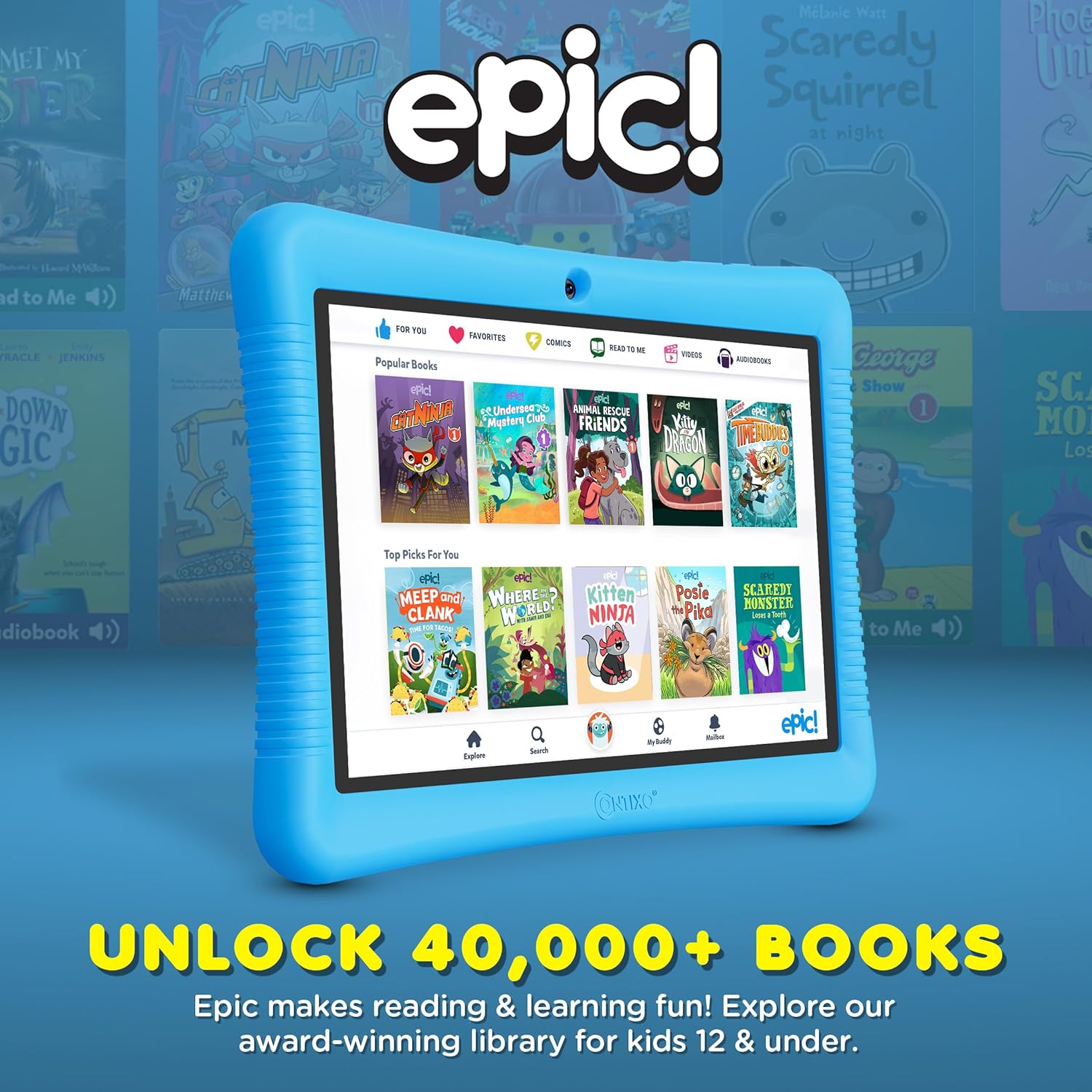
Figure 4: The tablet screen displaying the Epic! app, providing access to a library of over 40,000 books.
3.3 Using the Camera
The tablet is equipped with both front and rear cameras. To access the camera, tap the camera icon on the home screen or app drawer. Children can take photos and videos, which are saved to the tablet's gallery.
3.4 Video Playback
The Contixo K102 supports various video formats and can play content from pre-installed apps, downloaded files, or streaming services (with parental approval). The 10-inch IPS display provides a clear viewing experience.
Video 1: An official Contixo video highlighting the features of the Kids Tablet, including educational content and family connectivity.
Video 2: An official Contixo video showcasing the K102 as an ultimate learning kids tablet, emphasizing its educational capabilities.
4. Parental Controls
The Contixo K102 integrates with Google Kids Space and Family Link, providing robust parental control features. These tools allow parents to manage screen time, filter websites, apps, and videos, and prevent in-app purchases. Parents can approve or deny app downloads from the Google Play Store directly from their own device.
- Screen Time Management: Set daily limits for tablet usage.
- Content Filtering: Block access to inappropriate websites and applications.
- App Approvals: Grant or deny permission for app downloads and purchases.
- Educational Goals: Focus on specific learning content.

Figure 5: Illustration of parental control features, including screen time management and content filtering.
5. Care and Maintenance
5.1 Cleaning the Tablet
To clean the tablet screen, use a soft, lint-free cloth. For stubborn smudges, slightly dampen the cloth with water or a screen-safe cleaning solution. Avoid harsh chemicals or abrasive materials. The silicone case can be wiped clean with a damp cloth and mild soap.
5.2 Battery Care
The tablet is equipped with a 5000 mAh Lithium Polymer battery, providing up to 10 hours of use. To prolong battery life, avoid extreme temperatures and do not allow the battery to fully drain frequently. Use the provided charging cable for optimal charging. The average battery life is rated for 12 months under normal usage conditions.
5.3 Storage and Protection
Always keep the tablet in its kid-proof case to protect it from accidental drops and impacts. The case features raised edges for screen protection and reinforced corners. Store the tablet in a cool, dry place away from direct sunlight and moisture.
6. Troubleshooting
6.1 Tablet Not Powering On or Charging
- Ensure the charging cable is securely connected to both the tablet and a working power adapter.
- Try a different charging cable and adapter to rule out faulty accessories.
- If the battery is completely drained, it may take a few minutes for the charging indicator to appear.
- If the screen remains black but the charging icon appears, a hard reset might be necessary. Consult the Contixo support website for specific instructions on performing a hard reset for your model.
6.2 Slow Performance or App Crashes
- Close unused applications running in the background.
- Clear the cache of frequently used apps.
- Ensure the tablet's software is up to date.
- If performance issues persist, consider performing a factory reset (back up important data first).
6.3 Wi-Fi Connectivity Issues
- Ensure Wi-Fi is enabled on the tablet.
- Restart your Wi-Fi router.
- Forget the network on the tablet and reconnect.
- Check if other devices can connect to the same Wi-Fi network.
6.4 Sound Volume Too Loud
Some users have reported the lowest volume setting being excessively loud. If this is an issue, consider using child-safe headphones with volume limiting features for a more comfortable listening experience.
7. Product Specifications
| Feature | Detail |
|---|---|
| Brand | Contixo |
| Model Name | Touch |
| Model Number | K102 |
| Memory Storage Capacity | 32 GB (expandable to 128GB via microSD) |
| RAM Memory Installed | 2 GB |
| Screen Size | 10 Inches |
| Display Resolution Maximum | 1280 x 800 pixels (IPS) |
| Operating System | Android |
| Processor Speed | 1.6 GHz Quad-core (Allwinner) |
| Battery Capacity | 5000 Milliamp Hours (Lithium Polymer) |
| Battery Average Life | 12 months |
| Wireless Technology | Bluetooth, Wi-Fi (802.11n) |
| Connectivity Technology | Wi-Fi |
| Total USB Ports | 1 (Type-C) |
| Camera Description | Front and Rear (8 MP Rear) |
| Item Dimensions L x W x Thickness | 10"L x 7.2"W x 0.75"Th |
| Built-In Media | 80+ Disney Storybooks & Stickers, Kid-Proof Case with Kickstand & Stylus |
8. Warranty and Support
8.1 Limited Warranty
The Contixo K102 tablet comes with a limited warranty. For specific terms and conditions, please refer to the warranty information included with your product packaging or visit the official Contixo website. This warranty typically covers manufacturing defects but may not cover accidental damage.
8.2 Customer Support
For technical assistance, troubleshooting, or warranty claims, please contact Contixo customer support. Contact information can usually be found on the Contixo website or in the product documentation. It is recommended to have your model number (K102) and proof of purchase ready when contacting support.
Contixo strives for 100% customer satisfaction and aims to provide outstanding support throughout your product's lifecycle.


