
Introduction
This manual provides essential information for setting up, operating, and maintaining your Acer Nitro KG241Y M3biip 23.8-inch IPS FHD 180Hz Gaming Monitor. Please read this manual thoroughly before using your monitor to ensure proper installation and functionality. Keep this manual for future reference.
Safety Information
- Always place the monitor on a stable, flat surface.
- Do not block ventilation openings.
- Use only the power adapter and cables provided or specified by the manufacturer.
- Keep the monitor away from water, moisture, and excessive heat.
- Disconnect the power cable from the outlet before cleaning.
- Refer all servicing to qualified service personnel.
Package Contents
Verify that all items listed below are present in your package:
- Acer Nitro KG241Y M3biip Monitor
- Monitor Stand (Base and Neck)
- Power Cable
- HDMI Cable
- User Documentation
Setup
1. Monitor Assembly
- Carefully remove the monitor and stand components from the packaging.
- Attach the stand neck to the monitor panel by aligning the tabs and pushing until it clicks into place.
- Attach the stand base to the stand neck and secure it with the captive screw.
- Place the assembled monitor on a stable, level surface.

Image: Assembled Acer Nitro KG241Y M3biip monitor.
2. Connecting the Monitor
- Ensure both the monitor and your computer are powered off.
- Connect the power cable to the monitor's power input and then to a power outlet.
- Connect one end of the provided HDMI cable to an HDMI port on your computer and the other end to one of the HDMI 2.0 ports on the monitor. Alternatively, use a DisplayPort 1.2 cable to connect to the DisplayPort on the monitor and your computer.
- Power on your computer, then power on the monitor.

Image: Rear view of the monitor displaying available connection ports.
Operating the Monitor
Power On/Off
Press the power button, typically located on the bottom right or rear of the monitor, to turn the monitor on or off. The power indicator light will illuminate when the monitor is on.
OSD Menu Navigation
The On-Screen Display (OSD) menu allows you to adjust various monitor settings. Use the control buttons or joystick, usually located on the back or bottom edge of the monitor, to navigate the menu. Press the main button to enter the OSD menu, use directional controls to move between options, and press again to select or confirm.
Picture Settings
Within the OSD menu, you can adjust settings such as:
- Brightness: Adjusts the overall luminance of the screen.
- Contrast: Controls the difference between light and dark areas.
- Color Temperature: Selects preset color modes (e.g., Warm, Cool, User).
- Input Source: Manually select between DisplayPort and HDMI inputs.
Gaming Features
The Acer Nitro KG241Y M3biip monitor includes features designed to enhance your viewing experience:
- AMD FreeSync Premium: This technology synchronizes the monitor's refresh rate with your graphics card's frame rate, eliminating screen tearing and stuttering for smoother gameplay.

Image: Visual representation of AMD FreeSync Premium reducing screen tearing.
- 180Hz Refresh Rate: A higher refresh rate means the screen updates more frequently, resulting in smoother motion and reduced input lag, particularly beneficial in fast-paced games.
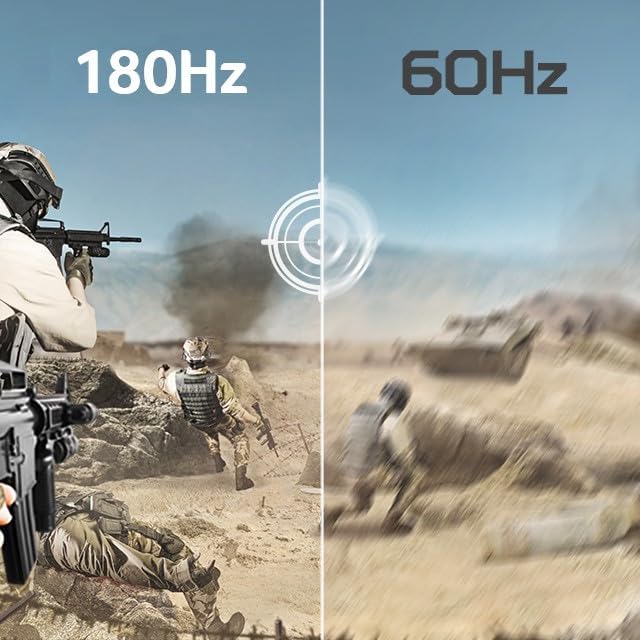
Image: Comparison illustrating the smoothness of 180Hz versus 60Hz refresh rates.
- Up to 0.5ms Response Time: A very low response time minimizes motion blur and ghosting, ensuring that fast-moving images are displayed clearly and sharply.

Image: Visual comparison highlighting the reduced motion blur with 0.5ms response time.
- HDR10 Support: High Dynamic Range (HDR) 10 provides a wider range of colors and contrasts, resulting in more vibrant and lifelike images with greater detail in both bright and dark scenes.

Image: Comparison demonstrating the improved contrast and color depth with HDR10.
- Full HD (1920 x 1080) Resolution: This resolution provides sharp and detailed images, ideal for gaming and multimedia consumption on a 23.8-inch screen.

Image: Visual comparison of 1080p Full HD resolution detail versus 720p.
Maintenance
Cleaning the Monitor
- Always unplug the monitor from the power outlet before cleaning.
- Use a soft, lint-free cloth slightly dampened with water or a mild, non-abrasive screen cleaner.
- Do not spray cleaner directly onto the screen.
- Avoid using benzene, thinner, or any volatile solvents, as they may damage the monitor surface.
Troubleshooting
If you encounter issues with your monitor, refer to the following common problems and solutions:
| Problem | Possible Solution |
|---|---|
| No Power | Ensure the power cable is securely connected to both the monitor and a working power outlet. Check the power indicator light. |
| No Signal | Verify that the video cable (HDMI or DisplayPort) is securely connected to both the monitor and your computer. Ensure the correct input source is selected in the OSD menu. |
| Distorted Image / Incorrect Resolution | Check your computer's display settings to ensure the resolution is set to 1920 x 1080 and the refresh rate to 180Hz. Update your graphics card drivers. |
| Screen Tearing / Stuttering | Ensure AMD FreeSync Premium is enabled in both the monitor's OSD menu and your graphics card's control panel. |
Specifications
| Feature | Description |
|---|---|
| Screen Size | 23.8 Inches |
| Resolution | 1920 x 1080 (Full HD) |
| Panel Type | IPS |
| Refresh Rate | 180Hz |
| Response Time | 1ms (G to G), up to 0.5ms (G to G) |
| Aspect Ratio | 16:9 |
| Color Gamut | 99% sRGB |
| HDR Support | HDR10 |
| Adaptive Sync | AMD FreeSync Premium |
| Connectivity | 1 x DisplayPort 1.2, 2 x HDMI 2.0 |
| VESA Mount Compatibility | 100 x 100mm |
| Ergonomic Tilt | -5° to 15° |
| Screen Surface | Matte |

Image: Monitor dimensions.
Warranty and Support
Your Acer Nitro KG241Y M3biip monitor is covered by a limited warranty. For detailed warranty information, please refer to the warranty card included in your package or visit the official Acer support website. For technical assistance, driver downloads, or further support, please contact Acer customer service or visit their online support portal.


