
1. Introduction
This manual provides comprehensive instructions for the installation, configuration, and operation of your ANDHOT XL-Z04 Dual-Band WiFi Repeater. Please read this manual carefully before using the device to ensure proper setup and optimal performance. This device is designed to extend your existing WiFi network coverage, eliminate dead zones, and provide stable internet access throughout your home or office.
2. Product Overview
2.1 Package Contents
- ANDHOT XL-Z04 Dual-Band WiFi Repeater
- User Manual (this document)
2.2 Key Features
- High-Speed Dual-Band WiFi: Supports 2.4 GHz (up to 300 Mbps) and 5 GHz (up to 867 Mbps) bands, totaling 1200 Mbps.
- Multiple Operating Modes: Functions as a WiFi Repeater, Router, or Access Point (AP).
- Wide Compatibility: Compatible with Wi-Fi 4 (802.11n/g/b), Wi-Fi 5 (802.11n/g/b/ac), and Wi-Fi 6 (802.11n/g/b/ac/ax) standards.
- Enhanced Coverage: Equipped with four 3dBi high-gain antennas to reduce wireless interference and extend signal range.
- Security: Supports WPS, WPA, and WPA2 encryption protocols for secure network access.
- Heat Dissipation: Designed with radiators on both sides to prevent overheating.
- Wired Connectivity: Includes Ethernet ports for connecting wired devices.
2.3 Device Layout
Familiarize yourself with the repeater's ports and indicators.

Image: Front view of the ANDHOT XL-Z04 WiFi Repeater, showing its four external antennas and LED indicators for power, WiFi signal, and WPS.

Image: Diagram highlighting key features of the WiFi Repeater, including stable chipsets, dual-band 2.4GHz & 5GHz, durable cooling, Ethernet port, antennas, 1200Mbps speed, and easy setup.
3. Setup Guide
There are two primary methods to set up your ANDHOT WiFi Repeater: via a web browser or using the WPS button.
3.1 Method 1: Web Browser Setup (Recommended)
- Power On: Plug the WiFi Repeater into a power outlet. Wait for the power indicator light to become stable.
- Connect to Repeater's WiFi: On your computer or mobile device, open your WiFi settings. Connect to the WiFi network named "ANDHOT_XXXX" or similar (without a password).
- Access Setup Page: Open a web browser (e.g., Chrome, Firefox) and enter the default IP address or domain name (usually printed on the device or in the quick start guide, e.g.,
192.168.10.1orrepeater.net). - Login: Enter the default username and password (usually "admin" for both, or as specified on the device).
- Select Mode: On the setup page, select your desired operating mode (Repeater, AP, or Router). For extending your existing WiFi, choose "Repeater Mode".
- Scan for Networks: The repeater will scan for available WiFi networks. Select your home WiFi network from the list.
- Enter Password: Enter the password for your home WiFi network.
- Configure Extended Network (Optional): You can choose to keep the same network name (SSID) or create a new one for the extended network (e.g., "YourHomeWiFi_EXT").
- Complete Setup: Follow the on-screen prompts to finalize the configuration. The repeater will restart.
- Reconnect: After the repeater restarts, reconnect your devices to the new extended WiFi network.
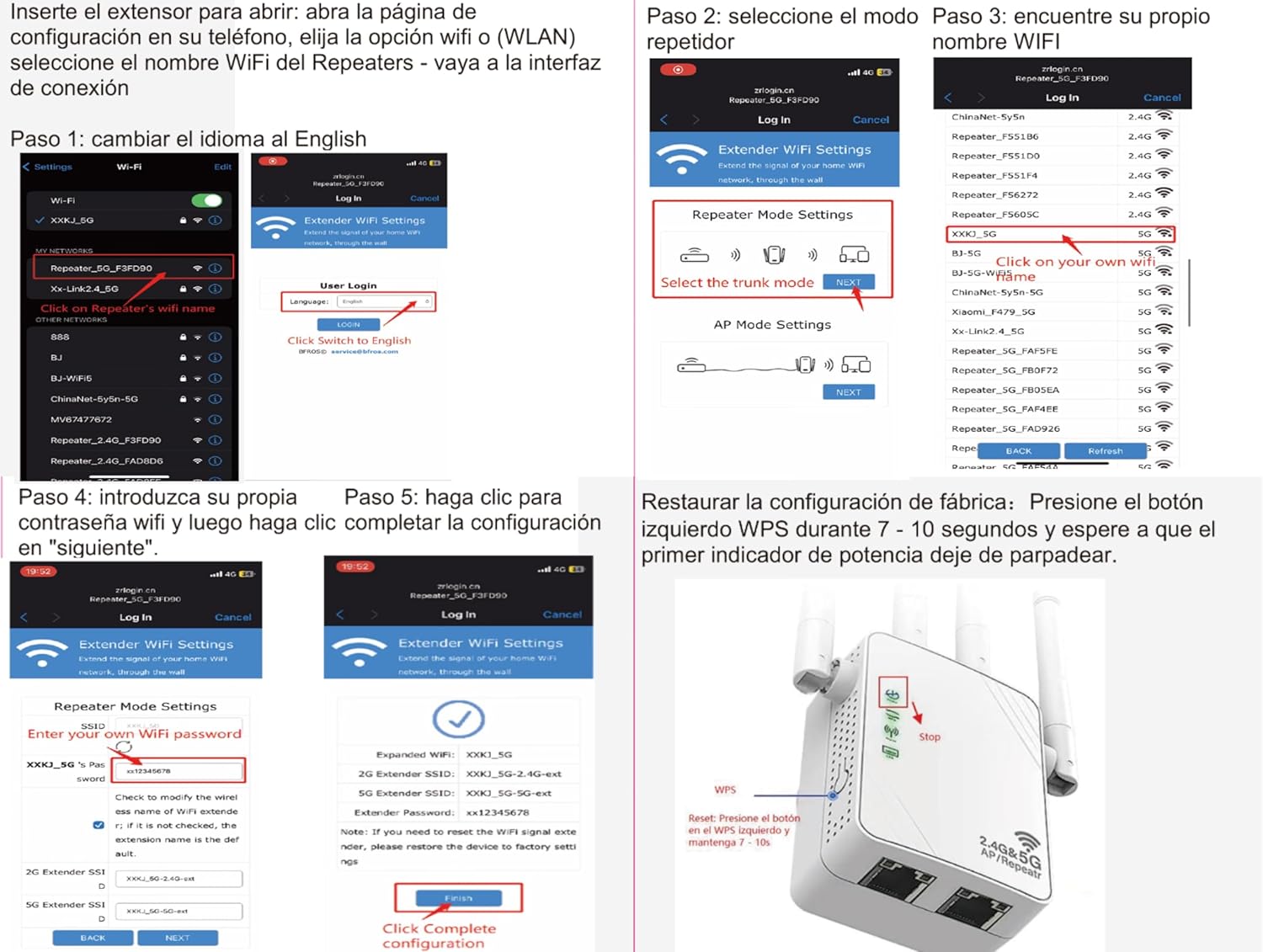
Image: A visual guide demonstrating the web browser setup process, including connecting to the repeater's WiFi, accessing the login page, selecting repeater mode, choosing the main WiFi network, entering its password, and confirming the extended network settings.
3.2 Method 2: WPS Button Setup
WPS (Wi-Fi Protected Setup) offers a quick way to connect the repeater to your main router without a web browser.
- Power On: Plug the WiFi Repeater into a power outlet near your main router.
- Activate WPS on Router: Press the WPS button on your main WiFi router. Refer to your router's manual for the exact location and timing.
- Activate WPS on Repeater: Within two minutes, press the WPS button on the ANDHOT WiFi Repeater. The WPS indicator light on the repeater should start blinking.
- Wait for Connection: The repeater will automatically connect to your router. Once connected, the signal indicator lights on the repeater will become stable.
- Relocate Repeater: Unplug the repeater and move it to a location halfway between your router and the area with poor WiFi coverage. Ensure the signal indicator lights remain stable after plugging it back in.
4. Operating Modes
The ANDHOT XL-Z04 supports three operating modes to suit various network requirements.
4.1 Repeater Mode
In Repeater Mode, the device extends the range of your existing wireless network. It receives the WiFi signal from your main router and re-broadcasts it, effectively expanding coverage to areas with weak or no signal.
- Ideal for eliminating WiFi dead zones.
- Connects wirelessly to your main router.
- Can create a new SSID or use the same as your main network.

Image: A diagram showing the Repeater Mode, demonstrating how it extends a wireless signal from a router to devices like phones, iPads, and laptops, and how it can provide a wired connection to desktops and smart TVs.
4.2 Access Point (AP) Mode
In AP Mode, the device transforms a wired internet connection into a wireless network. It connects to your router via an Ethernet cable and then broadcasts a new WiFi signal.
- Converts a wired network into a wireless one.
- Requires an Ethernet cable connection to your main router.
- Creates a new WiFi network.
4.3 Router Mode
In Router Mode, the device acts as a primary router, connecting directly to your modem and creating a new private network. This mode is typically used when you don't have an existing router or want to create a separate network.
- Connects directly to a modem.
- Creates a new private WiFi network.
- Provides DHCP services and network address translation (NAT).

Image: An illustration detailing the three operational modes: WISP (Wireless Internet Service Provider), AP (Access Point), and Router Mode, showing how the device functions in each configuration.
4.4 Connecting Wired Devices
The repeater includes Ethernet ports, allowing you to connect wired devices such as desktop computers, smart TVs, or gaming consoles to the network, even when operating in Repeater Mode.

Image: An illustration depicting the WiFi Repeater connected to various wired devices, including a computer, smart socket, monitor, smoke alarm, mobile phone, electronic lock, TV box, and air conditioner, demonstrating its versatility.
5. Maintenance
To ensure the longevity and optimal performance of your ANDHOT WiFi Repeater, consider the following maintenance tips:
- Placement: Place the repeater in a well-ventilated area, away from direct sunlight, heat sources, and moisture. Avoid placing it near large metal objects or electrical appliances that may cause interference.
- Cleaning: Gently wipe the device with a soft, dry cloth. Do not use liquid cleaners or aerosols.
- Firmware Updates: Periodically check the manufacturer's website for firmware updates. Updating firmware can improve performance, add new features, and enhance security.
- Power Cycle: If you experience network issues, try power cycling the repeater (unplug it for 10 seconds, then plug it back in).
6. Reset Function
If you need to reset the repeater to its factory default settings (e.g., to change the password or resolve configuration issues), follow these steps:
- Ensure the repeater is powered on.
- Locate the reset button (usually a small pinhole button) on the device.
- Using a paperclip or a similar pointed object, press and hold the reset button for approximately 8 seconds.
- Release the button when the power indicator light starts blinking rapidly.
- The repeater will restart with factory default settings. You will need to reconfigure it as a new device.
7. Troubleshooting
| Problem | Possible Solution |
|---|---|
| Cannot access the setup page. |
|
| No internet access after setup. |
|
| Weak or unstable signal from the repeater. |
|
| Forgot login password for the repeater. |
|
8. Specifications
| Brand | ANDHOT |
| Model Number | XL-Z04 |
| Wireless Standard | 802.11ac (backward compatible with 802.11n/g/b/ax) |
| Frequency Bands | 2.4 GHz, 5 GHz (Dual-Band) |
| Data Transfer Rate | Up to 1200 Mbps (300 Mbps on 2.4 GHz, 867 Mbps on 5 GHz) |
| Antennas | 4 x 3dBi High-Gain Antennas |
| Operating Modes | Repeater, AP, Router |
| Security Protocols | WPS, WPA, WPA2 |
| Special Features | Anti-jamming, Heat Dissipation Design |
| Compatible Devices | Router, iPad, Laptops, Mobile Phones, IP Cameras, Printers, Alexa devices, etc. |
| Product Dimensions | Approx. 4 cm (D) x 9 cm (W) x 18 cm (H) |
9. Safety Information
- Do not expose the device to water or moisture.
- Do not attempt to disassemble or repair the device yourself.
- Use only the power adapter provided or recommended by the manufacturer.
- Keep the device away from children and pets.
- Ensure proper ventilation to prevent overheating.
10. Warranty and Support
For warranty information and technical support, please refer to the documentation included with your purchase or visit the official ANDHOT website. Keep your purchase receipt for warranty claims.