
1. Introduction
This manual provides essential instructions for the safe and effective use of your Apexcam X70PRO Action Camera. Please read this manual thoroughly before operating the device to ensure proper functionality and to prevent damage. The Apexcam X70PRO is designed to capture high-quality video and photos in various environments, including underwater, with features like 4K resolution, Electronic Image Stabilization (EIS), Wi-Fi connectivity, and a dual-screen design.
2. Package Contents
Verify that all items listed below are present in your package:
- Apexcam X70PRO Action Camera
- Waterproof Case
- Remote Control
- Battery Charger
- Lithium Ion Batteries (2 included)
- Helmet Accessories (various mounts and straps)
- USB Cable
- User Manual

Image: The Apexcam X70PRO Action Camera displayed with its comprehensive set of included accessories, such as the waterproof housing, remote control, and various mounting options.
3. Camera Overview
Familiarize yourself with the main components of your Apexcam X70PRO camera.
- Front Screen: For vlogging and selfies.
- Rear 2-inch IPS Touch Screen: Main interface for settings, preview, and playback.
- Lens: Wide-angle lens for capturing expansive scenes.
- Power/Mode Button: Turns the camera on/off and switches between modes.
- Shutter/Select Button: Starts/stops recording or takes photos.
- Up/Down Navigation Buttons: Used for menu navigation and zoom.
- Microphone: Built-in for audio recording.
- Speaker: For audio playback.
- USB Port: For charging and data transfer.
- MicroSD Card Slot: For memory card insertion.
- Battery Compartment: Houses the removable battery.

Image: The Apexcam X70PRO Action Camera highlighting its dual-screen functionality, with a responsive rear touch screen for intuitive control.
4. Setup
4.1 Battery Installation and Charging
- Open the battery compartment cover on the bottom of the camera.
- Insert a fully charged Lithium Ion battery, ensuring correct polarity.
- Close the battery compartment cover securely.
- To charge, connect the camera to a USB power source using the provided USB cable, or use the external battery charger for the spare battery. The charging indicator will illuminate during charging and turn off when complete.
4.2 MicroSD Card Installation
A high-speed MicroSD card (Class 10 or UHS-I/UHS-3 recommended, up to 128GB) is required for recording. The card is not included.
- Locate the MicroSD card slot on the side of the camera.
- Insert the MicroSD card with the gold contacts facing the back of the camera until it clicks into place.
- To remove, gently push the card until it springs out.
4.3 Waterproof Case Usage
The included waterproof case allows the camera to be used underwater up to 40 meters (131 feet).
- Ensure the camera is dry and clean before placing it inside the waterproof case.
- Open the latch on the waterproof case and carefully insert the camera.
- Close the latch firmly to ensure a watertight seal.
- Before first use, test the waterproof case without the camera by submerging it in water to check for leaks.

Image: The Apexcam X70PRO Action Camera securely enclosed within its transparent waterproof housing, ready for underwater use.
4.4 Mounting Accessories
Various mounts are included to attach the camera to helmets, bicycles, and other surfaces. Refer to the accessory guide for specific attachment methods.
5. Operating the Camera
5.1 Power On/Off
- Power On: Press and hold the Power/Mode button for a few seconds.
- Power Off: Press and hold the Power/Mode button for a few seconds until the screen turns off.
5.2 Mode Switching
Press the Power/Mode button repeatedly to cycle through available modes: Video Recording, Photo Mode, and Playback Mode.
5.3 Recording Video
- Switch to Video Recording mode.
- Press the Shutter/Select button to start recording. A red indicator light will flash.
- Press the Shutter/Select button again to stop recording.
5.4 Taking Photos
- Switch to Photo Mode.
- Frame your shot using the screen.
- Press the Shutter/Select button to take a photo.
5.5 Menu Navigation and Settings
Use the rear touch screen to access and adjust camera settings. Swipe or tap to navigate through menus. Alternatively, use the Up/Down buttons to scroll and the Shutter/Select button to confirm selections.
5.6 Wi-Fi Connection and App Usage
The camera features built-in Wi-Fi for connecting to a smartphone or tablet via the 'Live DV' app (available for iOS and Android). This allows for remote control, live preview, and sharing of content.
- Enable Wi-Fi on the camera through the settings menu.
- On your mobile device, connect to the camera's Wi-Fi network (SSID and password displayed on the camera screen).
- Open the 'Live DV' app to control the camera and manage files.
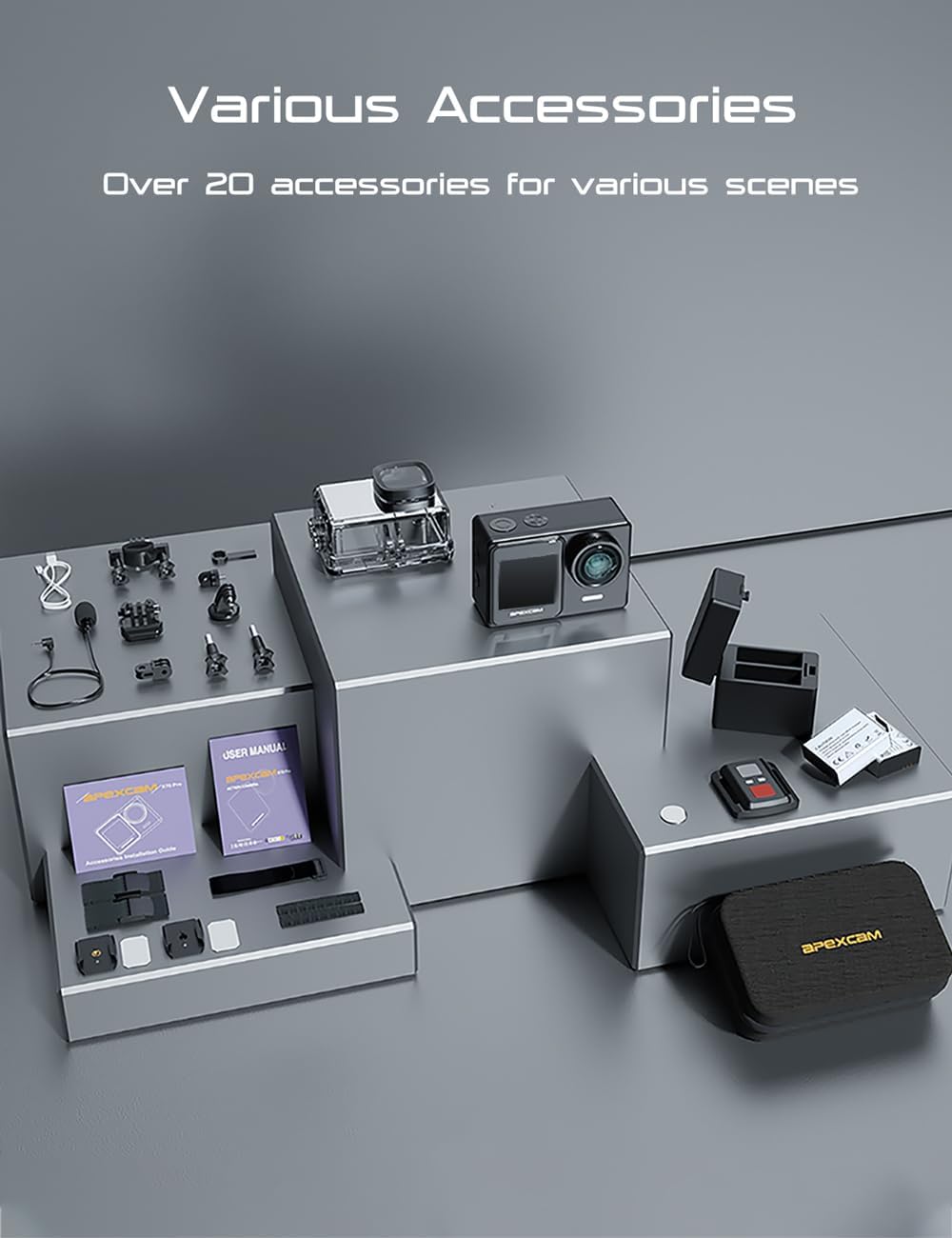
Image: The Apexcam X70PRO Action Camera demonstrating its Wi-Fi connectivity, allowing users to share captured moments directly to social media platforms via a connected smartphone.
5.7 Remote Control Operation
The included remote control allows for convenient operation from a distance.
- Ensure the remote control battery is installed.
- Press the designated button on the remote to start/stop video recording or take a photo.
5.8 Electronic Image Stabilization (EIS)
The camera features Electronic Image Stabilization (EIS) to reduce blur and shake in videos, especially during active use. Enable or disable EIS in the camera settings for smoother footage.

Image: A visual comparison showing the effect of Electronic Image Stabilization (EIS) on the Apexcam X70PRO, with a clear, stable image on the left (EIS On) versus a blurred image on the right (EIS Off) during motion.
5.9 Dual Screen Functionality
The camera is equipped with both a front screen and a rear 2-inch IPS touch screen. The front screen is ideal for framing self-portraits or vlogs, while the rear screen provides comprehensive control and playback options.

Image: The Apexcam X70PRO Action Camera showcasing its dual-screen design, with both the front and rear displays active, offering versatile viewing and control options.
5.10 Underwater Mode
When using the camera with the waterproof case, activate the dedicated Underwater Mode in the settings for optimized color balance and clarity in aquatic environments.

Image: The Apexcam X70PRO Action Camera, encased in its waterproof housing, partially submerged in clear blue water, demonstrating its capability for underwater photography and videography.
6. Maintenance
6.1 Cleaning
- Use a soft, lint-free cloth to clean the camera body and lens.
- For the waterproof case, rinse with fresh water after saltwater use and allow to air dry. Ensure no debris is trapped in the seal.
- Do not use harsh chemicals or solvents.
6.2 Storage
- Store the camera in a cool, dry place away from direct sunlight.
- Remove batteries if storing for extended periods.
6.3 Battery Care
- Charge batteries fully before each use.
- Avoid extreme temperatures when charging or using batteries.
- Dispose of depleted batteries according to local regulations.
7. Troubleshooting
If you encounter issues with your camera, refer to the following common solutions:
| Problem | Possible Solution |
|---|---|
| Camera does not power on | Ensure the battery is fully charged and correctly inserted. Try using the spare battery. |
| Cannot record video/take photos | Check if a MicroSD card is inserted and has sufficient free space. Ensure the card is formatted correctly (FAT32). |
| Poor video/photo quality | Check resolution settings. Ensure the lens is clean. Verify EIS is enabled for smoother video if needed. |
| Wi-Fi connection issues | Ensure Wi-Fi is enabled on the camera and your mobile device. Restart both devices. Re-enter the Wi-Fi password. |
| Camera freezes or becomes unresponsive | Remove and reinsert the battery to perform a hard reset. |
8. Specifications
| Feature | Detail |
|---|---|
| Model Name | X70PRO |
| Video Capture Resolution | 4K (30FPS) |
| Photo Resolution | 20 Megapixels |
| Waterproof Depth | Up to 40 meters (131 feet) with waterproof case |
| Image Stabilization | Electronic Image Stabilization (EIS) |
| Screen Size | 2 Inches (Rear IPS Touch Screen) + Front Screen |
| Viewing Angle | 170 Degrees (Wide Angle) |
| Connectivity | Wi-Fi |
| Battery Type | Lithium Ion (2 included) |
| Supported Audio Format | AAC, MP3, PCM |
| Product Dimensions | 1.65 x 2.49 x 1.21 inches |
| Item Weight | 1.48 pounds |
9. Warranty and Support
Apexcam is committed to providing quality products and customer satisfaction. While specific warranty details are not provided in this manual, Apexcam offers 24-hour after-sales service. For any product-related inquiries, technical support, or warranty claims, please contact Apexcam customer service through the official website or your purchase platform. Keep your proof of purchase for warranty purposes.


